> ## Documentation Index
> Fetch the complete documentation index at: https://docs.ntop.com/llms.txt
> Use this file to discover all available pages before exploring further.
# How to work with CAD bodies
## Objective:
Learn how to extract bodies from imported CAD for use in workflows.
## Applies to:
* CAD Parts
* CAD Assemblies
* CAD Faces
## Procedure:
#### **Extraction by Properties**
## **Extraction by Properties:**
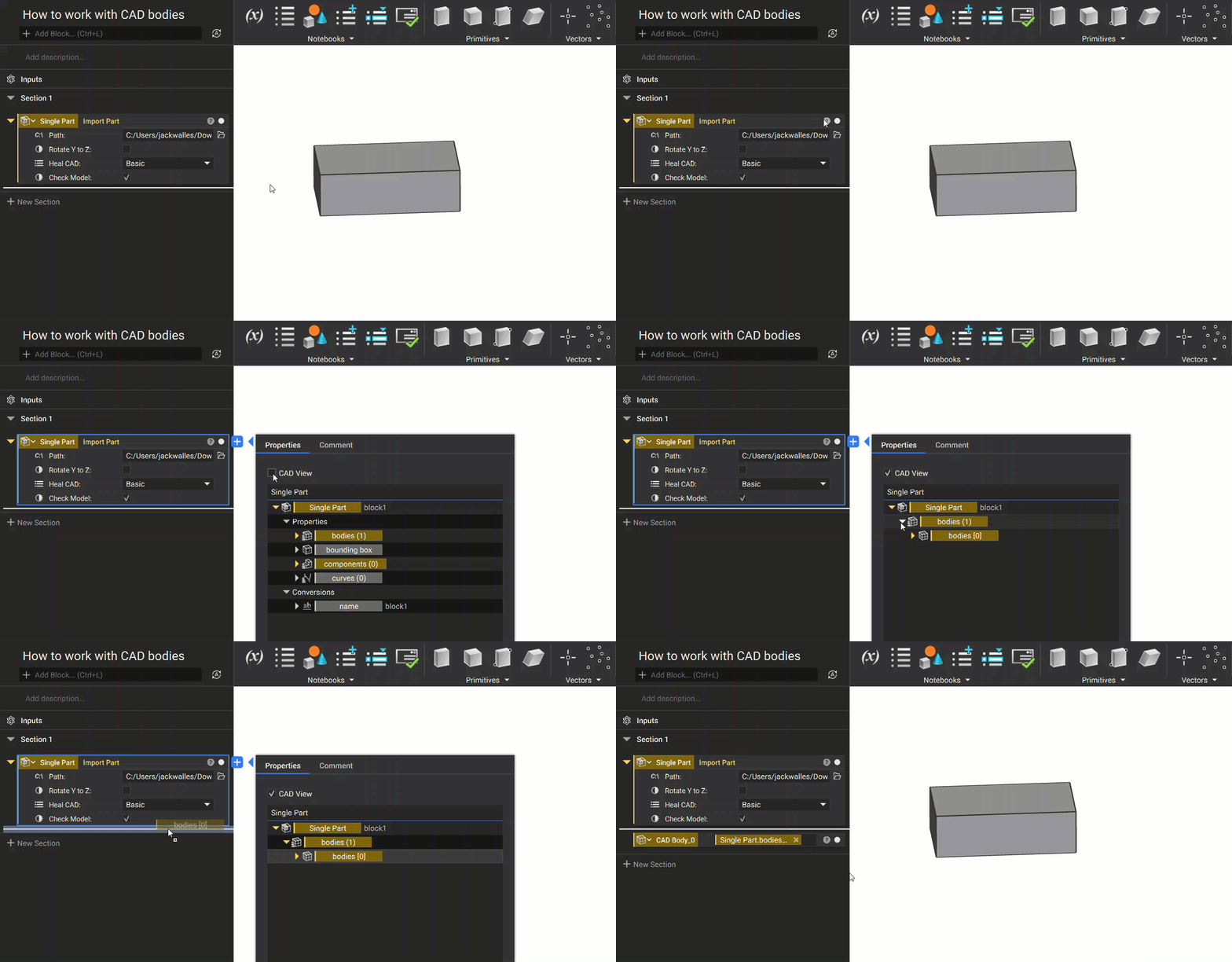
1. Open up the Properties Panel for the imported part
2. Use the "CAD View" checkbox to isolate the CAD bodies list
3. Use the drop-down arrow next to the bodies list to show the items in the list.
4. Drag out the single body property chip
#### **Common Mistake: Using the CAD Body List**
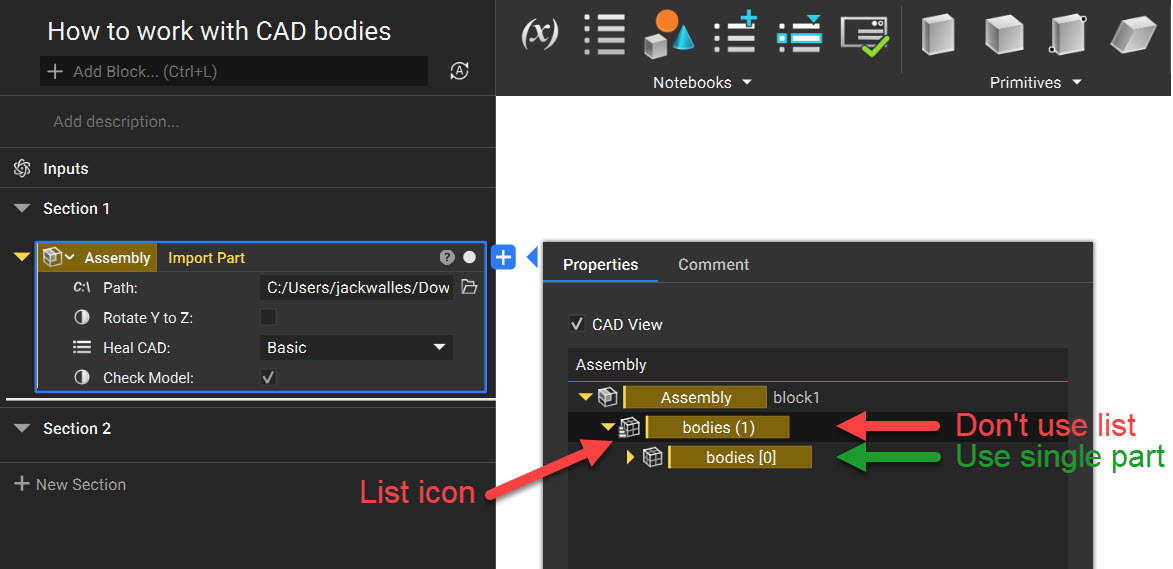
We commonly see users experiencing issues downstream in their workflow where they can't insert a variable into an input. This is usually due to the variable being a list. Please ensure that the original CAD body that you extracted is a single body and not a list.
[Back to top](#h-01g2x52dkzt33pd8hjygc9g2ag)
#### **Extraction by Manual Selection**
## **Extraction by manual selection on screen:**
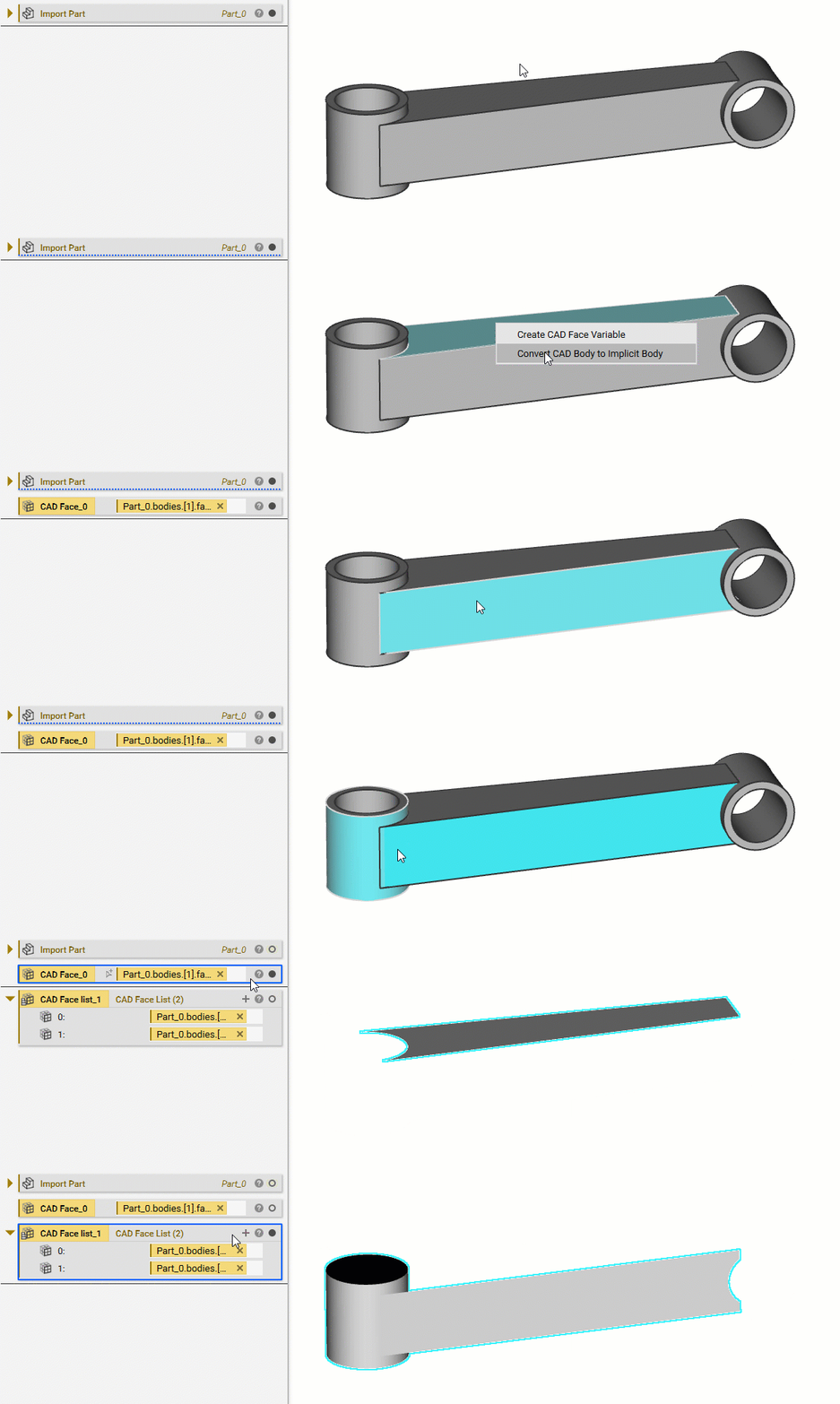
**To extract CAD Faces:**
* * **Single:** Click on the face you want to extract
* **Multiple:** Hold SHIFT or CTRL and click on the faces you want to select
* R-click and choose the option "Create CAD Face Variable" or "Create CAD Face List Variable" if multiple selected
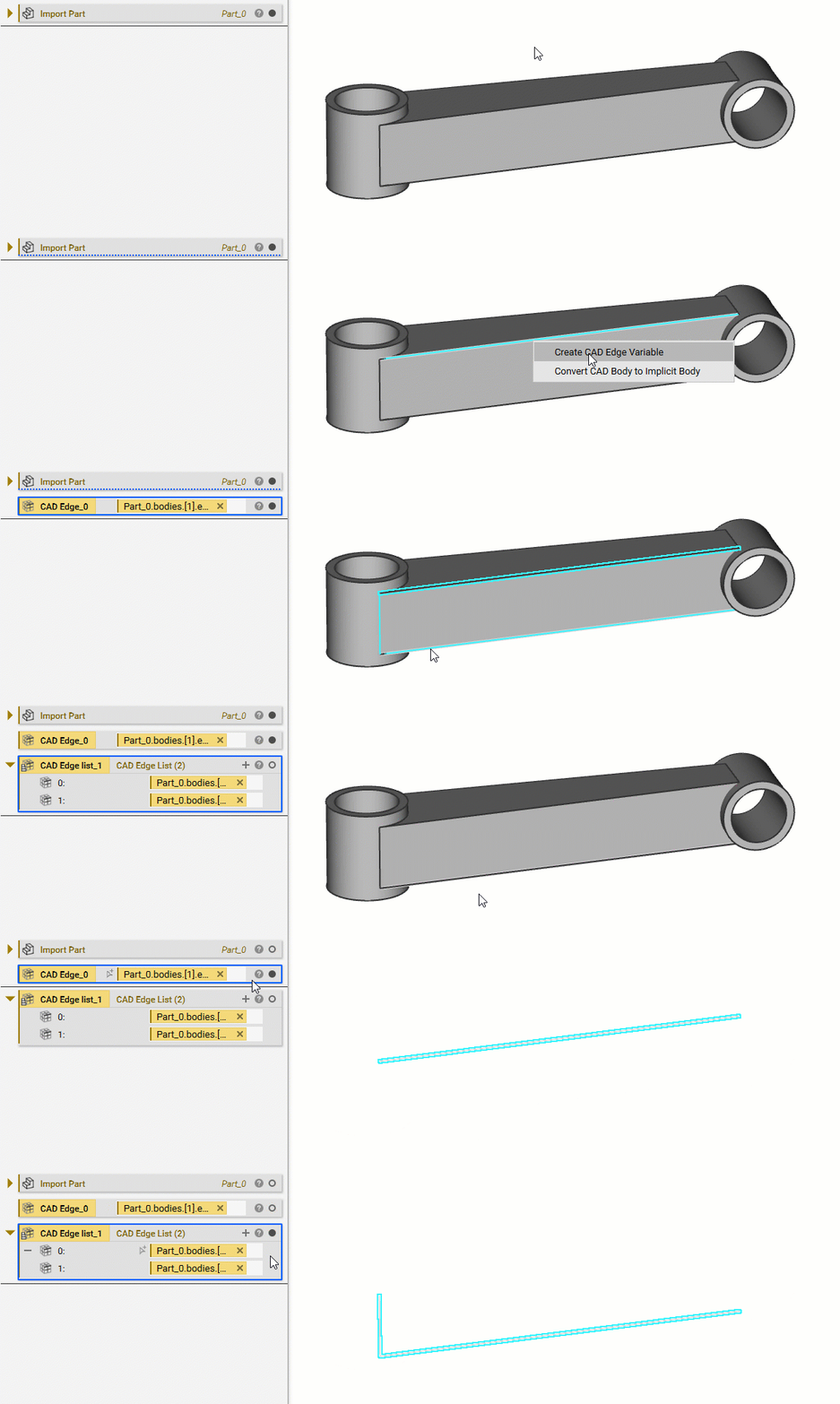
**To extract CAD edges or vertices:**
* * **Single:** Click on the edge or vertex you want to extract
* **Multiple:** Hold SHIFT or CTRL and click on the edges or vertices you want to select
* R-click and choose the option "Create CAD Vertex Variable" or "Create CAD Edge Variable."
**To create an Implicit Body or CAD Body:**
* * **Single:** Double click on the body (or just select a face on the same body if converting to Implicit)
* **Multiple:** Hold SHIFT or CTRL and double-click on the bodies you want (or choose just a face on the same body if converting to Implicit)
* **Implicit:** Right-click and choose "Convert CAD Body to Implicit Body" or "Convert CAD Bodies to Implicit Bodies."
* \*\*CAD:\*\*Right-click and select the option "Create CAD Body Variable" or "Create CAD Body List Variable."
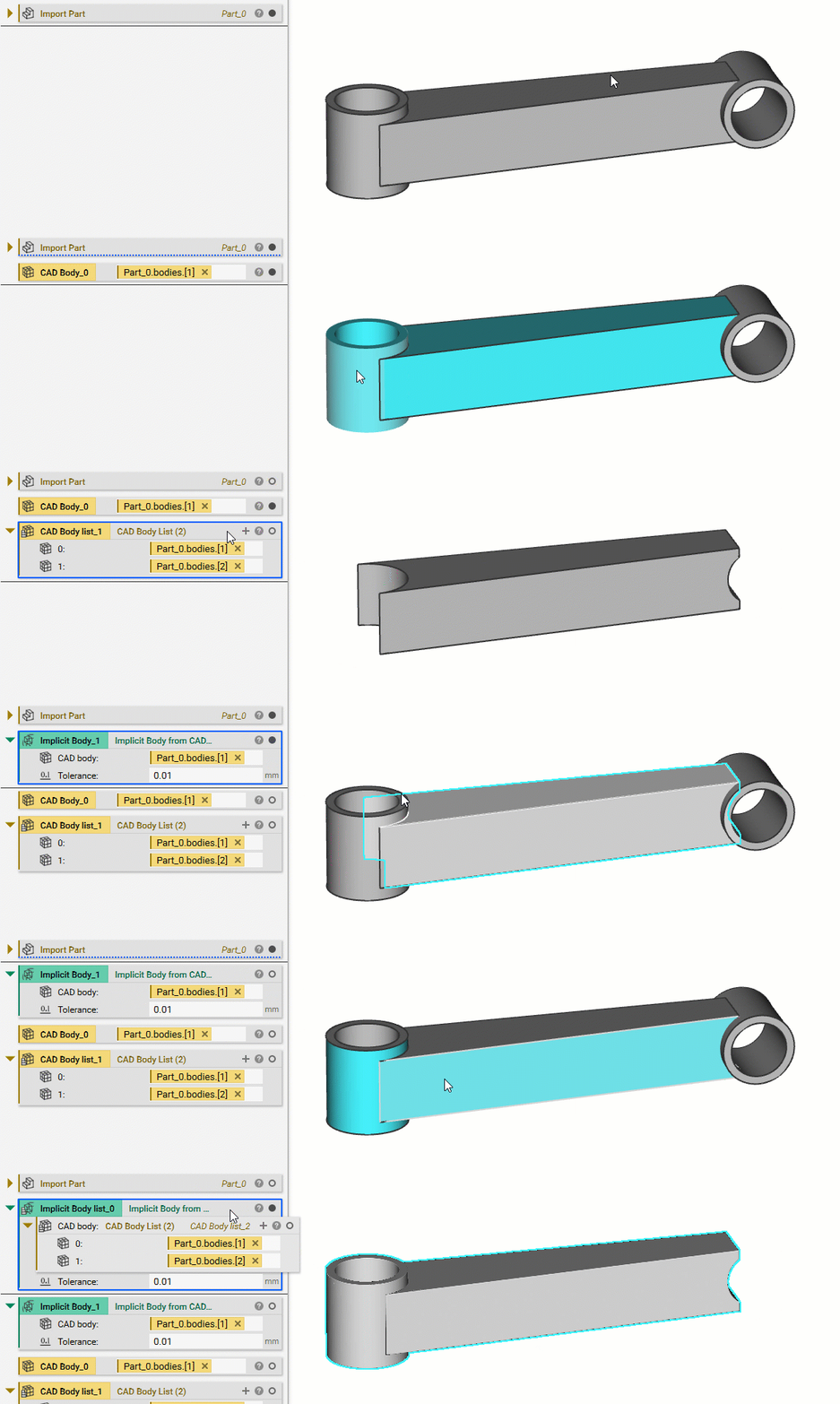
[Back to top](#h-01g2x52dkzt33pd8hjygc9g2ag)
#### **Extraction by Blocks**
In nTop 5.8, we released a series of new blocks that are designed to help users interact with CAD bodies more efficiently.
**To extract CAD Faces:**
Use the **Get CAD Faces**block:
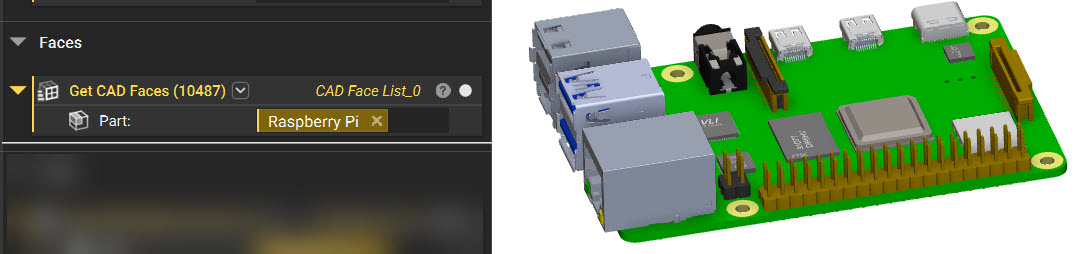
**To extract CAD Bodies:**
Use the **Get CAD Bodies**block:
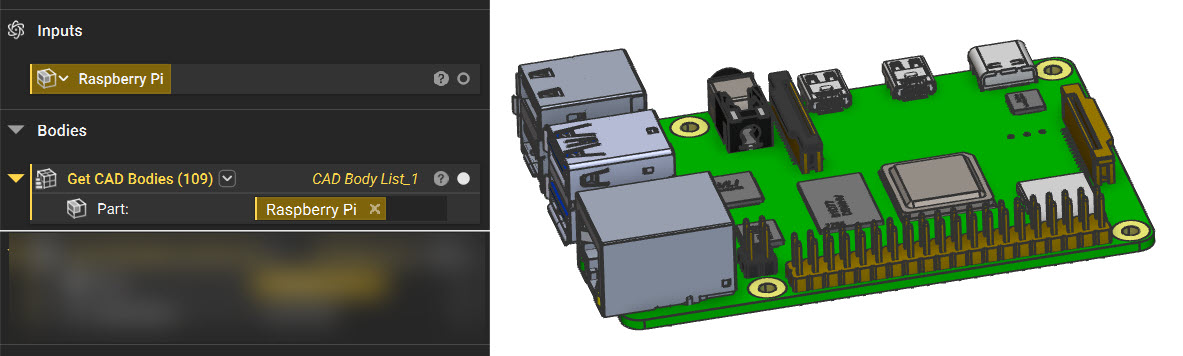
You can also use the **Get CAD Bodies by Name**block to further refine your selections:
*Note: When exporting CAD from other softwares, use STEP if you need to export with Color and Name properties.*
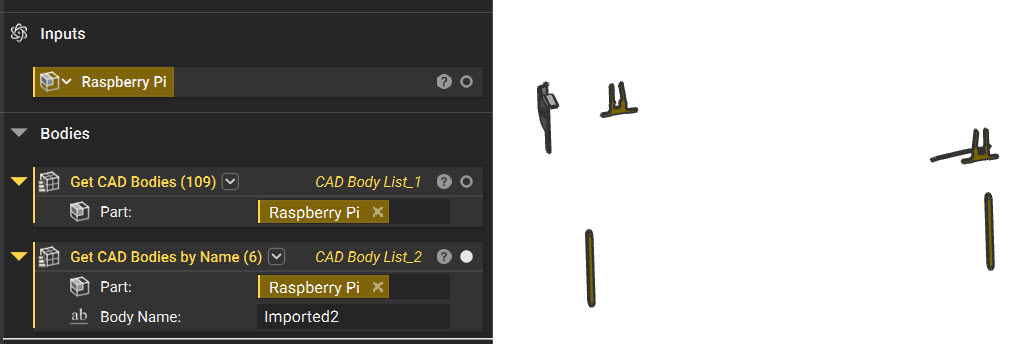
[Back to top](#h-01g2x52dkzt33pd8hjygc9g2ag)
#### **Extraction by Color**
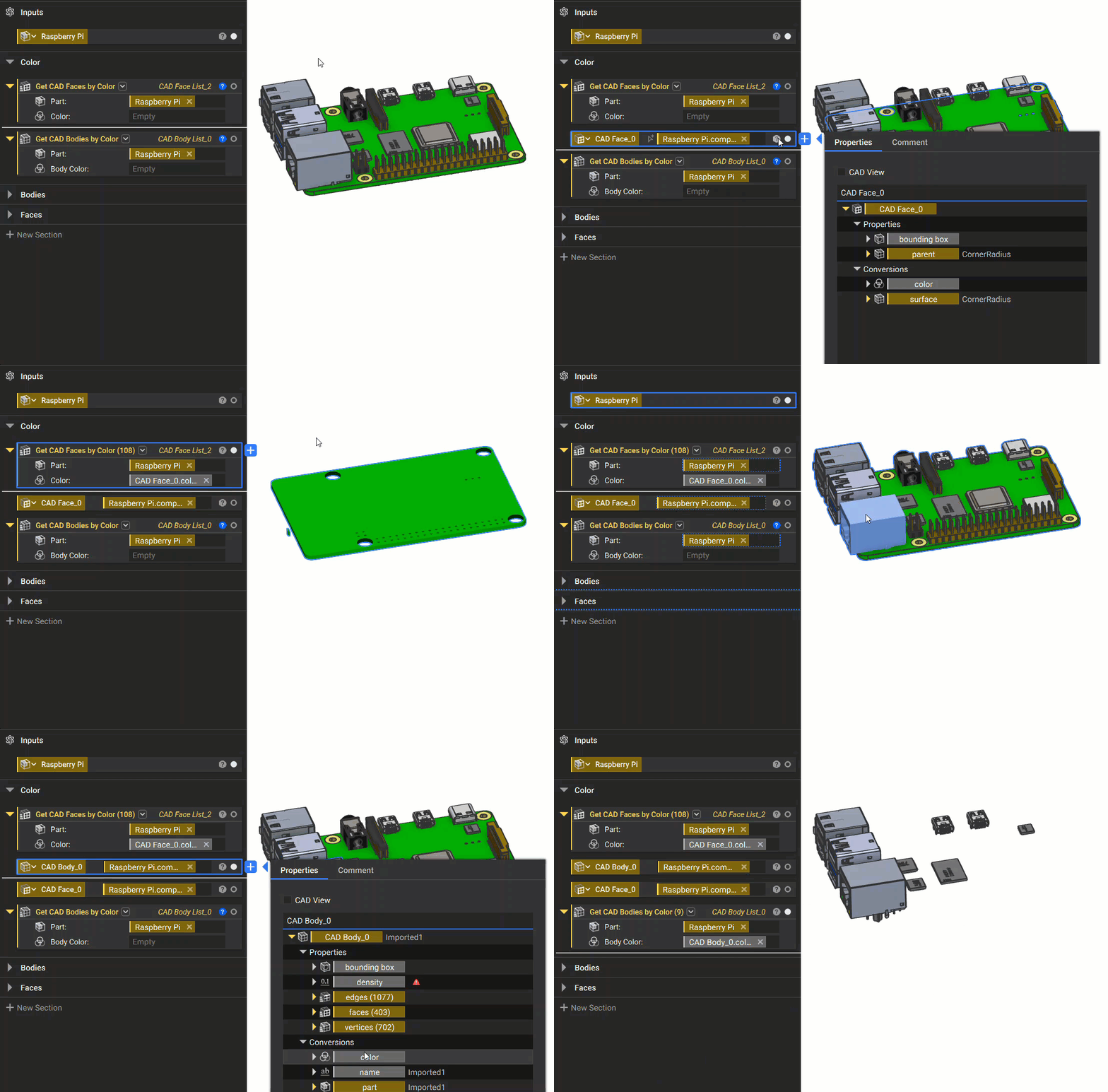
You can extract CAD Faces and CAD Bodies using our two color-based blocks:
* **Get CAD Faces by Color**
* **Get CAD Bodies by Color**
*Note: When exporting CAD from other softwares, use STEP if you need to export with Color and Name properties.*
In the GIF below, the Color property chip is extracted from the face/body. We recommend this method as it directly links to color, as opposed to inputting the RGB values of an empty **Color** block.
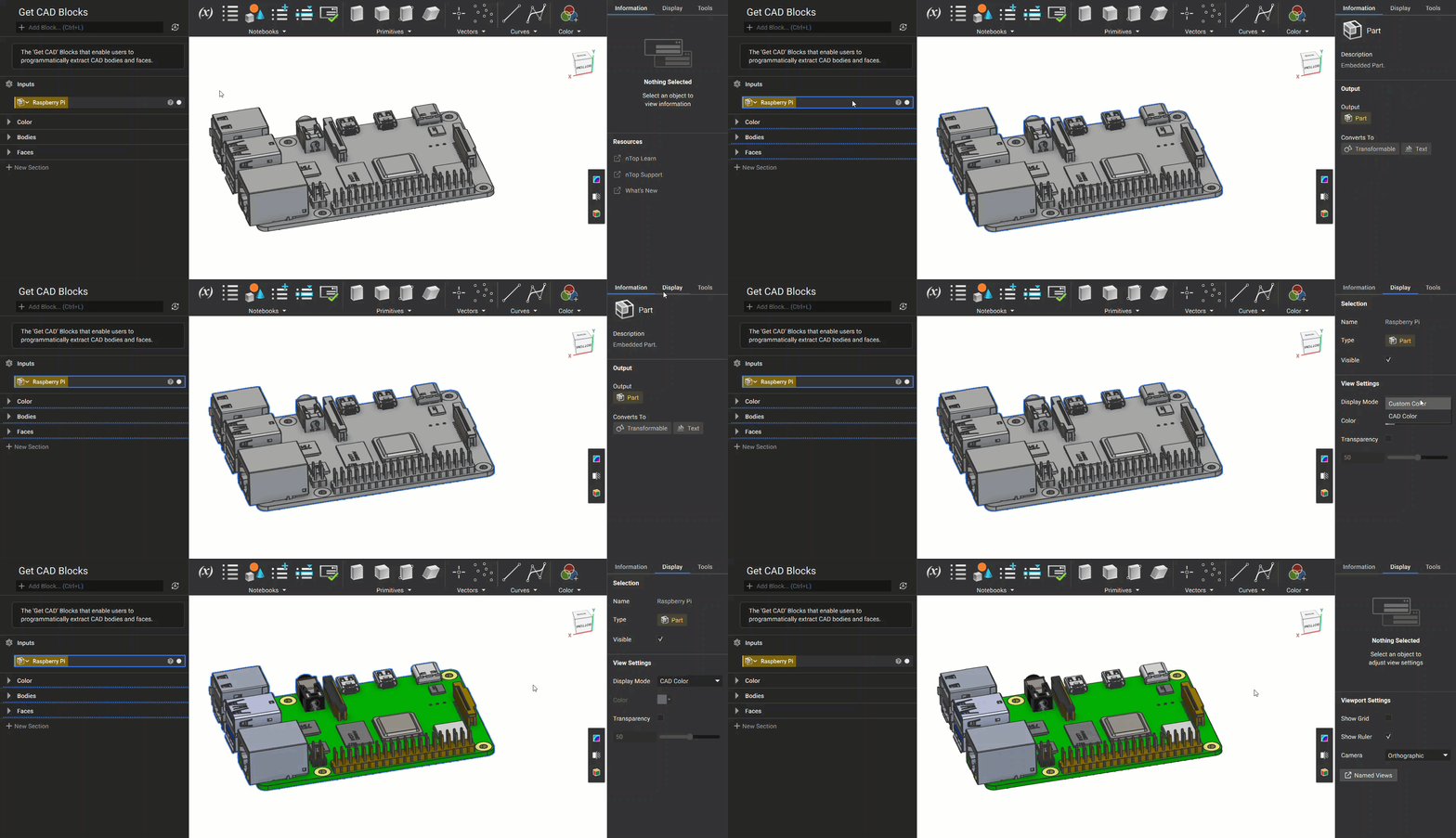
If you import your CAD part and it doesn't have any color, make sure you change the Display Mode to "CAD Color".
[Back to top](#h-01g2x52dkzt33pd8hjygc9g2ag)
And that's it! You've successfully extracted parts from your imported CAD Body for other workflows.
Are you still having issues? Contact the [support team](https://support.ntopology.com/hc/en-us/requests/new), and we'll be happy to help!
## Keywords:
*import cad face implicit part variable body edge use bodies working vertex vertices extract*