> ## Documentation Index
> Fetch the complete documentation index at: https://docs.ntop.com/llms.txt
> Use this file to discover all available pages before exploring further.
# How to import and use a Point Map
## Objective:
Learn how to import and use a point map.
## Applies to:
* Fields
* Ramping
* Data-Driven Design
## Procedure:
**1. Set up your CSV file**
If importing a **Scalar Point Map**, ensure your format is X, Y, Z, S, where S is the desired value at each point.
If importing a **Vector Point Map**, ensure your format is X, Y, Z, U, V, W, where U, V, and W represent the vector at each point.
**Note: Your table should not have headers, just the data points; it should not have blank rows at the bottom of the file.**
It will not import correctly because of the header and blank row at the bottom
Will import correctly
**2. Import the Point Map**
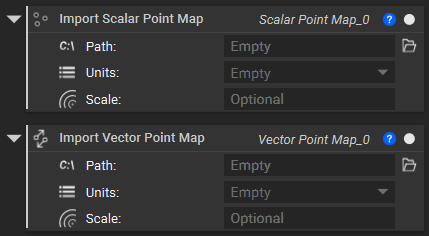
* Add an **Import Scalar Point Map** block (or **Import Vector Point Map** block)
* Set the file path
* Choose units to correspond to the points
* Optional: Set a scale for the Point map
**3. Convert the Point Map to a Field**
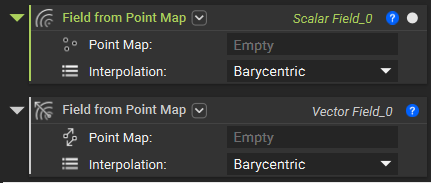
This step is necessary to convert the point or vector data into a field. The field can then be used to edit your desired part.
* Add a **Field from Point Map** block
* Drag and drop the imported Point Map block from Step 2.
* Choose the [Interpolation options](/help-articles/knowledge-base/structures/what-are-interpolation-options-for-creating-a-field-from-a-point-map)
**4. Optional: Use the field to create a Ramp**
One of the most popular reasons for importing point maps is to create a ramp and use it to vary a parameter. If you would like to learn more about data-driven design, you should check out this [course](https://learn.ntop.com/courses/320-data-driven-design/).
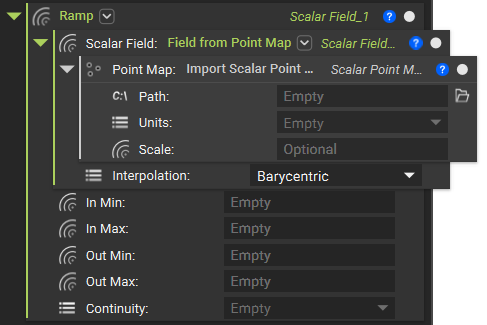
* Add a **Ramp** block
* Input the **Field from Point Map** block as the Scalar Field
* Set the *In Min* and the *In Max* to correspond to the imported 'S' values from your CSV. Don't add units to these values
* Set the *Out Min* and the *Out Max* to correspond to the parameter you want to vary. If you are varying thickness, for example, add 'mm' to these values
* Set the *Continuity* to your desired option
* Insert the **Ramp** block into the parameter you want to vary. For example, insert the Ramp into the Thickness input of a [Periodic Lattice block.](/help-articles/knowledge-base/lattices/how-to-create-a-periodic-lattice)
*This is an example of using a Pressure Map to drive the lattice thickness of the Bike Seat. You can access this file from the Home Screen.*
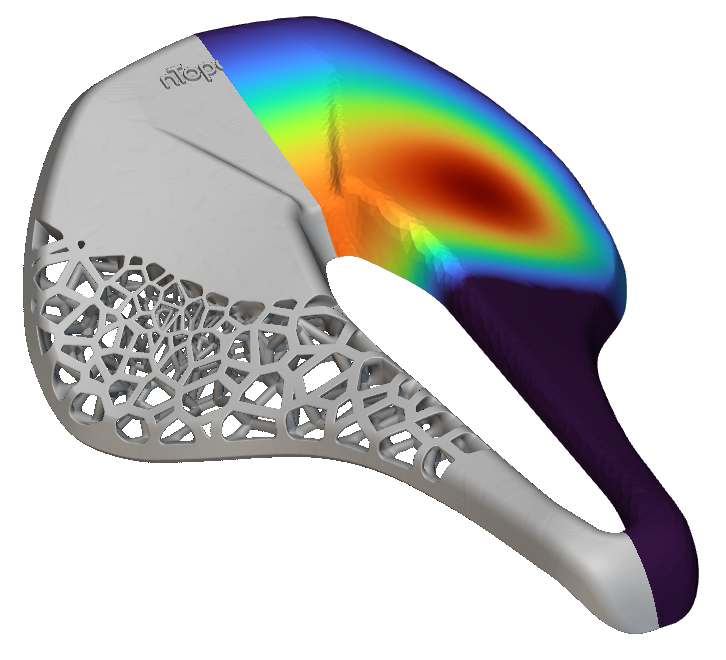
And that's it! You've successfully imported and used a point map.
Are you still having issues? Contact the [support team](https://support.ntopology.com/hc/en-us/requests/new), and we'll be happy to help!
## Keywords:
*import ramp field map point scalar interpolation extrapolation vector how-to size*

