> ## Documentation Index
> Fetch the complete documentation index at: https://docs.ntop.com/llms.txt
> Use this file to discover all available pages before exploring further.
# How to import and use a Table
## Objective:
Learn how to import and use a table
## Applies to:
* Tables
* Lists
## Procedure:
**1. Set up your CSV file**
* The CSV must be a rectangular *MxN* table.
* The file type must be a CSV using UTF-8 or UTF-16 encoding with a list separator of a comma.
**2. Import the Table**
* Add an **Import Table** block
* Set the file path
* You can use the *Include headers:* input to choose whether to include headers. If checked, this input then makes the first row of the Table as column headers.
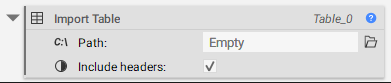
* To embed your Table, Right click and select Embed.
**Note:** You can access the header names in the properties of the Table as a Text list. The block will ignore duplicate and invalid (or empty) headers.
**3. Access the Columns from the imported Table**
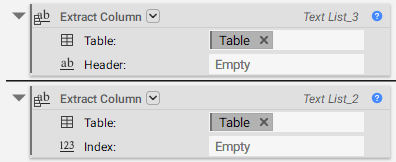
Add an **Extract Column** Block. The **Extract Column** block extracts a single column of data from a Table as a Text list. The overload lets you choose the column index integer or column header name as input. The Index input starts from 0.
**4. Convert the Text into Scalar**
Add a **Scalar from Text** block. This block converts the text list output from the **Extract Column** block to a scalar list. Use the Multiply block to set the appropriate units before using it downstream.
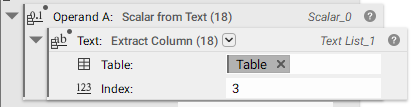
**Note:** Units will not be recognized and will cause conversion issues. No punctuation other than periods or letters is allowed. If using exponential notation, ensure no spaces exist before or after the letter `e`. Positive and negative exponents are allowed.
The common use cases of this block are to store and extract non-linear material data and design parameter sets.
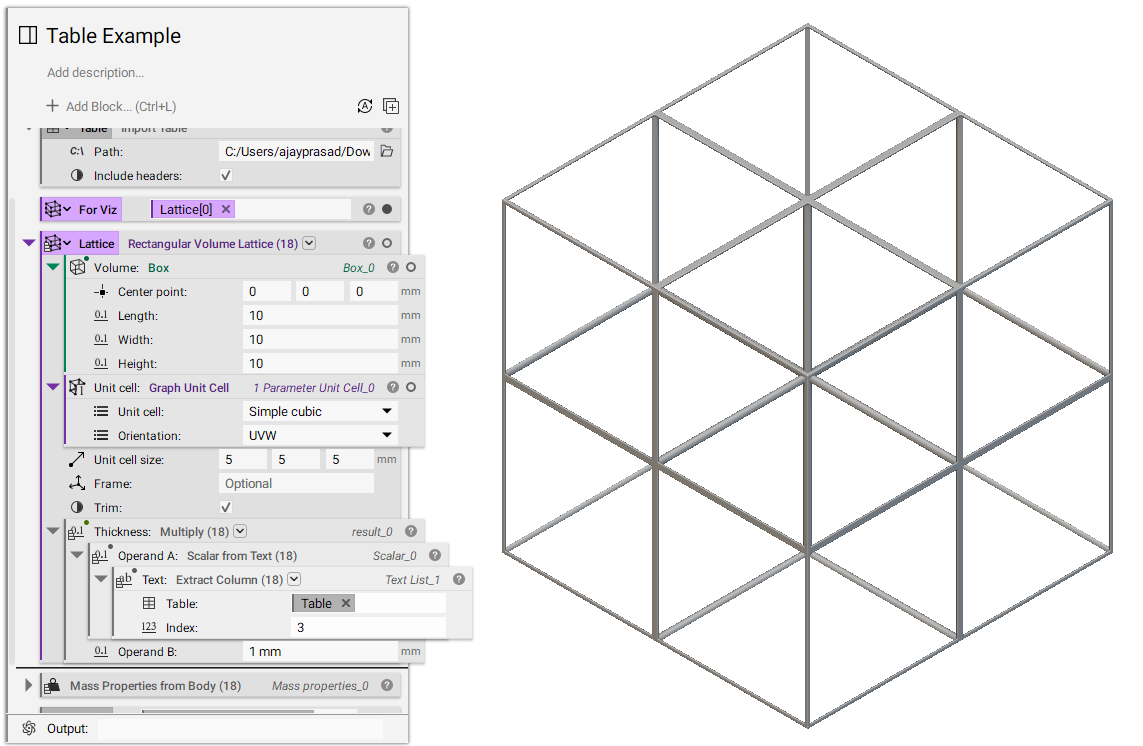
And that's it! You've successfully imported and used a table.
Are you still having issues? Contact the [support team](https://support.ntopology.com/hc/en-us/requests/new), and we'll be happy to help!
## Keywords:
*import list parameter design extract column table doe scalar from text non-linear data*