> ## Documentation Index
> Fetch the complete documentation index at: https://docs.ntop.com/llms.txt
> Use this file to discover all available pages before exploring further.

# How to set up a Parameter Optimization

## **Objective:**

This article describes how to configure and execute a parameter optimization study. Parameter optimization, also known as inverse design, determines the set of independent parameters that yield an optimal outcome for a specified objective function, subject to defined constraints.

## **Applies to:**

* Parameter Optimization
* Design Optimization

## **Procedure:**

The process of setting up your Parameter Optimization involves defining your design parameters, setting a goal, establishing limits, running the optimization, and extracting the results.

![](https://files.learn.ntop.com/help-articles/optimization/50598741359763.png)

## Step 1: Define Your Design Parameters

First, define the variables that the optimizer can change. You can use three types of parameter blocks:

| **Parameter Type**        | **What it does**                                                                                       | **Common uses**                                                                                                                             |
| ------------------------- | ------------------------------------------------------------------------------------------------------ | ------------------------------------------------------------------------------------------------------------------------------------------- |
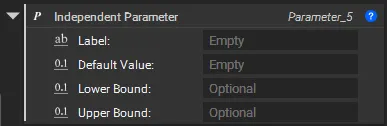
| **Independent Parameter** | Creates a design variable that can change within a specified **lower** and **upper** bound.            | Defining the primary design variables that you want the optimizer to adjust, such as beam thickness, cell size, or fillet radius.           |
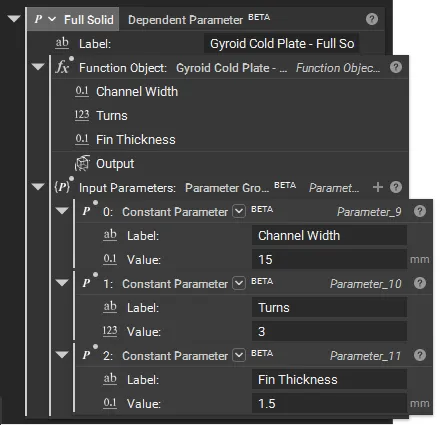
| **Dependent Parameter**   | Creates a parameter whose value is **calculated by a function** that takes other parameters as inputs. | Maintaining specific mathematical relationships between variables, like keeping a constant ratio between two geometric features.            |
| **Constant Parameter**    | Creates a **fixed** value that remains constant throughout the optimization run.                       | Defining static values that are used in your design but are not part of the optimization study, such as material properties or load values. |

<Card>
  <table> <colgroup> <col /> <col /> </colgroup> <tbody> <tr> <td>Independent Parameter</td> <td>Constant Parameter</td> </tr> <tr> <td><p><strong>  <img src="https://files.learn.ntop.com/help-articles/optimization/50598723068819.png" /></strong></p></td> <td><p><strong>  <img src="https://files.learn.ntop.com/help-articles/optimization/50598723111187.png" /></strong></p></td> </tr> </tbody> </table>
</Card>

##### **How to set up the Dependent Parameter**

A **Dependent Parameter** defines a relationship between variables by calculating its value from other parameters (commonly independent and/or constant parameters, but can also form chains with additional dependent parameters) using a custom function. In a parameter optimization study, a dependent parameter is typically used to define the optimization objective and constraints. Learn more about setting up [here](/help-articles/knowledge-base/optimization/how-to-set-up-the-dependent-parameter).

![](https://files.learn.ntop.com/help-articles/optimization/50598723136915.png)

You can also connect dependent parameters to create a chained dependent parameter setup for an advanced setup. Learn more about chained dependent parameters [here](/help-articles/knowledge-base/optimization/how-to-set-up-the-dependent-parameter).

![](https://files.learn.ntop.com/help-articles/optimization/50598723164307.png)

## Step 2: Define the Objective

Next, set the goal for the optimization study using the **Parameter Objective** block. The objective tells the optimizer what it should try to achieve.

![](https://files.learn.ntop.com/help-articles/optimization/50598723192723.png)

1. Add a **Parameter Objective** block.
2. Select a *Goal:* Choose to either **Minimize** or **Maximize** the parameter.
3. Select the *Parameter* you want to optimize. For example, minimize a part's mass or maximize its stiffness.

![](https://files.learn.ntop.com/help-articles/optimization/50598741527315.png)

## Step 3: Define Constraints

Constraints specify the permissible range or conditions for the optimization variables. The **Parameter Constraint** block ensures that the optimized solution remains valid and compliant with defined design requirements. You can also run an optimization without a **Parameter Constraint.**

.![](https://files.learn.ntop.com/help-articles/optimization/50598741556883.png)

1. Add one or more **Parameter Constraints** in a **Parameter Constraint Group** block.
2. Select the **Parameter** to constrain.
3. Choose a constraint **Type**, such as 'Less than' or 'Greater than'.
4. Set the boundary **Value** for the constraint. For example, you could constrain the maximum stress or maximum deflection to be less than a specific value.

![](https://files.learn.ntop.com/help-articles/optimization/50598723281043.png)

## Step 4: Run the Optimization

Drag and drop your parameters, objective, and constraints in the **Parameter Optimization** block to run the study.

1. Add a **Parameter Optimization** block.
2. Provide the **Design Parameters** you defined in Step 1.
3. Provide the **Objective** from Step 2.
4. Provide the **Constraints** list from Step 3.
5. Select the **Algorithm** that would be the optimization method used to search for the optimal solution.
6. Set the **Max Iterations** to limit the total number of attempts the optimizer will make.
7. \[OPTIONAL] Add any **Tracked Parameters** to monitor other values during the run and use them after the optimization.

![](https://files.learn.ntop.com/help-articles/optimization/50598723316371.png)![](https://files.learn.ntop.com/help-articles/optimization/50598723366291.png)

While the optimization is running, you can click the Right Side Panel, then select Display, and finally click View Data to view the Optimization Plot and Table.

## Step 5: Extract and Use the Results

Once the optimization is complete, use the results to create your final design.

1. You can access the properties from the **Parameter Optimization** block for the best iteration, optimized constraint, design, and objective parameter.
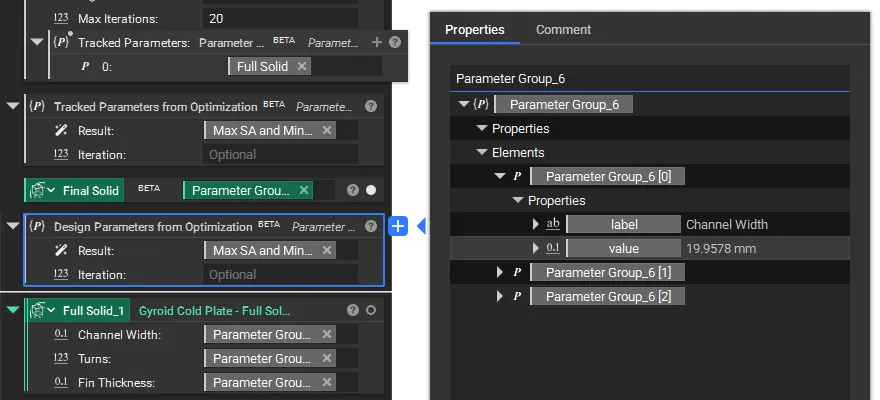
2. Use the **Design Parameters from Optimization** block to extract the optimized values from the result. You can specify a particular iteration or use the final one by default.
3. Use the **Tracked Parameters from Optimization** block to review any secondary metrics or implicit bodies you wish to observe during the run or use post-optimization.

<Card>
  <table> <colgroup> <col /> <col /> </colgroup> <tbody><tr> <td> <p>  <img src="https://files.learn.ntop.com/help-articles/optimization/50598723394323.png" /></p> <p>You can use the Tracked Parameter to output the Implicit Body using the final optimized parameters. In this example, the Full Cooling Plate was used as a Tracked Parameter to be the final output.</p> </td> <td> <p>  <img src="https://files.learn.ntop.com/help-articles/optimization/50598723426835.png" /></p> <p>Input the extracted design parameters back into your workflow to generate the final, optimized part in case you are not using one of them as an Implicit Body.</p> <p>Following the same process as above, you can also use the Tracked Parameters. </p> </td> </tr></tbody> </table>
</Card>

And that's it! You've successfully set up and run a parameter optimization.

![](https://files.learn.ntop.com/help-articles/optimization/50598723472787.png)

## **Example File**

[Parameter Optimization Example](https://files.learn.ntop.com/Support%20Article%20Example%20Files/Knowledge%20Base/Optimization/parameter_optimization_example.ntop)