> ## Documentation Index
> Fetch the complete documentation index at: https://docs.ntop.com/llms.txt
> Use this file to discover all available pages before exploring further.
# Advanced Features: Contoured Standoffs Fixture
Add contoured standoff fixtures for any part or mesh you import.
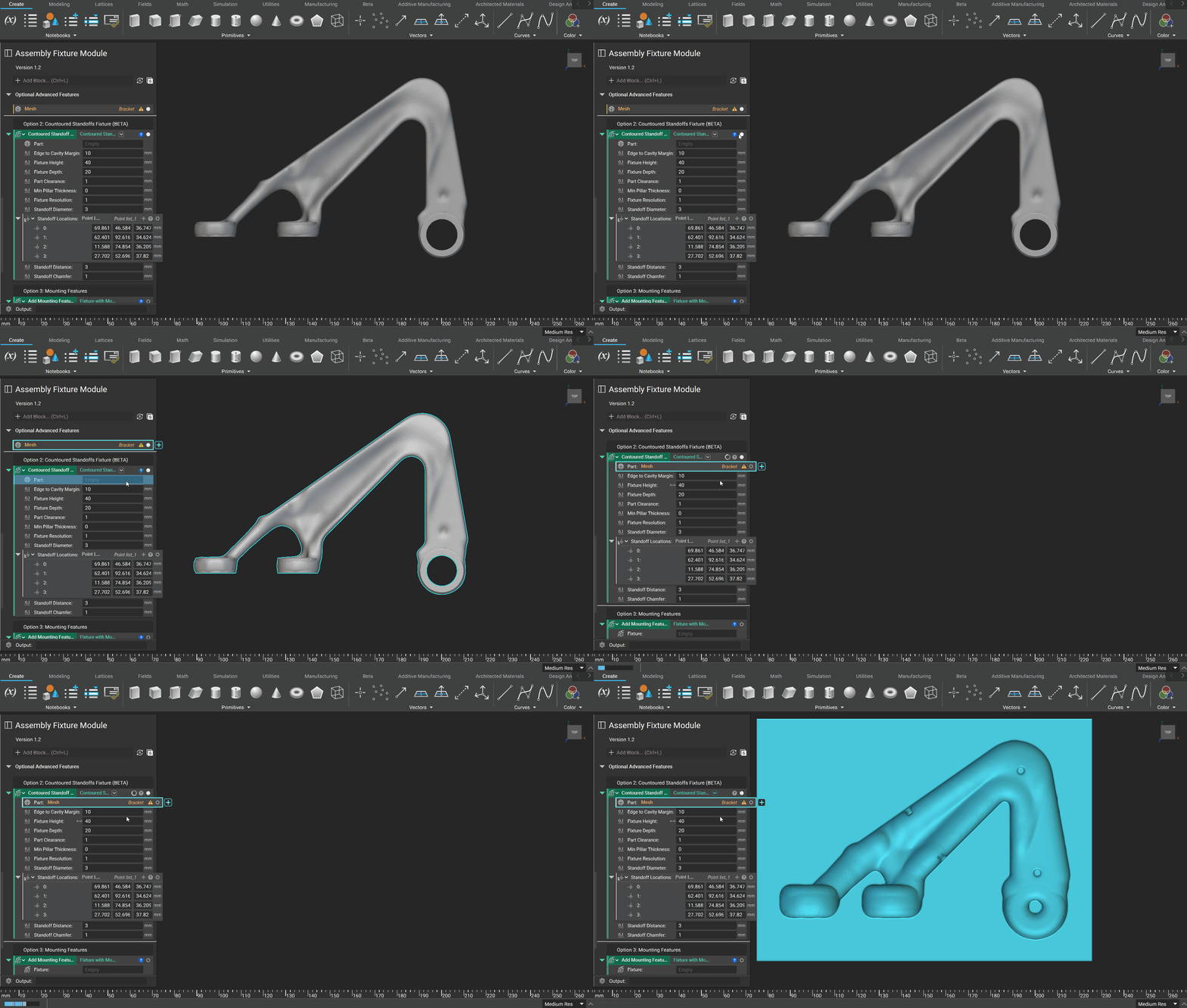
To use the **'Contoured Standoffs Fixture'**, drag theimported**Part** or imported**Mesh**into the *Part*input of the**Contoured Standoffs Fixture**Block.
 ## Contoured Standoff Fixture Inputs
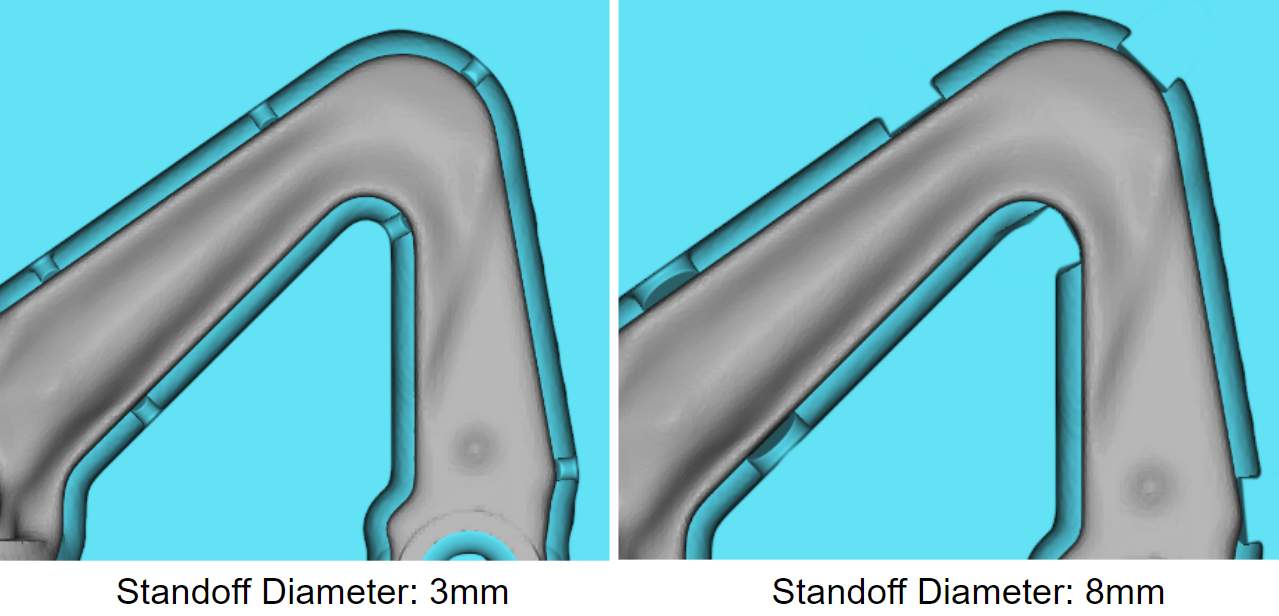
 The diameter of the cylinder used to generate the standoff geometry.
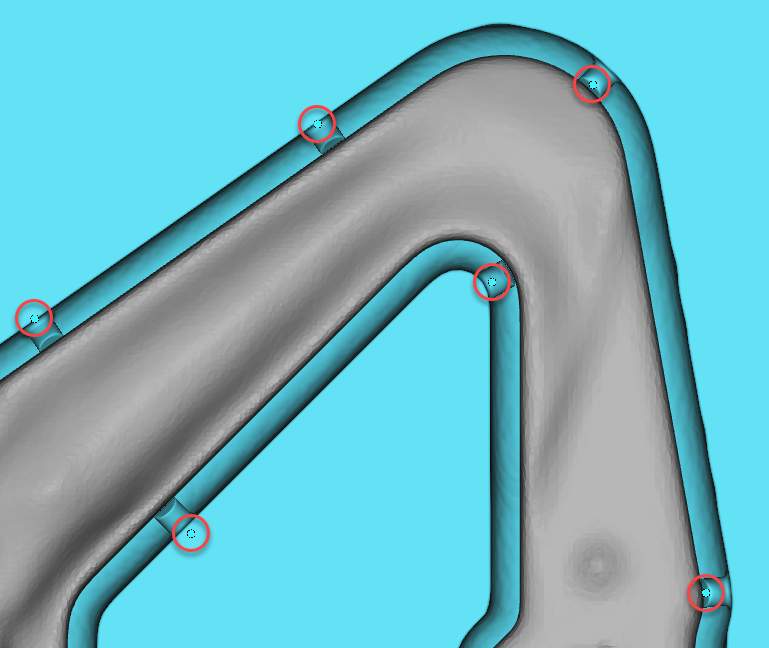
 The enumerated list of points is used to generate standoffs.
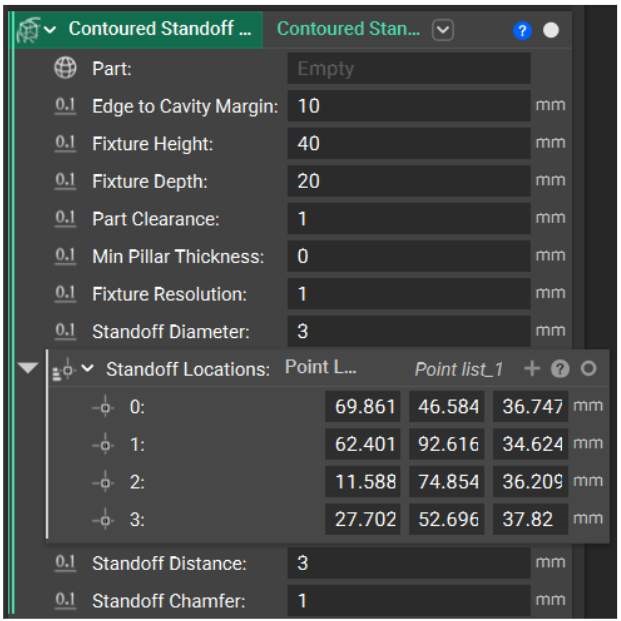
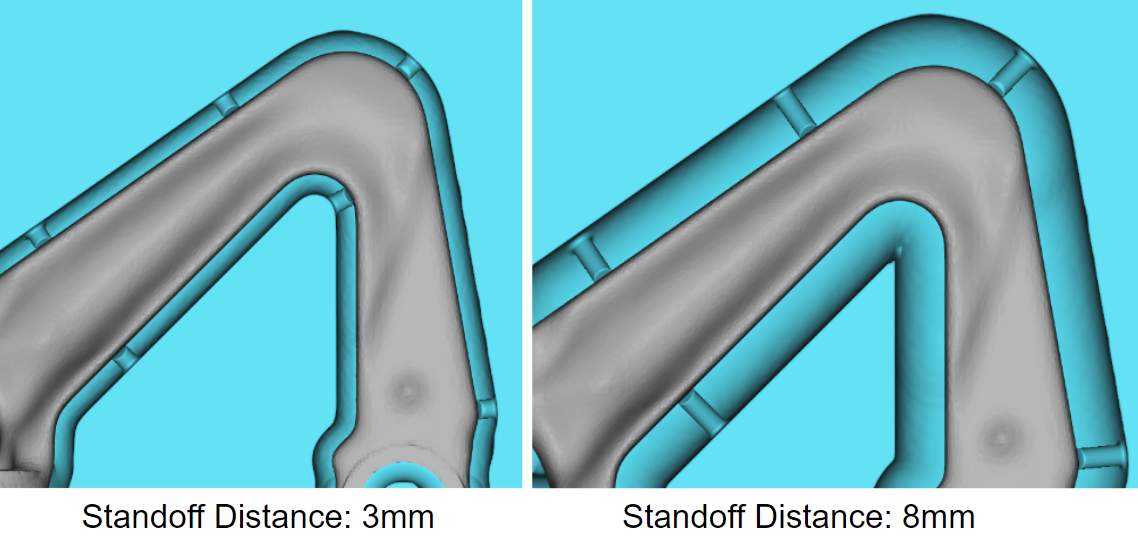
 The distance between the part and cavity.
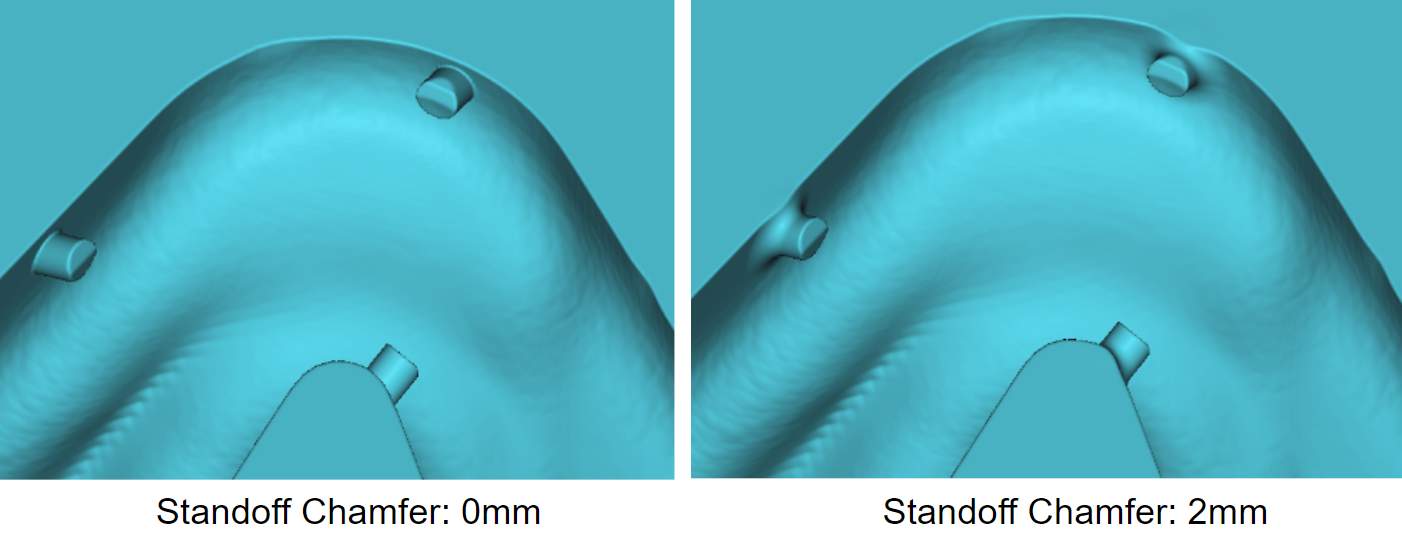
 A user-input distance that operates like a CAD chamfer & distance value.