> ## Documentation Index
> Fetch the complete documentation index at: https://docs.ntop.com/llms.txt
> Use this file to discover all available pages before exploring further.
# List Manipulation
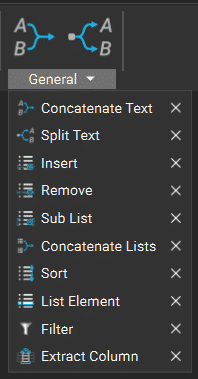
Lists can be powerful for automating workflows. The manipulation tools are in the *Utilities*Ribbon Tab, under *General*. Some of these blocks are shown below.
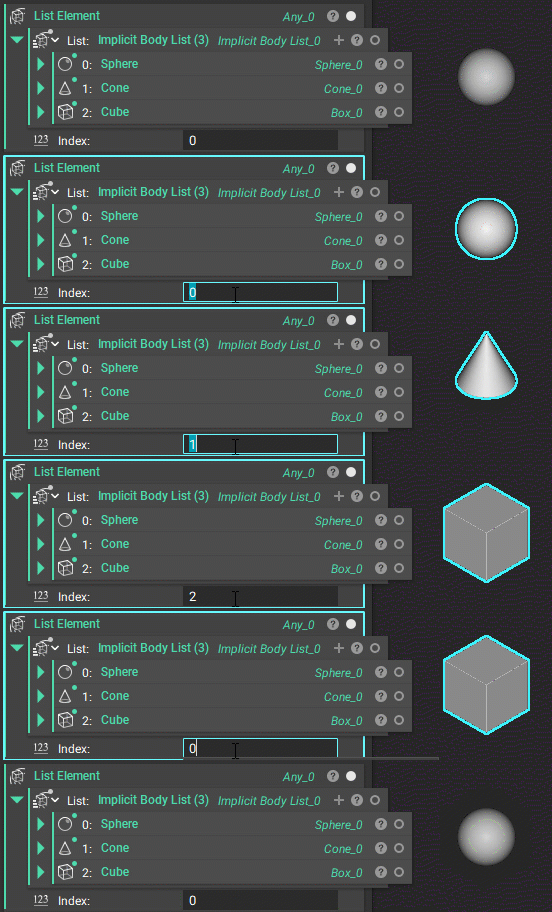
 ## List Element
Extract a single entity from a list based on its index number. Note that the first item in a list always is index 0.
## List Element
Extract a single entity from a list based on its index number. Note that the first item in a list always is index 0.
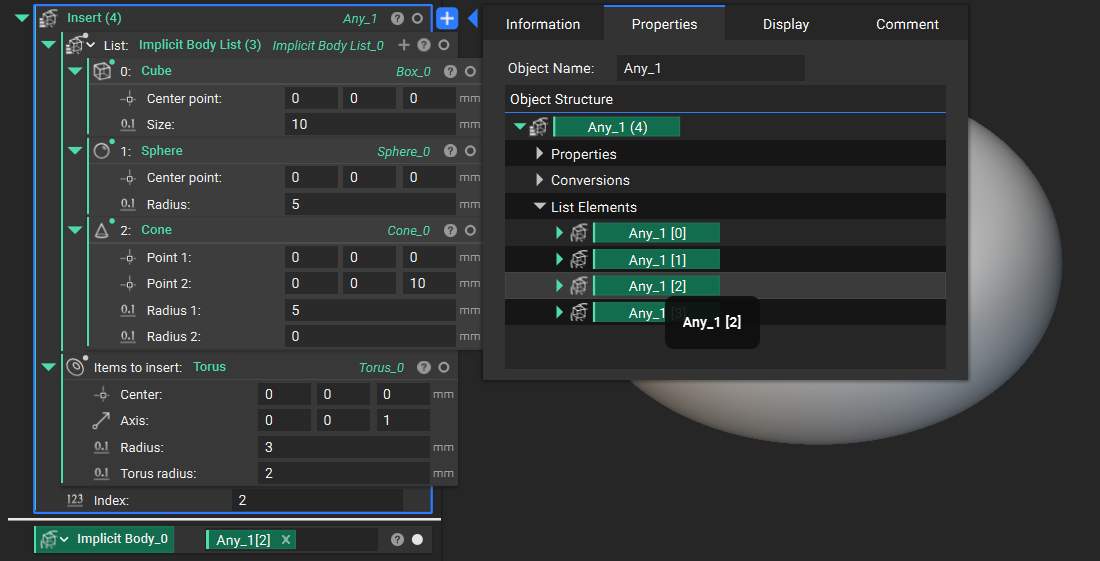
 ## Insert
Combine two lists into one by inserting a list into another at a specified index location.
## Insert
Combine two lists into one by inserting a list into another at a specified index location.
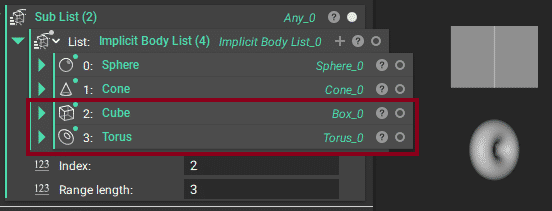
 ## Sub List
Extract a smaller list from a larger input list, based on a starting index and the desired size of the sublist.
## Sub List
Extract a smaller list from a larger input list, based on a starting index and the desired size of the sublist.
 ## Remove
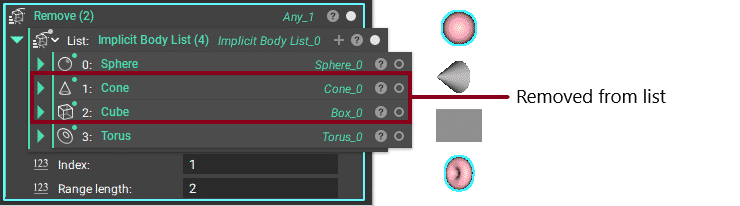
Remove one or more entities from a list, based on a starting index and the number of removed entities.
## Remove
Remove one or more entities from a list, based on a starting index and the number of removed entities.
 ## Concatenate List & Concatenate Text
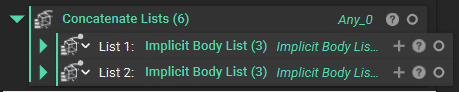
Multiple lists can be added together using the **Concatenate Lists** block. In order to do this, *the Lists must be of the* *same type*.
## Concatenate List & Concatenate Text
Multiple lists can be added together using the **Concatenate Lists** block. In order to do this, *the Lists must be of the* *same type*.
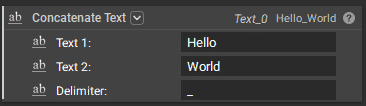
 To combine text, you can use the **Concatenate Text** block. Our **CB Mesh Export** block, shown in the *Commonly Used Custom Blocks* lesson, uses this block to add a randomly generated number at the end of the name, so it does not overwrite the previously exported mesh when changing the workflow.
 ## Sort
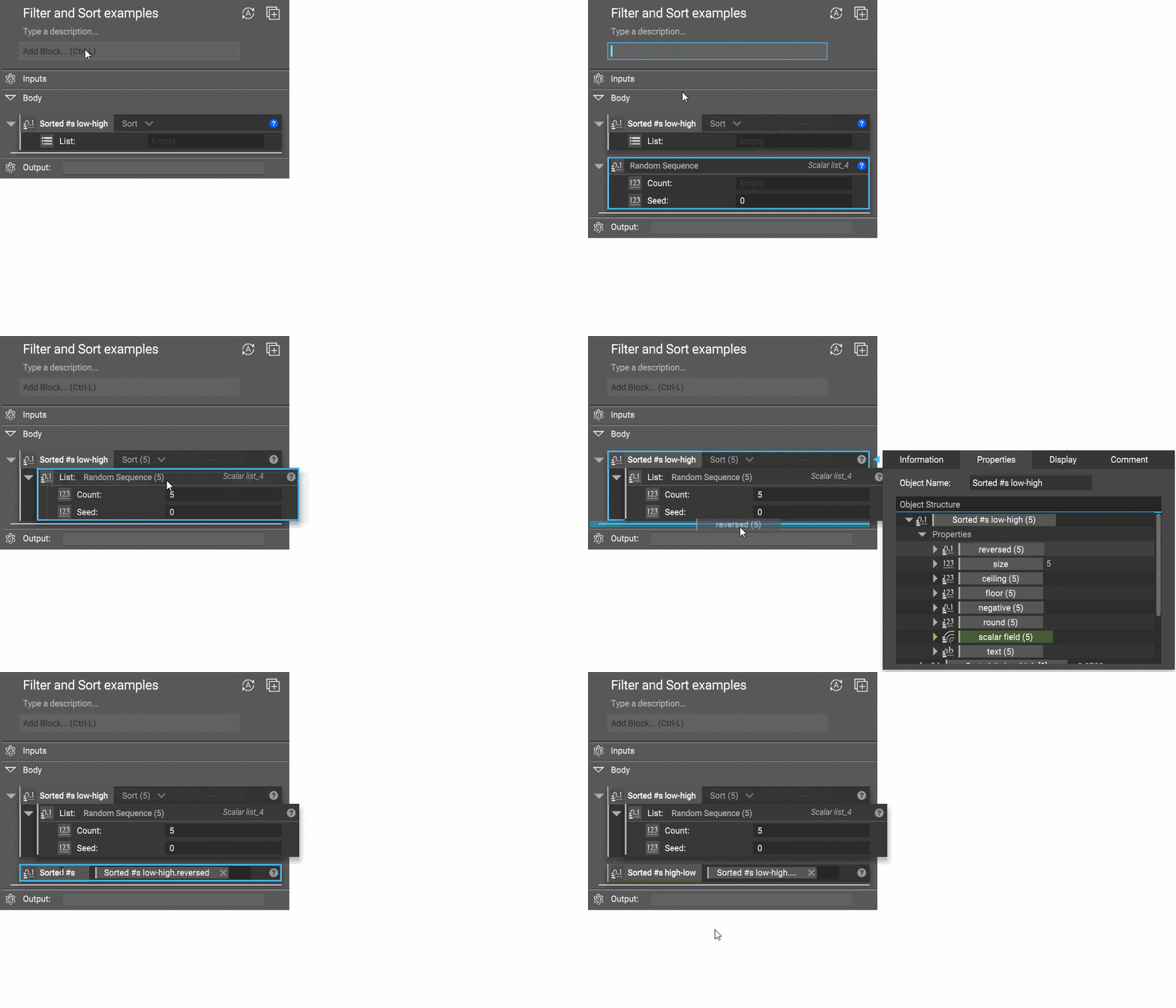
The **Sort**block will rearrange a list from the lowest to the highest value. If you would like the values sorted from highest to lowest, you can use the 'reversed' scalar list in the block's properties.
## Sort
The **Sort**block will rearrange a list from the lowest to the highest value. If you would like the values sorted from highest to lowest, you can use the 'reversed' scalar list in the block's properties.
 ## Filter
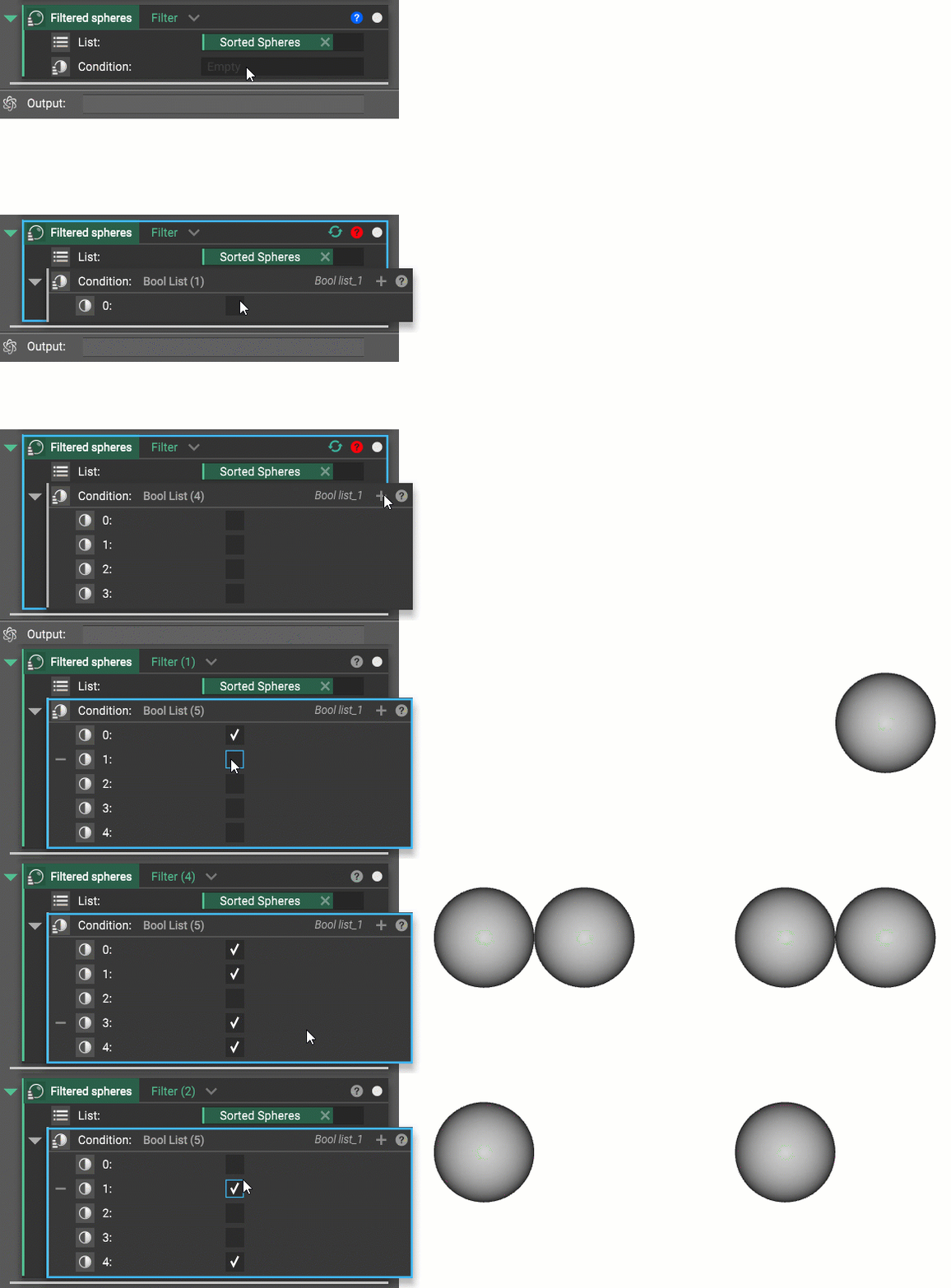
The **Filter**block removes items from a list based on a **Bool List**, which must be the same length as the List input in the block. The default state of the **Filter**block takes in a Bool list, a series of checkboxes where items in the list can be kept or removed from the input lists by toggling the checkboxes.
## Filter
The **Filter**block removes items from a list based on a **Bool List**, which must be the same length as the List input in the block. The default state of the **Filter**block takes in a Bool list, a series of checkboxes where items in the list can be kept or removed from the input lists by toggling the checkboxes.
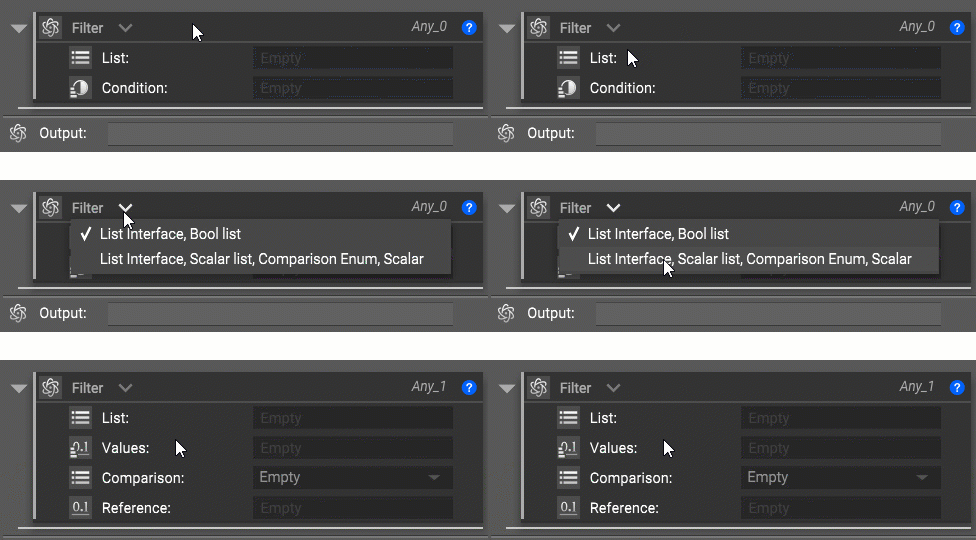
 The **Filter**block allows a list to be filtered by a scalar list of the same length, by selecting the second option in the dropdown menu from the arrow next to the block's name.
 Filtering is useful for many different application areas, especially when you want to add more intelligence to your workflows and isolate or add conditionals for certain types of results. This naturally makes filtering useful for simulation workflows, where a lot of data is generated. An example of filtering in simulation workflows is looking at Min values and looking at Max values.