> ## Documentation Index
> Fetch the complete documentation index at: https://docs.ntop.com/llms.txt
> Use this file to discover all available pages before exploring further.
# Simulation Model
The **Simulation Model** is where you will define the geometry and inherent behavior of your fluid domain(s).
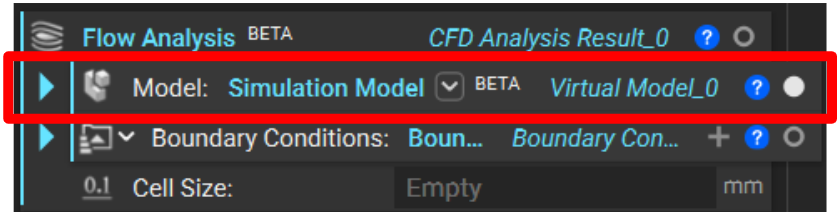 All simulations in nTop use the **Simulation Model** block regardless of the type of analysis you run.
[Structural](https://learn.ntop.com/courses/240-intro-to-simulation/) and [Thermal](https://learn.ntop.com/courses/341-intro-to-thermal-fea/) simulations in nTop run on finite element (FE) models which intake tetrahedral meshes to represent solid volumes.
All simulations in nTop use the **Simulation Model** block regardless of the type of analysis you run.
[Structural](https://learn.ntop.com/courses/240-intro-to-simulation/) and [Thermal](https://learn.ntop.com/courses/341-intro-to-thermal-fea/) simulations in nTop run on finite element (FE) models which intake tetrahedral meshes to represent solid volumes.
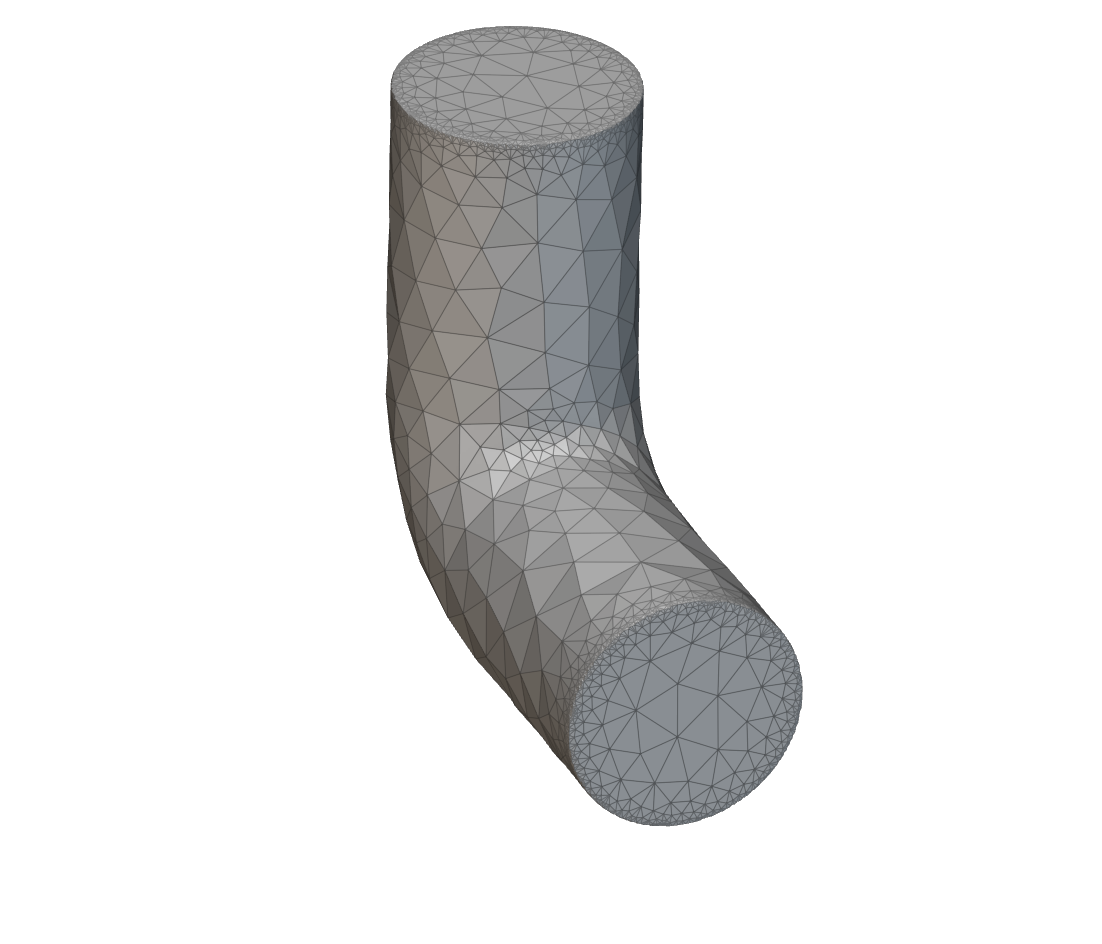
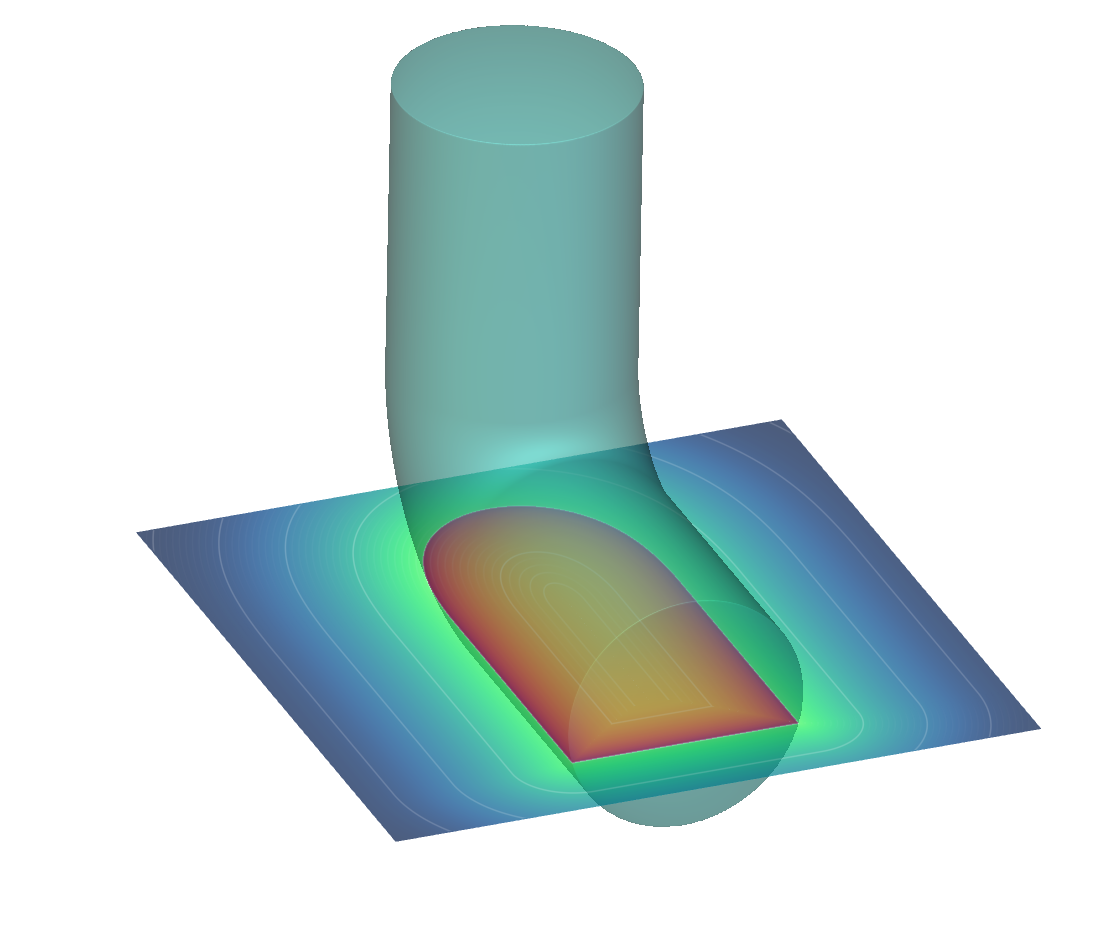 **Flow Analysis** runs on a virtual model which intakes an implicit body to represent fluid volumes.
Use the block's overload to specify a **Virtual Domain List** for flow analysis applications. You cannot run flow analysis on FE domains.
**Flow Analysis** runs on a virtual model which intakes an implicit body to represent fluid volumes.
Use the block's overload to specify a **Virtual Domain List** for flow analysis applications. You cannot run flow analysis on FE domains.
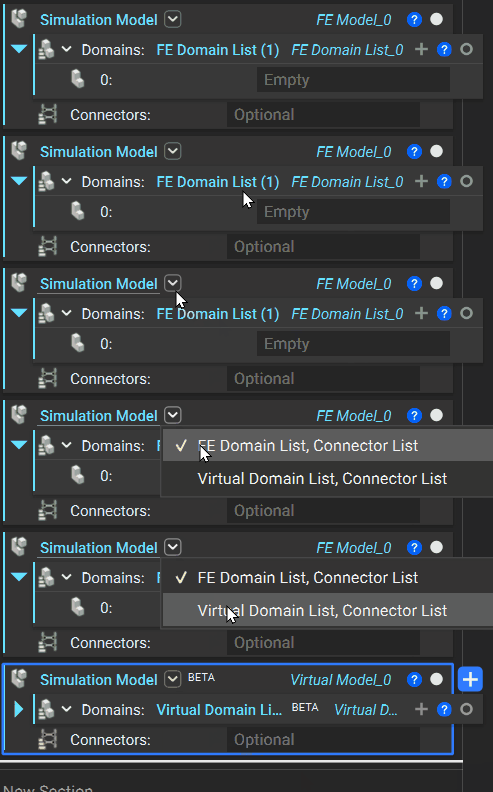 When building a model for flow analysis, you can ignore the optional *Connectors* input.
## Fluid Domain
When building a model for flow analysis, you can ignore the optional *Connectors* input.
## Fluid Domain
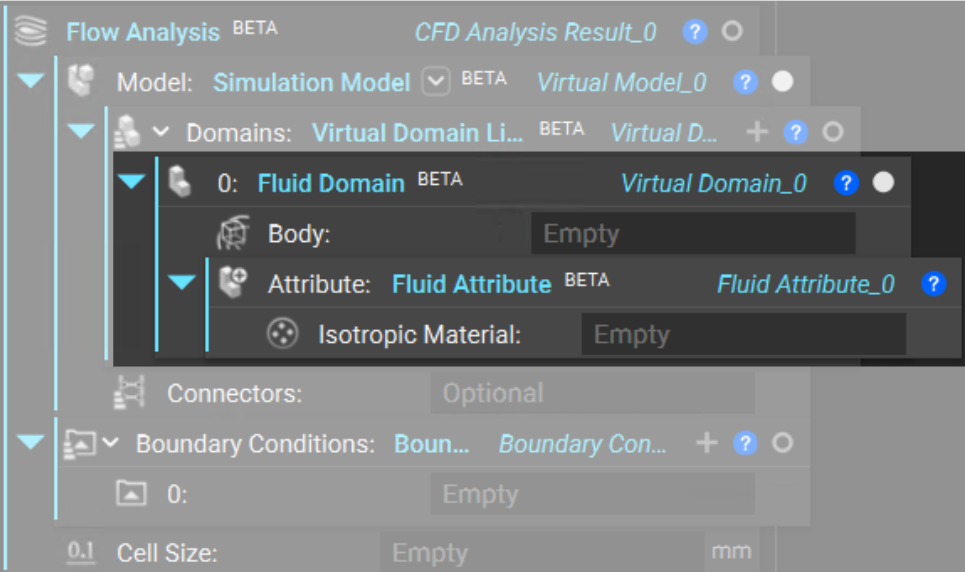
 The **Virtual Domain List** is where you will add one or more **Fluid Domain** blocks to your model.
The **Fluid Domain** contains the *Body*, defined by an implicit body to represent the fluid volume, and an *Attribute*, which dictates material (fluid) properties.
The **Virtual Domain List** is where you will add one or more **Fluid Domain** blocks to your model.
The **Fluid Domain** contains the *Body*, defined by an implicit body to represent the fluid volume, and an *Attribute*, which dictates material (fluid) properties.
 ## Fluid Attribute
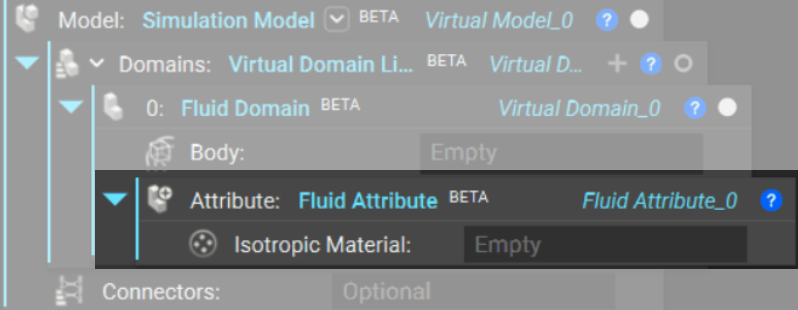
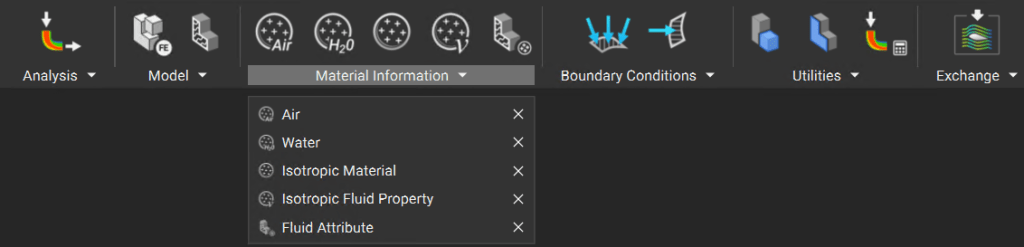 Within the **Fluid Domain** block, an empty **Fluid Attribute** block auto-populates in *Attribute* input. This is where we define the attributes of our material. For flow analysis, add an *Isotropic Material* to define density and kinematic viscosity.
You can define your own fluid to simulate or use pre-made fluid custom blocks.
Within the **Fluid Domain** block, an empty **Fluid Attribute** block auto-populates in *Attribute* input. This is where we define the attributes of our material. For flow analysis, add an *Isotropic Material* to define density and kinematic viscosity.
You can define your own fluid to simulate or use pre-made fluid custom blocks.
 * ###### Define a Fluid
* ###### Use a Pre-Made Fluid
To define a fluid, add an **Isotropic Material** to your fluid attribute. Fill the inputs as follows.
* *Properties* *(Choose One)*
* Add an **Isotropic Fluid Property** block and define a *Kinematic Viscosity*.
* Add an **Isotropic Porous Medium Property** block and define a *Permeability* and *Forchheimer Parameter*.
* *Density*
* Define a *Density* value.
* ###### Define a Fluid
* ###### Use a Pre-Made Fluid
To define a fluid, add an **Isotropic Material** to your fluid attribute. Fill the inputs as follows.
* *Properties* *(Choose One)*
* Add an **Isotropic Fluid Property** block and define a *Kinematic Viscosity*.
* Add an **Isotropic Porous Medium Property** block and define a *Permeability* and *Forchheimer Parameter*.
* *Density*
* Define a *Density* value.
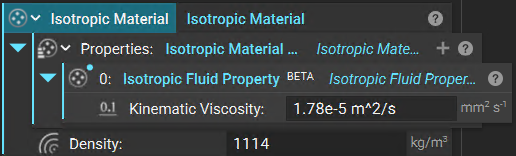 Example of a coolant.
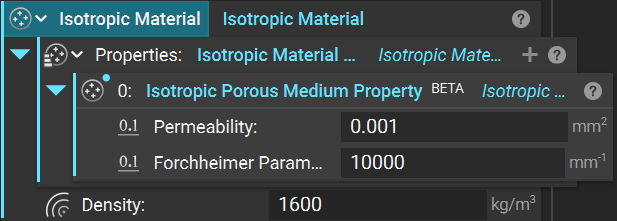 Example of a fine sand.
**Note**: To create a fluid and then recall it in future nTop workflows, you can build and save it as a [custom block](https://support.ntop.com/hc/en-us/articles/7042784039443-How-to-create-a-custom-block).
Custom blocks for **Air** and **Water** are already available to you. You can find them in the *Fluids* tab under *Material Information*.
Example of a fine sand.
**Note**: To create a fluid and then recall it in future nTop workflows, you can build and save it as a [custom block](https://support.ntop.com/hc/en-us/articles/7042784039443-How-to-create-a-custom-block).
Custom blocks for **Air** and **Water** are already available to you. You can find them in the *Fluids* tab under *Material Information*.
