> ## Documentation Index
> Fetch the complete documentation index at: https://docs.ntop.com/llms.txt
> Use this file to discover all available pages before exploring further.
# UI and Blocks
nTop Fluids features are currently [beta blocks](https://support.ntop.com/hc/en-us/articles/360062442113-What-are-beta-blocks). To access them, check *'Show beta blocks'* in your general settings.
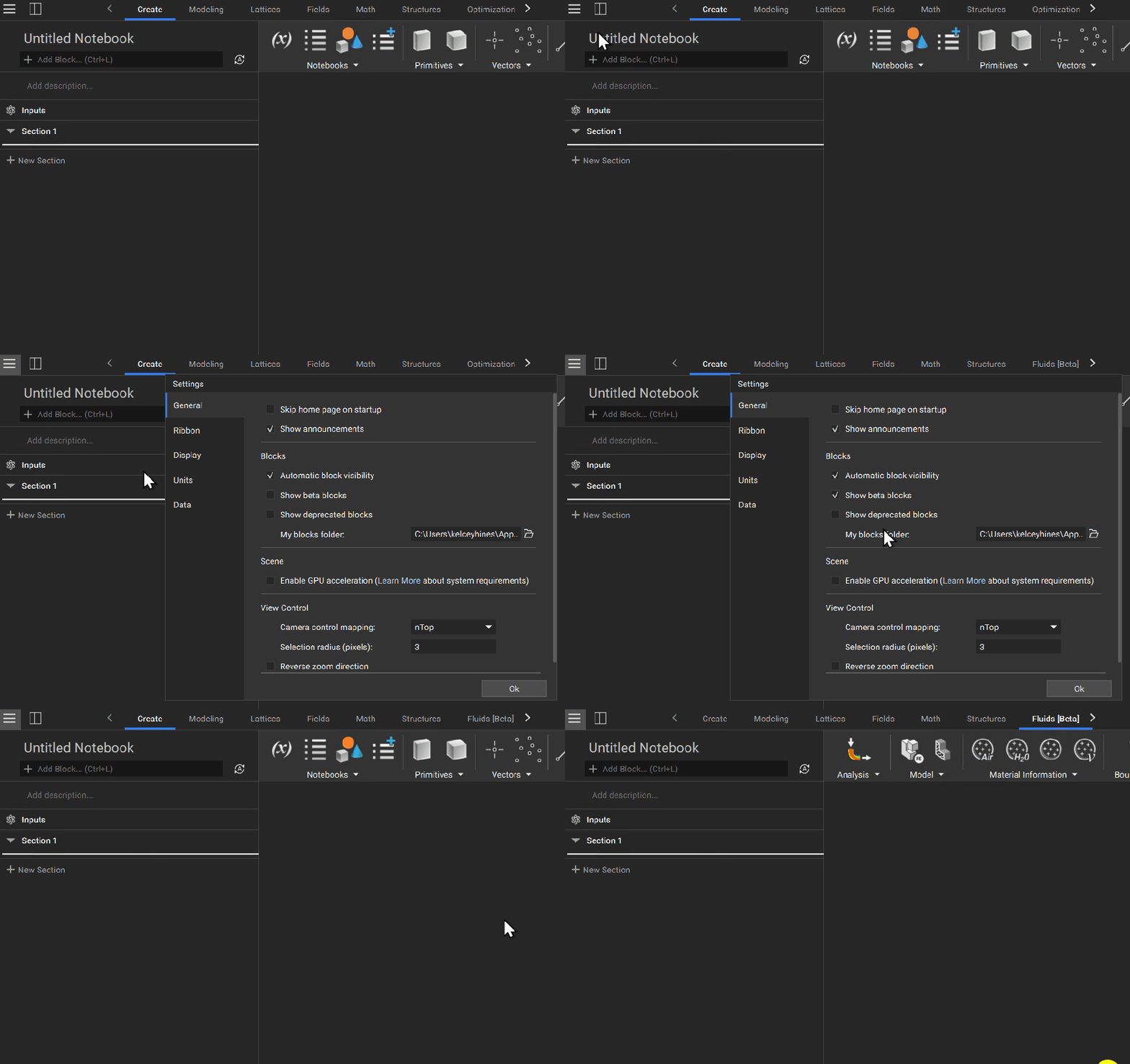
 After showing beta blocks, you will see the *Fluids \[Beta]* tab appear. You can now access a series of dropdown lists containing blocks you can use to set up a flow analysis.
## Flow Analysis Block
Begin setting up your simulation by adding the **Flow Analysis** block to your notebook. Every block you use to define your flow analysis problem will get referenced here.
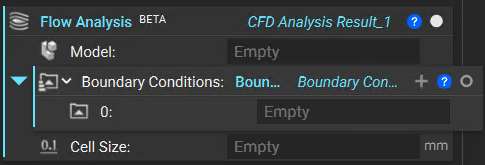
The **Flow Analysis** block has three inputs which we will explore in the following lessons.
After showing beta blocks, you will see the *Fluids \[Beta]* tab appear. You can now access a series of dropdown lists containing blocks you can use to set up a flow analysis.
## Flow Analysis Block
Begin setting up your simulation by adding the **Flow Analysis** block to your notebook. Every block you use to define your flow analysis problem will get referenced here.
The **Flow Analysis** block has three inputs which we will explore in the following lessons.
 ### Model
Define the fluid domain and material attributes to simulate.
### Model
Define the fluid domain and material attributes to simulate.
 ### Boundary Conditions
Assign pressure and velocity at inlet(s) and outlet(s).
### Boundary Conditions
Assign pressure and velocity at inlet(s) and outlet(s).
 ### Cell Size
Assign a size for the cells used in the analysis.
### Cell Size
Assign a size for the cells used in the analysis.