> ## Documentation Index
> Fetch the complete documentation index at: https://docs.ntop.com/llms.txt
> Use this file to discover all available pages before exploring further.
# Conversion to CAD with Quadrangulate Mesh
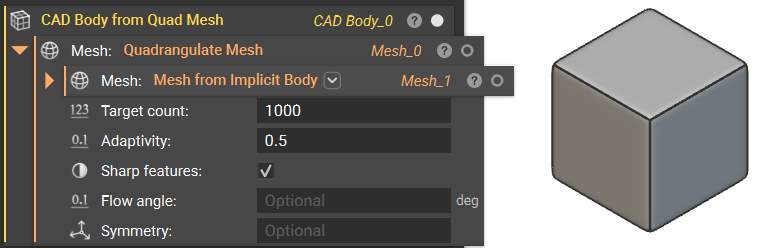
To convert an Implicit Body or Mesh to CAD, we will use the **CAD Body from Quad Mesh** Block. This block is capable of exporting implicit or mesh parts to STEP or Parasolid formats. If you are working with an older version of nTop, this block is called **CAD Body from Mesh**.
 ## CAD Body from Quad Mesh
Before converting, we will use the **Quadrangulate Mesh** Block to generate a Quad mesh as in the workflow shown below.
## CAD Body from Quad Mesh
Before converting, we will use the **Quadrangulate Mesh** Block to generate a Quad mesh as in the workflow shown below.
 ## Quadrangulate Mesh
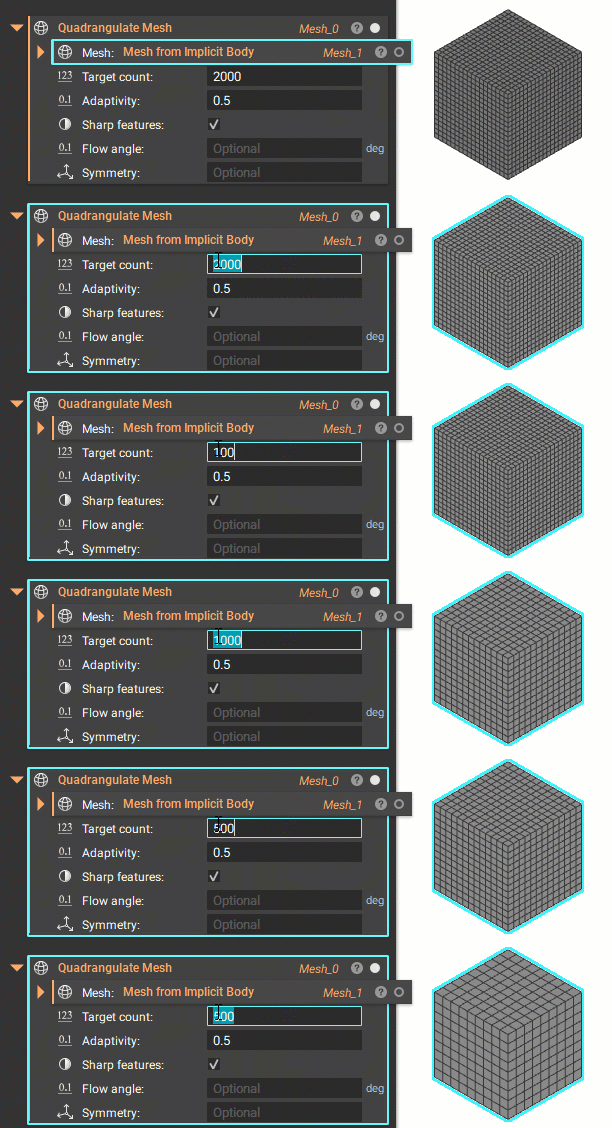
The **Quadrangulate Mesh** block creates a mesh with the number of Quads indicated in the target count. For finer details, increase the target count. The quad mesh allows for easier and faster conversion to a CAD Body format. Note that meshes may need further refinement before being converted into a Quad Mesh, and this should not be used with lattices or TPMS structures.
## Quadrangulate Mesh
The **Quadrangulate Mesh** block creates a mesh with the number of Quads indicated in the target count. For finer details, increase the target count. The quad mesh allows for easier and faster conversion to a CAD Body format. Note that meshes may need further refinement before being converted into a Quad Mesh, and this should not be used with lattices or TPMS structures.
 **Note**: This block works best with simpler structures and some TPMS lattices. We do not recommend it for use with a complex lattice structure.
For small to medium-sized lattices that this method cannot support, try the **CAD Body from Implicit Body** block discussed in the Working with CAD Bodies Lesson in [101: nTop Essentials](/courses/101-ntop-essentials/).
**Note**: This block works best with simpler structures and some TPMS lattices. We do not recommend it for use with a complex lattice structure.
For small to medium-sized lattices that this method cannot support, try the **CAD Body from Implicit Body** block discussed in the Working with CAD Bodies Lesson in [101: nTop Essentials](/courses/101-ntop-essentials/).