> ## Documentation Index
> Fetch the complete documentation index at: https://docs.ntop.com/llms.txt
> Use this file to discover all available pages before exploring further.
# Split and Filter Mesh
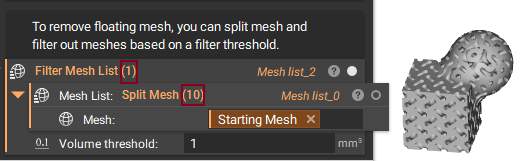
One cause of a mesh being self-intersecting could be fragmented mesh pieces (an example of one of these fragmented pieces is shown below). To fix this, you can use the **Split Mesh** and **Filter Mesh List** blocks.
 ## Split Mesh
The **Split Mesh** splits a mesh into multiple mesh objects. You can use it for separating disconnected parts from a larger mesh. Even if you can't see the fragments, they may appear when using the**Split Mesh** block.
## Split Mesh
The **Split Mesh** splits a mesh into multiple mesh objects. You can use it for separating disconnected parts from a larger mesh. Even if you can't see the fragments, they may appear when using the**Split Mesh** block.
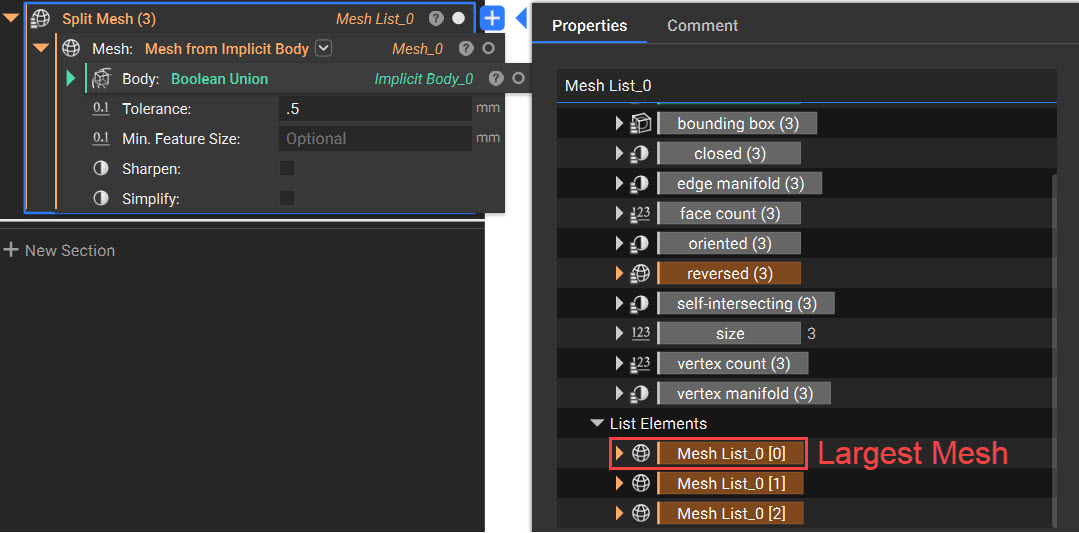 **Note**: To extract the meshes, you must open the Properties panel in the Block Details. The largest mesh is always at the top of the list.
## Filter Mesh List
The **Filter Mesh List** filters the **Split Mesh** results, based on a volume, to remove small disconnected pieces from the mesh. Its primary use is for minor mesh fixing. In the example below, the starting mesh had floating meshes, but when the **Filter Mesh List** was used, it removed them with only the large mesh remaining.
**Note**: To extract the meshes, you must open the Properties panel in the Block Details. The largest mesh is always at the top of the list.
## Filter Mesh List
The **Filter Mesh List** filters the **Split Mesh** results, based on a volume, to remove small disconnected pieces from the mesh. Its primary use is for minor mesh fixing. In the example below, the starting mesh had floating meshes, but when the **Filter Mesh List** was used, it removed them with only the large mesh remaining.