> ## Documentation Index
> Fetch the complete documentation index at: https://docs.ntop.com/llms.txt
> Use this file to discover all available pages before exploring further.
# What You Will Need
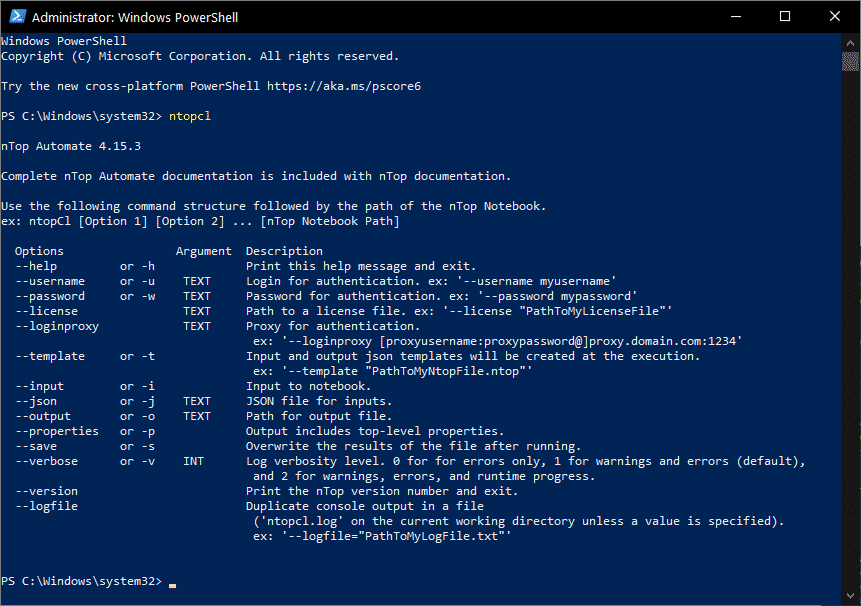
If during the installation of nTop software, you have left “Add installation folder to system PATH” checked, you can call the nTop Automate executable file to run nTop Automate by typing **ntopcl**or **ntopcl.exe** in any folder using either Command Prompt or Windows Powershell. This will print the options of command arguments you can use with your nTop Automate execution.
 ## Licensing
You can run nTopCL without issues if logged in on the normal nTop GUI with your cloud license credential.
In the case of local licenses, you will always need to add the argument\*\*–license\*\* your .lic to your regular command expression. Enter the server address following **–license** along with the Server Address similar to the step above, and it should log you in. Example: *ntopcl –license PORT\@HOSTNAME*
## For Writing Code in Python
If you plan to follow along, download one of the following free softwares:
* [Thonny](https://thonny.org/) (recommended for beginners)
* [Spyder](https://www.spyder-ide.org/)
* [Visual Studio Code](https://code.visualstudio.com/)
Examples in this course are done using [Spyder](https://www.spyder-ide.org/).
## For Editing JSON Files
Input values for the nTopCL execution can be processed with a JSON file, and Notebook outputs get printed to a specified file in JSON format.
Download [Notepad++](https://notepad-plus-plus.org/downloads/) to read and edit these files.
## Licensing
You can run nTopCL without issues if logged in on the normal nTop GUI with your cloud license credential.
In the case of local licenses, you will always need to add the argument\*\*–license\*\* your .lic to your regular command expression. Enter the server address following **–license** along with the Server Address similar to the step above, and it should log you in. Example: *ntopcl –license PORT\@HOSTNAME*
## For Writing Code in Python
If you plan to follow along, download one of the following free softwares:
* [Thonny](https://thonny.org/) (recommended for beginners)
* [Spyder](https://www.spyder-ide.org/)
* [Visual Studio Code](https://code.visualstudio.com/)
Examples in this course are done using [Spyder](https://www.spyder-ide.org/).
## For Editing JSON Files
Input values for the nTopCL execution can be processed with a JSON file, and Notebook outputs get printed to a specified file in JSON format.
Download [Notepad++](https://notepad-plus-plus.org/downloads/) to read and edit these files.