> ## Documentation Index
> Fetch the complete documentation index at: https://docs.ntop.com/llms.txt
> Use this file to discover all available pages before exploring further.
# Importing and Converting Parts to Implicits
The typical first steps of building a workflow are importing a part, then converting it into an implicit body to be able to work with it. Blocks for importing and conversion can be found in the *Utilities*tab.
 ## Importing Parts
There are three main methods for importing parts, data, and more. See the full list of files types that can be imported into and exported out of nTop [here](https://support.ntopology.com/hc/en-us/articles/360048249514).
## Method 1: Drag and Drop
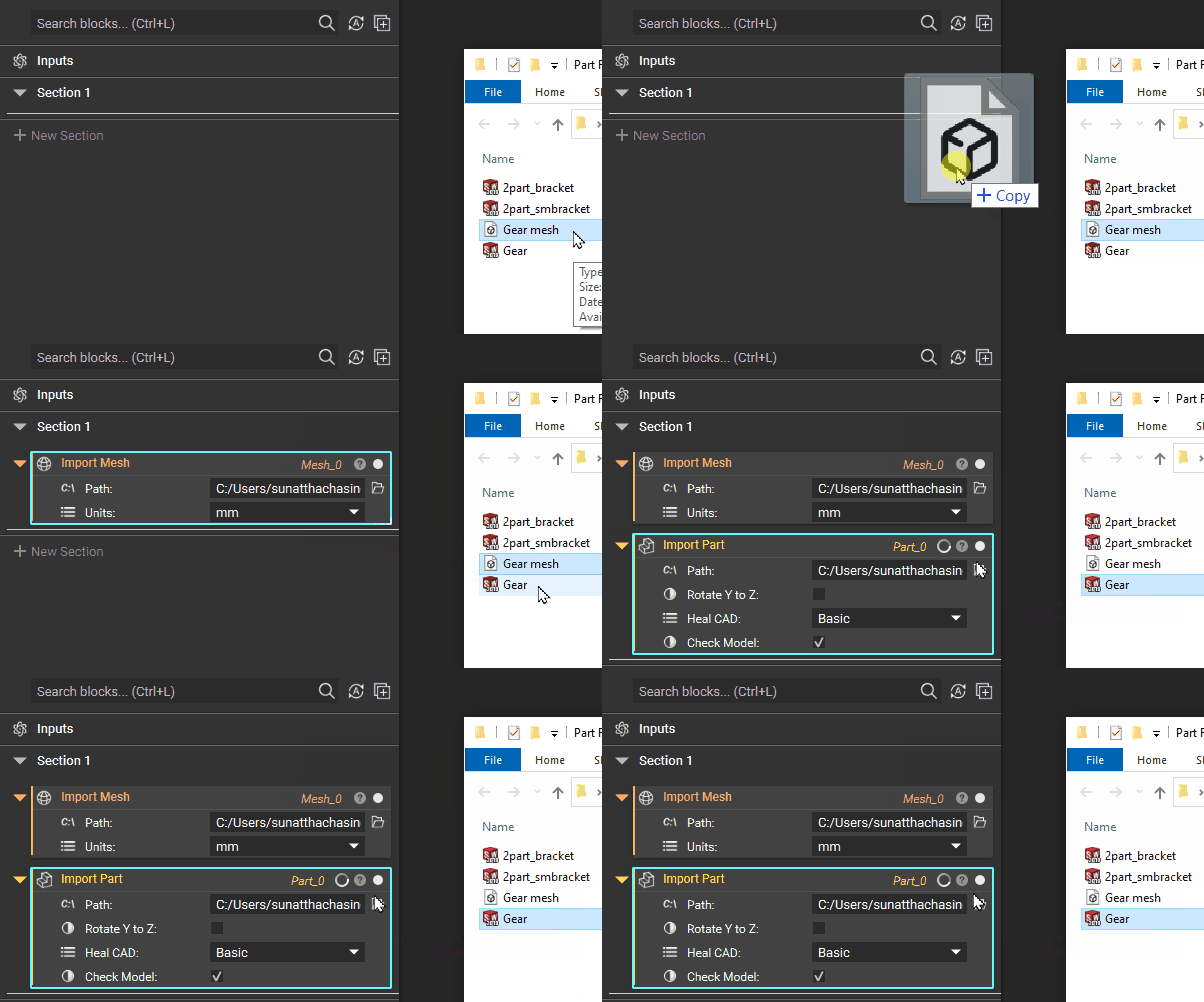
Open the folder on your computer that contains the part file. Drag and drop it into nTop. This will import your part and automatically create a block.
## Importing Parts
There are three main methods for importing parts, data, and more. See the full list of files types that can be imported into and exported out of nTop [here](https://support.ntopology.com/hc/en-us/articles/360048249514).
## Method 1: Drag and Drop
Open the folder on your computer that contains the part file. Drag and drop it into nTop. This will import your part and automatically create a block.
 ## Method 2: File > Import
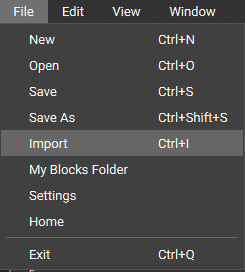
Go up to *File > Import* (or use hot-key Ctrl + I) to open the Import Window. From there, choose your file and it will import your part.
## Method 2: File > Import
Go up to *File > Import* (or use hot-key Ctrl + I) to open the Import Window. From there, choose your file and it will import your part.
 ## Method 3: Import Block
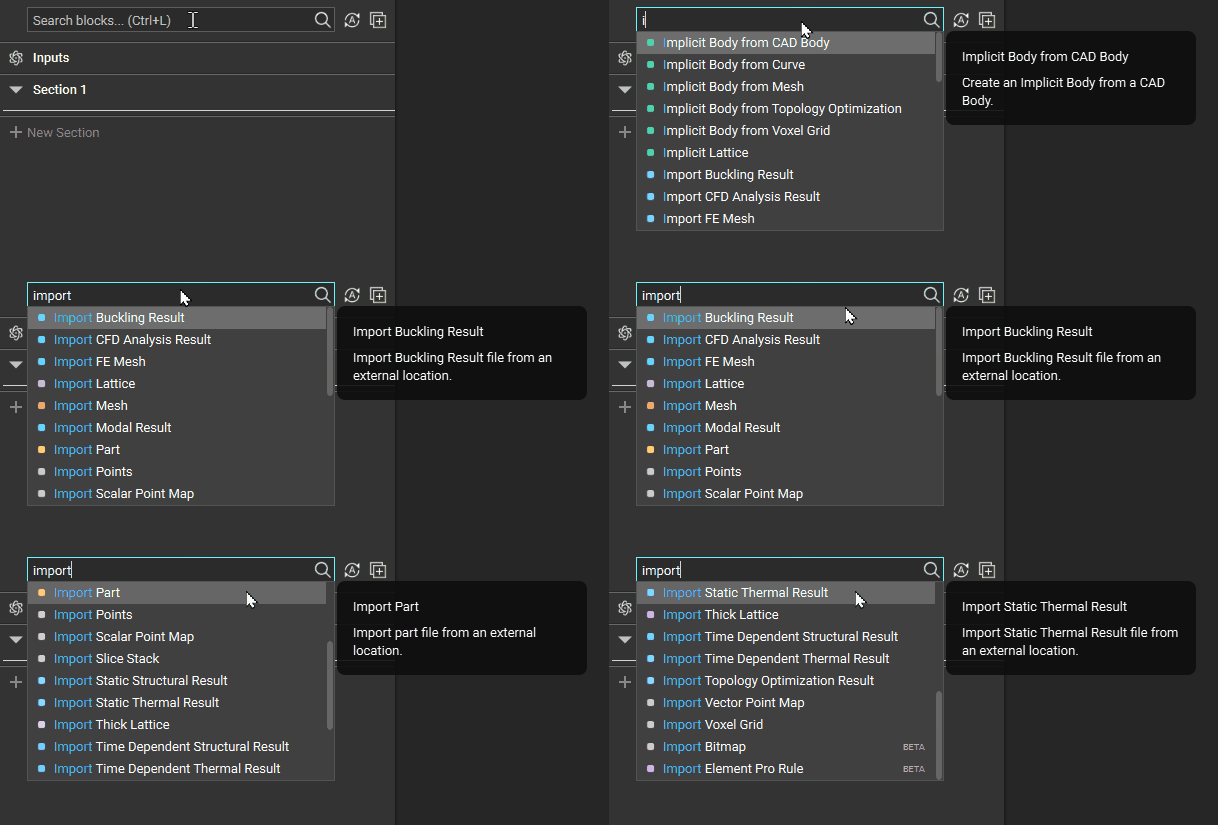
Use the search bar and type in 'Import'. All of the import options will pop up, allowing you to choose the block you need. These blocks can also be found in the *Utilities*tab in the Ribbon.
## Method 3: Import Block
Use the search bar and type in 'Import'. All of the import options will pop up, allowing you to choose the block you need. These blocks can also be found in the *Utilities*tab in the Ribbon.
 **Tip:**
If the part is not visible after importing, it may be because it is not at the location of the viewport. Use the hotkey 'Z' to bring the part into view.
## Converting to an Implicit Body
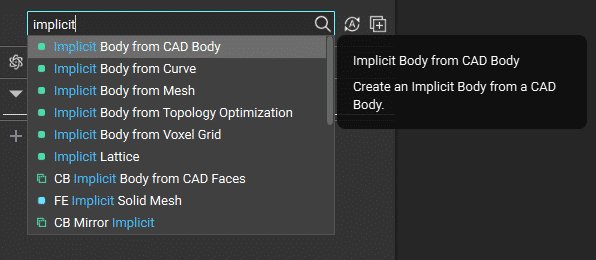
Depending on your imported file type, different blocks are available for converting parts to an implicit body. Use the search bar to explore the possible block options. You can find these conversion blocks in the *Utilities*tab.
**Tip:**
If the part is not visible after importing, it may be because it is not at the location of the viewport. Use the hotkey 'Z' to bring the part into view.
## Converting to an Implicit Body
Depending on your imported file type, different blocks are available for converting parts to an implicit body. Use the search bar to explore the possible block options. You can find these conversion blocks in the *Utilities*tab.