> ## Documentation Index
> Fetch the complete documentation index at: https://docs.ntop.com/llms.txt
> Use this file to discover all available pages before exploring further.
# Toolkit and Custom Blocks
With nTop, it is possible to package longer workflows into a block, given the determination of a set of inputs and the desired output. The two lines along the left side of the block denote a toolkit block or custom block.
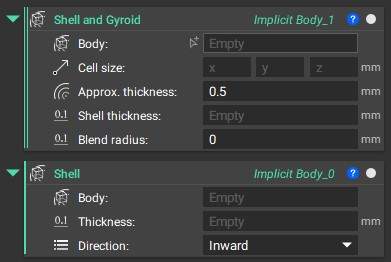 ## Toolkit Blocks
Toolkits are pre-packaged, reusable workflows or utilities that come pre-installed with the software. Toolkit blocks are categorized by their specific applications in the last five tabs of the modeling ribbon: *Additive Manufacturing, Architected Materials, Design Analysis, Lightweighting, and Topology Optimization.*
## Toolkit Blocks
Toolkits are pre-packaged, reusable workflows or utilities that come pre-installed with the software. Toolkit blocks are categorized by their specific applications in the last five tabs of the modeling ribbon: *Additive Manufacturing, Architected Materials, Design Analysis, Lightweighting, and Topology Optimization.*
 ## Custom Blocks
If a workflow is packaged into a block by the user, we call it a Custom Block. Custom Blocks can be created by setting up the Notebook in a specific format. To accomplish this, define the important parameters as inputs and the desired outcome as the output.
Custom Blocks are sharable, and we recommend saving them with a name that begins with CB, the acronym for Custom Block. Once you add them to your **My Blocks Folder**, they can be found by typing the custom block's name or CB into the search bar.
To learn how to create and make changes to Custom Blocks, check out our [230: Intro to Automation](/courses/230-intro-to-automation/) course.
## Custom Blocks
If a workflow is packaged into a block by the user, we call it a Custom Block. Custom Blocks can be created by setting up the Notebook in a specific format. To accomplish this, define the important parameters as inputs and the desired outcome as the output.
Custom Blocks are sharable, and we recommend saving them with a name that begins with CB, the acronym for Custom Block. Once you add them to your **My Blocks Folder**, they can be found by typing the custom block's name or CB into the search bar.
To learn how to create and make changes to Custom Blocks, check out our [230: Intro to Automation](/courses/230-intro-to-automation/) course.