> ## Documentation Index
> Fetch the complete documentation index at: https://docs.ntop.com/llms.txt
> Use this file to discover all available pages before exploring further.
# Working with Bitmaps
Another way to add texture to an implicit is by importing bitmaps. Bitmaps can currently be imported into nTop as PNG files.
## Import Bitmap
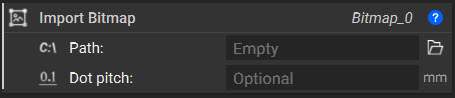
Use the **Import Bitmap** block to import any PNG. If the file does not specify a Dot Pitch, use the input to define the distance between the dots of your image.
 **Note**: This block is a Beta block, to ensure you can access it go to *Settings → General → Show Beta Blocks*.
## Map Bitmap to Plane
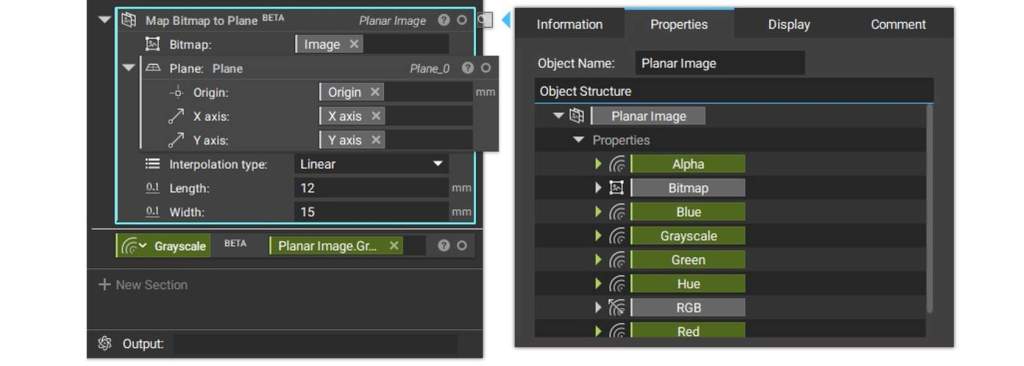
The **Map Bitmap to Plane** block will make the image usable in nTop. This will place the image on your specified plane and open up access to various fields in the properties. Depending on the color of your image, these fields can drive texturing operations. We will use the Grayscale field since we have imported a black and white image.
**Note**: This block is a Beta block, to ensure you can access it go to *Settings → General → Show Beta Blocks*.
## Map Bitmap to Plane
The **Map Bitmap to Plane** block will make the image usable in nTop. This will place the image on your specified plane and open up access to various fields in the properties. Depending on the color of your image, these fields can drive texturing operations. We will use the Grayscale field since we have imported a black and white image.
 **Note**: This block is a Beta block, to ensure you can access it go to *Settings → General → Show Beta Blocks*.
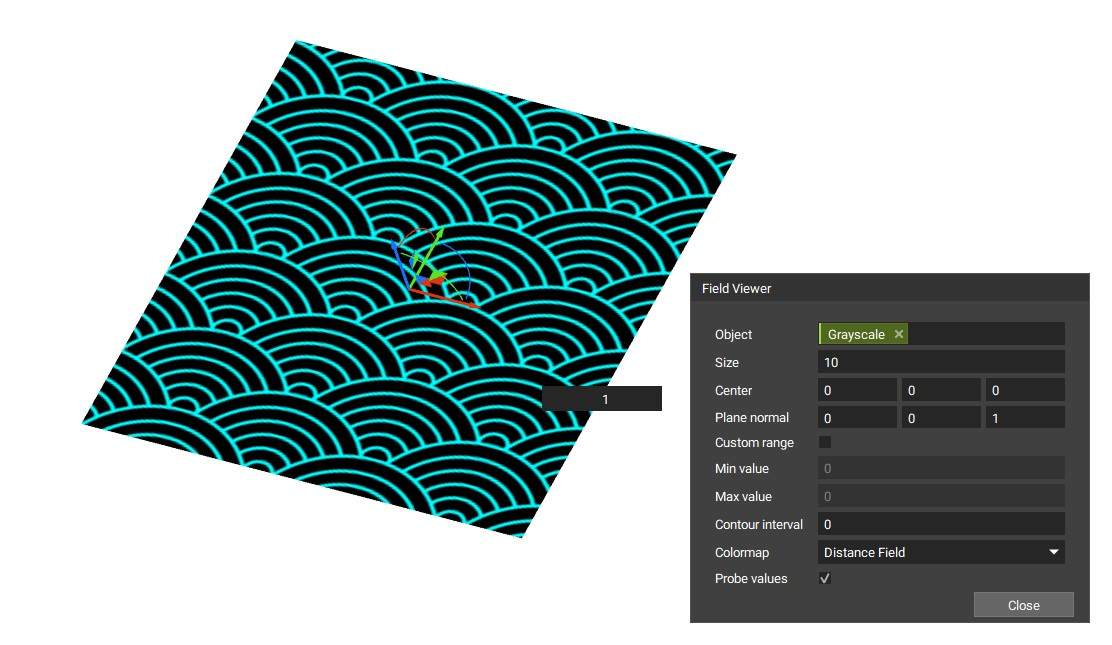
Take a look at the Grayscale field with the Field Viewer (F). With *Probe Values* checked, we can see how the values vary and will manipulate the geometry.
**Note**: This block is a Beta block, to ensure you can access it go to *Settings → General → Show Beta Blocks*.
Take a look at the Grayscale field with the Field Viewer (F). With *Probe Values* checked, we can see how the values vary and will manipulate the geometry.
 ## Offset Body
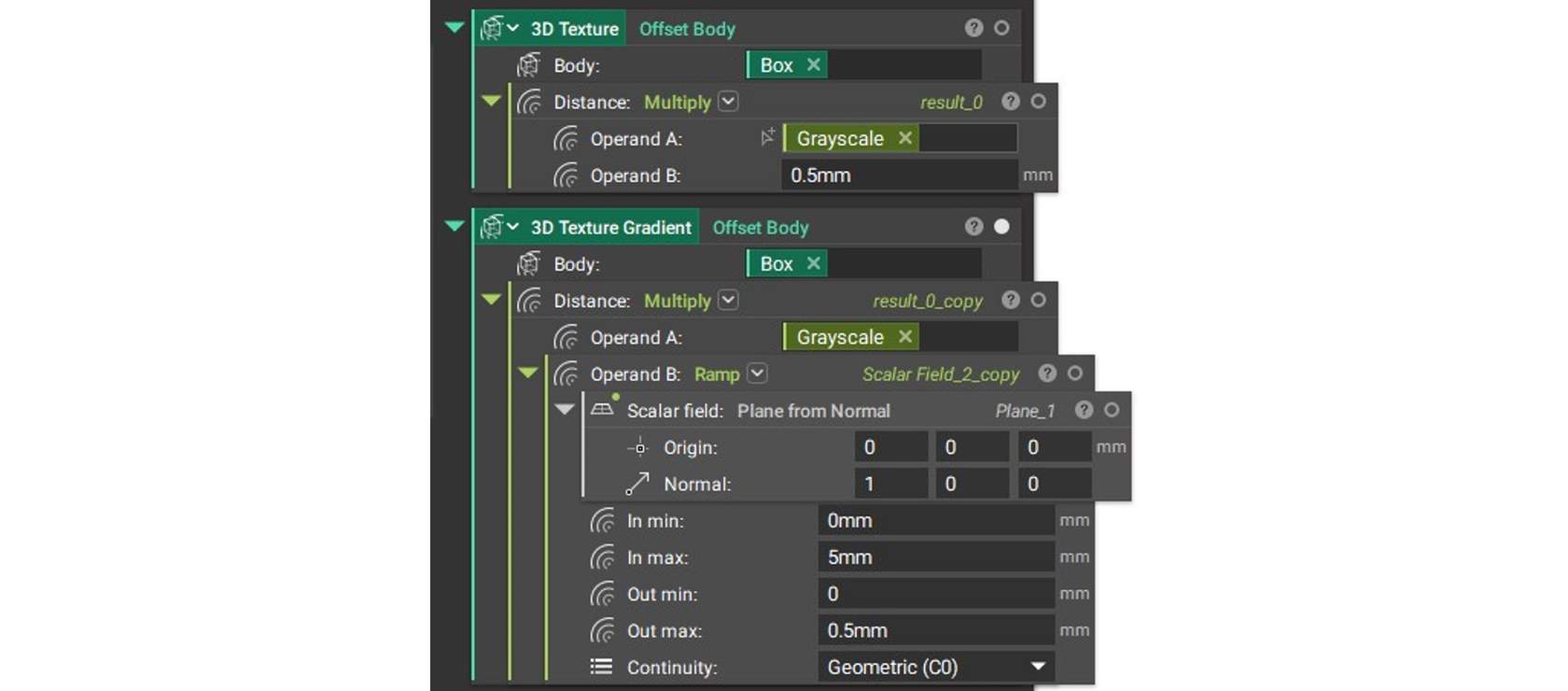
The **Offset Body** block is used to texture the body based on the color field. In order to offset properly, a **Multiply**block is used to assign units. This can be a constant value for a constant offset, or a **Ramp**in order to vary the texture.
## Offset Body
The **Offset Body** block is used to texture the body based on the color field. In order to offset properly, a **Multiply**block is used to assign units. This can be a constant value for a constant offset, or a **Ramp**in order to vary the texture.