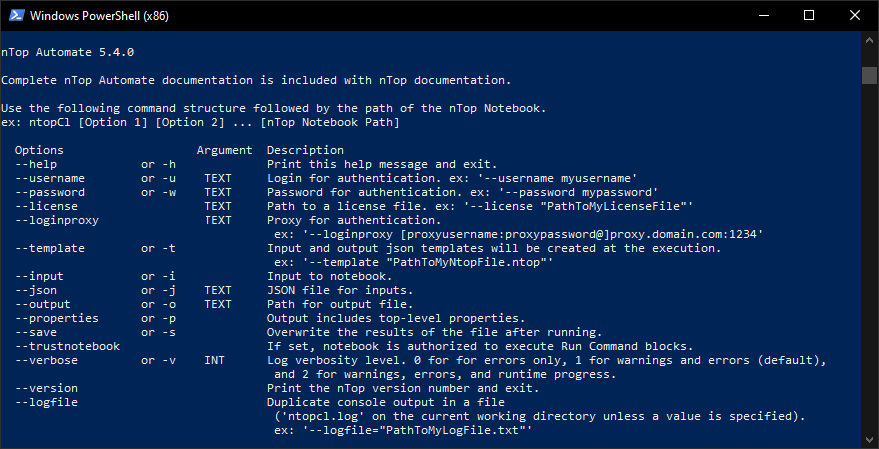
Using nTop Automate
nTop Automate is a command line interface that executes nTop Notebooks without a graphical user interface (GUI).License
If you are logged in as a nTop cloud license user on the GUI application, nTop Automate will use the cached credential to verify the license. Alternatively, you can use nTop Automate to verify your license.nTop Automate
In the installation folder of nTop, ntopcl.exe file is available as shown below. For your convenience, the default installation path is “C:\Program Files\nTopology\nTopology” unless specified at the time of installation. Windows Powershell or Command Prompt can run the ntopcl.exe process. If your nTop is installed in a default location, use the following commands.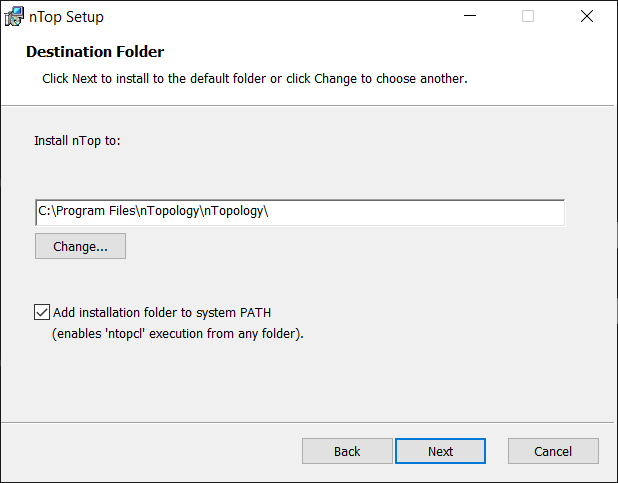
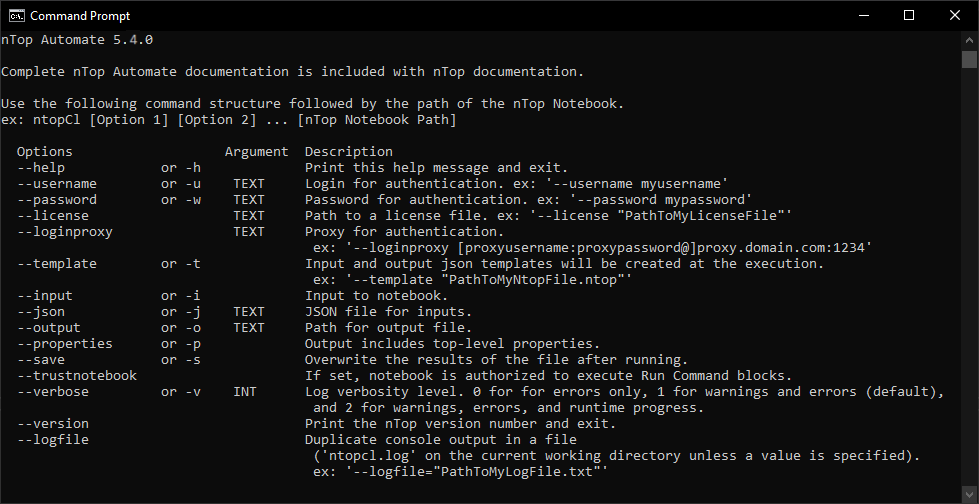
nTop Automate on Command Prompt
nTop Automate on Powershell