

Creating a Notebook for nTop Automate
Prepare your notebook as if you are creating a custom block. The notebook shown as an example here is designed to create a box geometry, calculate surface area and export the geometry as a STL file. The Input variables such as dimensions and output file path can be passed through the execution command. The output section can contain any metadata like surface area. Download this example for your reference. Alternatively, you can find this tutorial on our support site.Running a Notebook using nTop Automate
Execute your notebook with the input variables in a command prompt window. -i followed by a single space and the variable will replace the default variable in the notebook. In this example, there are 4 input variables: Output directory, Length, Width, and Height as shown below. These variables can be passed along with the execution command in the same order as in the notebook. Check out more options around nTop Automate Input.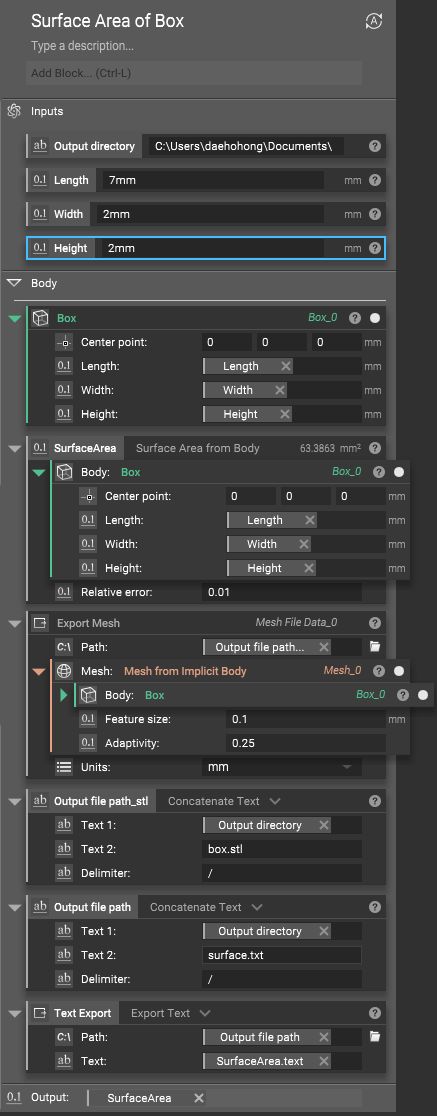 After the execution of the below command, you will be able to find “box.stl” and “surface.txt” in the folder.