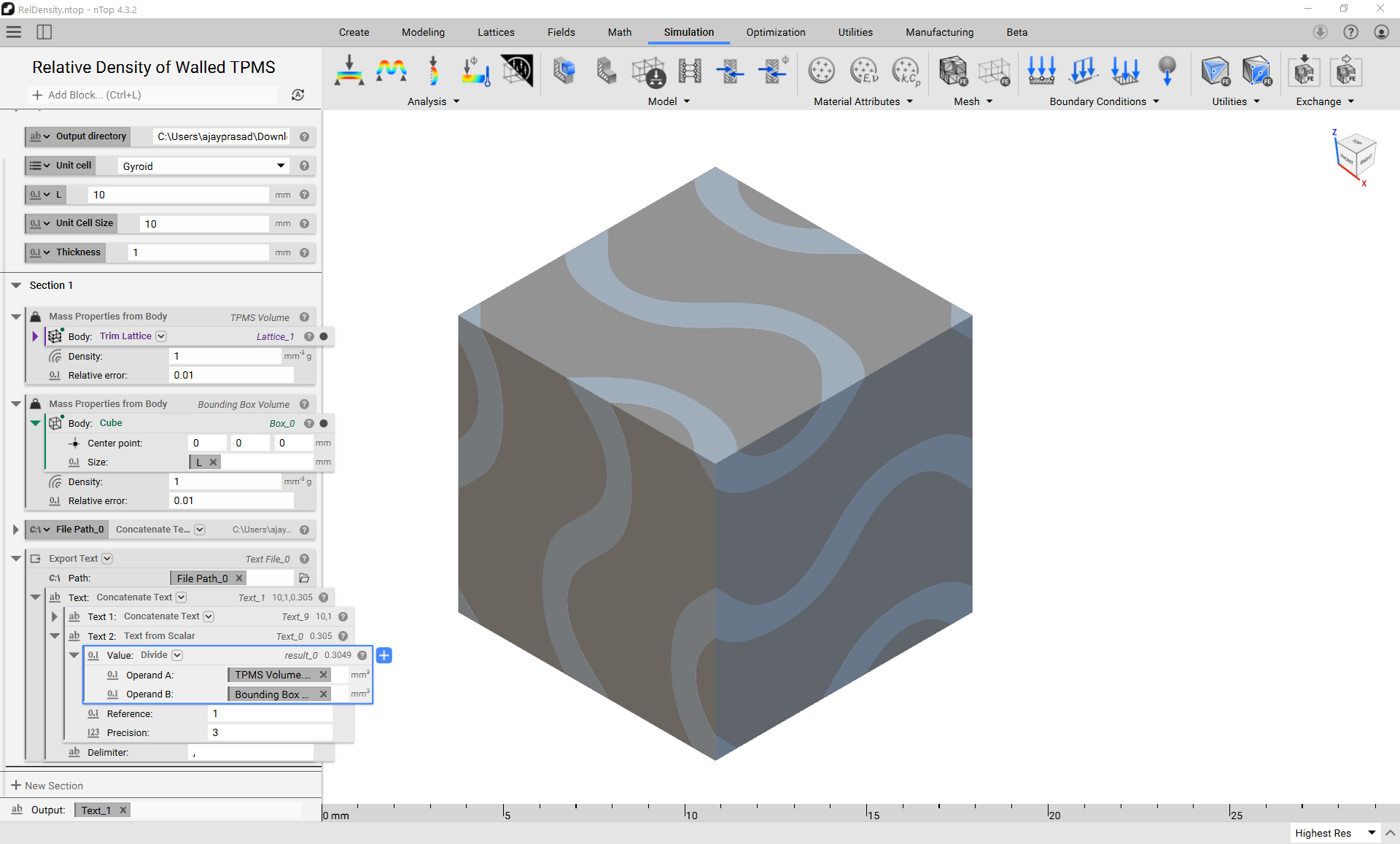
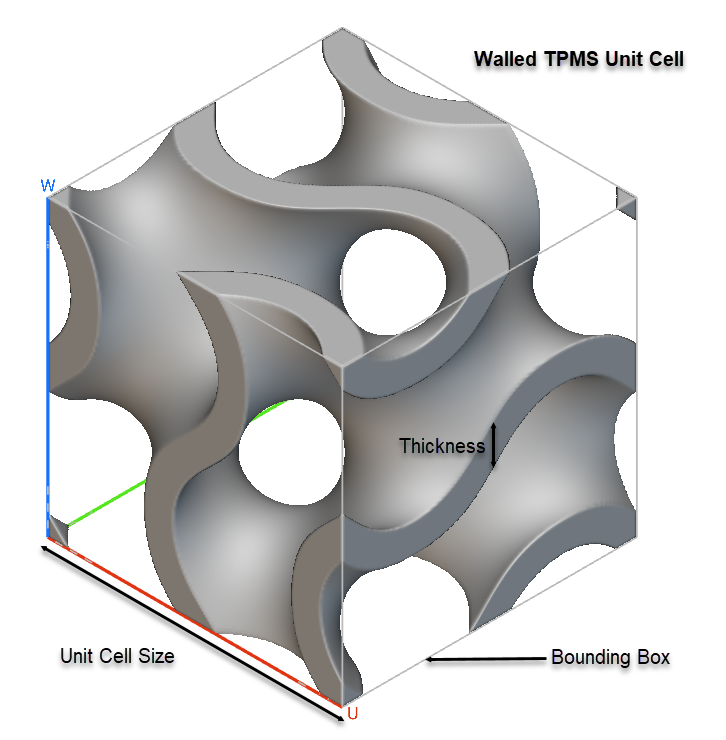
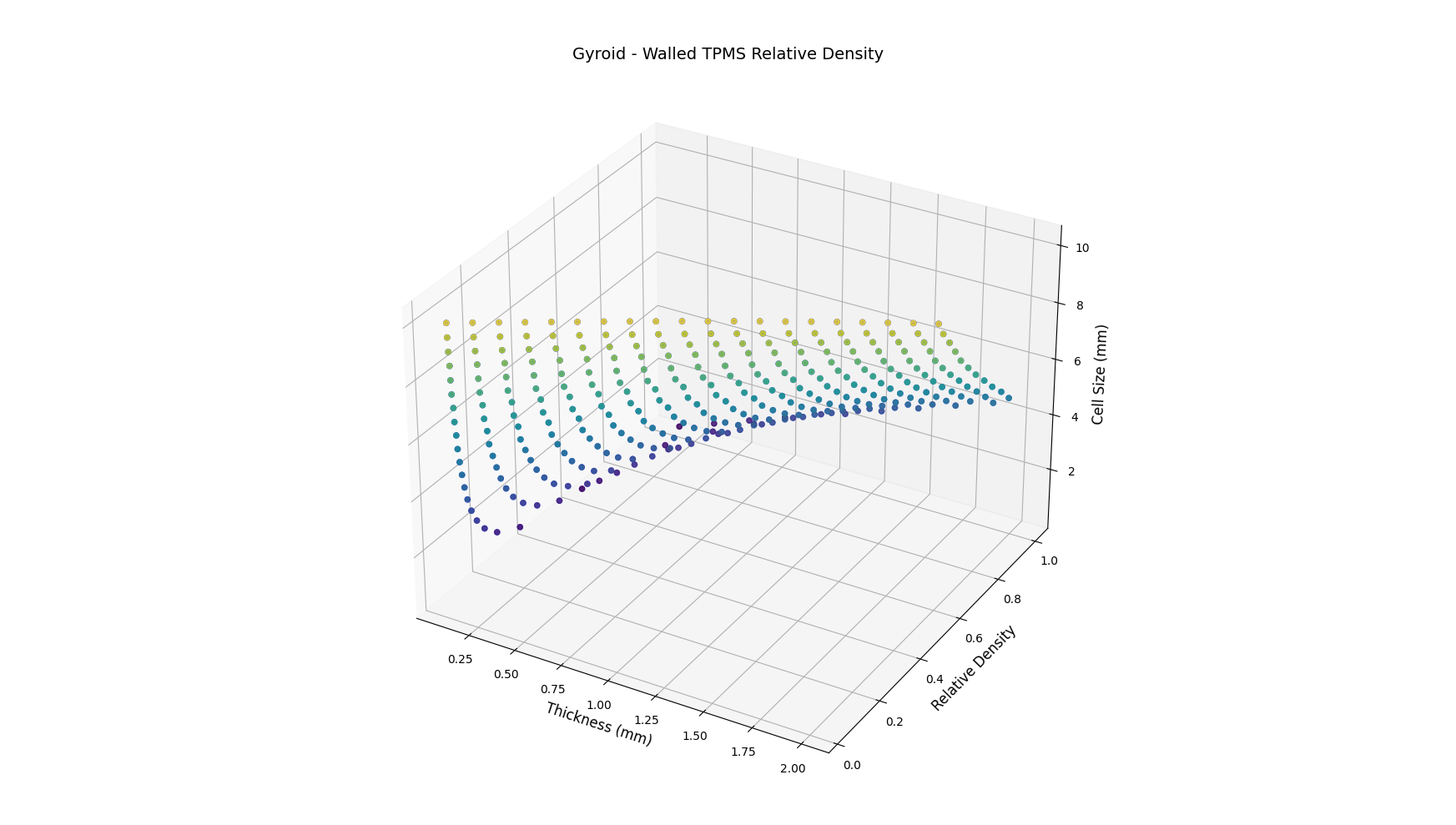
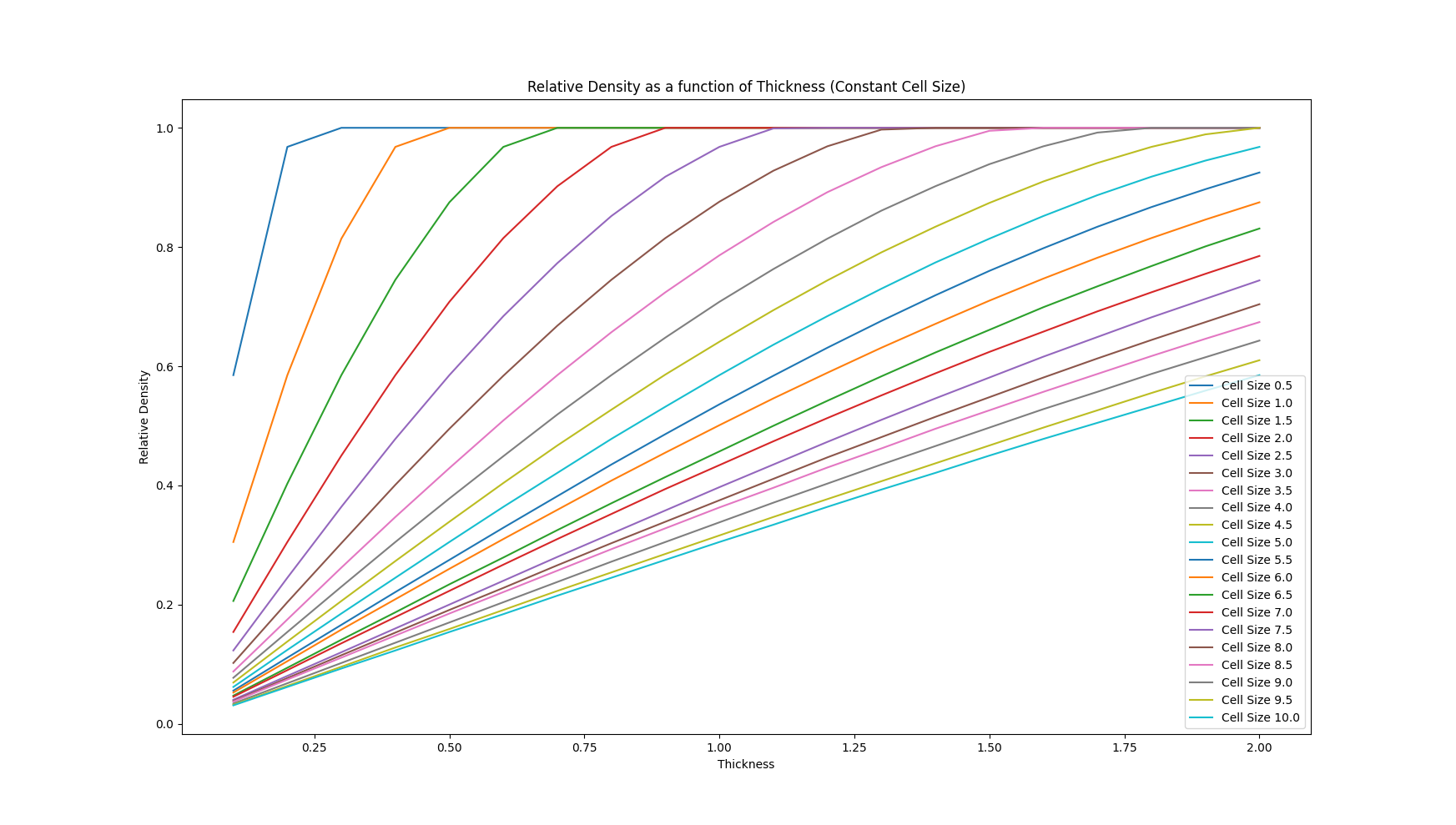
import os
 import subprocess
 import json

 # Assuming this script, ntop file, and json files will be in the same folde
 Current_Directory = os.path.dirname(os.path.realpath('__file__'))
 exePath = r"C:/Program Files/nTopology/nTopology/nTopCL.exe" # nTopCL path
 nTopFilePath = r"RelDensity.ntop" # nTop notebook file name
 Output_Directory = r"C:\Users\ajayprasad\Downloads\RelDensity" # Output directory path
 Input_File_Name = "input{}.json" # JSON input file name template
 Output_File_Name = "out{}.json" # JSON output file name template

 # Input variables in JSON structure
 thickness_values = [round(x * 0.1, 1) for x in range(1, 21)] # List of thickness values from 0.1 to 2 with increments of 0.1
 cellsize_values = [round(x * 0.5, 1) for x in range(1, 21)] # List of L values from 0.5 to 10 with increments of 0.5

 # Iterate over each cell size value
 for i, cellsize in enumerate(cellsize_values):
 Inputs_JSON = {
 	"description": "",
 	"inputs": [
 {
 "description": "",
 "name": "Output directory",
 "type": "text",
 "value": Output_Directory
 },
 {
 "description": "",
 "name": "Unit cell",
 "type": "enum",
 "value": 0
 },
 {
 "description": "",
 "name": "L",
 "type": "real",
 "units": "mm",
 "value": 10.0
 },
 {
 "description": "",
 "name": "Unit Cell Size",
 "type": "real",
 "units": "mm",
 "value": cellsize
 },
 {
 "description": "",
 "name": "Thickness",
 "type": "real",
 "units": "mm",
 "values": thickness_values
 }
 ],
 "title": "Relative Density of Walled TPMS"
 }

 # Create input.json file
 input_file_name = Input_File_Name.format(i + 1)
 with open(input_file_name, 'w') as outfile:
 json.dump(Inputs_JSON, outfile, indent=4)

 # nTopCL arguments in a list
 Arguments = [exePath] # nTopCL path
 Arguments.append("-j") # json input argument
 Arguments.append(input_file_name) # json path
 Arguments.append("-o") # output argument
 output_file_name = Output_File_Name.format(i + 1)
 Arguments.append(output_file_name) # output json path
 Arguments.append(nTopFilePath) # .ntop notebook file path
 Arguments.append("-v2")

 # nTopCL call with arguments
 print("Running nTopCL with input file: {}".format(input_file_name))
 print(" ".join(Arguments))
 output, error = subprocess.Popen(Arguments, stdout=subprocess.PIPE, stderr=subprocess.PIPE).communicate()

 # Print the return messages
 print(output.decode("utf-8"))