

About this Block
What it does: The Conic block creates an Implicit Body defined by an implicit conic section curve. The signed distance of a planar conic segment will be returned. The block uses three control points (Point 1, Point 2, and Point 3) and a Rho value to define the curve’s shape.
- The Conic block takes input of Point 1, Point 2, Point 3, Rho, and the Coordinate Space to create the conic section. Point 4 is the midpoint of the chord between Point 1 and Point 3. Point 5 is where the curve intersects the chord between Point 4 and Point 2.
- You can use the Vector Field from Components block to create your control point vector fields and use a Ramp block to vary rho value.
- Designing aerodynamic profiles for wings, fuselages, and other vehicle bodies.
- Modeling smooth transitions in components like ducts, inlets, and nozzles to manage fluid flow.
- Creating architectural features like arches and curved facades.
- For advanced applications, you can use a Ramp block to vary the Rho value, which will change the curve’s shape across a spatial domain.
- You would need to combine it with a Boolean Intersect block to create a solid since the block only outputs the implicit surface.
- Rho Parameter Values. The Rho value defines the “bulge” or shape of the conic curve as it’s pulled toward Point 2.
| Rho Value | Resulting Curve Type | Example |
|---|---|---|
| Rho<0.5 | Ellipse | 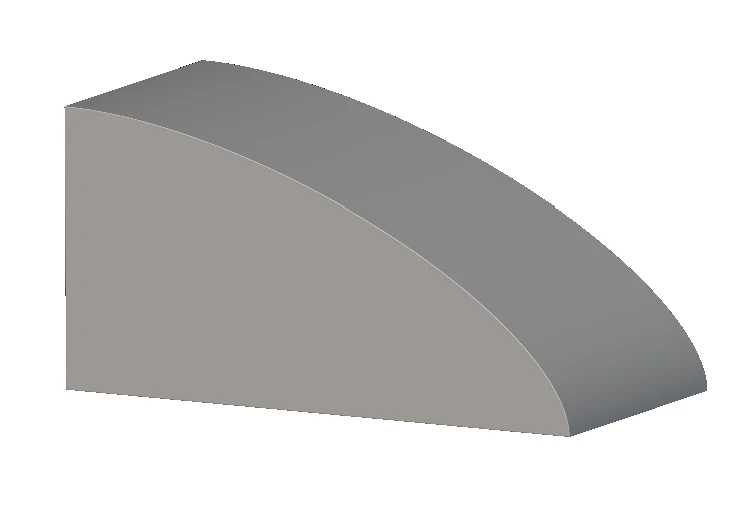 |
| Rho=0.5 | Parabola |  |
| Rho>0.5 | Hyperbola |  |
Example File
Download Example: Conic Create an implicit conic section curve. The signed distance of a planar conic segment will be returned.
Inputs
| Name | Type | Description |
|---|---|---|
| Point 1 | 2D Vector Field | Control point 1 of the conic. |
| Point 2 | 2D Vector Field | Control point 2 of the conic. |
| Point 3 | 2D Vector Field | Control point 3 of the conic. |
| Rho | Scalar Field | Rho value of the conic in the range (0,1). |
| Coordinate space | 2D Vector Field | Vector field representing the basis in which to evaluate the curve. |
Outputs
| Type |
|---|
| Implicit Body |