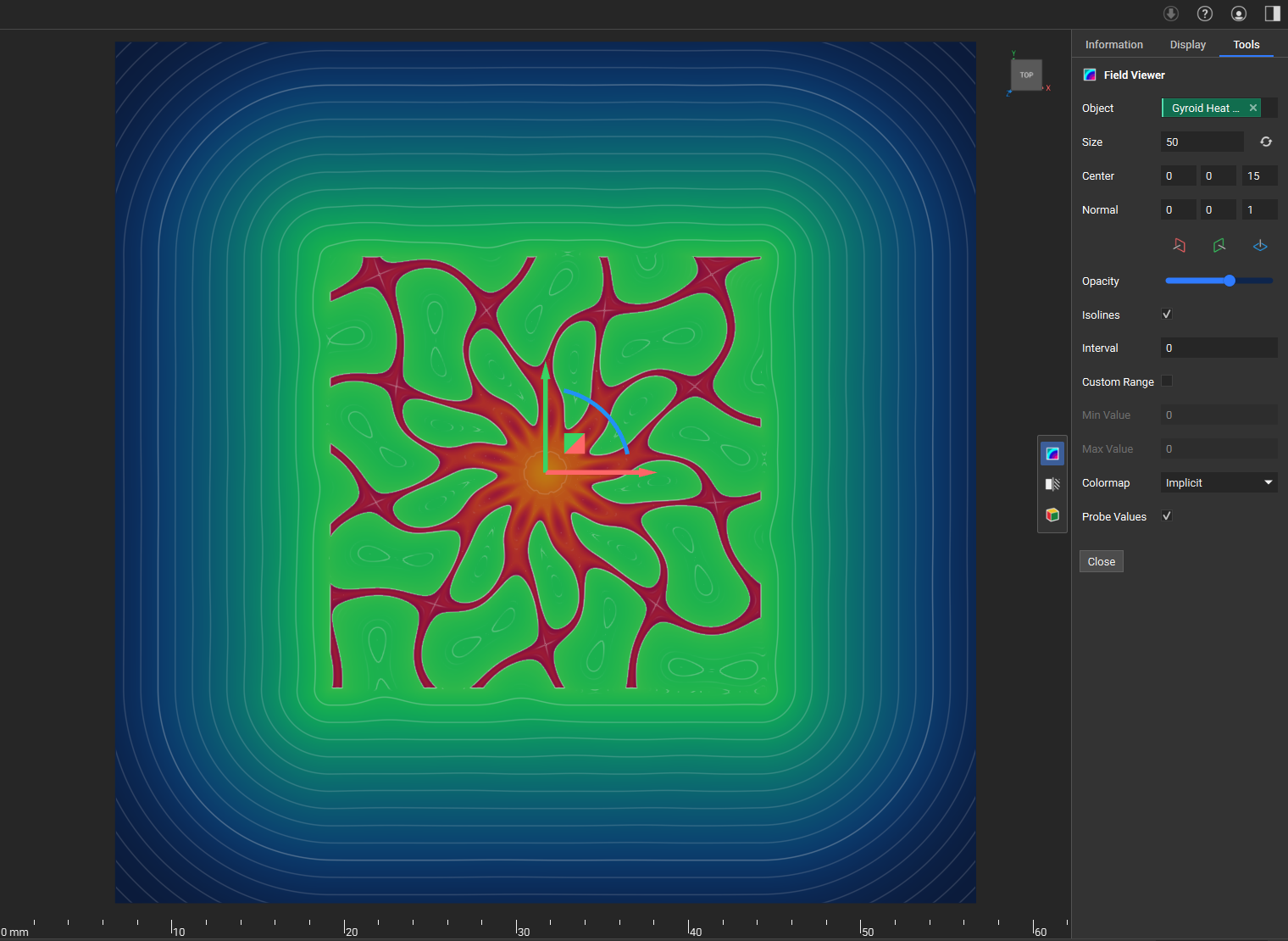
- Activate with the “Field Viewer” button in the view toolbar, the “F” hotkey, or right-click on an object and choose “Field Viewer” in the menu.
- Object: The block whose field you want to view. Type the object name into the input field. This will be automatically populated when you activate the field viewer when an object is selected.
- Size: The size of the field plane. Adjust using the input to set the plane size, or click the Reset Button to adjust the size to the current view in the 3D scene.
- Center: The center point of the field plane. Adjust the X, Y, and Z values using the point input, or interactively change the center using the gimbal.
- Normal: The orientation of the field plane. Adjust the plane’s orientation by entering X, Y, and Z values in the point input or interactively changing the rotation using the gimbal.
- Orientation buttons: quickly select from the YZ XZ XY buttons to align the normal to global axes.
- Opacity: Controls the transparency of the field plane. Use the slider to adjust the opacity from transparent to opaque.
- Isolines: Displays isolines showing contours of equal field values. On by default.
- Interval: Defines the interval for isolines. By default, it is set to 0 for adaptive intervals. Enter a fixed interval value to control the distance between isolines manually.
- Custom Range: Enable this option to limit the field display to a specific range.
- Min Value: The minimum value to display when Custom Range is enabled in the field.
- Max Value: The maximum value to display when Custom Range is enabled in the field.
- Colormap: Choose how the field is visualized. Select from the following options:
- Implicit: Optimized for implicit bodies, with enhanced legibility of field values inside and outside the body.
- Turbo: Default colormap for scalar fields.
- Distance Field: Original colormap for distance fields.
- Probe: The probe displays the field value when you hover your mouse over the field. The corresponding isoline will also be highlighted to indicate where that value occurs throughout the field.