

Objective:
Sometimes, you want to use other applications while nTop updates a computationally intensive block or notebook. This article shows you how to use the Windows Task Manager and Affinity in Linux to limit the number of CPUs nTop can access so that the other applications run effectively.Applies to:
- nTop
- nTop Automate
Procedure:
Windows
- Open nTop and then open the Windows Task Manager by typing “Task Manager” in the Windows search bar or using the right mouse button to click the Windows Task Bar and selecting Task Manager.
- Navigate to the “Details” tab on the Task Manager.
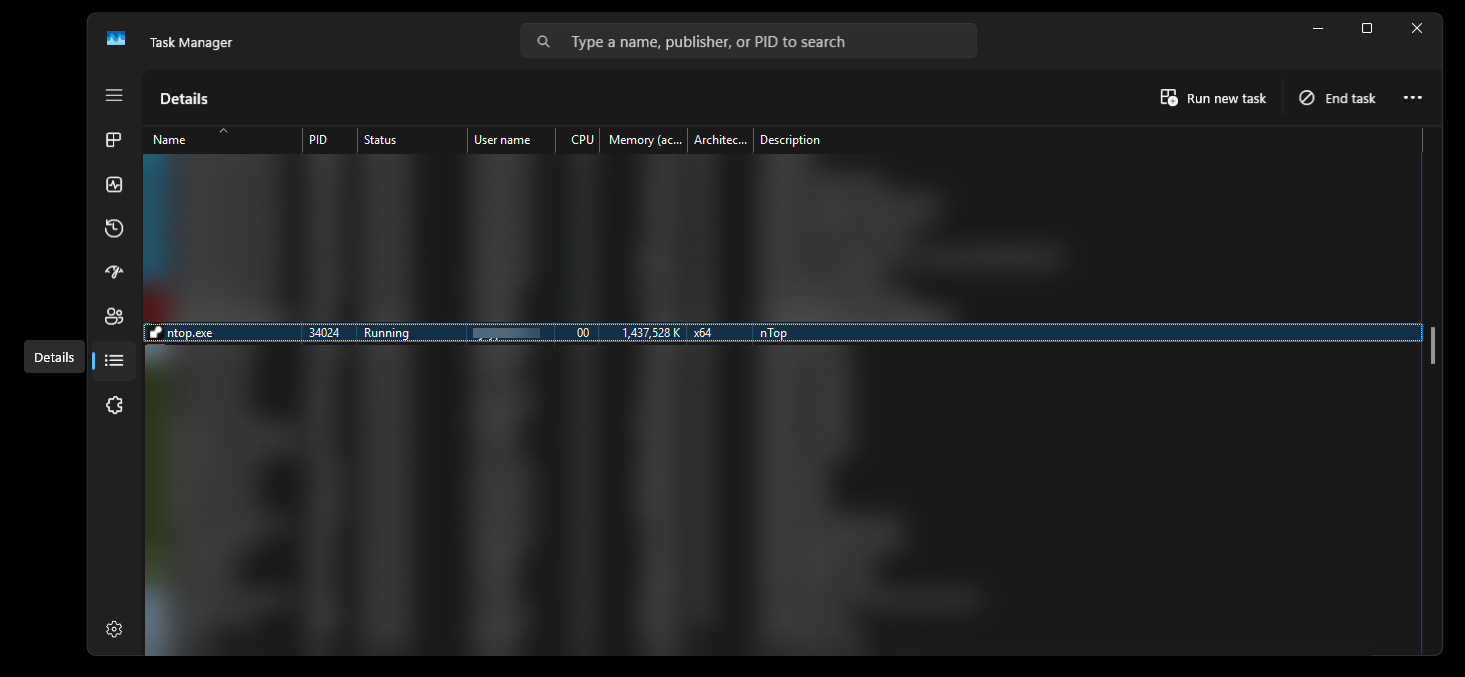
- Find ntop.exe in the list of processes. If you want to limit the number of CPUs for the nTop Command Line, you want to find the ntopcl.exe process.
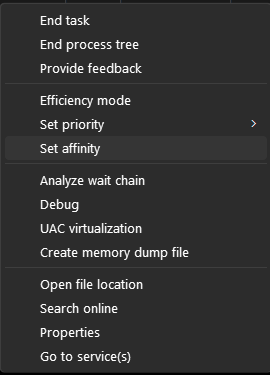
- Using the right mouse button, click on the process and select “Set affinity”
- In the Process Affinity window, all the virtual CPUs will be selected. Unselect a set of these CPUs for the other applications and click “OK”
- nTop will then safely release those CPUs.
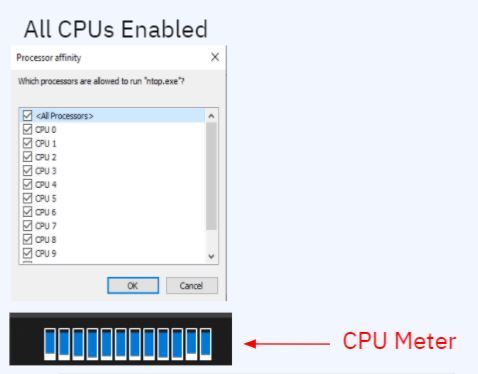 | 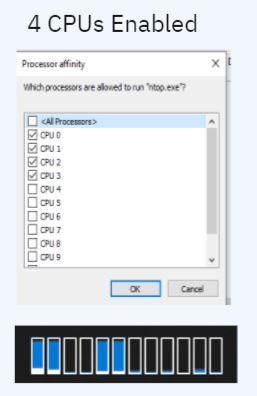 |