- Set up your nTop account
- Download the latest release of nTop
- Install, Open, and Update the Software
- View Help and Documentation
- Get Support
1. Account Set-Up
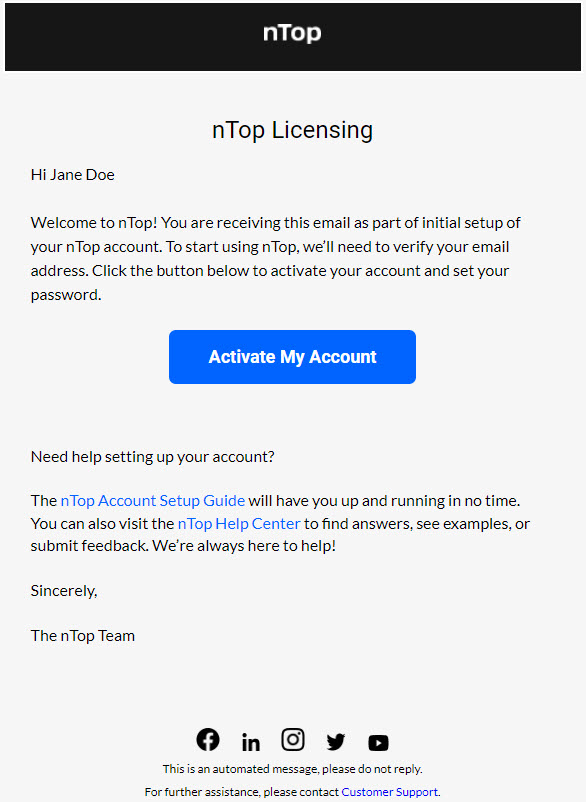
After you reach out about nTop or talk to our Sales team, you will receive an email from no-reply@ntop.com. If you can’t find it, it may be in your spam folder. If it isn’t there, check out these tips and contact support if you still have issues.- Open the email.
- Select Activate My Account.
- This takes you to app.ntop.com, where you can set up a new password. Your username will be the email address you used to sign up.
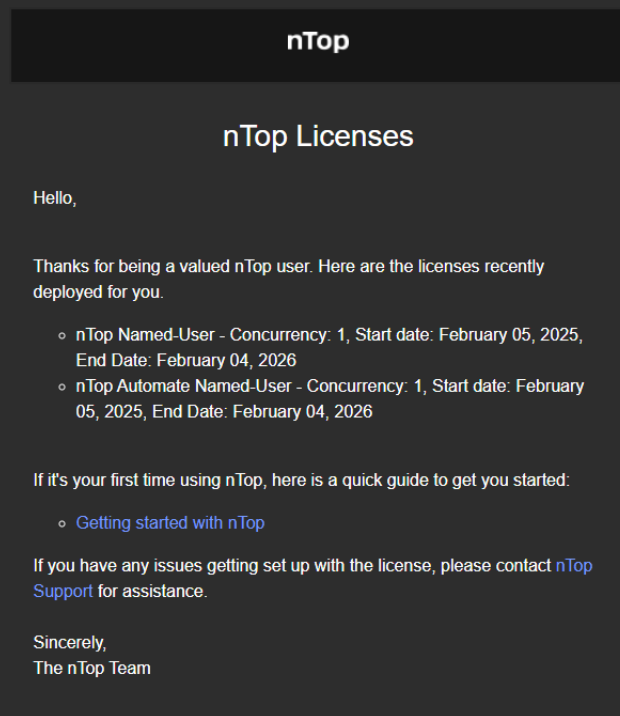
- If you have received nTop Licenses mail, it means that you have been issued nTop Licenses. Sometimes, the above email from Activate My Account can be seen as spam.
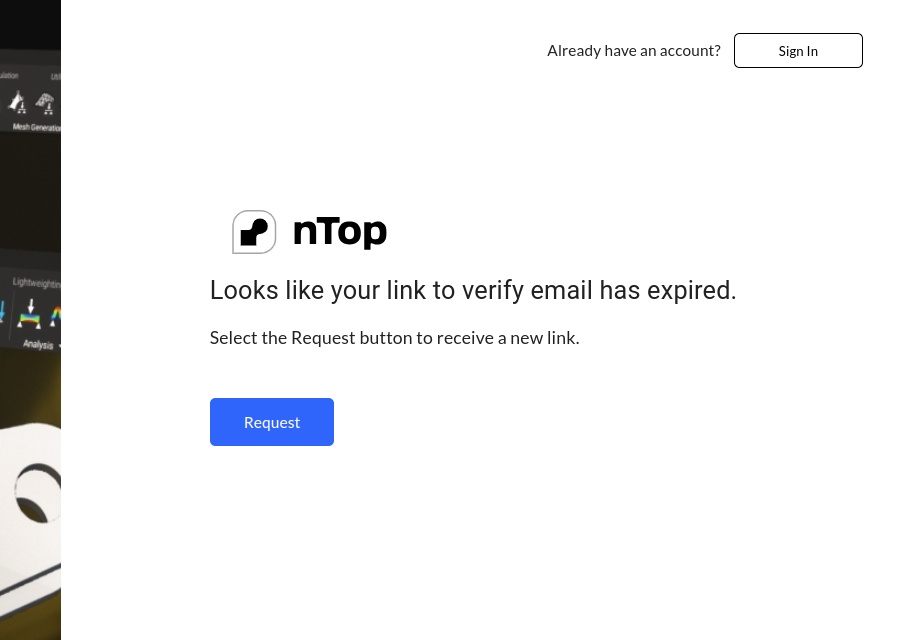
- If your link to set up your new account has expired, you can generate a new link by selecting Request. A new email will be sent to your email address. You can also use the Forgot Password option to reset your account.
- Set up a new password and click Save.
- Once you set up a new password, you will be taken to the login screen.
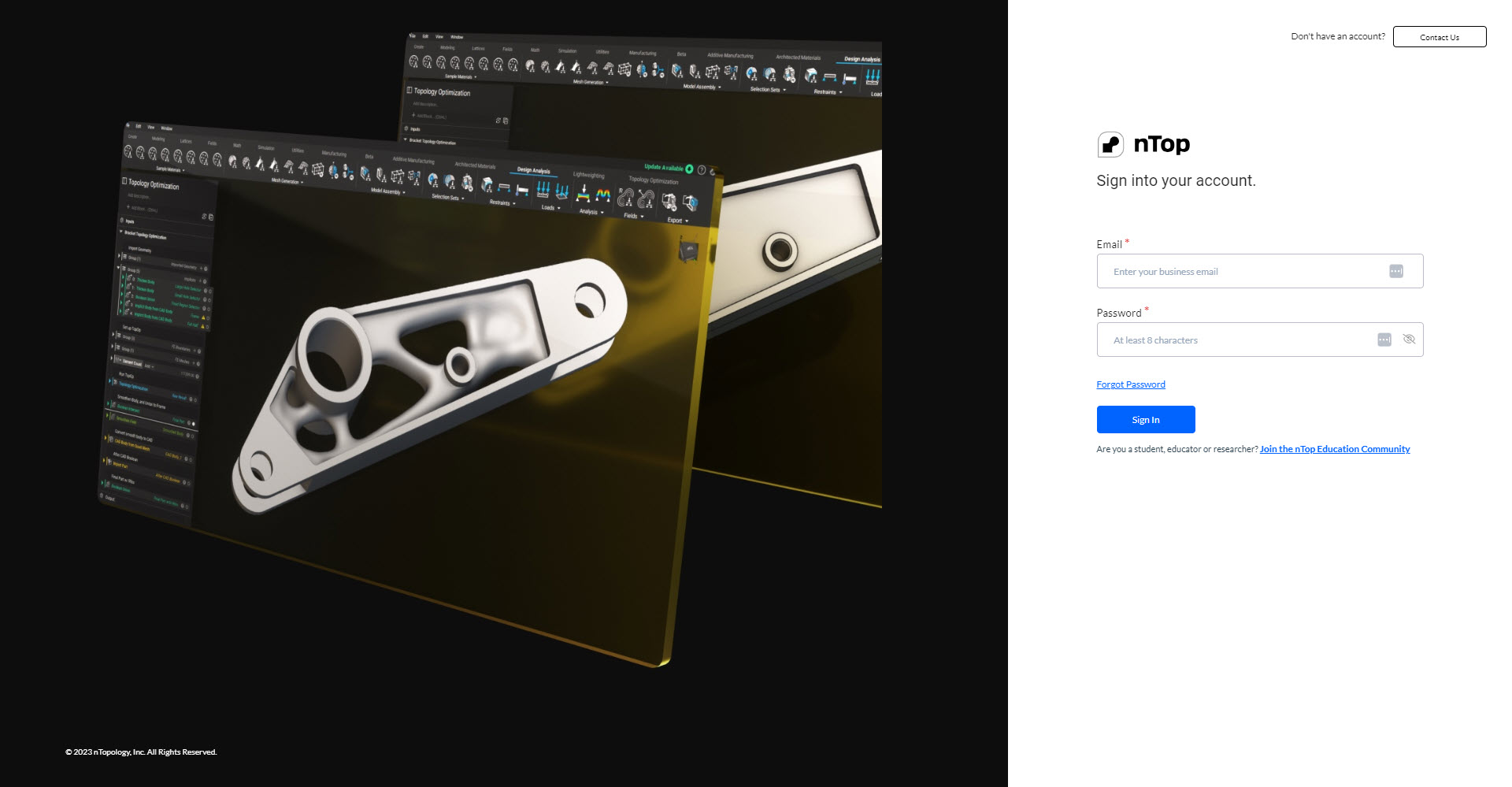
- Login using your email address and new password.
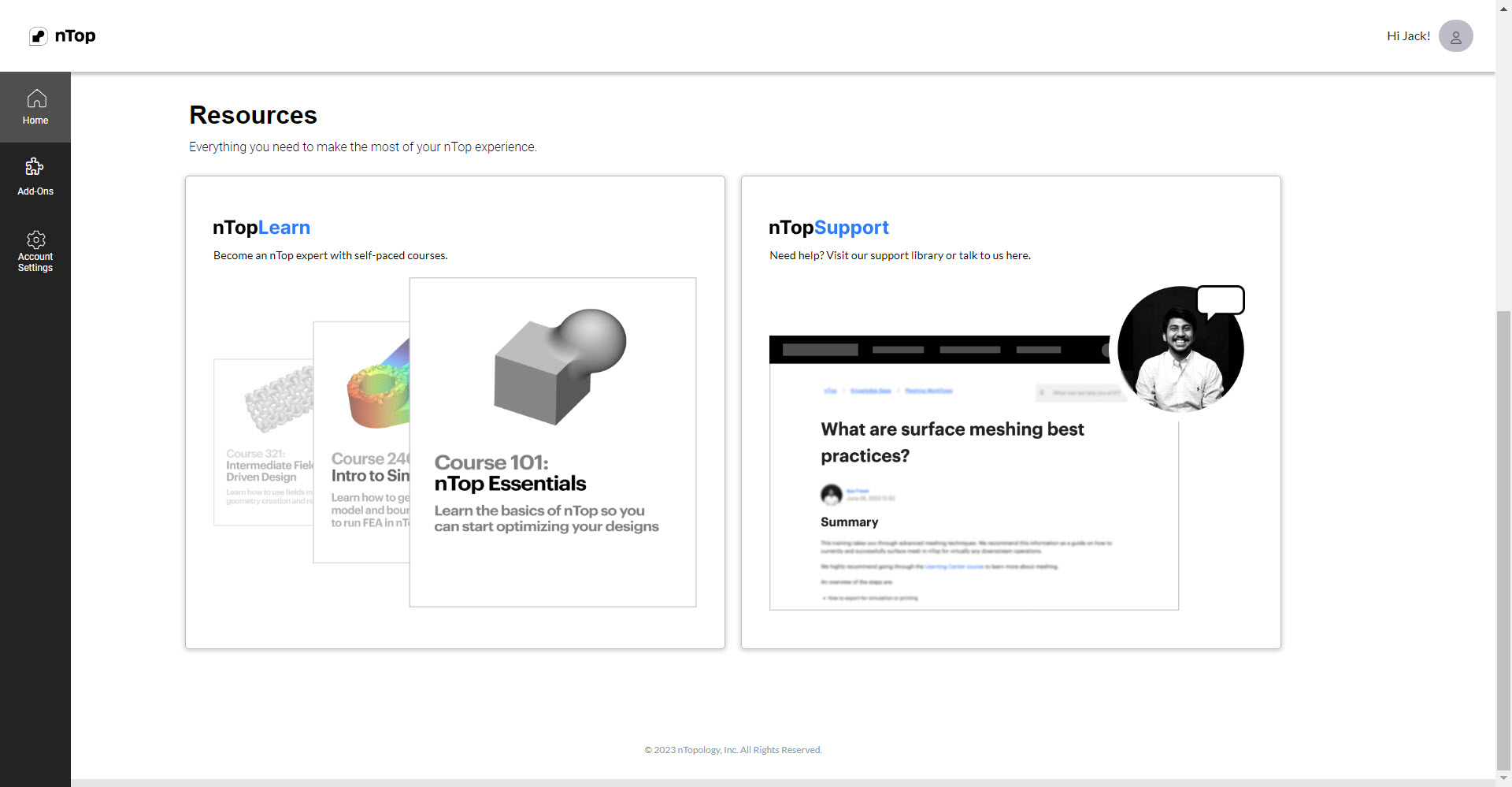
- You are now logged in to the nTop User Dashboard.
2. Download the Software
Upon logging in to the nTop User Dashboard, you will see a button on the home page to download the latest version of nTop.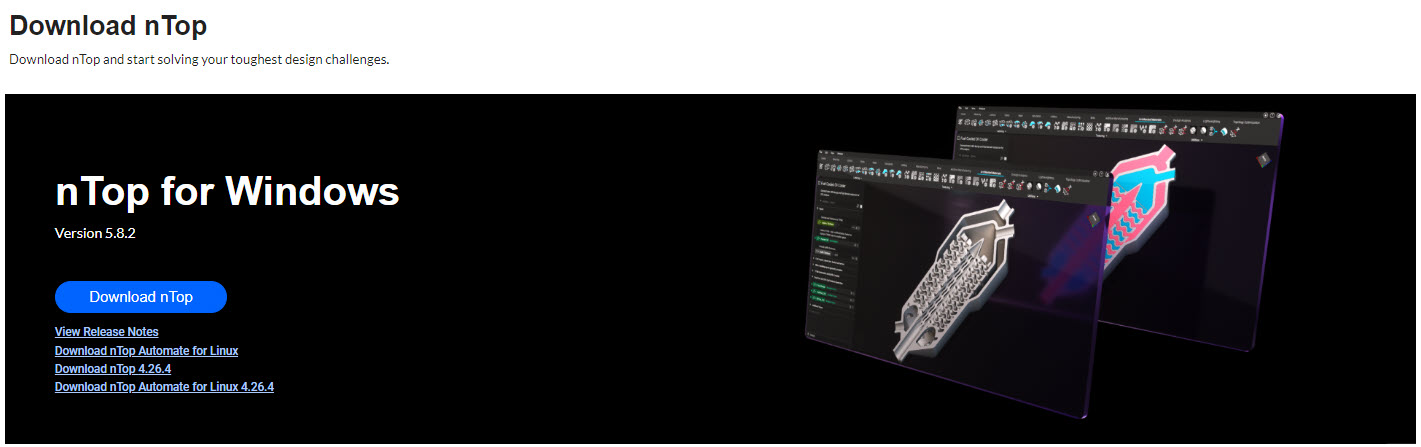
- Select Download nTop and save the file to your desktop
- nTop Learn- Our learning site has a wide variety of courses for users to enroll in
- nTop Support- Our support site contains a knowledge base of nTop-focused articles, access and installation information, release notes, and a link to contact our support team.
- Account Settings- View license information, change your password, or enable two-factor authentication
3. Install the Software
- Double-click on the nTop-X.X.X.msi to run the installer.
- Read and accept the EULA to continue with the installation.
- Choose the file location to save the program.
- Choose which Toolkits you want to install.
- Select Install.
4. Open the Software
- Double-click on the nTop icon (or search in the Windows search bar) to open the program.
- Enter your email address and password to log in.
- The Home page opens up, allowing you to start a new file, Open a new file, or open an existing example file.
5. Software Updates
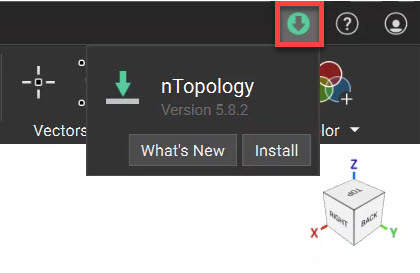
- A green arrow appears in the upper right-hand corner when a new update is available. By selecting the button, you can view the Release Notes and download the latest updates.
- You will need to close nTop to install the latest version.
6. View Documentation and get Help
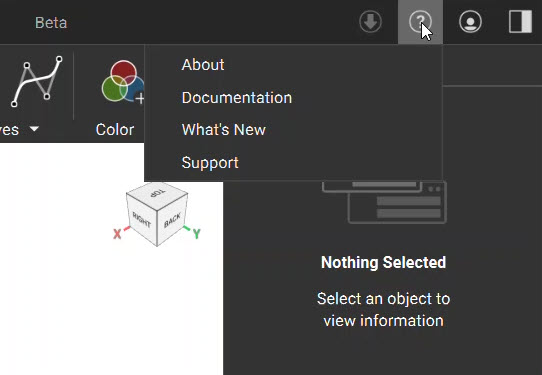
In the upper right-hand corner, select the ’?’ icon to open a sub-menu.- About—It shows you your current nTop version and your license expiration date and has links to our EULA, Acknowledgments, and website.
- Documentation - This opens our nTop internal documentation. It contains information on navigating nTop’s UI, shortcuts, block information, and more.
- What’s New- Brings you to the Release Notes section of our internal documentation
- Support- This brings you to our support site, which contains a knowledge base of nTop-focused articles, access and installation information, release notes, and a link to contact our support team.