

Information
This tab only contains the dropdown menu to change a block’s version. The block’s description, a Learn More button to further documentation (not available for every block), information on the inputs, the output, what it can convert to, and what version the block is, can all now be found in the Right Panel as of nTop 4.9.3.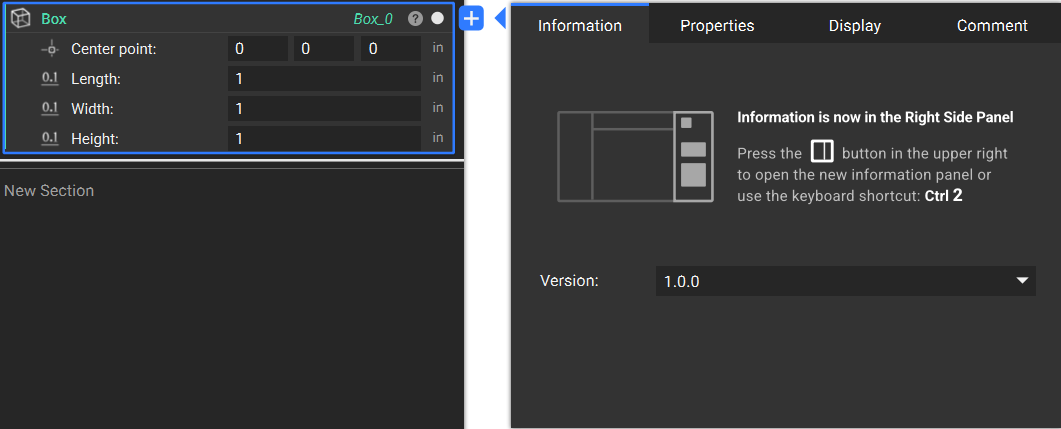
Properties
Blocks have properties that are accessible via the Properties tab. They appear as draggable chips which can be input into other blocks. Property chips can also be typed into an input instead of dragged into an input. Click the chevron beside the chip to expand it and see further properties.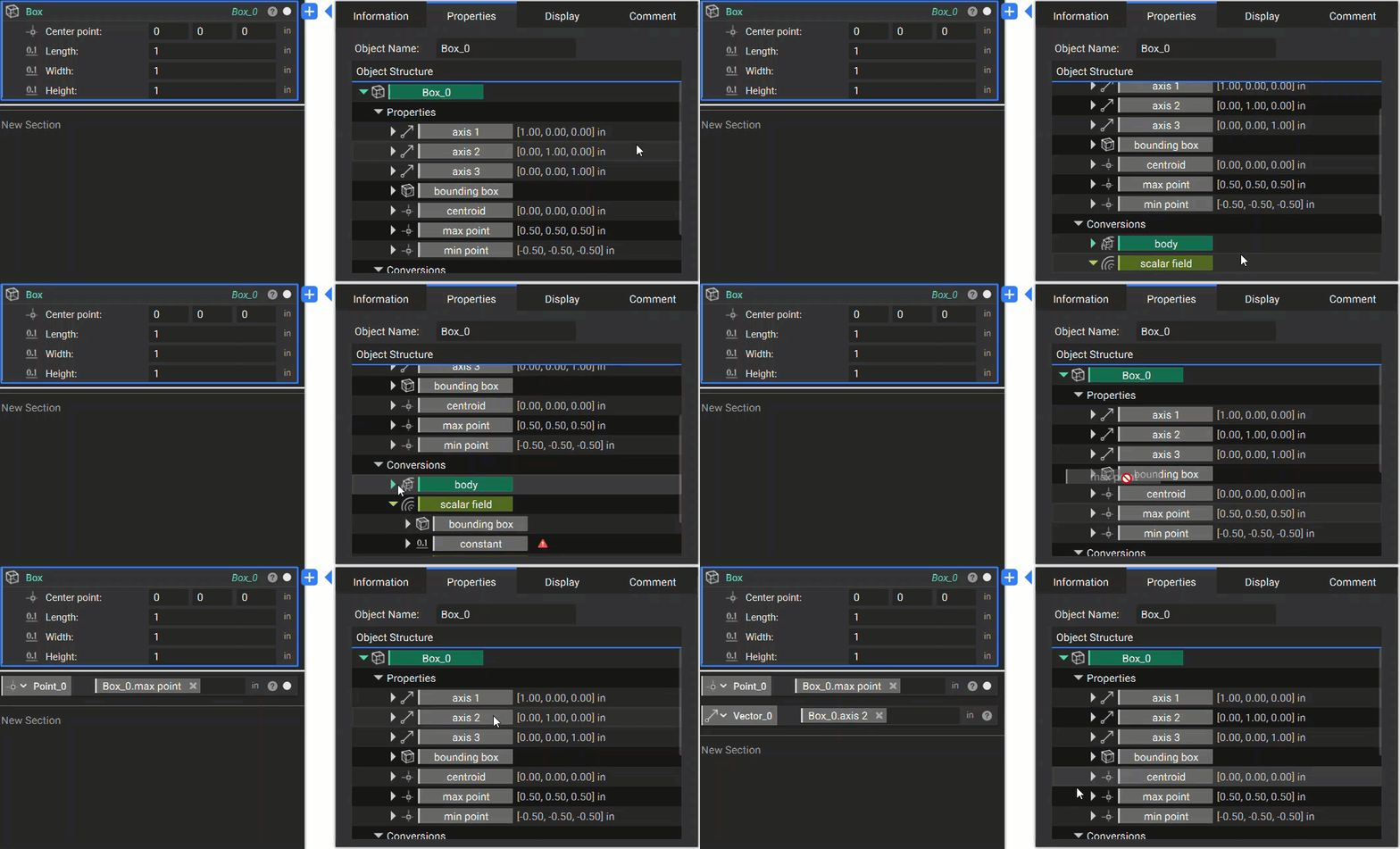
Display
The Display tab is used to view simulation results. You can use the drop down menu to change which objective or constraint chart is being shown. To change the color or transparency of an object in your scene, go to the Display tab of the Right Panel.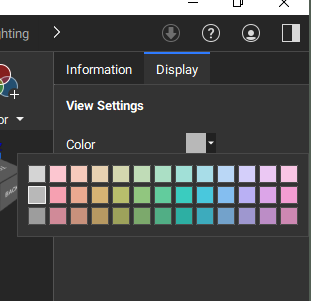
Comment
Comments can be added to each block. These may serve as useful notes to help navigate a large notebook, or can be used to communicate a workflow to others using your file. To add a comment, click on the speech bubble icon that appears when hovering above each block in the Notebook. Comments are also accessible via the Comment section in the Information Panel.- The block Comment is connected to the block and will move with it if you move the block within in the Notebook.
- The block Comment will get nested if the block is nested. An icon appears when this happens.
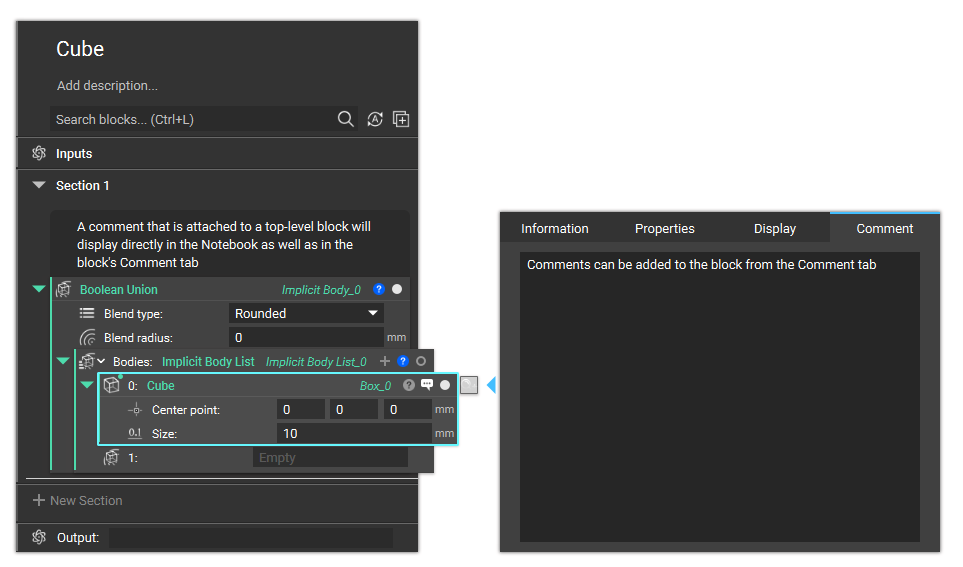 > Comments will be shown above the block function in the Notebook as well as inside of the comment tab in the Information Panel.