Objective:
This article showcases the different custom blocks that are available for part labeling.Applies to:
- Part labeling
- Serialization
Solution:
This article uses a Custom Block to create our desired outcome. If you are new to using Custom Blocks, learn how to import, modify, and update them with the following resources:
- Learning Center course:
- Intro to Automation
- Articles:
- How to update a Custom Block in an active notebook
- How to open up a Custom Block
Text to Implicit
The Text to Implicit block is the simplest option for creating a label. It makes the text an implicit body. There are several modifiers available such as size, rotation, and placement.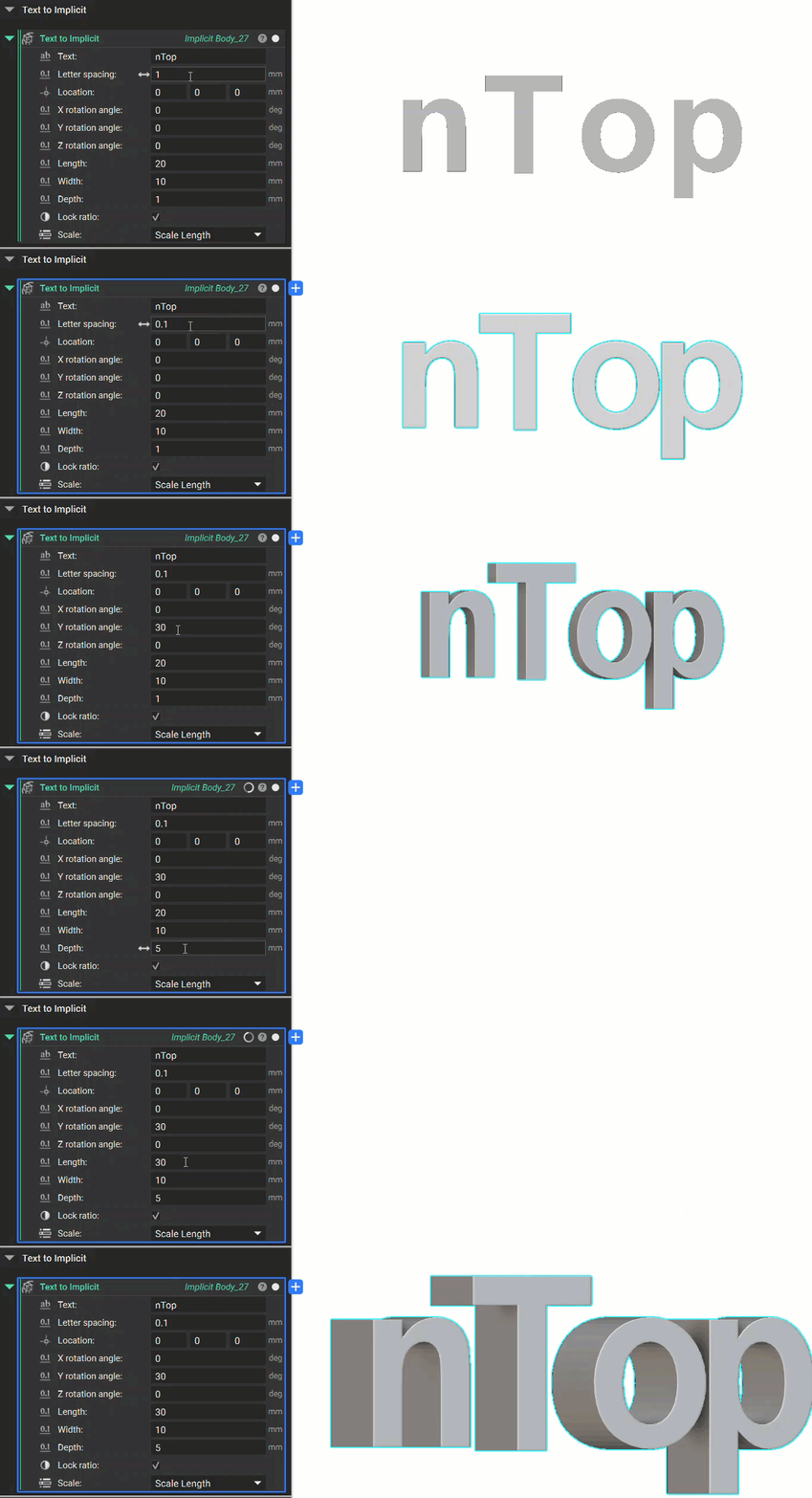
Text Label on Part
The Text Label on Part block automatically places the label on the surface of an implicit body. The Location input makes it easy to reposition the text on the surface. The Text region input is a thickened body of the original surface. More information on creating a Text region can be found in the geometry section of the Part Labeling workflow below.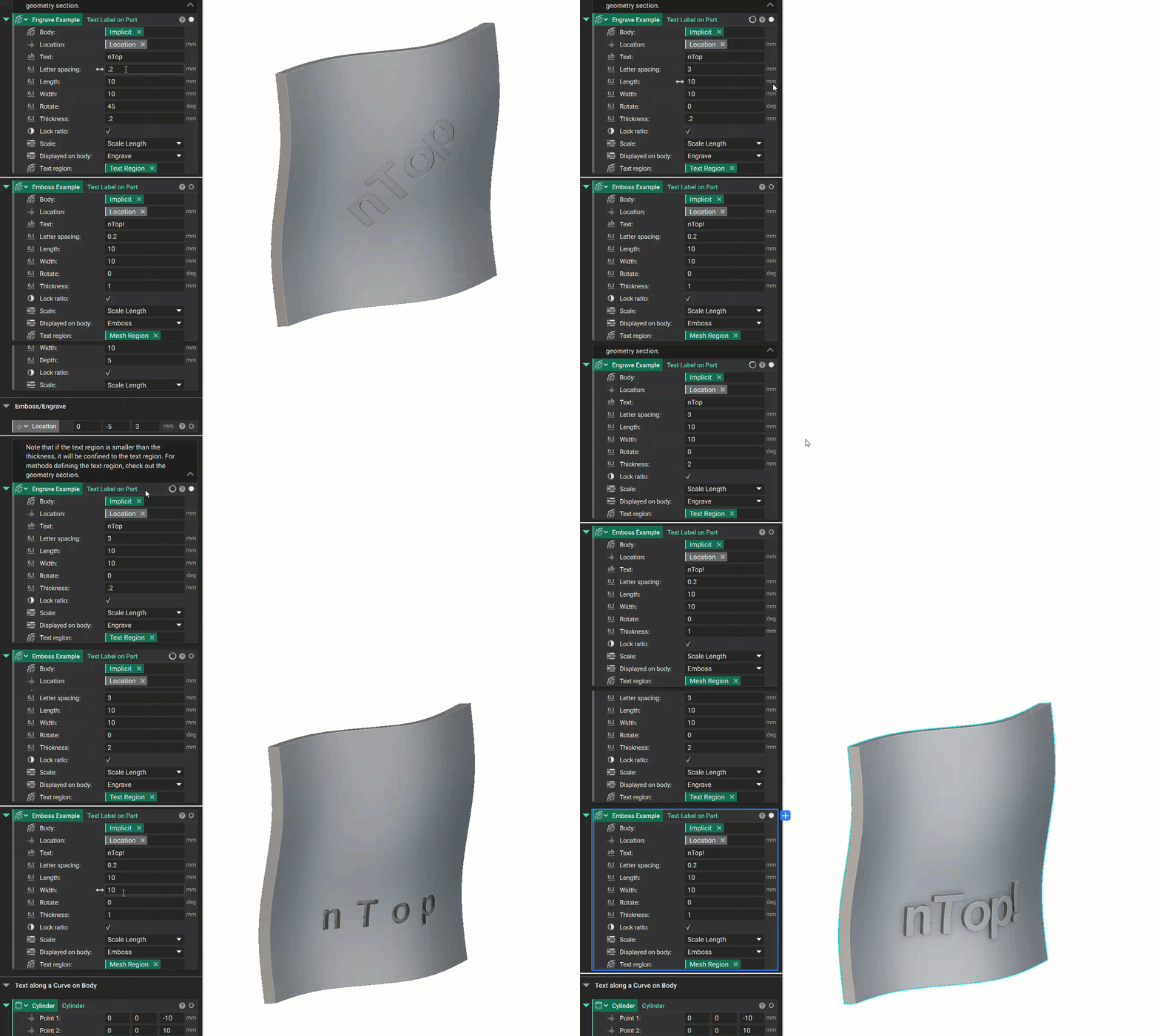
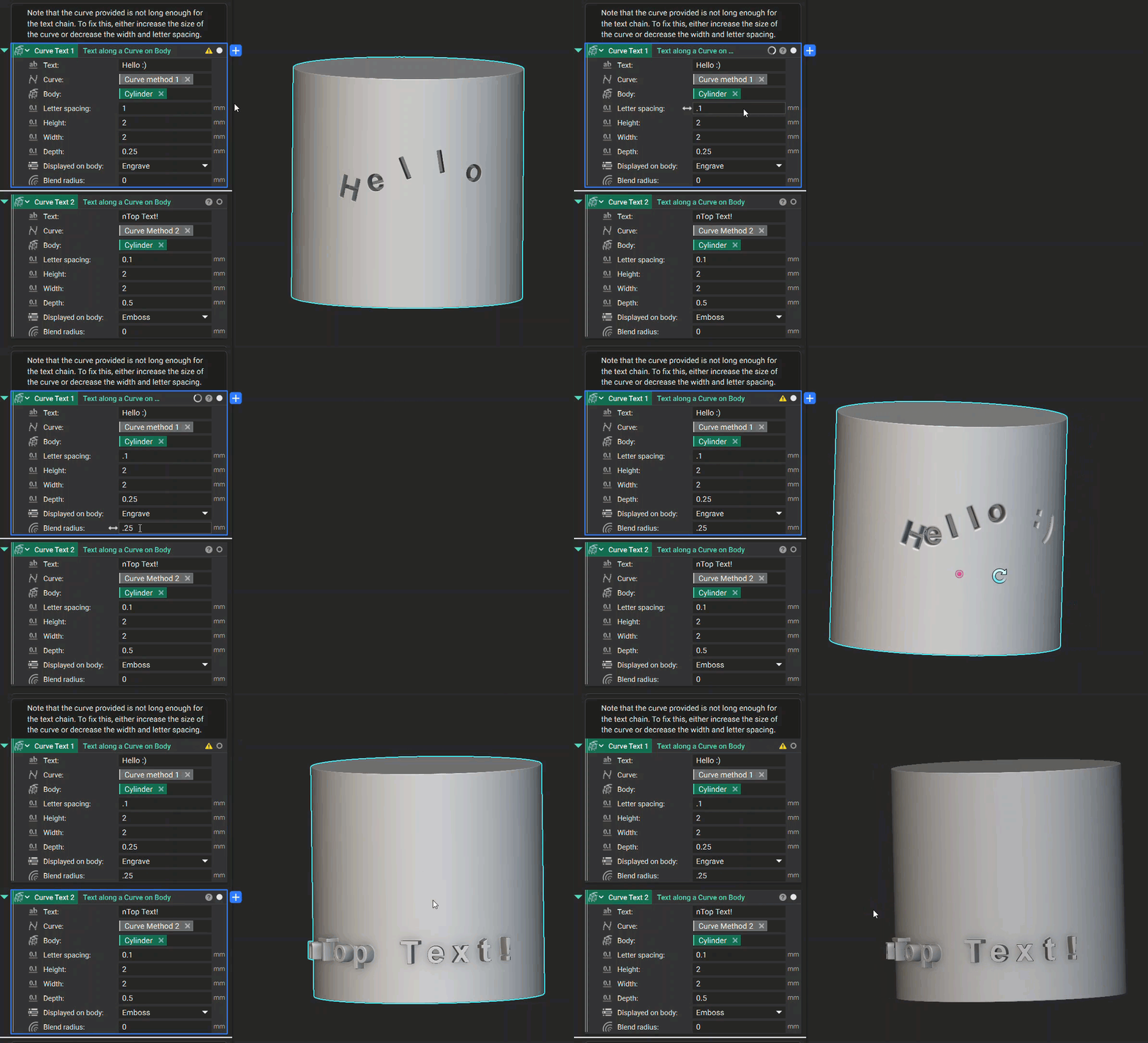
Text along a Curve on Body
Placing Curve on the Body:
- You can use an already existing curve on the body, or you can use the Pull Curve to Surface block as demonstrated in this example.
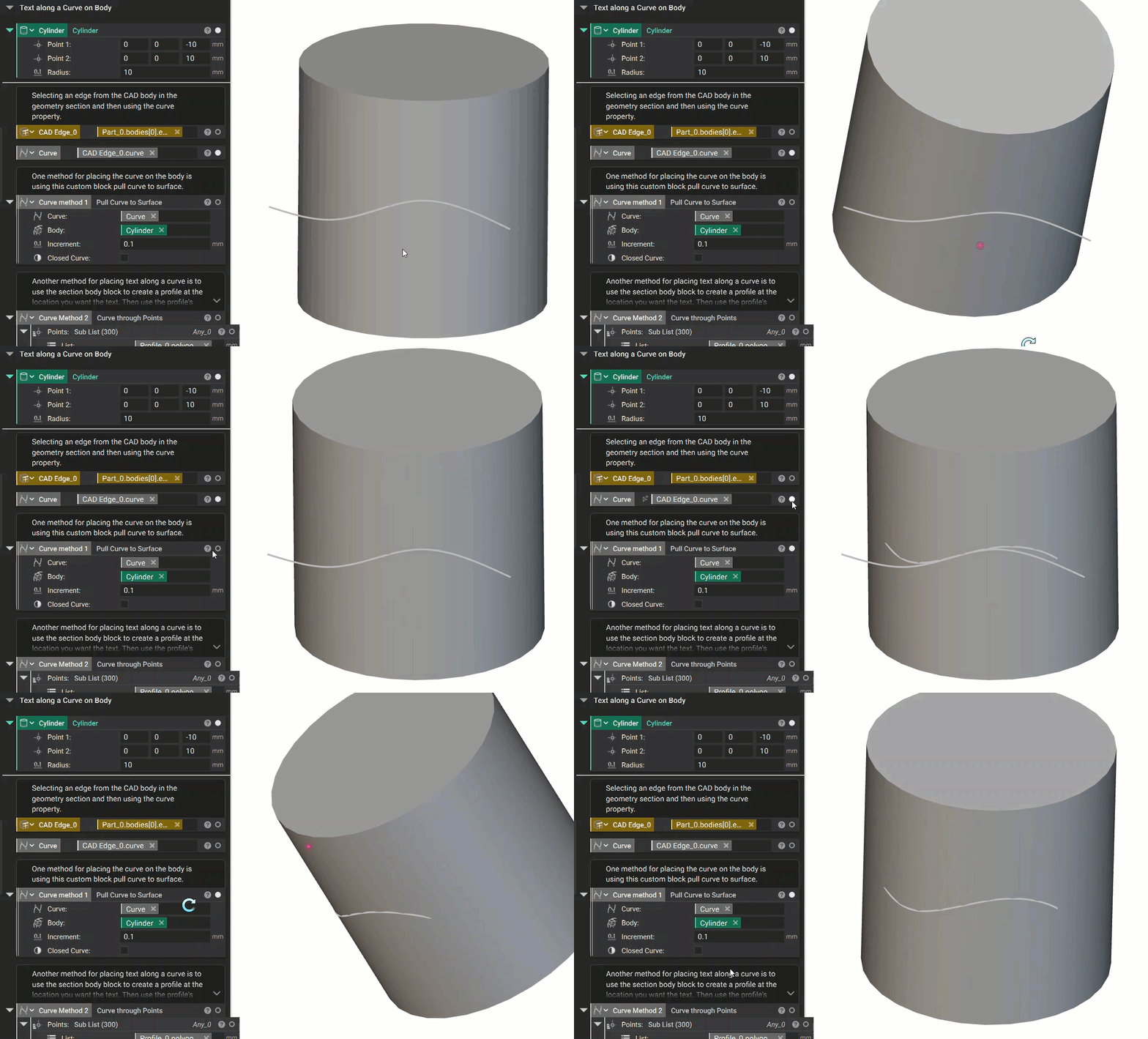
- The final step is to insert the curve and body into the Text along a Curve on Body block. If you can’t see all of the text in the input, the curve isn’t long enough to display it. Increasing the curve length or decreasing the letter spacing are the best options for fixing this issue.
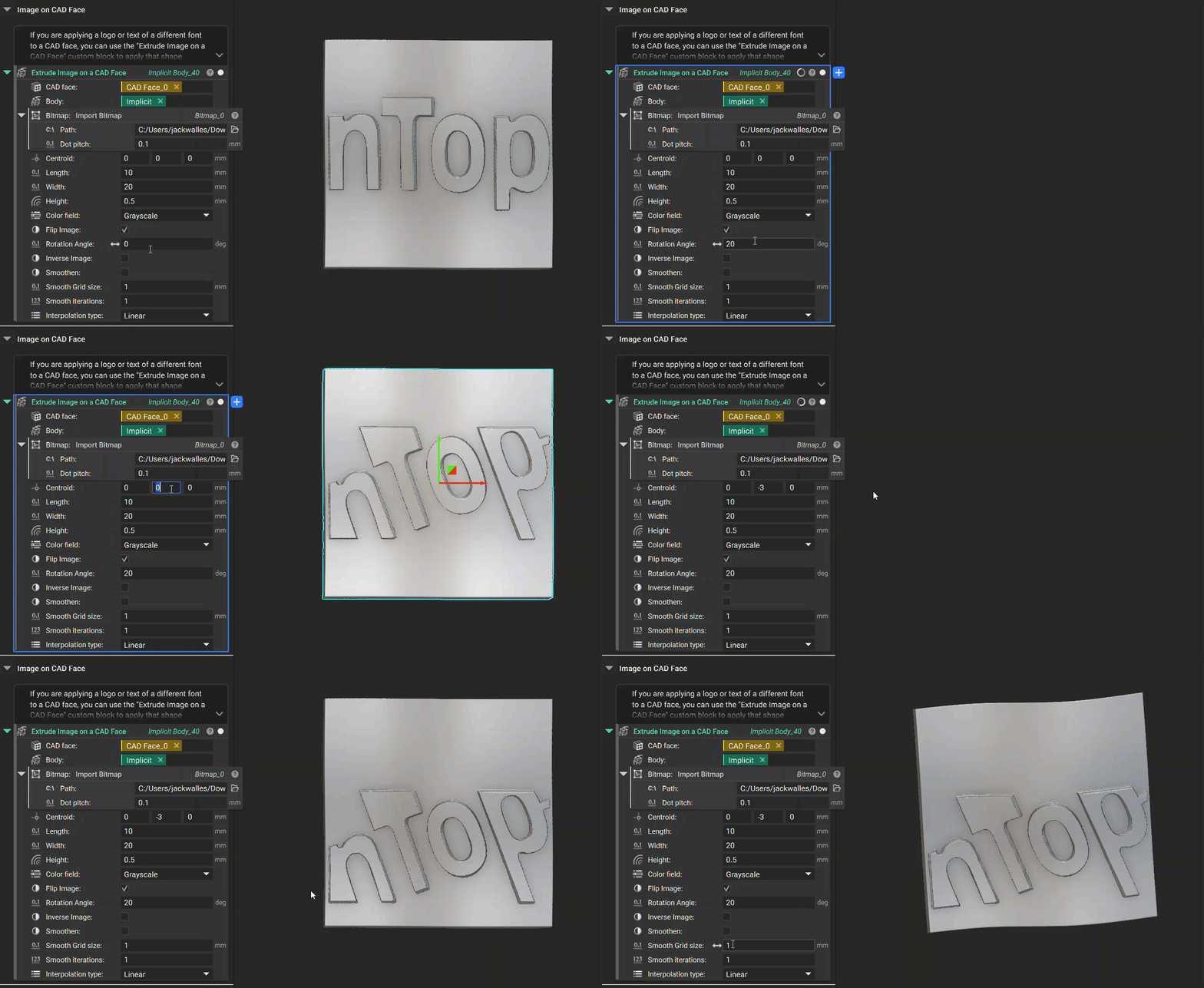
Extrude Image on a CAD Face
The last labeling option is to use the Extrude Image on a CAD Face block. This block uses a Bitmap from a png file to place the image on the CAD face. It also contains many extra input options that the other blocks don’t have, such as the ability to flip and inverse the image.