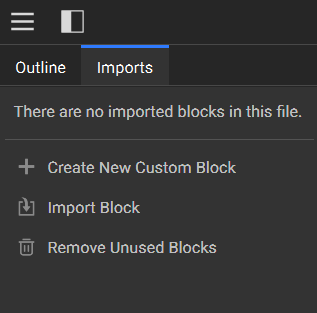
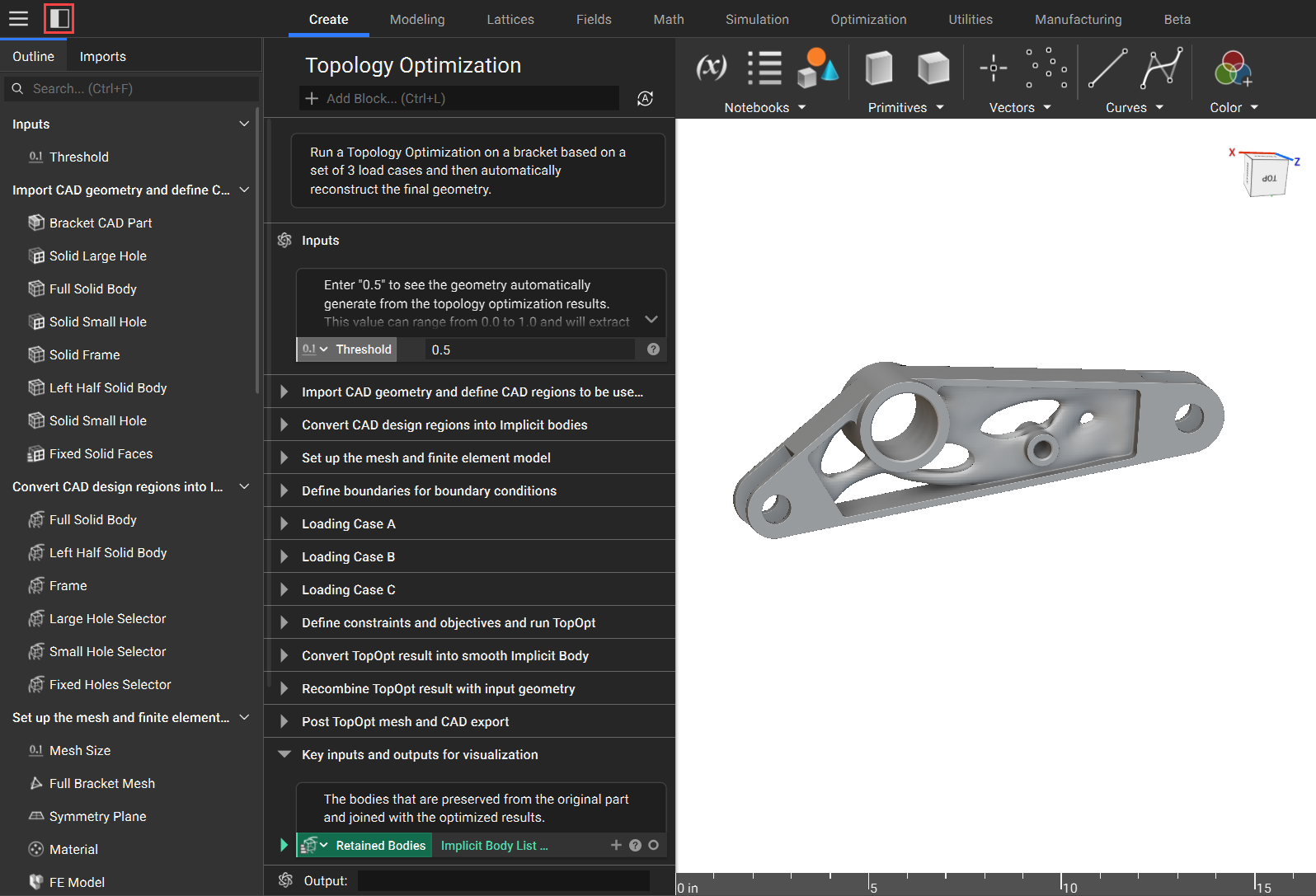
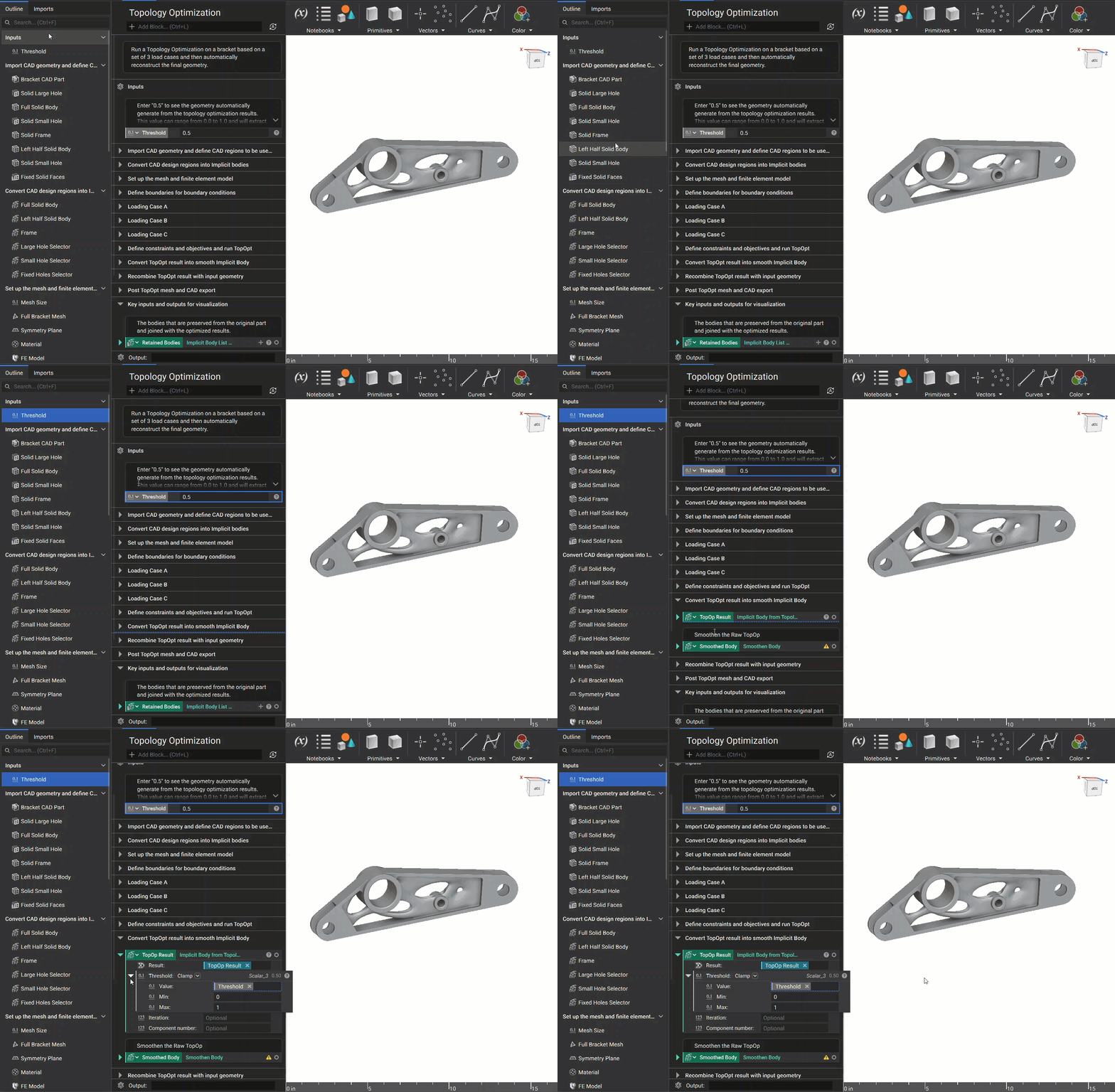
 The Notebook Outline enables you to view the blocks in your notebook from a high-level and quickly select and navigate to them. In addition to quickly navigating to blocks, the Outline provides a visual tracing for where variables are used in your notebook. When you select a block in the Outline, a bright blue highlight will appear on that block. If that block is a variable instanced within another block, a duller blue highlight will appear on the block that references it.
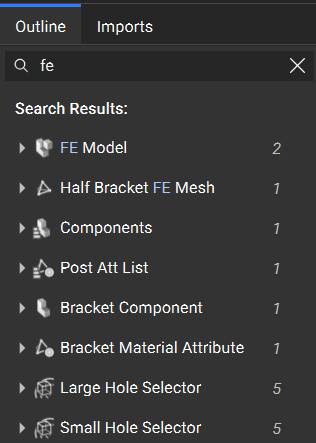
 The Notebook Search is an added feature in the Outline. When using this search bar, it will display filtered results, and allow you easy navigate to them.
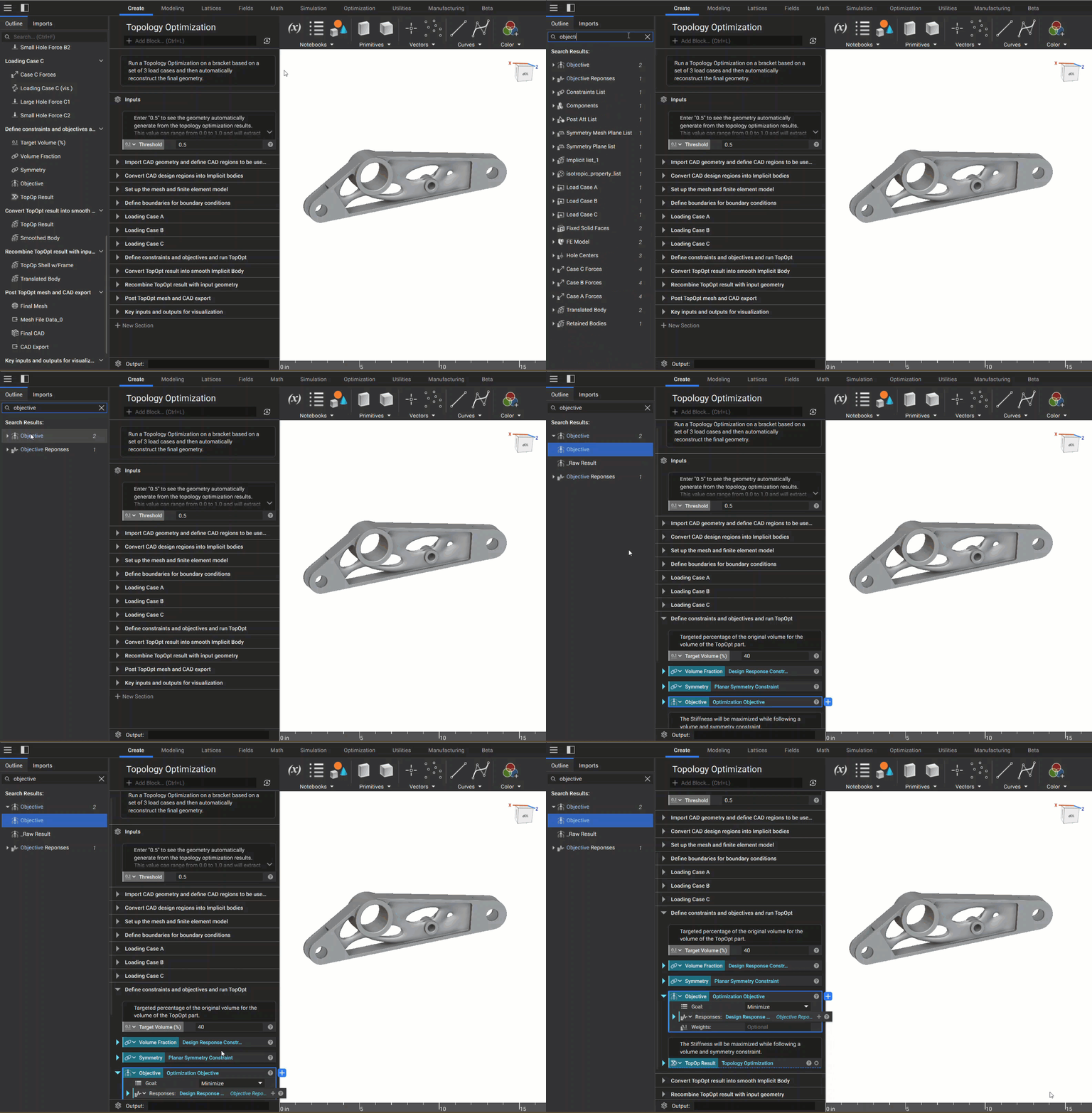 When you search for a block you may notice that a quantity is indicated next to it in the results. This number represents the number of instances of that block in the notebook.
 Tips:
Tips:
- Ctrl+F will open the Left Side Panel and activate the search window.
- You can exit the search by selecting the close button or the Esc key.
- You can expand/collapse the search results to view each instance in the notebook.
- Search will filter objects on three criteria:
- Block name
- If a block is a variable, the block names where it is instanced
- Matching comments