Settings
- Hover over the Section Name and select the three vertical dots on the right to open the Section Menu.
- Add section: Creates a new section below the selected section.
- Move up: Moves the section above the section that is currently above it.
- Move down: Moves the section below the section that is currently below it.
- Rename section: Allows you to rename the section (you can also double click on the name to rename it).
- Delete section: Deletes the section. Deleting a section deletes all of the blocks in that section.
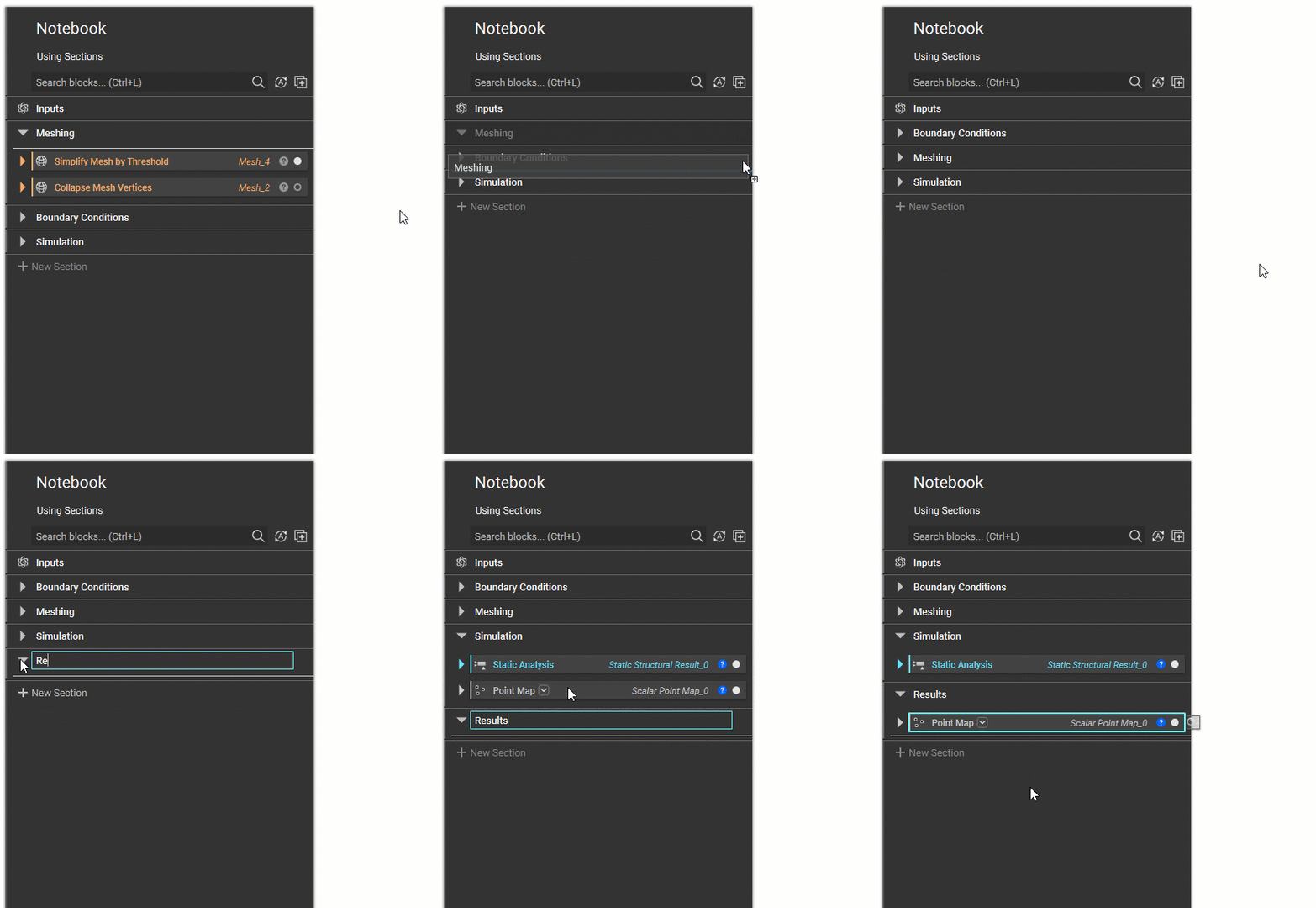
Using Sections
- Use the chevron on the left to collapse and expand the section.
- Left-click and drag on the right of the section to move it elsewhere within the Notebook. A blue line highlights the new position as you move the cursor.
- You can open or close a section by using the chevron to the left of the Section Name.
- ’+ New Section’
- Adds a new section to the Notebook.