

Objective:
Learn how to select/filter mesh from a larger mesh body (surface or solid).Applies to:
- Meshing
Procedure:
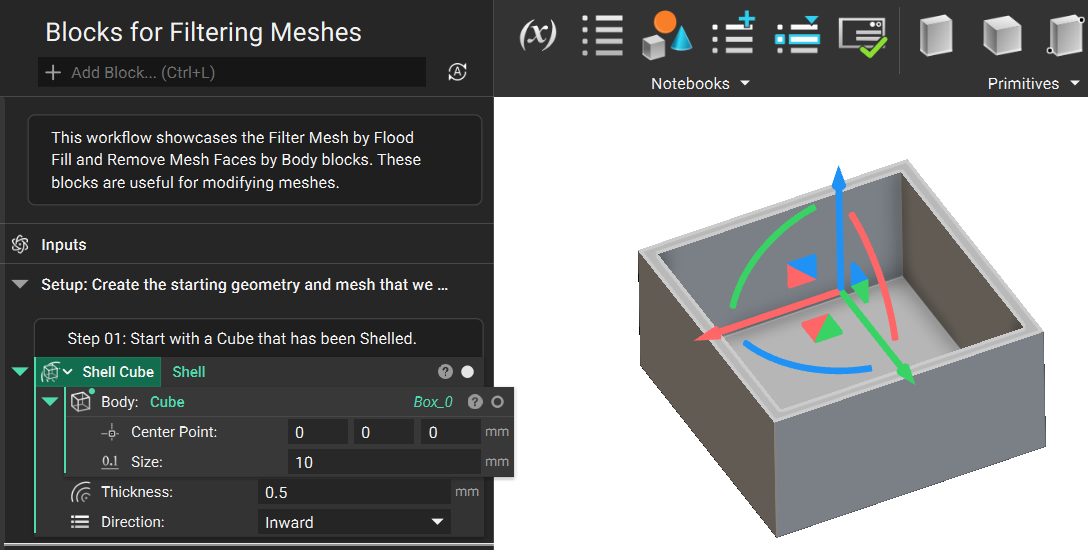
- Start by creating a body to mesh. For this example, we will be using a Shelled Cube to help highlight the functionality of our mesh filtering blocks.
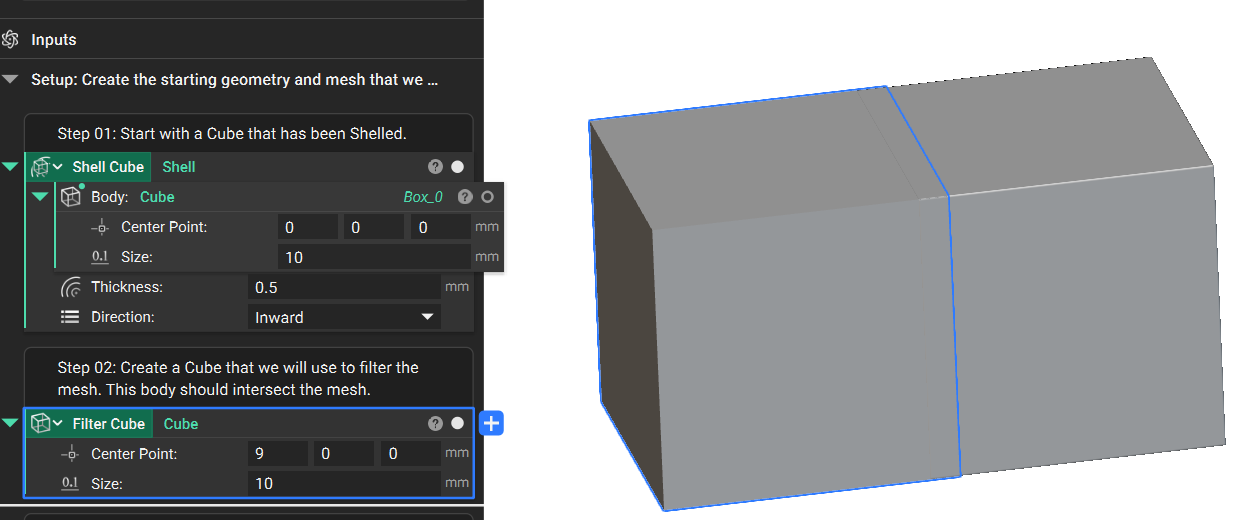
- Create a Cube that we will use to filter the mesh. The cube should intersect your mesh body where you want to filter.
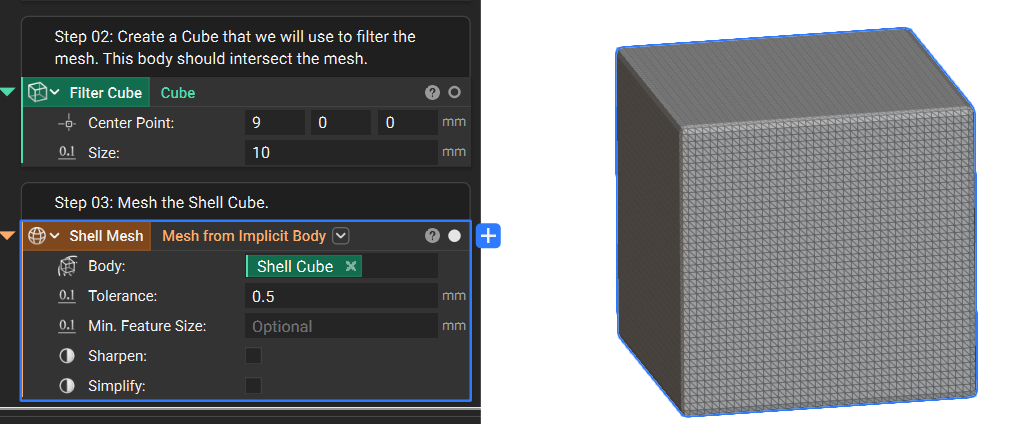
- Use a Mesh from Implicit Body block to mesh the Shell Cube.
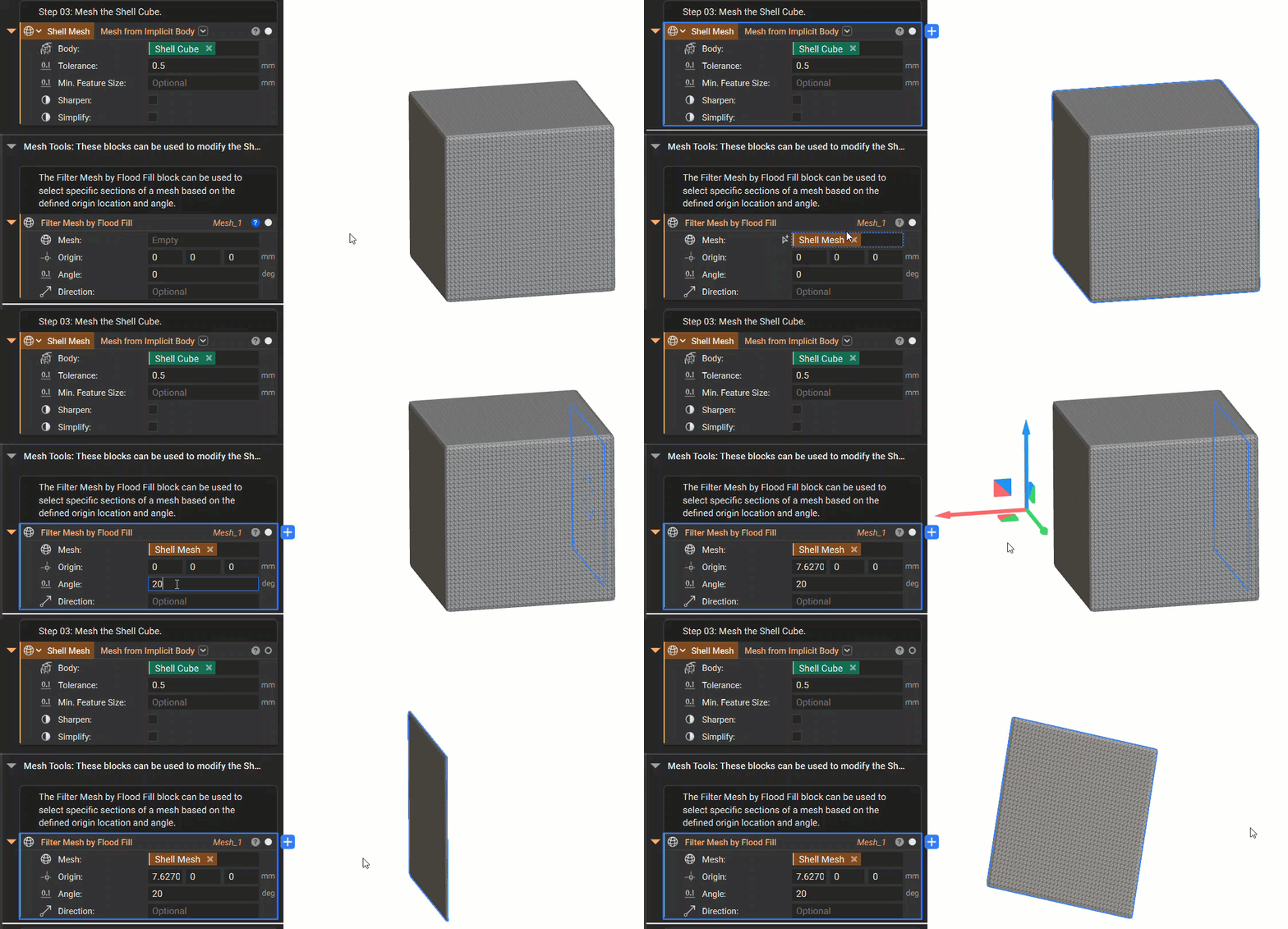
- The first option for filtering meshes is using the Filter Mesh by Flood Fill block. Insert your Shell Mesh into the Mesh input. Then adjust the Origin and Angle inputs until the block highlights the area you want to isolate.
- The second option is using the Remove Mesh Faces by Body block. Insert the Shell Mesh into the Mesh input. Then add the Filter Cube to the Body input. This isolates the portion of the mesh that is intersecting with the Filter Cube. Alternatively, you can check the Reverse input to see the portion of the mesh that doesn’t intersect with the Filter Cube.
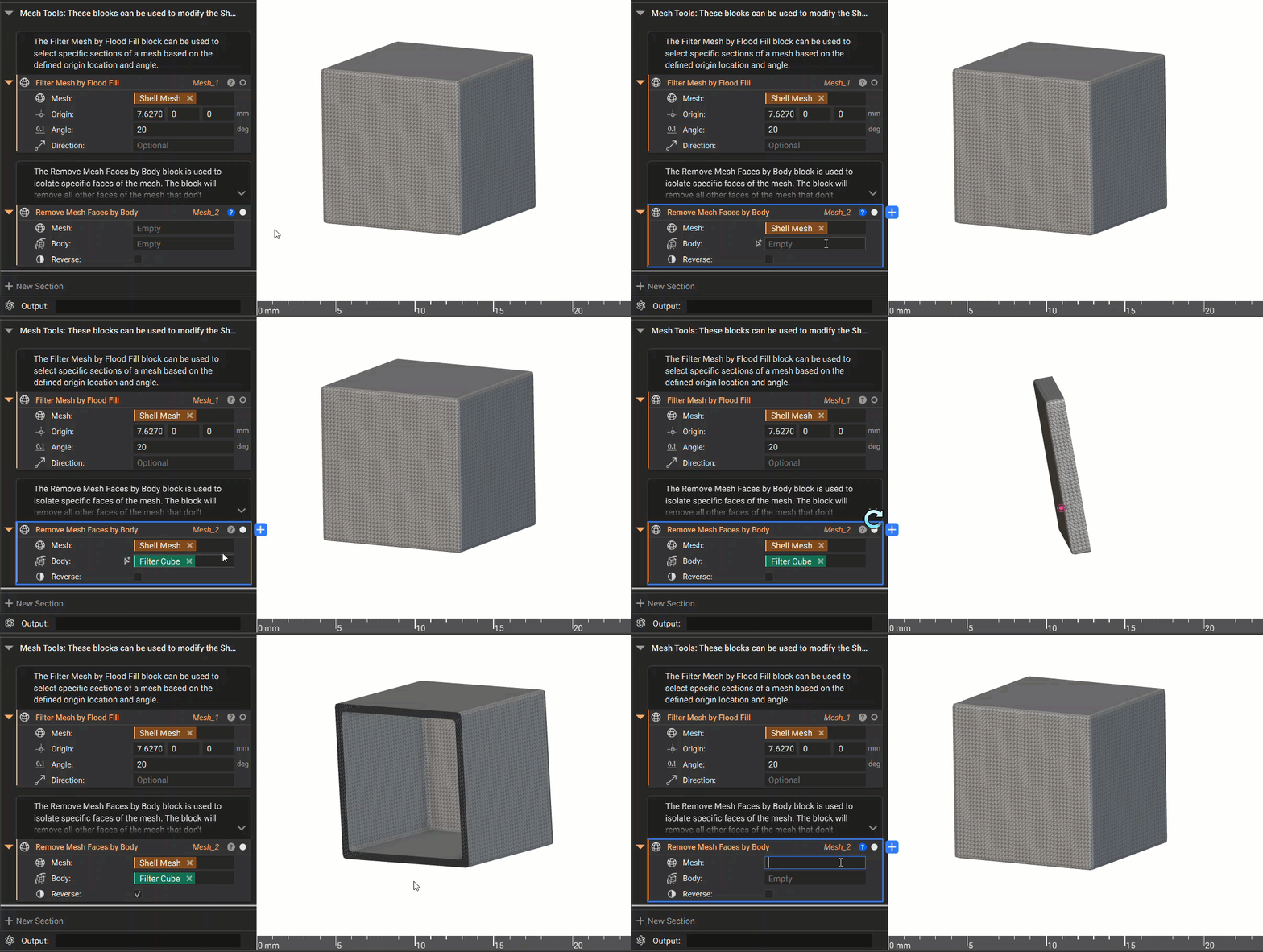 And that’s it! You’ve successfully selected mesh faces from a mesh.
Do you still need help? Contact the support team, and we’ll be happy to help!
And that’s it! You’ve successfully selected mesh faces from a mesh.
Do you still need help? Contact the support team, and we’ll be happy to help!