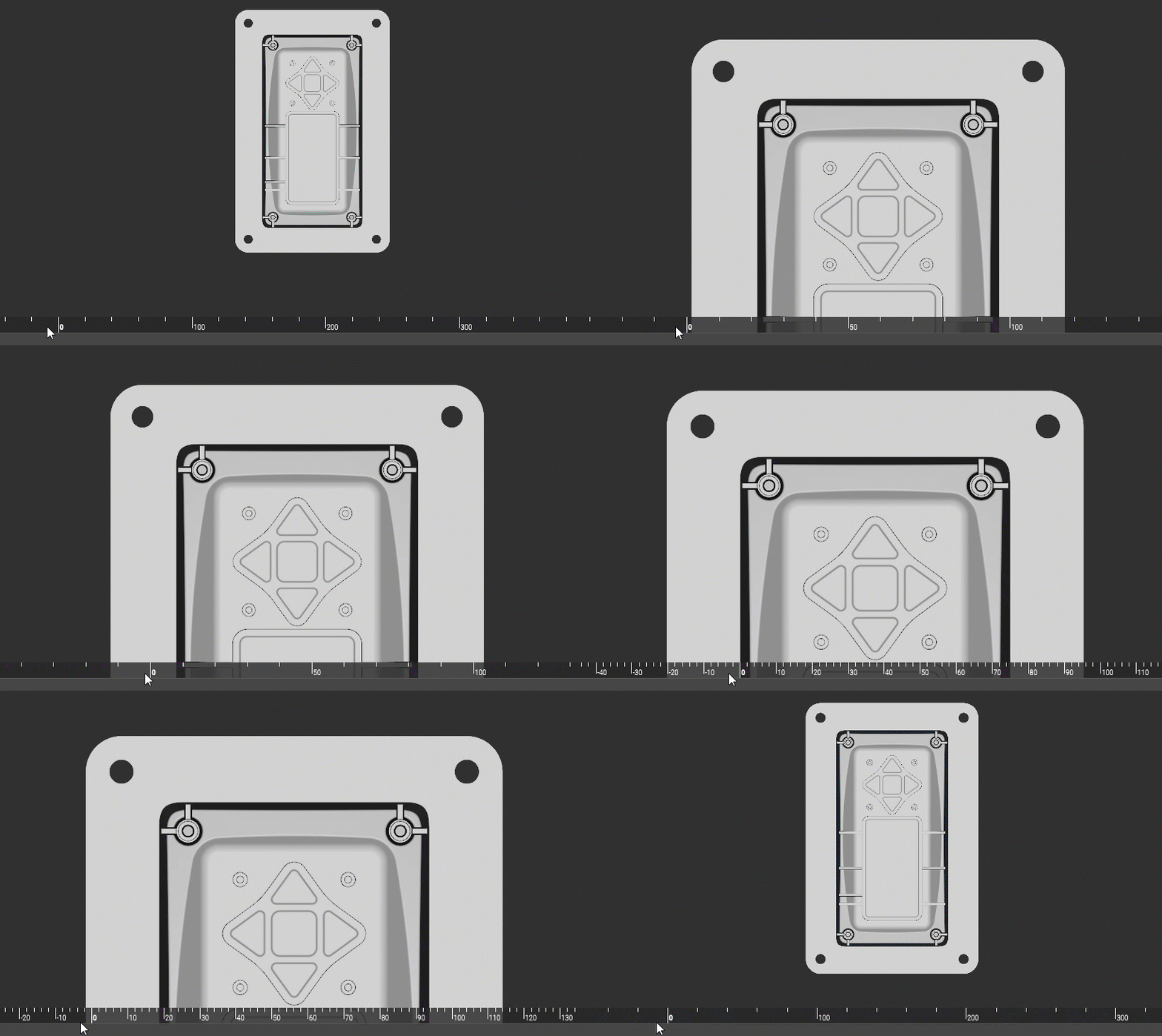
• (ALT+R) Toggles the ruler on or off. This setting will stay for every nTop instance until you decide to change it.
  • To scale the ruler, zoom in and out in the viewport. The ruler will automatically adjust and scale accordingly.
  • The ruler measures in millimeters.
NOTE:If you are in ‘Perspective’ View mode, the ruler will not be able to turn on. To get out of this mode, click the chevron below the View Gimbal and select ‘Orthographic’ (or go to View>Camera Mode>Orthographic).
The 0-position is snapped to the left side when you first turn the ruler on. Move the mouse pointer on top of the ruler and hold down the left mouse button to adjust the ruler position. This moves the values along the ruler, allowing you to align the 0-position to your desired location. You can also snap the 0-position to the left or right of the viewport. If you move the ruler and close the program, when you open a new file, the ruler will be in the same position that you left it. Main