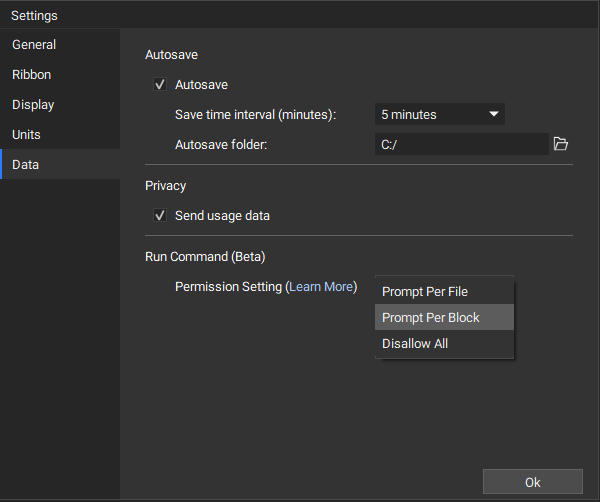
- Prompt per file: each time you create or open a file that contains run commands, you will be prompted to trust the file.
- This is helpful when you have many Run Command blocks in your file or you are using list processing because trusting the file will allow everything to run.
- Once you trust a file, all future changes and additional Run Command blocks in the file will be trusted.
- This option is less secure because you cannot pick specific Run Commands to trust.
- Prompt per block: each time a Run Command block tries to run, you will be prompted to trust that instance to run.
- This is the default setting and it gives you the most control over Run Command blocks in your file.
- This setting is less convenient when you have several Run Command blocks or you’re list-processing because you will be prompted multiple times.
- Disallow all: all Run Command blocks will not be able to run and you will not be prompted.
- This is the most secure setting.
- Changing the permission setting will require you to close and reopen nTop.
- When you trust a file, it only applies to the current nTop session. This means, if you trust a file and then close and reopen that file later, you will be asked to trust the file again. Additionally, if you send a file with a Run Command block to another user, they will be prompted to trust that file (regardless of your permission settings).
- Once you “trust” a file or block to run, the only way to change it to “not trusted” is to close and reopen your file. You could also set the block to Manual Run Mode if you want to stop it from running automatically.