

The input mesh has disjoint components. This is currently unsupported. Please use split mesh to disconnect the mesh, and then convert each separately
About the error
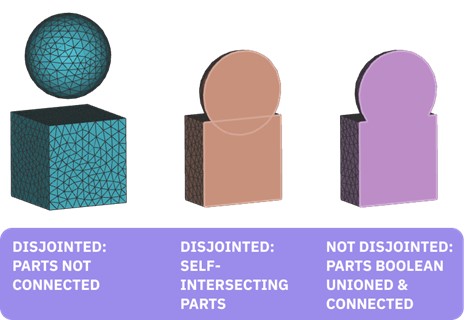
Issue: Sometimes meshes have parts that aren’t physically connected or parts that intersect within themselves. These can be intentional or unintentional and are called disjoint components. The CAD Body from Quad Mesh workflow doesn’t support disjointed mesh components. The mesh needs to be connected to every part in it without self-intersections. Using Merge Meshes won’t fix this issue if they are physically connected because it causes self-intersections. It is best to use Boolean Union to join any bodies together before the mesh step. To run the workflow, the mesh needs to be split up into separate parts. Even if your mesh block isn’t a list, it may have multiple components. If you want every mesh component converted into a CAD body, you need to run the workflow for each component separately. Applies to:- CAD Body from Quad Mesh
- Quadrangulate Mesh
- A mesh with multiple components (can be large or small disjointed parts) used to create a CAD Body. Disjointed components aren’t supported in this workflow.
- A mesh with self-intersections.
- Use the Split Mesh block on the disjointed mesh to separate the components. Open up the Properties panel of the Split Mesh block to extract the mesh components.
- Use the Boolean Union block before converting the body to a mesh if it has multiple components that are physically connected, causing self-intersections. This only works when the parts are physically connected.
A manifold mesh is expected; the surface mesh that you provided is not manifold. Please visit support.nTopology.com for techniques to generate a manifold mesh
About the error
Issue: The input mesh is non-manifold. Non-manifold is defined as geometry where at least one edge does not have exactly two faces merging with it, meaning that it cannot exist in the physical world. Applies to:- CAD Body from Quad Mesh
- Quadrangulate Mesh
- Mesh export
- Refine Mesh
- An edge is connected to more or less than two faces (including internal faces)
- Separate regions are connected through a single vertex
- The mesh has loose geometry (discontinuous)
- Mesh elements have plane normals pointing in opposite directions for adjacent faces.
- To check if your mesh is manifold or not, click on the info (?) panel and go to Properties. Inspect the values of Edge Manifold and Vertex Manifold properties. If either of them are False, then it is not manifold and if both are True, then it is.
- Cleaning or refining the mesh. Some blocks that can help clean meshes are Remesh Surface, Refine Mesh, Simplify Mesh by Threshold, Simplify Mesh by Amount.
- Editing the Adaptivity and Feature Size of a Remesh block.
- If your mesh is still non-manifold after trying these steps, you may have to go back to your original part in a different program and try cleaning it up. Sending it to another program like Magics for cleaning up may also be necessary.
- Clean up the mesh in a different program
- If you are trying to create a Quad Mesh using the Quadrangulate Mesh block, you want to use one of the refinement blocks mentioned above. Inputting a Mesh from Implicit Body or Mesh from CAD Body block will most likely cause an error when used without a refinement step.
No mesh entities were found
About the error
Issue: When creating a boundary or region, input selection didn’t find any mesh entities. Applies to:- FE Boundary by Flood Fill
- FE Boundary by Body
- FE Region by Body
- The input parameters weren’t able to find mesh entities to create a boundary or region from. At least one mesh entity is required to create a boundary or region.
- Adjust the origin, angle, direction, or body position to select mesh entities.
Cannot generate mesh with the selected inputs, try switching Shape
About the error
Issue: The mesh can’t build due to the limitations set by the inputs. Applies to:- Volume Mesh
- The input values can’t be built due to the shape of the mesh
- Change the mesh shape
- Edit the inputs
Surface meshing errors occurred
About the error
Issue: The mesh wasn’t able to build properly. Applies to:- Remesh Surface
- The original mesh is non-manifold, has artifacts, or intersections
- The input values created a mesh that couldn’t build
- Refine the mesh before using the Remesh Surface block.
- Edit the input values.
The mesh produced is expected to contain faces. The Feature size you provided results in no faces and creates an empty mesh. Please adjust the feature size to a smaller value
About the error
Issue: Occurs when converting an Implicit Body into a mesh. When the feature size is larger than the largest details in the Implicit body, it won’t be able to create a mesh. Applies to:- Mesh from Implicit Body
- Converting an Implicit Body into a mesh
- Using a feature size that is larger than the largest detail in the Implicit Body.
- Adjust the feature size to be smaller than the details of the Implicit Body.