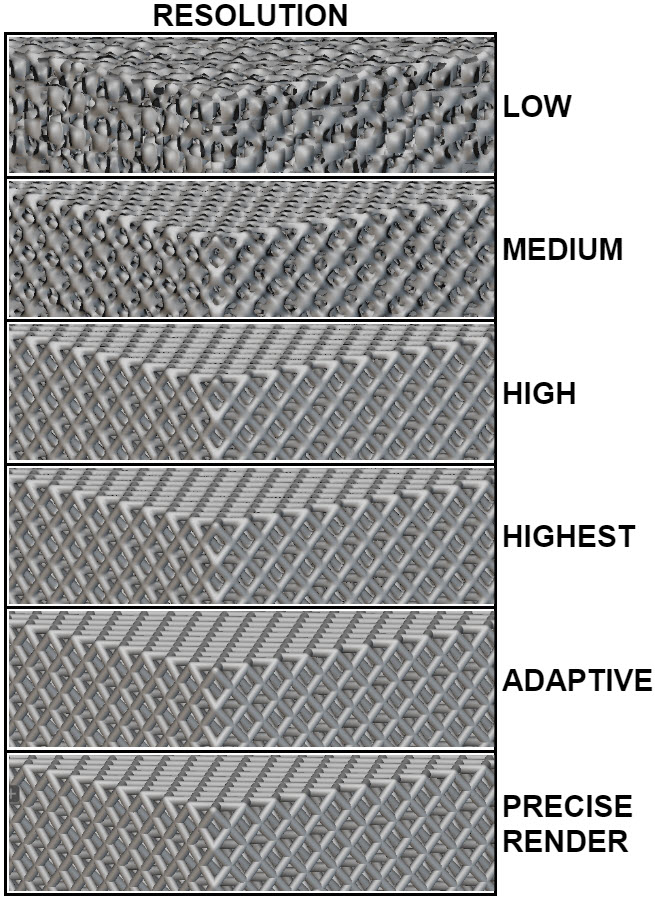
- Low
- Medium
- High
- Highest
- Adaptive
- It is important to note that the display setting does not affect the output quality. For example, a complex model rendered at Low resolution may have visual artifacts, but still produces high quality geometry when converted to a mesh.
- Resolution settings don’t affect the size of the file, only the rendering time.
- As a best practice, we suggest working in Low or Medium resolution if you are performing computationally expensive operations. If visual verification is crucial to your design, switching to a higher quality render mode is recommended.
- If you need a higher resolution view than Highest, use Precise Render (View > Precise Render or Ctrl+H). This creates a snapshot of your object in the highest render available in nTop. You can read more about Precise Render here.
- Adaptive resolution increases rendering quality for complex implicit models by dynamically adjusting the local implicit resolution based on your view.