

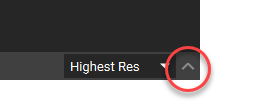
 The Log Panel opens up from the bottom of the screen. Use the arrow on the bottom right to close the Log Panel (the same arrow that opened it).
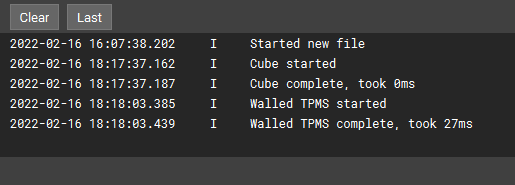
- The Log Panel starts each line with the date and the time.
- The middle column depicts the type of the log. It will either have an ‘I’ or an ‘E’.
- I: Info
- E: Error
- The right column describes the interaction. Some of these can include:
- Opening a file
- Starting a block
- A block completing and how long it took to complete
- Description of the error the block encountered
- The newest logs appear at the bottom.
- Use the scroll wheel or the up or down arrow keys to navigate through older logs.
- Use the Clear button to empty the logs.
- Use the Last button to navigate to the most recent log.
- Hover your mouse over the top edge of the Log Panel and click and drag to increase or decrease the size of the Log Panel.
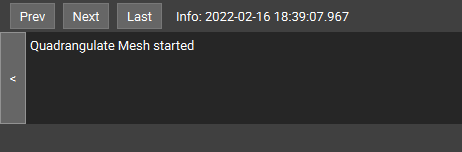
- Double click on any log to expand it in a new window.
- Navigate through each log by using the Prev, Next, or Last buttons.
- Go back to the main log window by using the grey arrow button on the left.