What is Field Optimization?Field optimization is a numerical design operation that optimizes design parameter values within the bounds of a design space (based on a set of objectives and constraints). Field optimization allows the user to run an optimization algorithm on specific parameters, such as lattice or shell thickness, to achieve the best geometry for the desired objective (while considering complex and multivariate design constraints).Before starting with field optimization, we have two requirements: FE Volume Mesh and Boundary Conditions (BCs) to apply the Constraints. Follow the instructions in the links below to prepare your model for field optimization.FE Mesh
How to create an FE Volume Mesh
Boundary Conditions (BCs)
How to choose boundaries of an FE Mesh - FE Boundary by Body
Follow this link to learn about FE Models and how to create them. The Parametric FE Model would need one of the Parametric Domains as an input.What Parametric Domains are available? 4 Parametric Domains could be used as an input to the Parametric FE Model. You would have to choose a domain based on what you wish to optimize and achieve. You can learn more about each domain and how it is parameterized by clicking the Learn More link on the block.
Parametric Domain
Visual Representation
Design Parameters
Field Optimizable Design Parameters
Parametric Lattice Domain
Unit Cell, Boundary Behaviour, Cell Size
Min and Max Thickness
Parametric Shell Domain
Min and Max Shell Thickness
Parametric Shell-Infill Domain
Unit Cell, Cell Size
Min and Max Infill Thickness
Min and Max Shell Thickness
Parametric Voronoi Domain
Min and Max Cell Size
Min and Max Thickness
Fill in the other inputs’ Material, Min, and Max allowable values for optimization.Note: The initial value is only used for visualization purposes, whereas the minimum and maximum values drive field optimization. We highly recommend using the input to check whether your Min and Max are printable.
Tip: If you wish to optimize only the Thickness instead of the Cell size in a Parametric Voronoi Domain, use a constant Cell size value for Min and Max.
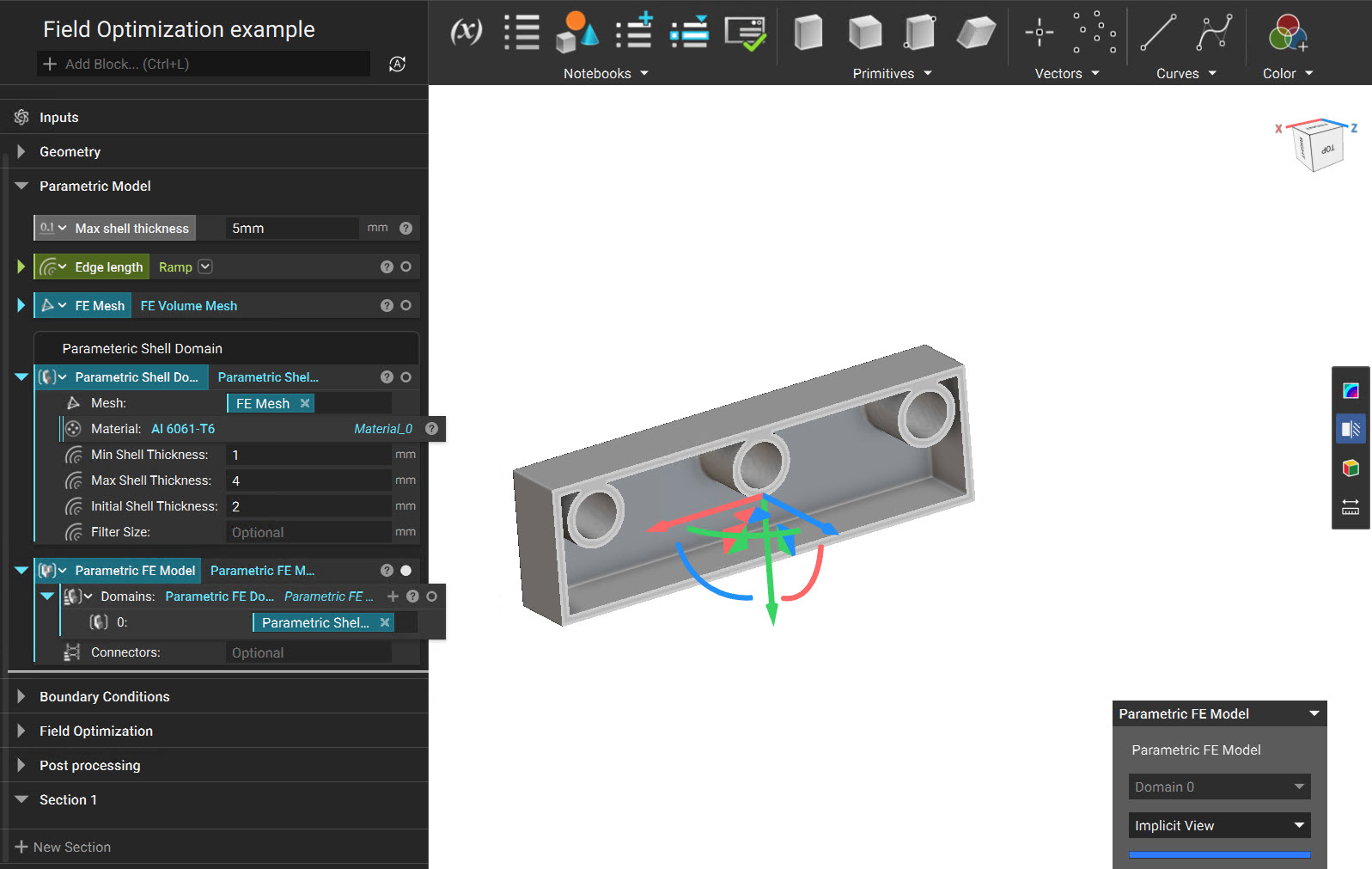
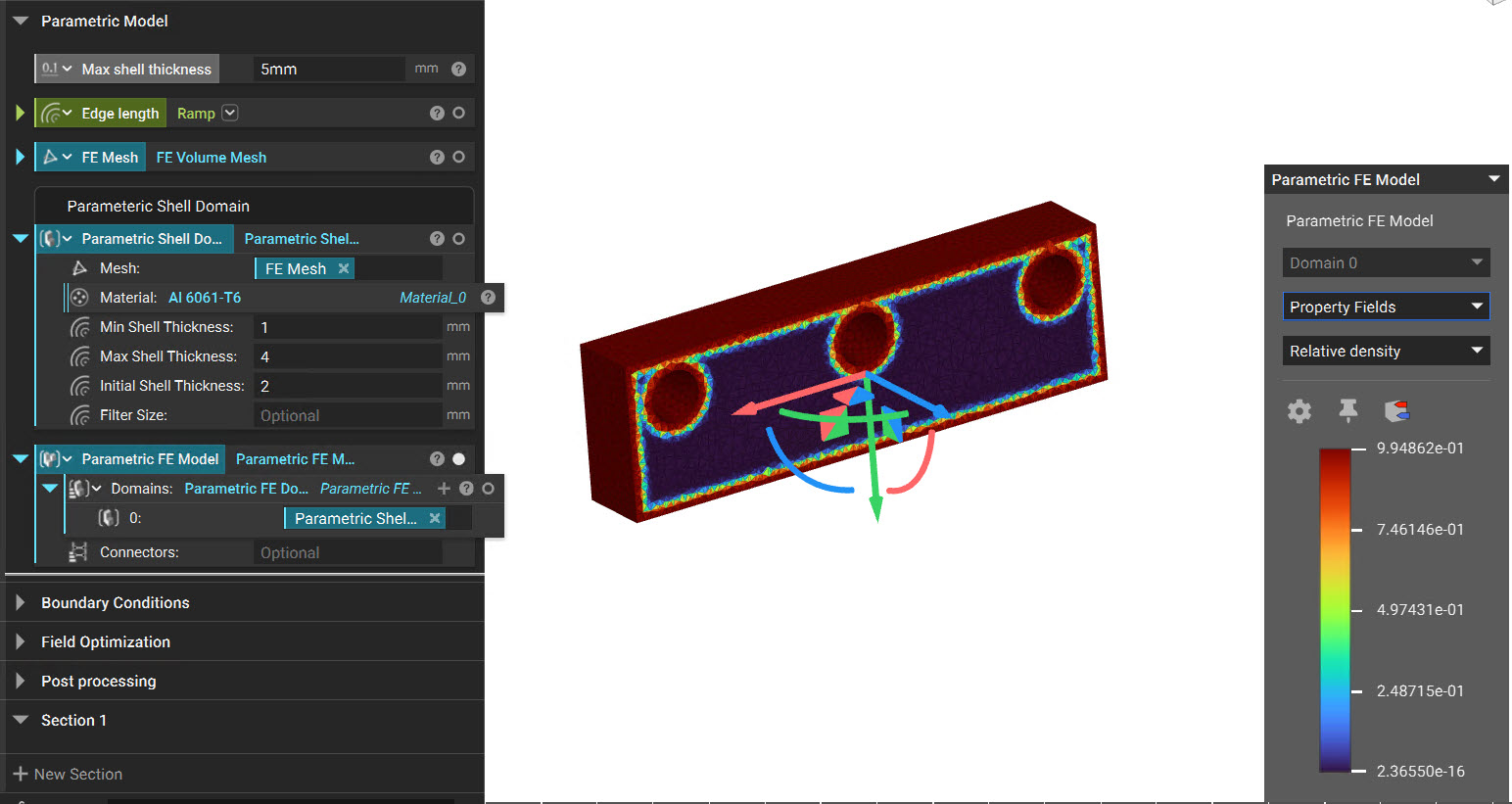
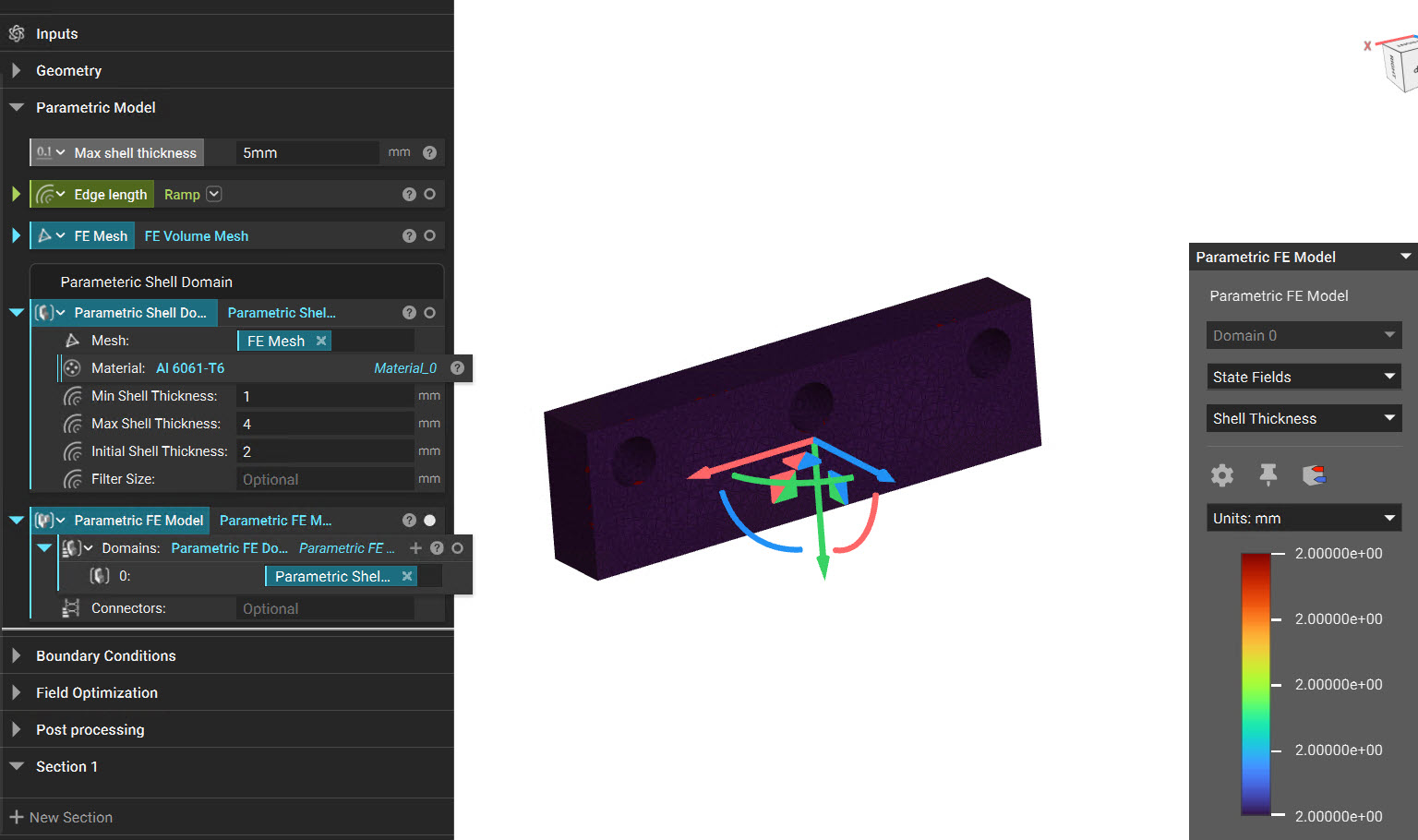
Once you generate the Parametric Domain, a window with several options for visualizing the results appears in the viewport.
Implicit view - allows you to view the resulting geometry by changing the Initial values in the input of the Parametric Domain block.
Property Fields - allows a user to view the homogenized mechanical properties of the structure across the design space before performing field optimization. The properties that can be accessed from the HUD are Relative density, Density, Young’s Modulus, Poisson’s Ratio, and Shear Modulus.
State Fields - allows a user to view values of the design parameters across the design space before performing the field optimization. For example, in this case, the controllable design parameter is thickness which would be the same as our Initial input value.
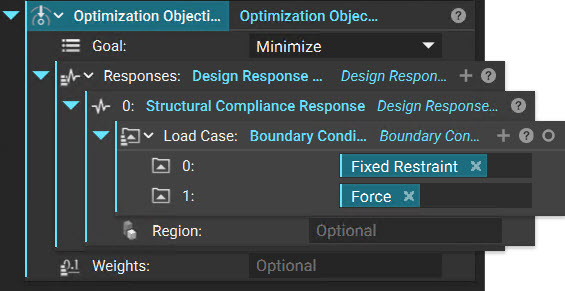
The Optimization objective is what property, or ‘Design Response,’ we hope to minimize or maximize within our part. nTop supports several design responses, including Structural Compliance, Volume Fraction, Displacement, and Stress.Use the Optimization Objective block to specify the design response(s). In this example, the objective is to minimize structural compliance.
Add a Structural Compliance Response block.
Insert the Displacement Restraint and the Force block.
Add an Optimization Objective block
Set the goal to Minimize
Insert the Structural Compliance Response into the Design Response List
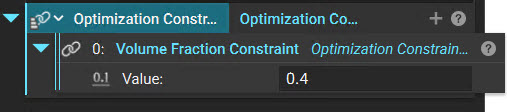
Field optimization can also take constraints as input. Without Constraints, the optimization will probably result in parameter values at their maximum/minimum bounds. Constraints can include upper or lower limits on other Design Responses and others.The most commonly used constraint applies a minimum or maximum bound to a design response, such as compliance, volume fraction, displacement, or stress.This field optimization example is constrained such that the volume fraction of the final part is less than 0.4. In other words, the resulting optimized part will have a targeted volume of 40% of the whole design space. Notice that the volume fraction cutoff in the Design Response Constraint block is a variable for easy adjustment.
Add an Optimization Constraint List block
Insert a Design Response Constraint block
Insert a Volume Fraction Response block into the Response input
Set the value to .4
Optional: Right-click on the Value input to create a variable to change the Volume Fraction quickly.
You can leave the rest of the inputs as default for this example. You can find more information on these settings in the block’s information panel and in this article. After completion of field optimization processing, a window appears in the Viewport with several options for visualizing the results.
Implicit view - allows you to view the resulting geometry. Under the “render, as needed” drop-down, each iteration will render when you move the slider bar. Use the “render all” option in the drop-down to render more than 1 iteration at a time to view the progression of the field optimization results easily.
Property Fields - allows you to view the mechanical properties of the resulting structure across the design space. You can display the results across the original mesh and render them in real time for any saved iteration.
State Fields - allows you to view values of the design parameters across the design space. You can display the results across the original mesh and render them in real time for any saved iteration.
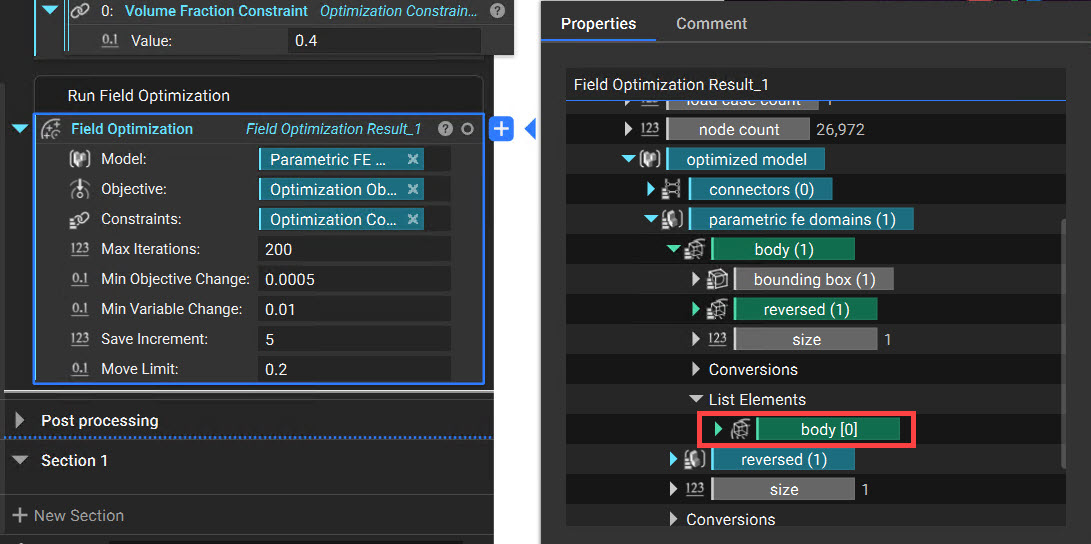
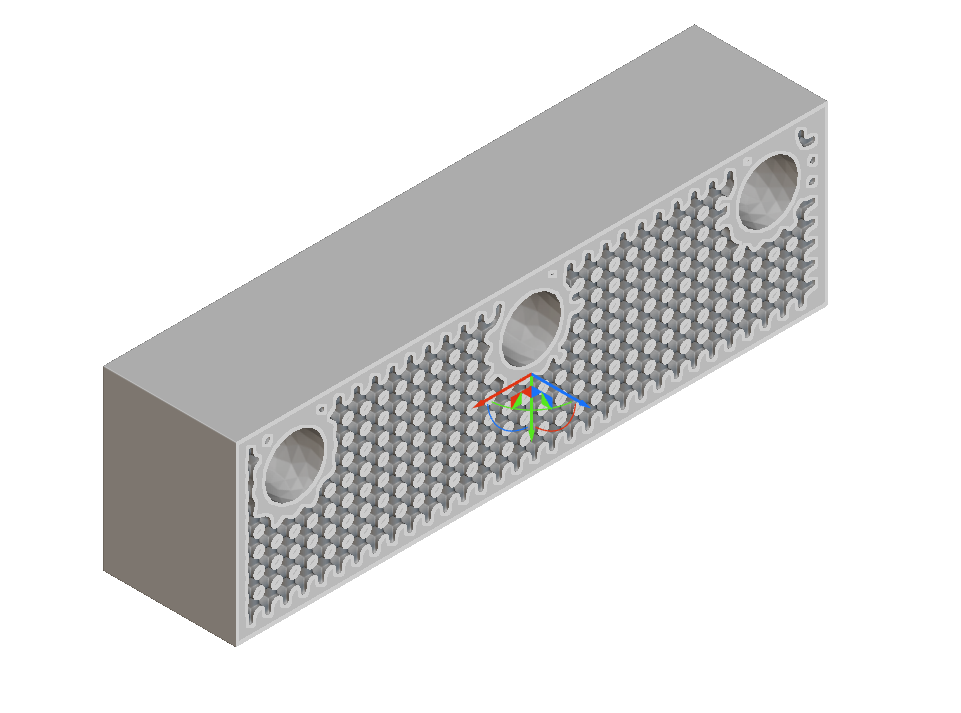
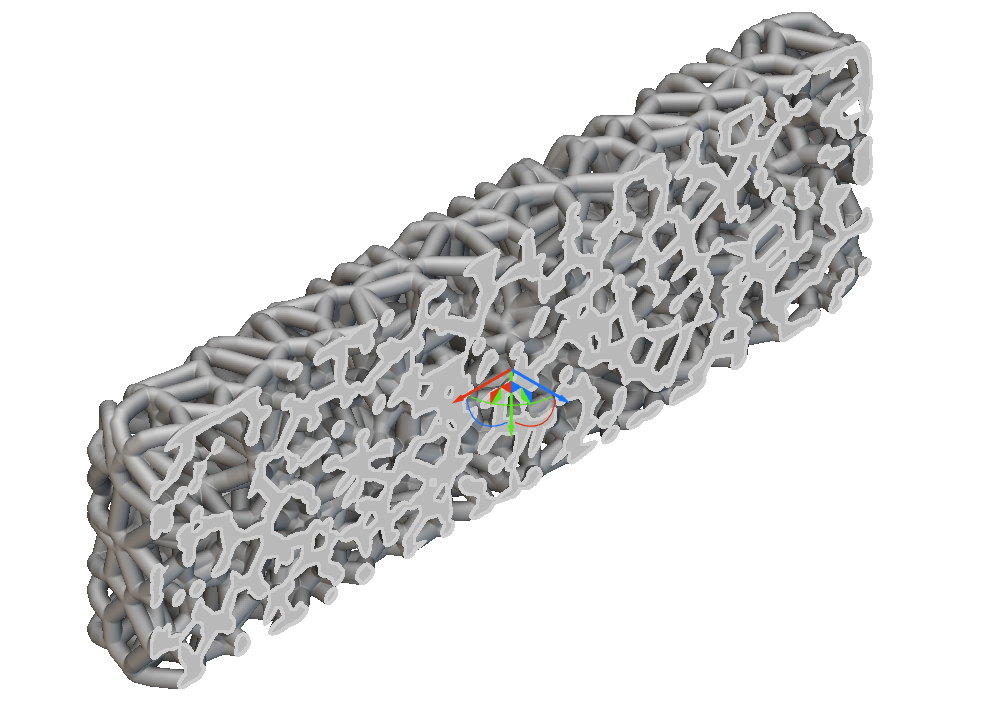
To get the resultant Implicit Body, you must grab the Implicit chip from the Properties panel (optimized model > parametric fe domains > Properties > body).
Add a Boolean Union block
Input the Smoothened Body and the Interface Bodies
Set the Blend radius to 2 mm (to keep the transitions between bodies congruent)
Lastly, perform a Boolean Intersect operation with your part and the original CAD body to ensure that you preserve the interfaces of the original design space.And that’s it! You’ve successfully performed a field optimization.Are you still having issues? Contact the support team, and we’ll be happy to help!


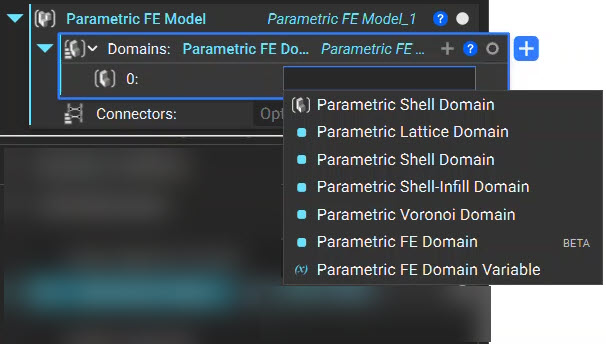 What Parametric Domains are available? 4 Parametric Domains could be used as an input to the Parametric FE Model. You would have to choose a domain based on what you wish to optimize and achieve. You can learn more about each domain and how it is parameterized by clicking the Learn More link on the block.
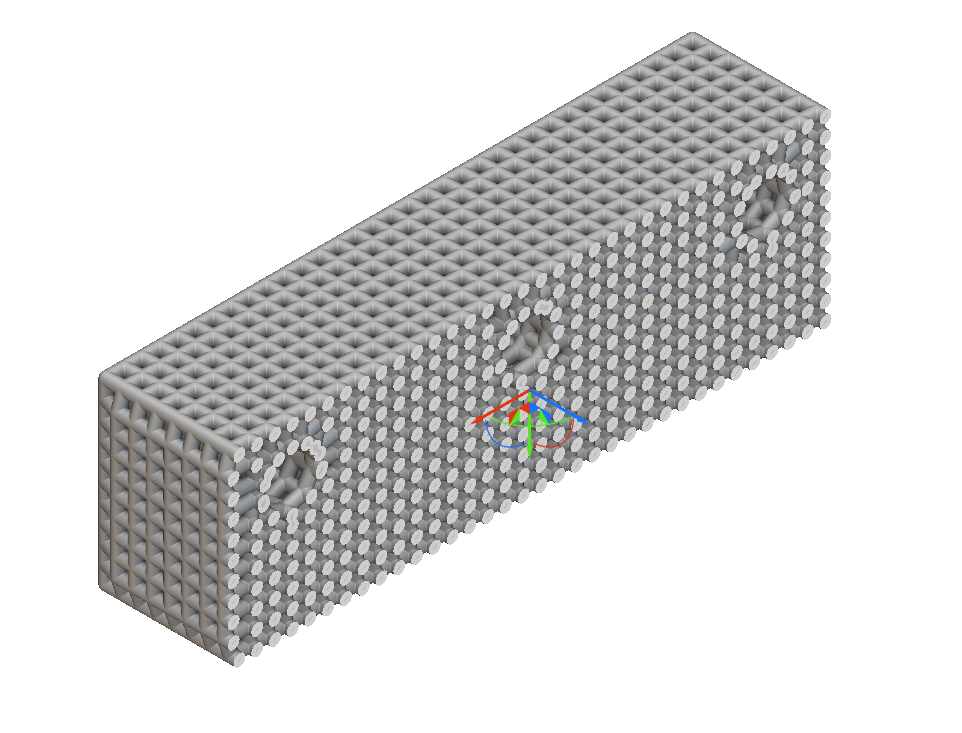
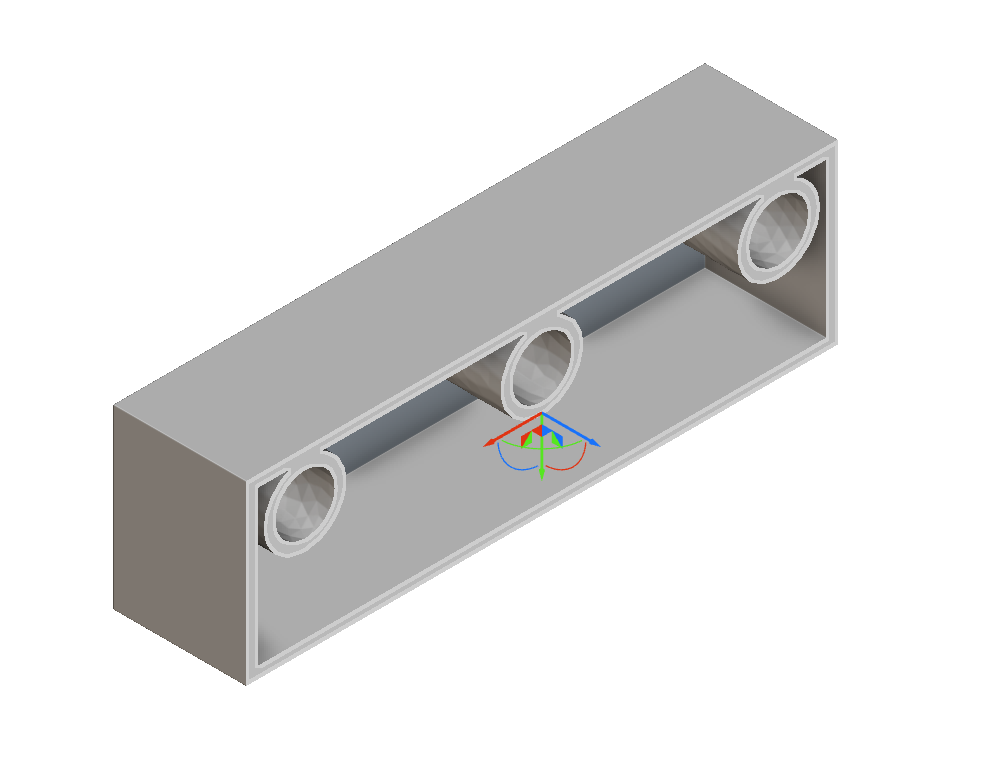
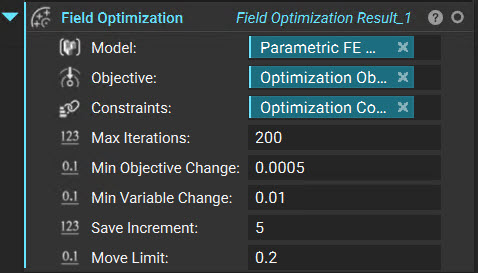 You can leave the rest of the inputs as default for this example. You can find more information on these settings in the block’s information panel and in this article. After completion of field optimization processing, a window appears in the Viewport with several options for visualizing the results.