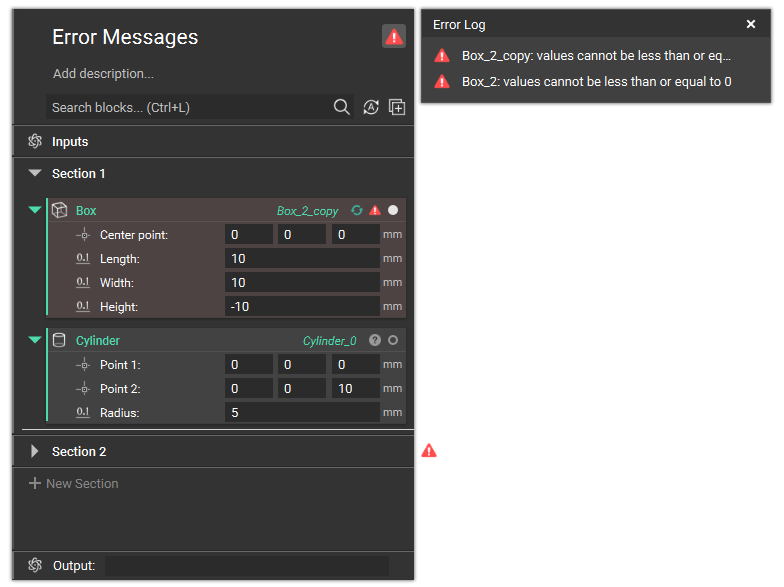
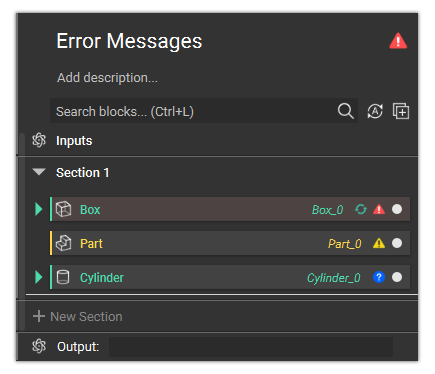
- Errors: Red icon - Must be resolved for the block to run.
- Warnings: Yellow icon - Don’t need to be resolved for the block to run, but may impact the output.
- Alerts: Blue icon - Must be resolved for the block to run. Used for blocks with incomplete information, most commonly, an empty required input.
 Several things happen at when an error occurs:
- The block is tinted red.
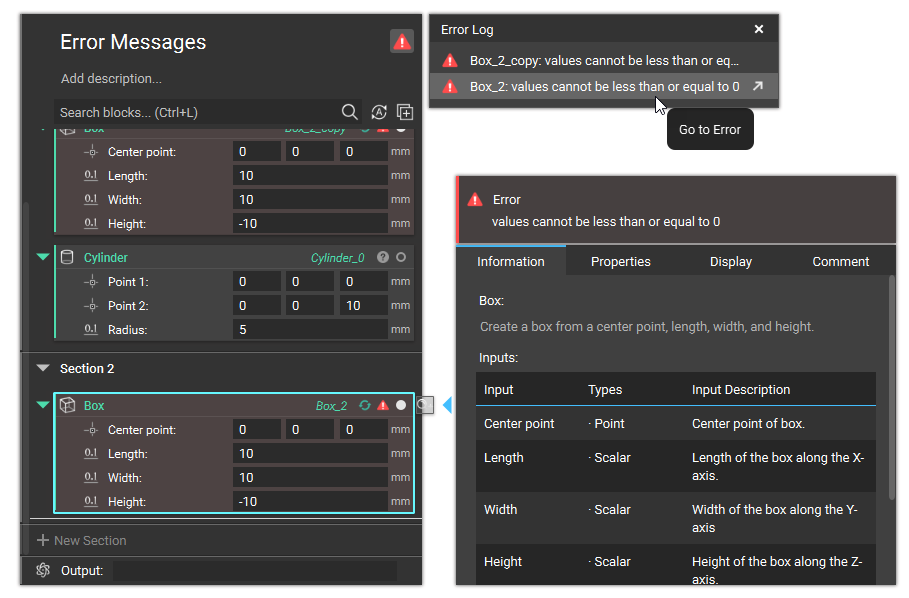
- A red icon appears over the Information Panel. Clicking the icon opens up the Information Panel with an error message above it. The error message tells you what went wrong and how you can fix it.
- Some error messages may have a Learn More button, where you can read more about how to resolve the error. You can find all of the error documentation here.
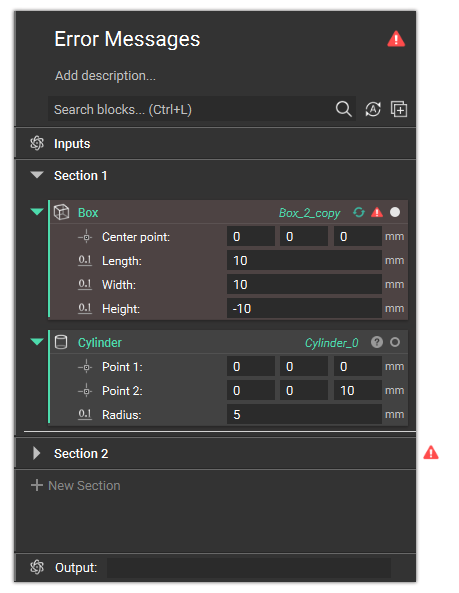
- An error icon appears on the top right of the Notebook.
- If a block within a close section has an error, an icon appears beside the closed section.
Error Log
Select the error icon in the top right of the Notebook to open the Error Log. The Error Log shows you all of the errors occurring in your Notebook. Click on an error message in the Error Log to navigate to the block the error is occurring in. Warnings and alerts don’t show up in the Error Log.