Viewport Select
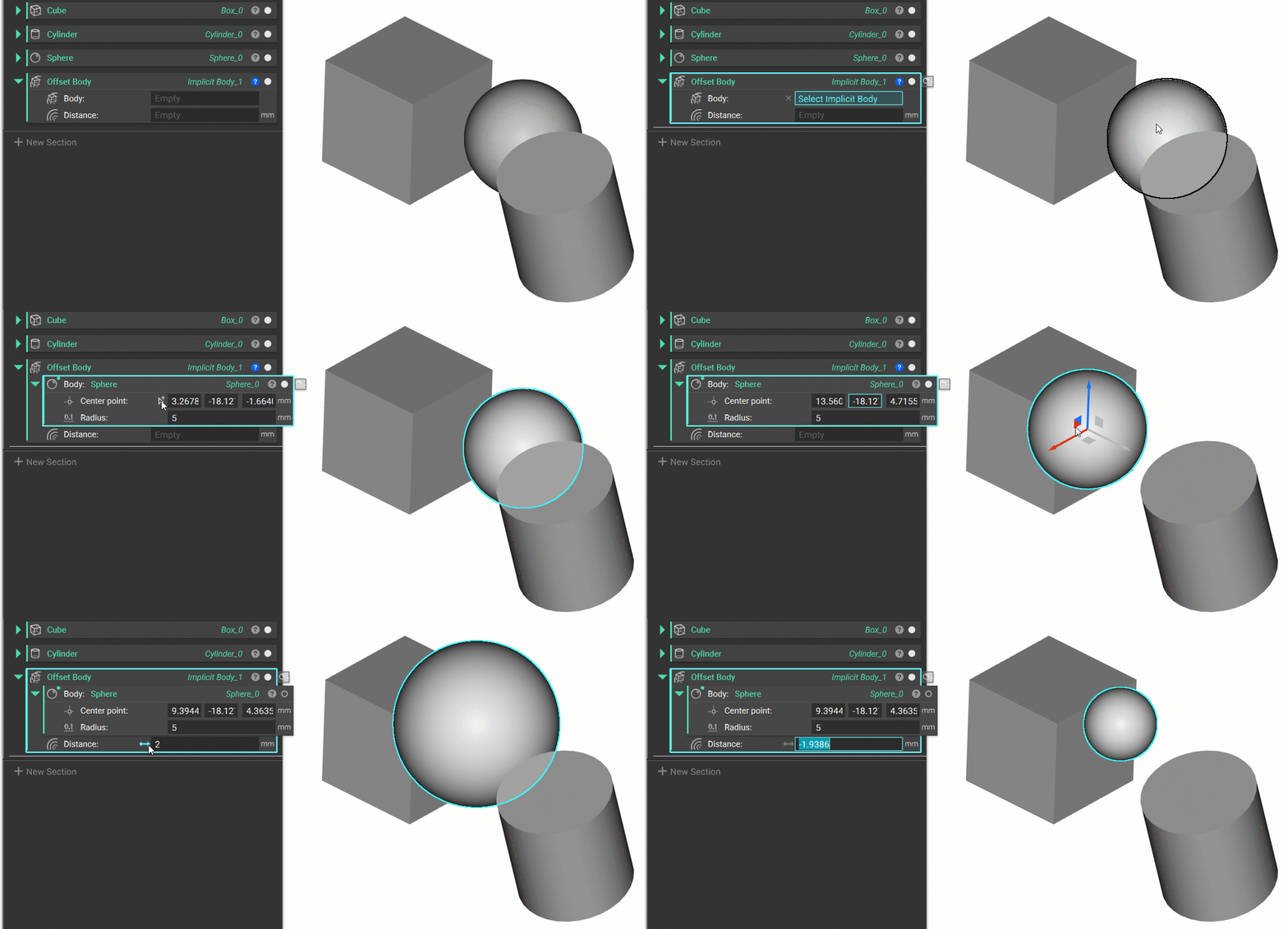
You can tell inputs are interactive when this symbol appears when you hover over the input: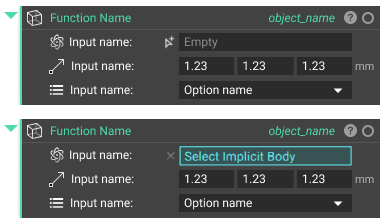
- Selecting the symbol toggles on the Viewport select mode.
- The input turns blue and prompts you to choose a part from the Viewport.
- Parts are highlighted when you hover over them.
Placement Gimbal
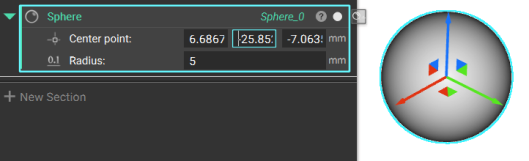
Most Point inputs have a corresponding placement gimbal that allow you to move the part in the Viewport. Select an axis beam or the squares between them to adjust the placement.