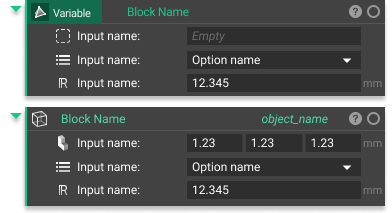
A variable can be any block or parameter in the Notebook. By declaring a block as a variable, entire parts can be changed quickly and parametrically. An entire Notebook of functions can automatically be computed and rebuilt by changing values in the variable. Variables also allow for quick and easy organization and understanding of your Notebook since the variable blocks don’t get nested within another block.

Block Variables

  1. Select the block.
  2. Right-click along the top of the block.
  3. Select “Make Variable”.
A variable looks different from a regular block. The block name moves to the left and sits on top of the block color (related to the block type). Below you can see a variable vs a regular block.
Variable vs regular block
A block variable never “nests” inside another block. Instead, a “chip” is created to show that the variable is inserted in that block. Watch the gif below to see how to create a variable, rename it, and insert it into another block or multiple blocks.
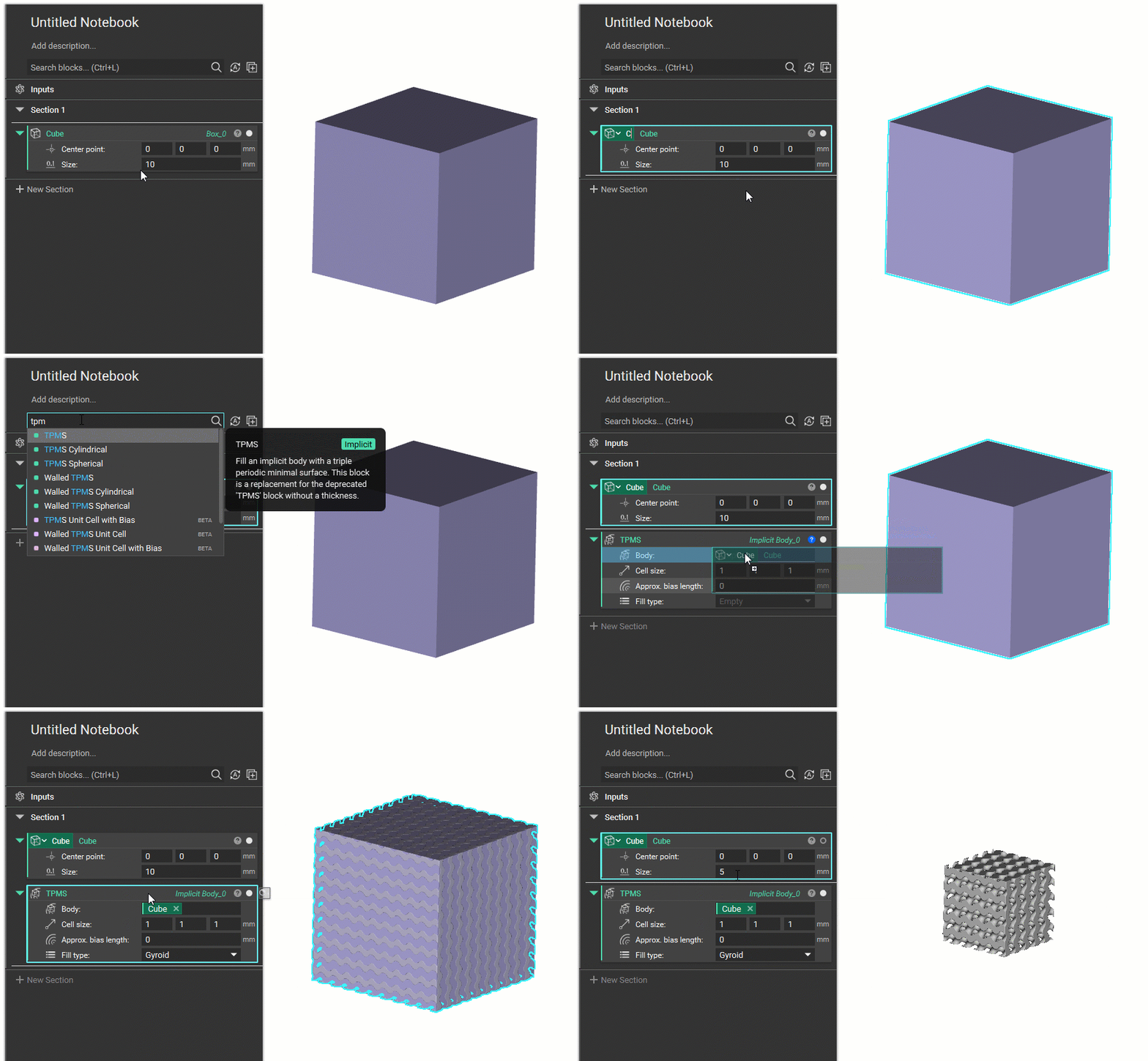
Creating a block variable

Parameter Variables

  1. Right-click over an Input Name.
  2. Select “Make Variable”.
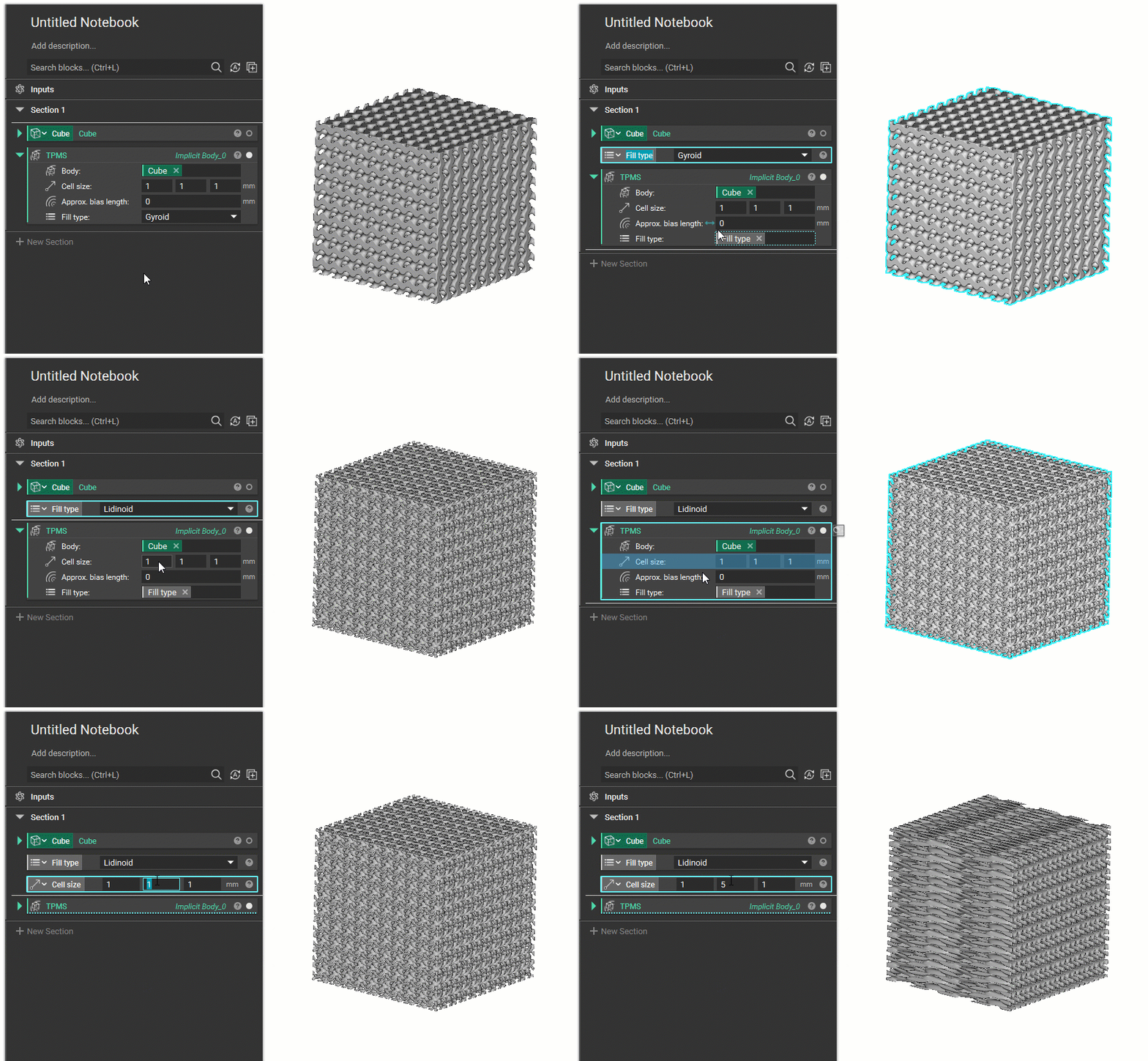
A parameter variable is a useful way to quickly change a specific aspect of a block. It makes it clear what input can change. See the gif below on how a parameter variable is made.
Creating a parameter variable

Use the Information Panel to Create Property Variables

  1. Expand the (?) symbol on the block to open the Info Panel.
  2. Go to the Properties Tab.
  3. Drag any property into the Notebook to create a variable of that property (these properties are linked to the block they came from). You can also drag any chip directly into an input, instead of the Notebook.
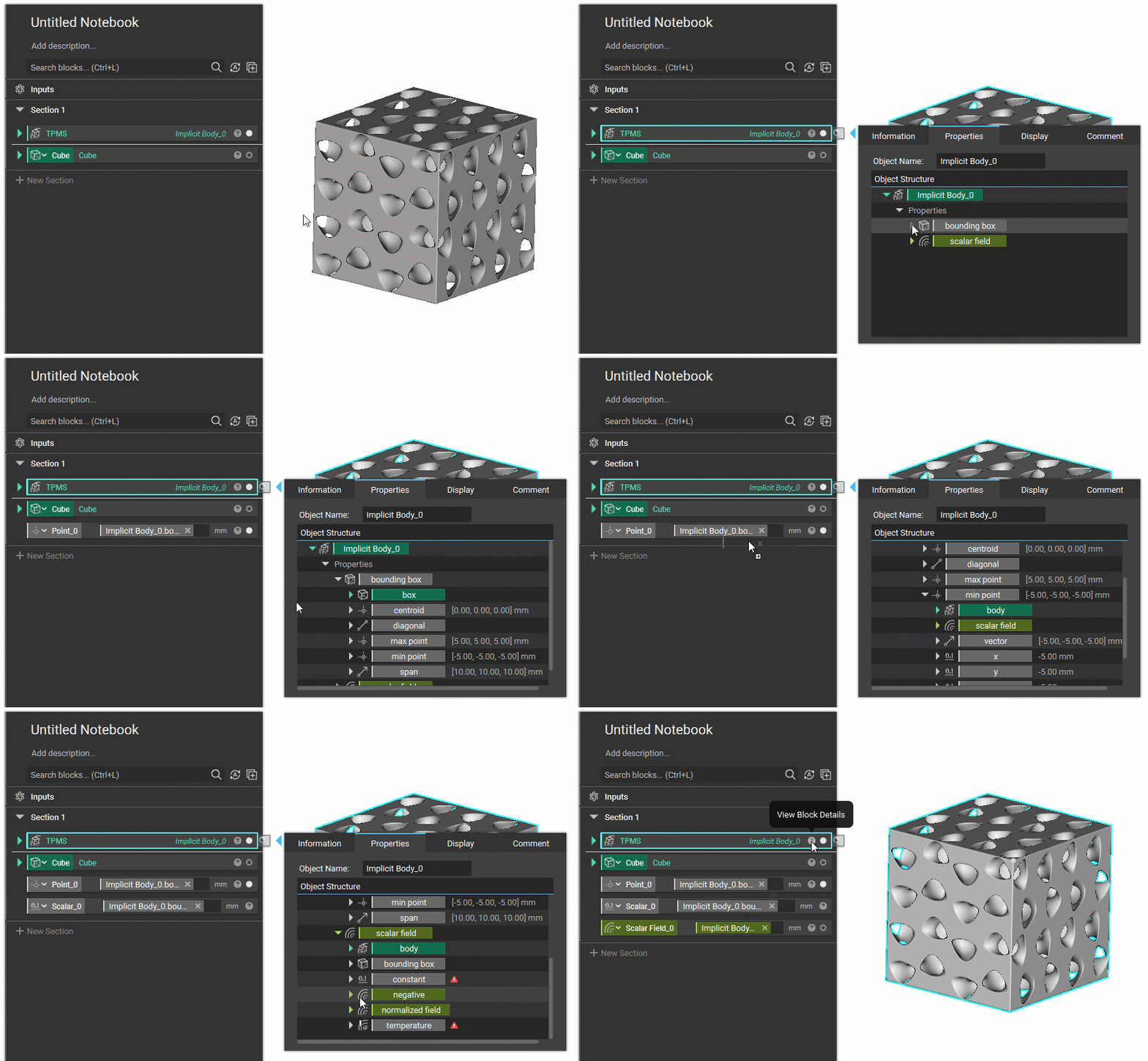
Creating a property variable

Removing Variable Contents

Empty a variable by right-clicking on the variable and selecting “Remove Contents”. Emptying a variable allows you to quickly change the contents of that variable while keeping the variable chip inserted as inputs in other blocks. In this example, the contents of a Cube block variable are being removed. In order to allow any Implicit Body input, the Block Type needs to change from Cube to Implicit Body. To do this, click on the icon and search the list or type in the desired input type. Changing the Sphere and Cube into variables allows you to quickly replace the input without needing to right-click and remove contents.
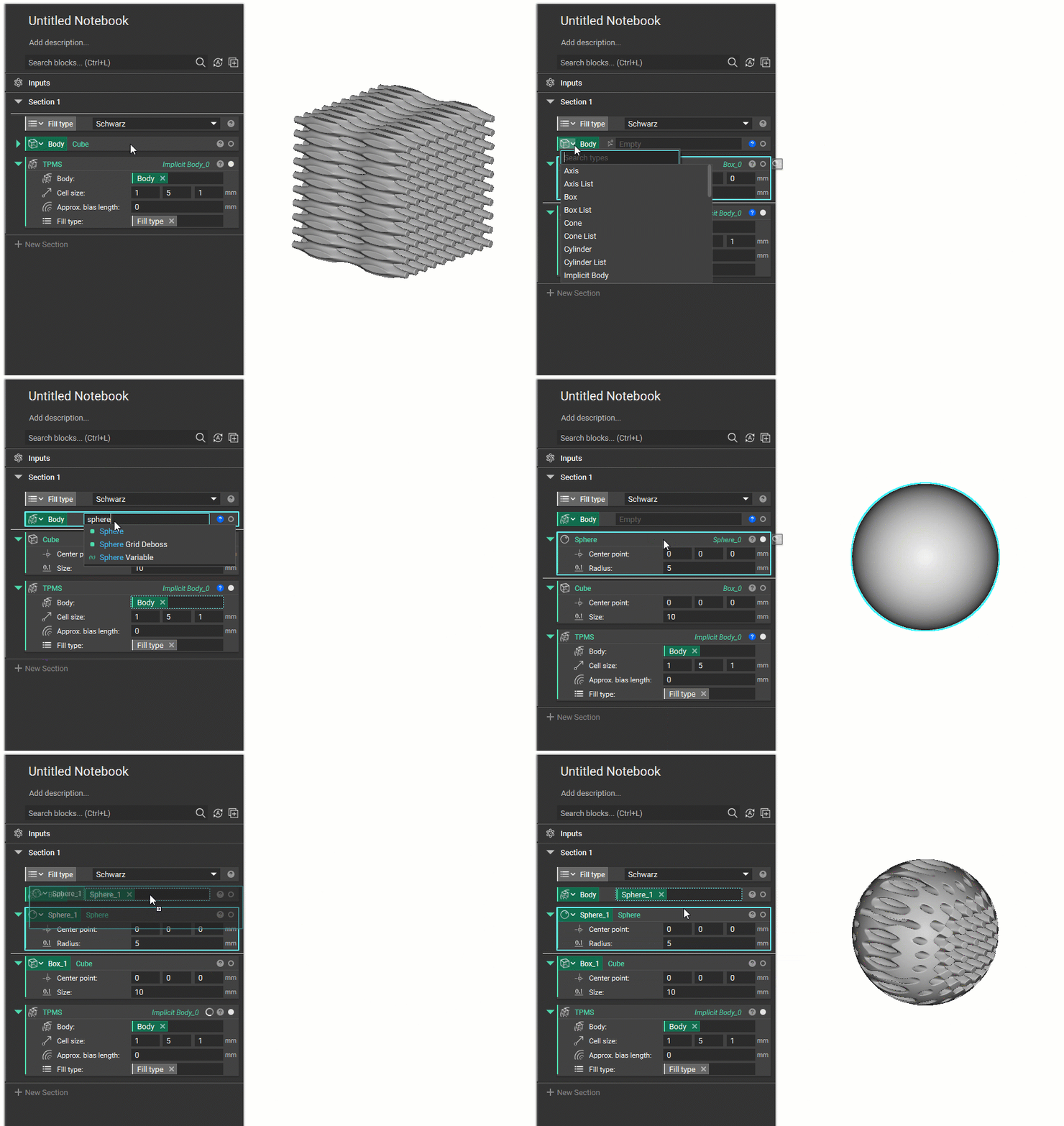
Removing variable contents

Reuse Variable Chips

You can reuse variable chips that are already in an input by using Ctrl + Drag and dragging it into a new input.