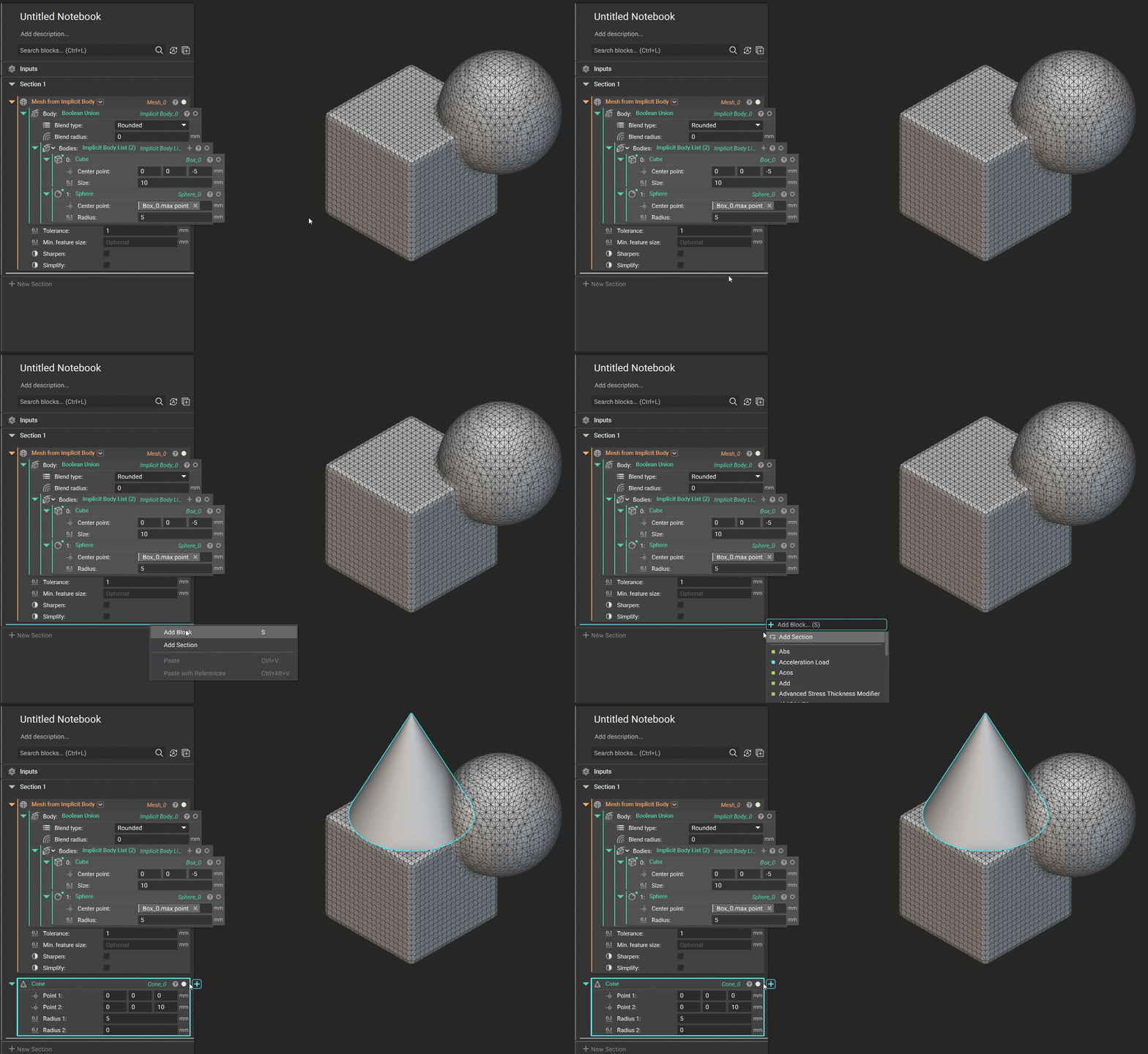
- Search in Place is activated by right-clicking the dividing line under a block, a blank section, or between blocks.
- Once Search in Place is activated via right-clicking, a context menu will give you the option to:
- Add Block - When selected, it will open the search dialog to the notebook’s right at the line.
- Add Section - When selected, it will add a section below the line.
- Add Comment - When selected, it will activate the comment for that block when a block already exists below the line. If a comment already exists, it will activate the existing comment and allow you to edit it.
- Paste and Paste with References.
- Double-clicking the dividing line skips the initial Search in Place context menu and brings you directly to the Add Block search dialog.
- The Context Search’s icon matches Search in Place’s ”+” icon. When you select the ”+” icon on a block, it will search for and add compatible blocks as outer nested blocks with your current selection. When you add a block via Search in Place, you can search for and add any block below the dividing line.
- Clicking on the dividing line and selecting the “S” key on your keyboard (the same keyboard shortcut as Context Search) will skip the initial Search in Place context menu and bring you directly to the Add Block search dialog.