

Method 1: Using lmutil.exe or lmtools.exe file (Recommended)
Method 2: Use the ipconfig command in your command prompt
Method 1
For this approach, you will need the nTopLM MSI file, which can be downloaded by clicking this link. Once you install the MSI file, it will create a folder containing the tools you need for the next steps. The default installation location is inside the nTopology program folder, as shown below.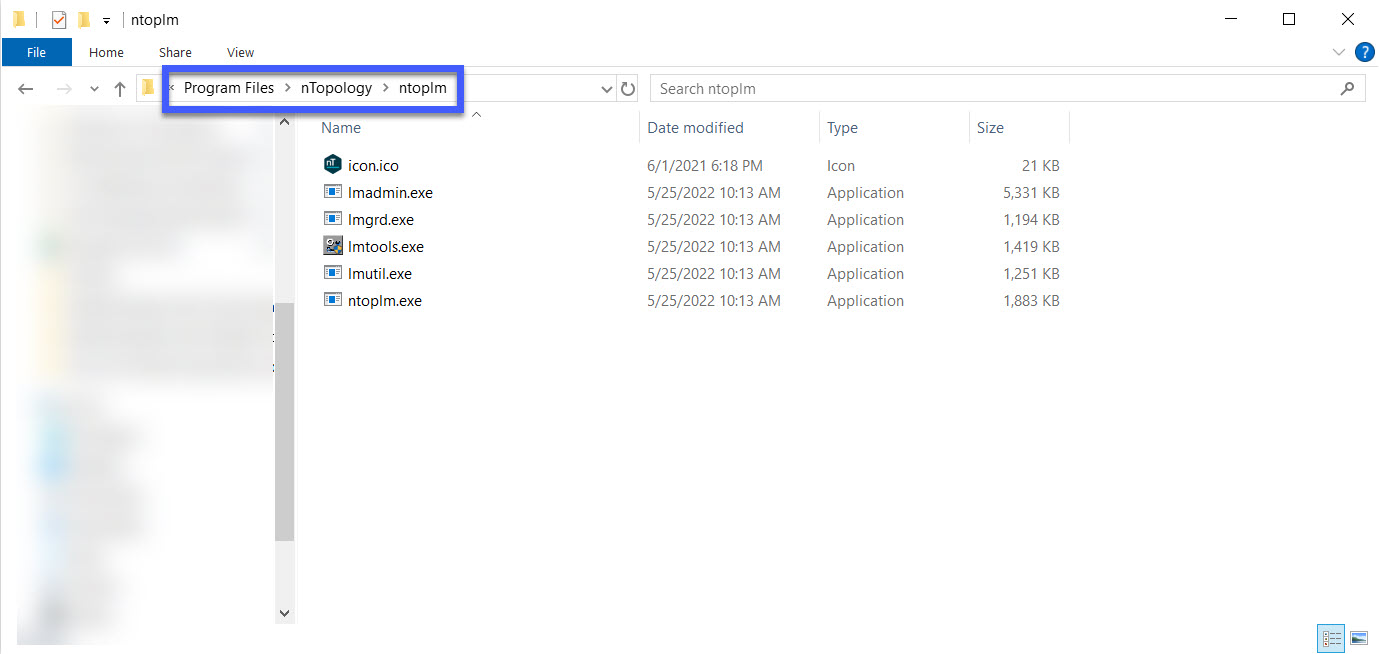
- For generating the Host ID, we will need to use one of these two applications in that folder based on your installation preference:
- lmutil (Command Line)
- lmtools (GUI)
- Run lmutil or lmtools on the server you intend to use as described below, which will give you the Host ID to provide us so we can create your license file.
Using lmtools
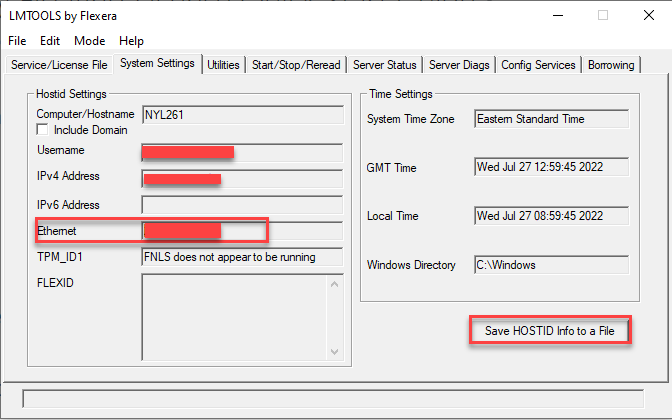
- Start up lmtools
- Click the System Settings tab, locate the Hostid Settings box
- Locate the Ethernet box. The 12 alphanumeric characters address is the Host ID
- Copy and store the Host ID. It should look like 00b0c9f2826f.
Using lmutil
- Run Windows Command Prompt (Start | Run | Type “cmd” and click OK)
- Change to the Download directory or where you have your lmultil.exe
- Enter the following command
-
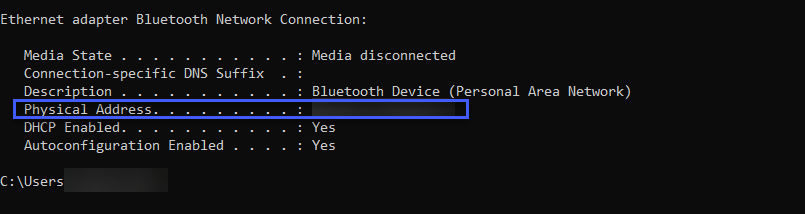
- Find the entry in the output that says “Physical Address.” It should look like this: 00-B0-C9-F2-82-6F.
- Copy and store the Host ID.
 Once you have obtained the Host ID, follow the Getting Started with FlexNet Floating License article steps to generate your FlexNet license file.
If you run into any issues, please contact support@ntop.com; we’ll be happy to help you.
Once you have obtained the Host ID, follow the Getting Started with FlexNet Floating License article steps to generate your FlexNet license file.
If you run into any issues, please contact support@ntop.com; we’ll be happy to help you.