Objective:
Reduce the file size to share by using Manual Run Mode Reduce the file size to share it with nTop SupportProcedure:
What is Manual Run Mode? Manual Run Mode allows you to explicitly prevent a block from running automatically. This feature allows you to make a series of iterative upstream changes to your notebook without automatically running downstream blocks, which could be computationally expensive and time-consuming.Note: By using the Manual Run Mode, we are transferring the computation to the receiving party. If you don’t wish to do the same, kindly don’t use this method.
1. Check the File Size and Open the nTop file
Right-click the file on Windows Explorer and click Properties to view the file size and check if it takes up excessive storage space. If it is, consider reducing the file size using a Manual Run Mode. Open the nTop file.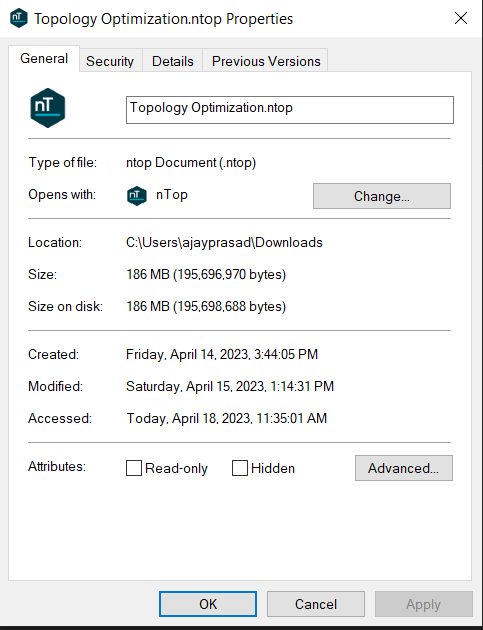
2. Adding Manual Run Mode
The blocks that consume the most amount of space are Meshing and Simulation blocks. Please identify these blocks in our workflow and locate the topmost one. If we change upstream, it will remove all the data stored in downstream blocks. Why the topmost block? We are toggling the Manual Run Mode to pause the block from computing. This pause makes sure that the results are not stored. If we choose a block downstream to pause, it is less effective since other blocks in the workflow have computed and stored results. i. Right-click on the Meshing/Simulation block and select Manual Run Mode. This activates the feature, and a flag displaying a pause icon appears to the right of the block. If you hover over the pause icon, a tooltip reads “Manual Run Mode.”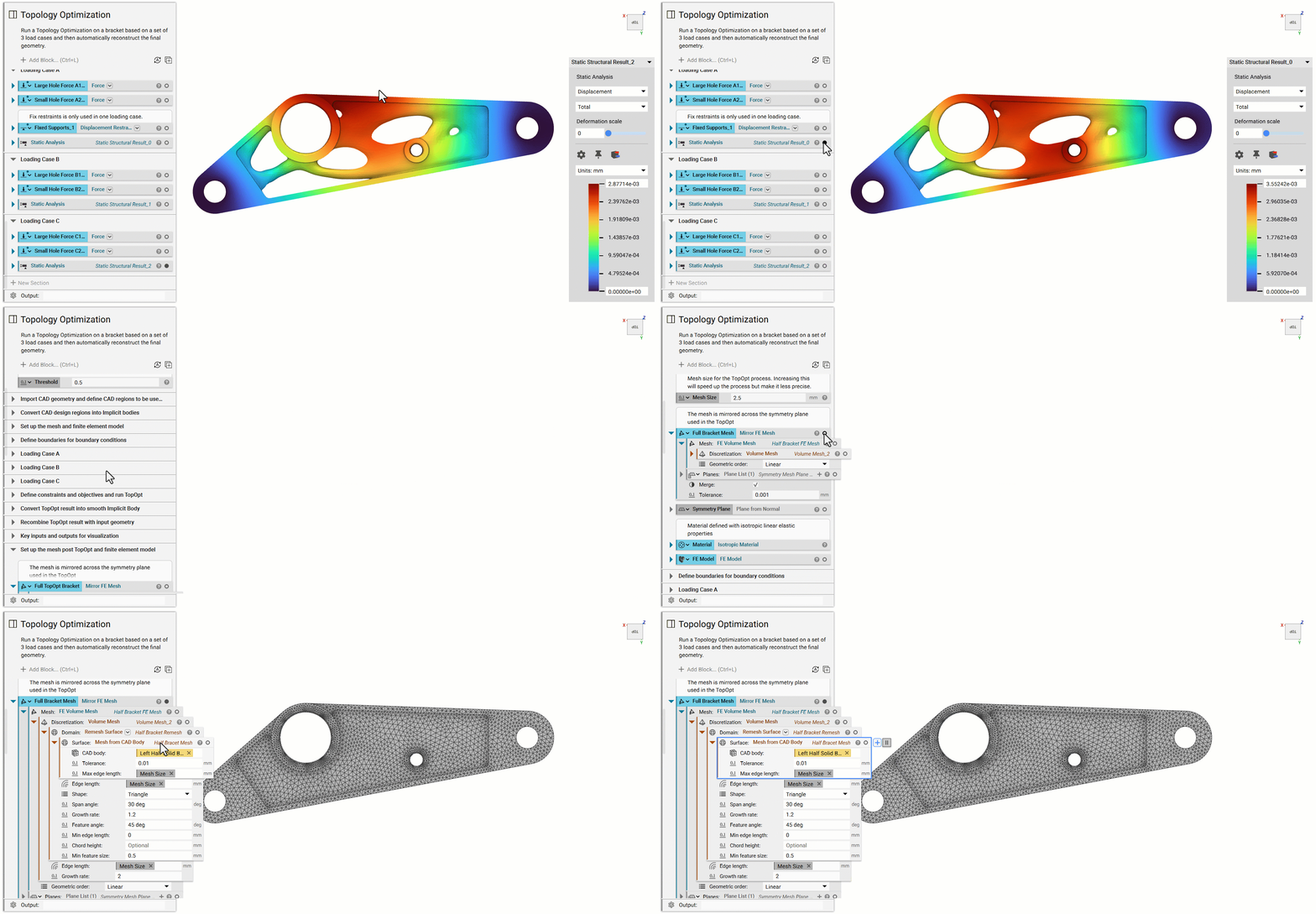 ii. Change an input value in either an upstream block or the block you applied the Manual Run Mode. Once one of these blocks has been changed, the block with the Manual Run Mode applied to it will change its icon to a play button. You can replace the original value you changed to ensure you get the same results as earlier.
We need to make the change to ensure that the block will erase the data stored and will ensure that the computation is paused.
ii. Change an input value in either an upstream block or the block you applied the Manual Run Mode. Once one of these blocks has been changed, the block with the Manual Run Mode applied to it will change its icon to a play button. You can replace the original value you changed to ensure you get the same results as earlier.
We need to make the change to ensure that the block will erase the data stored and will ensure that the computation is paused.
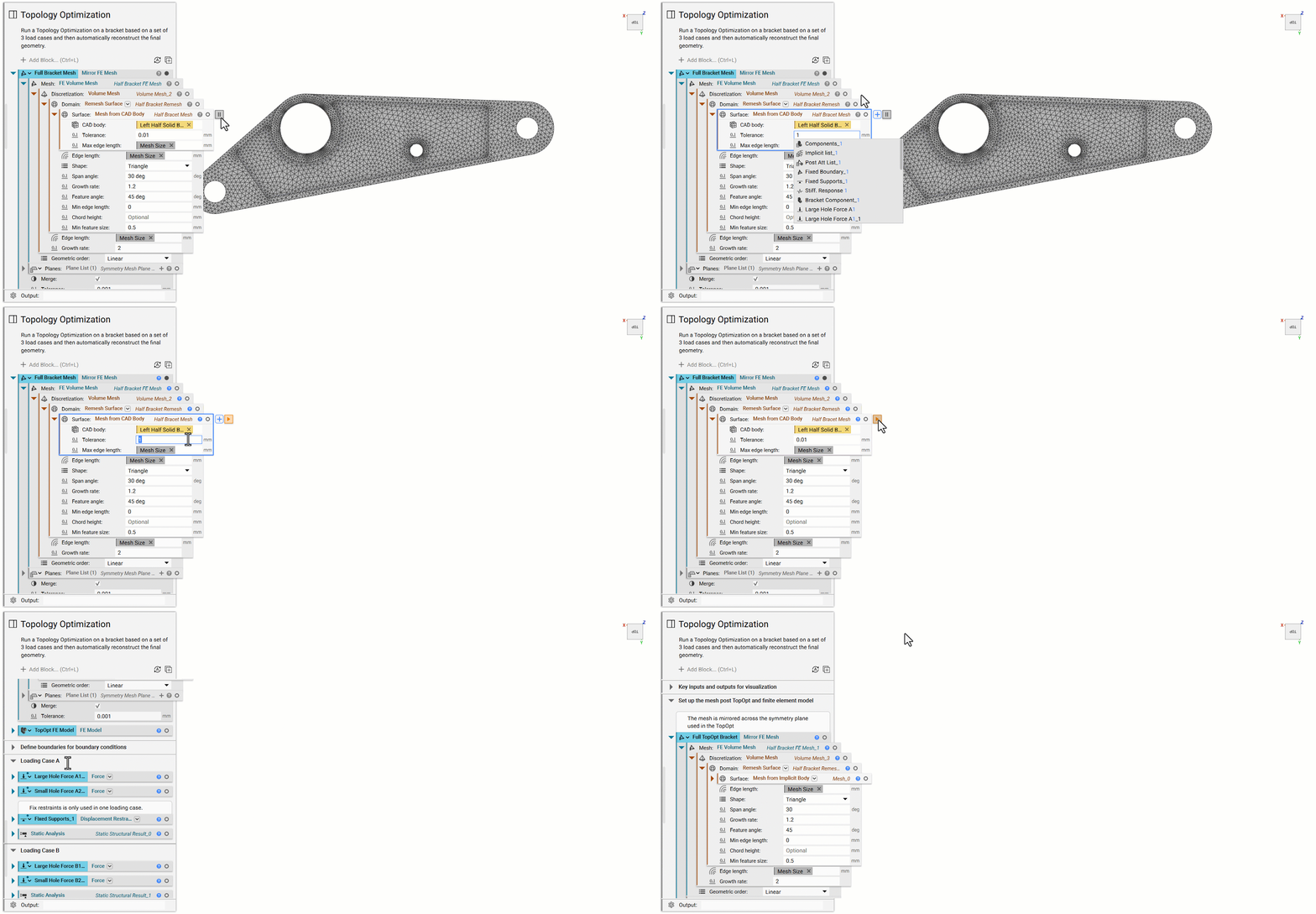 The color of the Information Panel (Question Mark icon) changes depending on the status of the block.
- Blue: Unbuilt block.
- Grey: Block built successfully.
3. Saving the File
If you don’t wish to rerun the blocks in the original file, you can use the Save As option to store the Manual Run Mode version separately to share it with others. You can now open Windows Explorer to check the File size to see how much we have reduced it.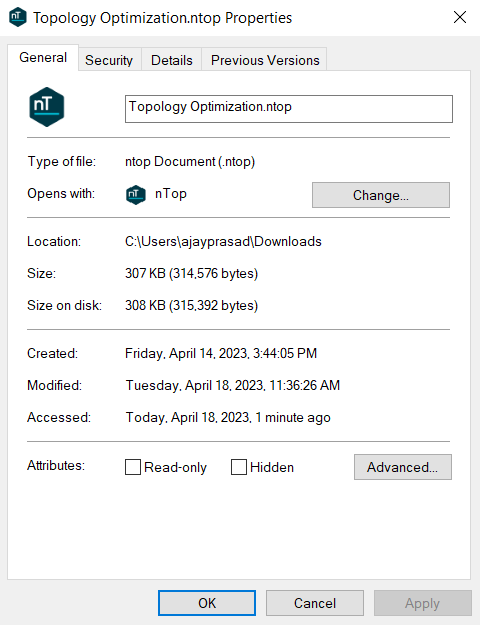 We can see that the file size has been reduced from 196 MB to 307 KB.
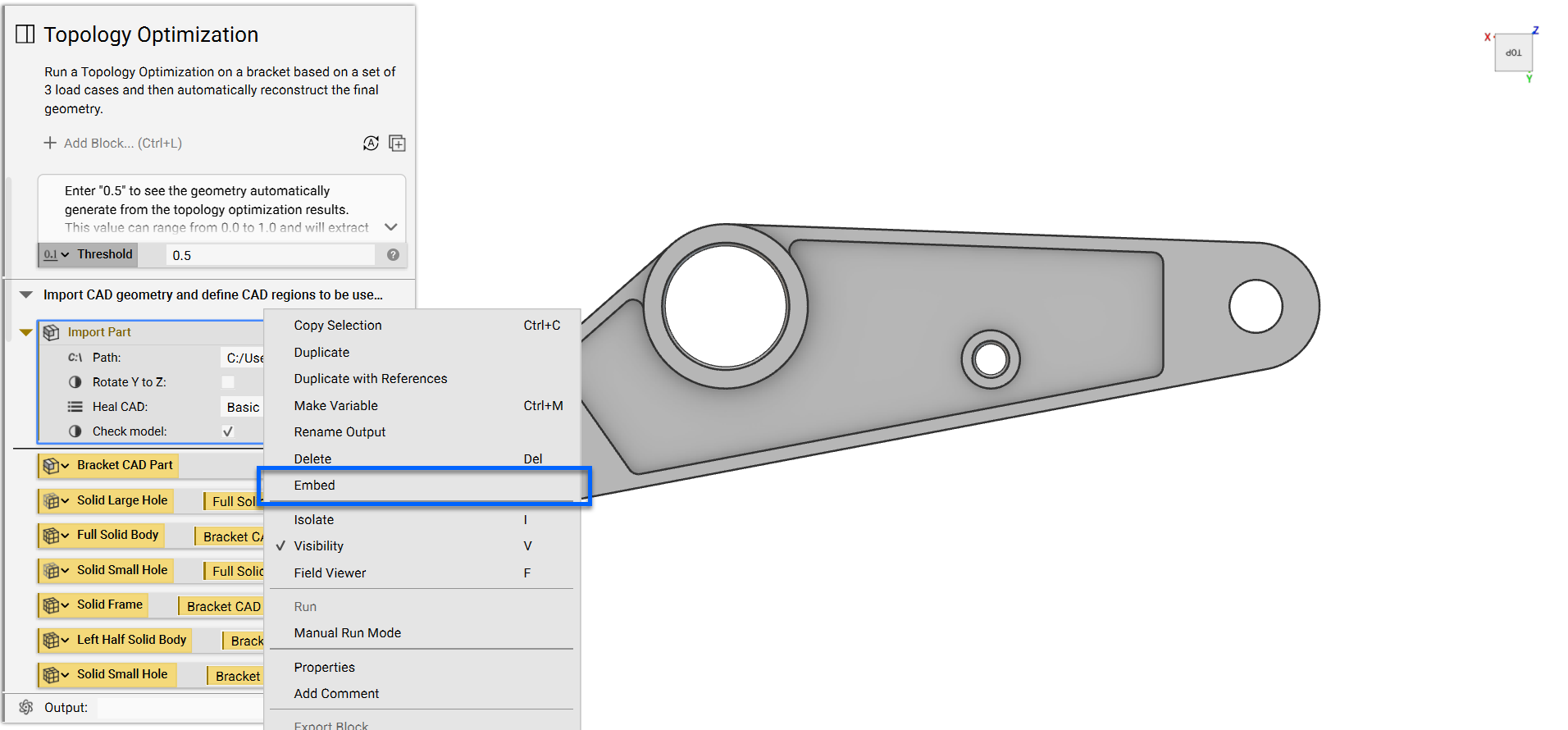
4. Embedding the CAD Parts
We highly recommend embedding your CAD parts or Mesh files when sharing as they are crucial to your workflow, and you don’t need to share the CAD part or Mesh files (How do I embed my imported part/mesh?).