

Objective:
Learn how to combine scalar lists as text. In this example, we are creating a Custom Block to combine the Points and Vectors from a Displacement Point Map as well as the Von Mises stress values. The result combines the Points, Vectors, and Scalar values into a text file.Applies to:
- Exporting
- Simulation
- Lists
Procedure:
Create the Custom Block
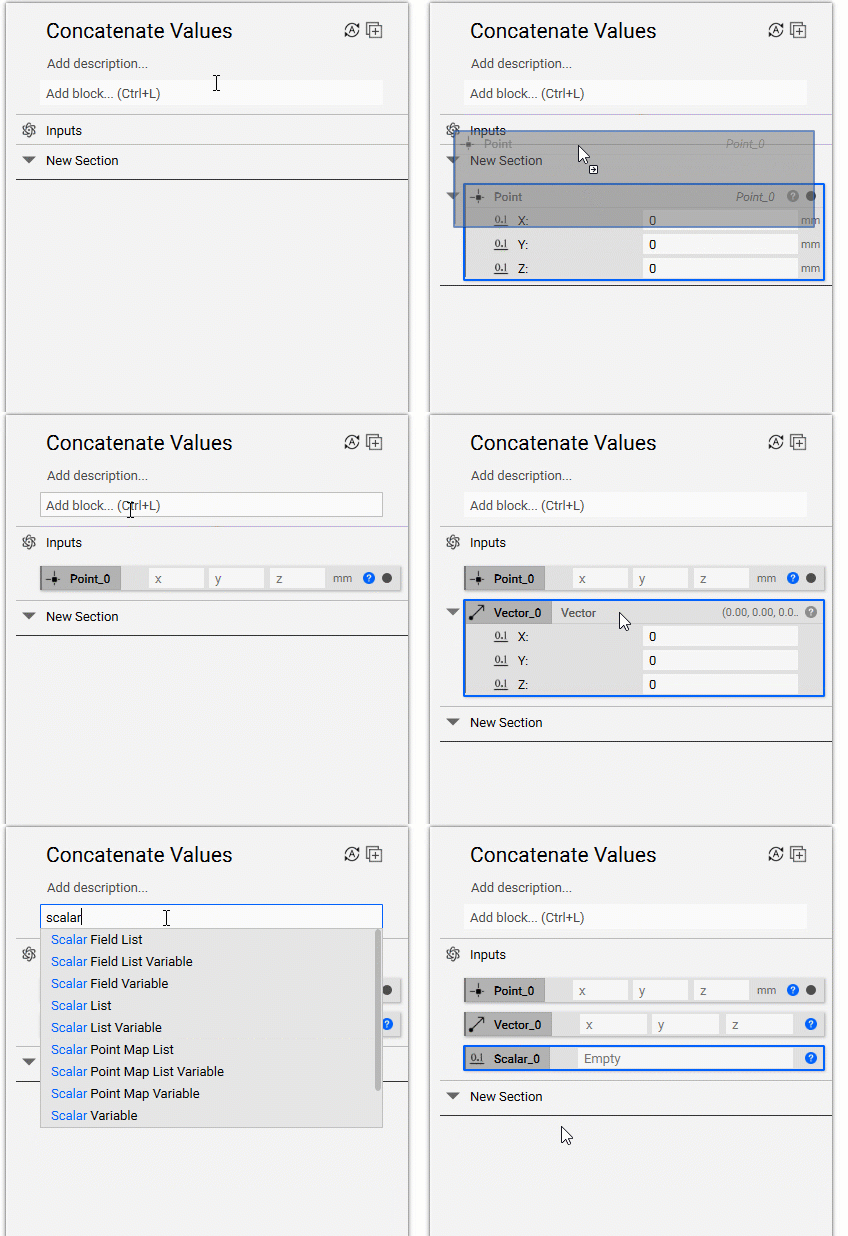
1. Set up the inputs Decide what inputs are necessary for your custom block. In this example, we want a Point, a Vector, and a Scalar value.- Add a Point block.
- The format of this block has its own line for each X, Y, Z. In order to easily enter the list values into this block, we want it to be in a different format, where the X, Y, Z are all in one line. To do this:
- Right-click on the block and select ‘Make model input’ or just drag the block into the Input section to turn the Point block into an Input
- Drag the block body back into the Notebook (this turns the variable in the Input section into the proper format)
- Delete the Point block in the Notebook and keep the Point block Input
- Repeat this process for the Vector block
- Add a Scalar variable and move it into the Input section
 2. Convert the values to Text
Next, we need to convert the values from Scalar to Text. It’s easiest to do this while we create a Text List at the same time.
2. Convert the values to Text
Next, we need to convert the values from Scalar to Text. It’s easiest to do this while we create a Text List at the same time.
- Add a Text List block
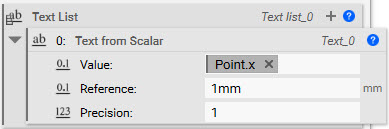
- Insert a Text from Scalar block into the input
- Link the Point X property to the Value input
- Open up the Point input Properties and drag the ‘X’ chip into the Value input
- Set the Reference to 1 mm
- Set the Precision to 1
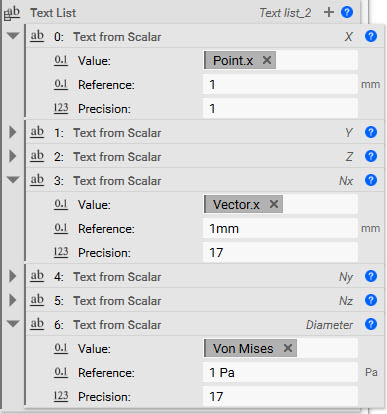
- Select the ’+’ icon to add another list input on the Text List block
- Repeat the process of adding the Text from Scalar block and linking it to the next input until all inputs are linked to the Text List block
- For the Vector variables, set the Reference to 1 mm and keep the Precision at the default 17
- For the Scalar variable, set the Reference to 1 Pa and keep the Precision at the default 17
 3. Concatenate the Text List
- Add a Concatenate Text block
- Insert the Text List from Step 2
- Set a Delimiter (this character will be what separates the values)
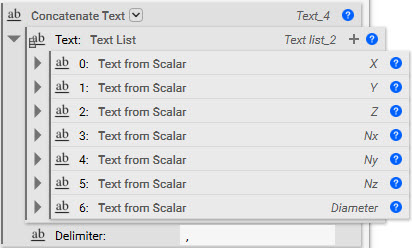
- Drag the Concatenate Text block into the Notebook Output
Combine and Export the Values
1. Open an existing file or build up a new one where you want to export the values. We are using this file from a previous Static Analysis example. 2. Import the Custom block- Select the ’+’ symbol in the Notebook and Import the Custom block we just created (this automatically adds the block to the Notebook)
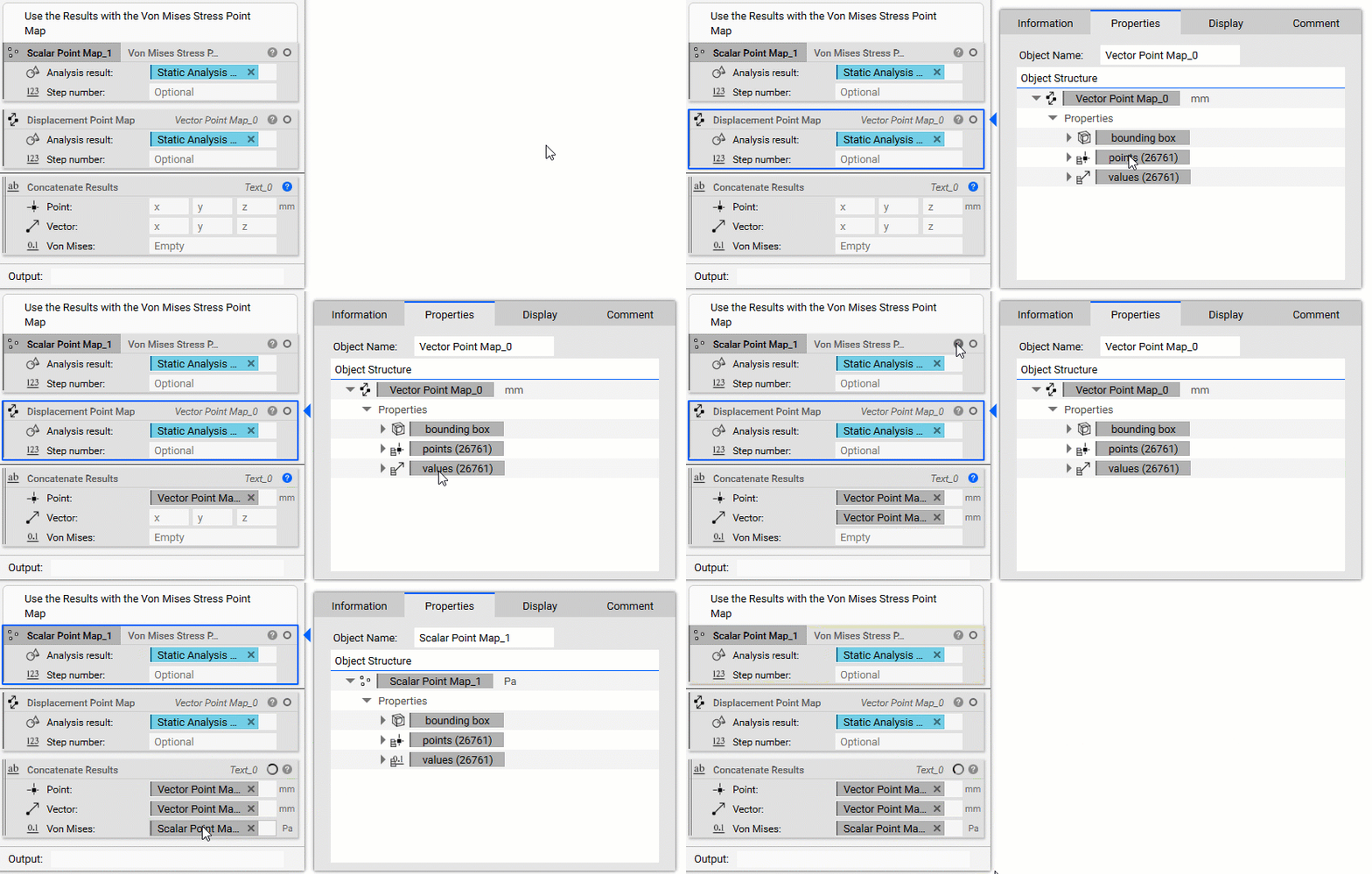
- Open up the properties of the Displacement Point Map block and drag the Points chip into the Point input of the Custom Block
- Open up the properties of the Displacement Point Map block and drag the Values chip into the Vector input of the Custom Block
- Open up the properties of the Von Mises Point Map block and drag the Values chip into the Von Mises input of the Custom Block
- Concatenate Text List
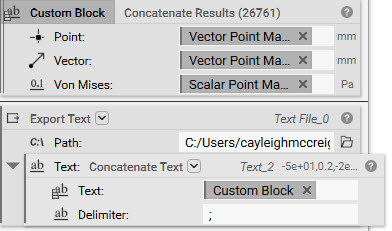
- Add a Concatenate Text block
- Change the Overload to ‘Text List, Text’
- Set the Delimiter to a unique character that is different from the first delimiter. This character separates the group of values at each point. If this was a CSV file, this value would be a line break.
- Insert the Custom Block into the Text input (it may be slow depending on how many values are being concatenated)
- Add an Export Text block
- Insert the Concatenate Text block from Step 4 and choose a directory to save the file
 And that’s it! You’ve successfully combined a list of scalar values into a text file.
Are you still having issues? Contact the support team, and we’ll be happy to help!
And that’s it! You’ve successfully combined a list of scalar values into a text file.
Are you still having issues? Contact the support team, and we’ll be happy to help!