Objective:
Learn how to open up a Custom Block, or a built-in Toolkit block, to see how it is created. There are two methods for opening Custom Blocks.Applies to:
- Custom Blocks
Procedure 1:
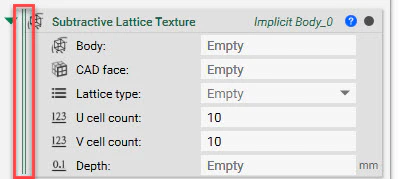
- Identify your Custom Block by making sure it has two parallel lines down its left side. This means that the block has a nTop Notebook running it.
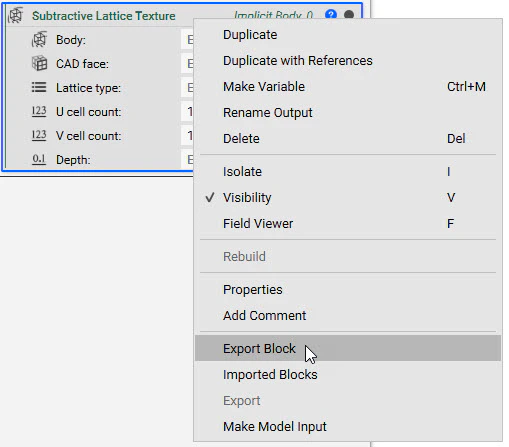
- Right-click on the block and select “Export Block”. Save the block as a nTop file.
- Open up the newly saved nTop file in a new instance of nTop. From here you can see how it works or edit the process to fit your workflow.

Procedure 2:
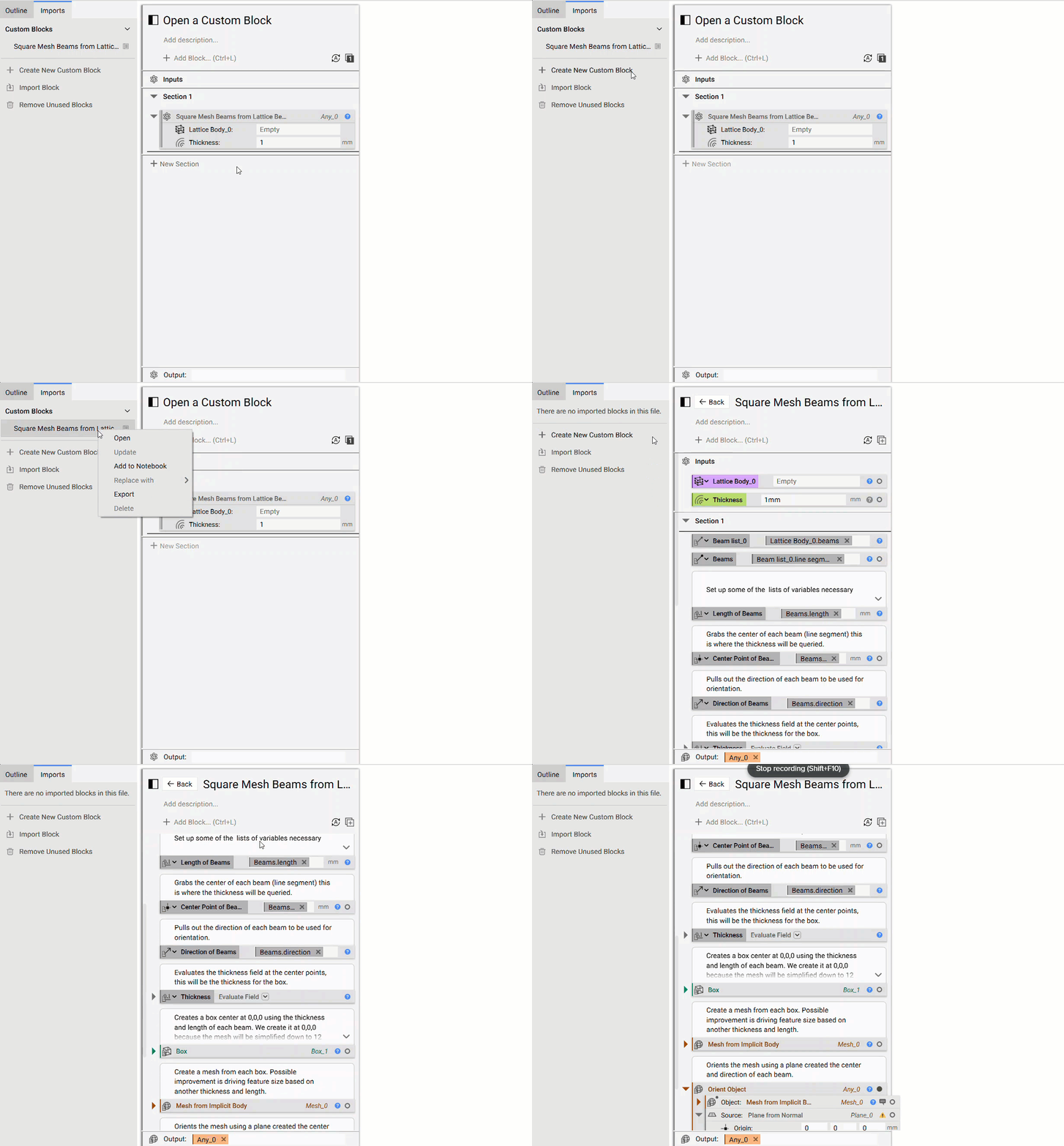
- Starting with a blank notebook, select the Outline symbol to open up the left side menu. From there, import a Custom Block using the “Import Block” button.

- When a block is imported it will be listed on the left side. By right-clicking on the block it will open a sub-menu, then select “Open”.