

Mesh from CAD Body
This block creates a mesh from a CAD body. If the imported CAD part has errors or holes, this may cause issues with the resulting mesh.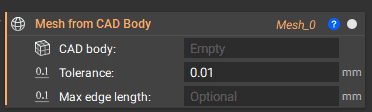
Mesh from Implicit Body
The Mesh from Implicit Body block converts an implicit body to a surface mesh. The block works by creating a 3D grid of voxels throughout the object’s bounding box. The voxels intersecting with the input body are maintained and generate a mesh from the voxel edges.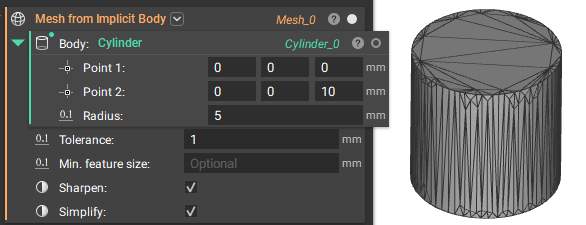
- Tolerance: Translates to the voxel size. Half the input tolerance gives the voxel size. As a rule of thumb, the number of triangles in the unsimplified output mesh quadruples whenever the tolerance input is halved. Keep that in mind to avoid generating unreasonably large meshes. If you only use this input, the output mesh is guaranteed to be watertight and manifold. In most cases, the output mesh will also be free of self-intersections.
- Min. Feature size: This input is very different from the min feature size of v1 and should not be confused. If you provide a feature size, the block performs a filtering step to remove any features or holes smaller than the provided input. Use this input if the output mesh captures small details that are not manufacturable.
- Apart from the “Min. Feature size” input, the block automatically removes meshing artifacts (where an artifact is a connected component smaller than 0.1% percent of the surface area of the largest connected component). This step is different from the filtering step in that it cleans up artifacts produced by the meshing step, while the filtering step works directly on the (voxelized) implicit surface.
- Sharpen: Enable this to reconstruct sharp features present in the implicit body. Typically, enabling the sharpening option improves the mesh’s approximation quality significantly. Thus, in practice, it is often possible to decrease the tolerance input and enable sharpening to obtain a given target tolerance between the mesh and the implicit.
- In most cases, the output mesh should not have any defects (i.e., it should be closed, have no self-intersections, and be manifold). However, in a rare occurrence, the resulting mesh may have self-intersections, be non-manifold, or have pockets (i.e., two triangles with an extremely small dihedral angle). Enabling this option will substantially increase the runtime of the block; typically, it will take more than twice as long.
- Simplify: The Simplification option forcibly decimates and combines ~ 90% of the elements which can result in loss of geometry fidelity. Simplifying Mesh By Threshold will allow you to tune the decimation percentage. Enabling this option will substantially increase the runtime of the block.
Recommended Settings
As a starting point, we recommend using a tolerance equal to 0.5 times the thickness of the smallest feature. This value will typically exceed the accuracy of most additive manufacturing processes. If you plan to sharpen the mesh, avoid this block’s simplifying and remeshing options. A single iteration using the Sharpen Mesh option will usually produce good results. Still, we recommend three iterations, especially if you are preparing a mesh of a complicated model for simulation. Without enough sharpening iterations, you may have too many small elements that can cause issues during remeshing.- Tip:
- Depending on the application, you may want to uncheck the Simplify option in the Mesh from Implicit Body block to maintain fine details. You can always simplify after sharpening using the Remesh Surface block, Simplify Mesh by Threshold block, or Simplify by Amount block.
- We recommend a tolerance of approximately a quarter of the minimum wall thickness, such that each sharp feature is well-defined.
- By default, the sharpening algorithm will run once, but you can change the Sharpen iterations input. If you’re not satisfied with the output, try increasing the number of iterations and then lower the tolerance set in the Mesh from Implicit Body block.
- The Mesh from Implicit by DC block has a lower computational overhead than the Mesh from Implicit Body block. We recommend using this if your computer is having trouble running a larger mesh. Please be aware that the resulting mesh may contain self-intersections and non-manifold edges or vertices.
- Later in this course, we will discuss suggested inputs for exporting a complex mesh.