Transcript
Transcript
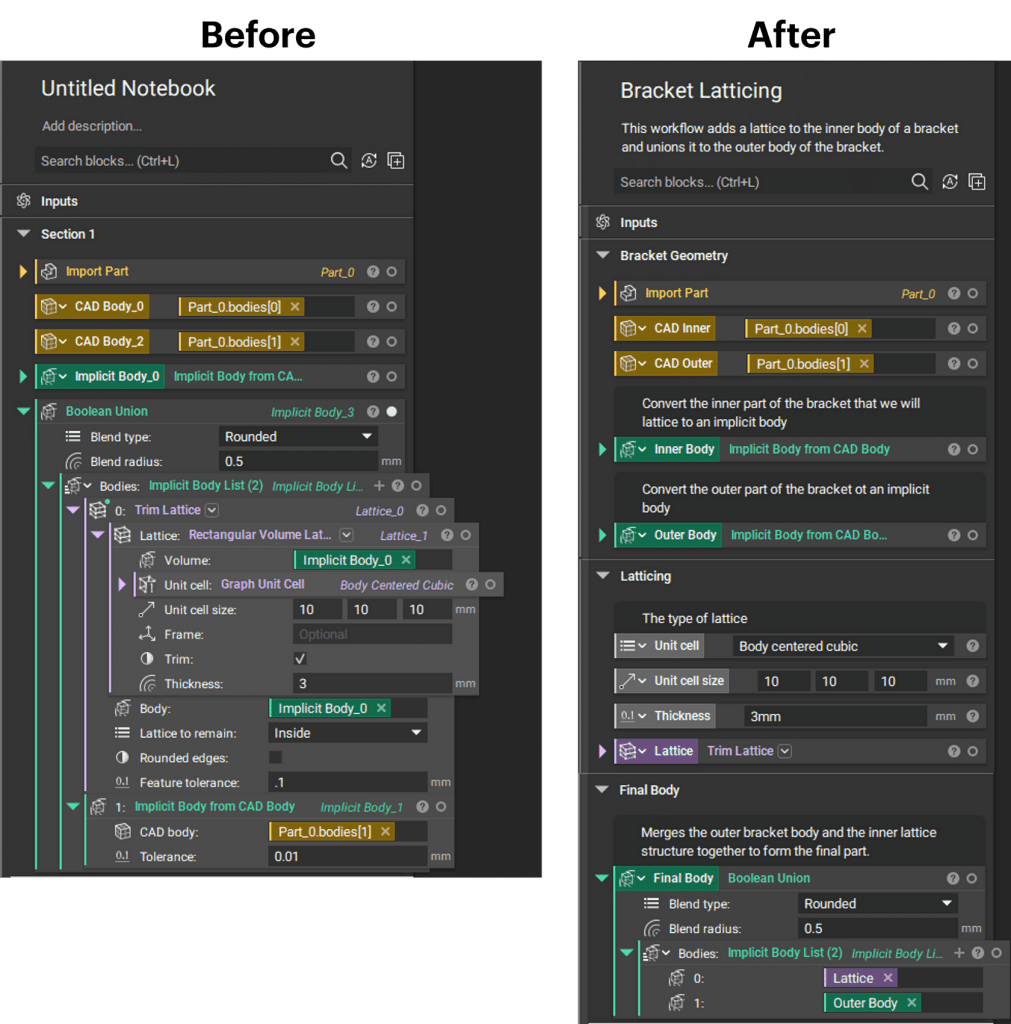
In this lesson, we’ll walk through organizing, managing, and navigating the nTop notebook. Begin by opening your downloaded starter file. In this notebook, we see an imported part to which we add a Lattice Intersection and merge it with the outer frame. If we view our notebook, we see that it doesn’t have a title or description, and it has vague variable names and a lot of nested blocks.Let’s break down this workflow and add descriptions to make it easier for you and others to follow. We’ll begin by giving our notebook a name. We’ll double-click and call this bracket latticing. Next, we’ll add a description. We’ll double-click in the description input and give a description of what this workflow does. This workflow adds a lattice to the inner body of a bracket and unions it to the outer body of the bracket.Next, we’ll move along to our work. We see that all of our work is in one single section labeled section one. It’s best practice to break your notebook up into sections to easily follow your process and to collapse anything you don’t want to see. I’ll double-click and call this section one bracket geometry. This is where I’ll store my imported part and any initial body that I want to keep visible.Our first yellow variable is this CAD body zero. If I isolate using the hotkey I, I see that this is the inner portion of our imported part. I’ll double-click to rename and I’ll call this CAD inner. Next, I’ll isolate our second CAD body using the hotkey I, and I see that this is the outer frame of our imported bracket. I’ll double-click and I’ll call this CAD outer. Notice that when we rename these variables, their variable names update wherever they’re used throughout our workflow.Our next step is converting the CAD inner to an implicit body. I’ll double-click and rename this body inner body. Note that we could have given either of these variables the same name and they would just be denoted with different symbols. However, it’s good practice to keep descriptive variable names to make navigation easier down the road.If we move to our next block and isolate using the hotkey I, we see that this is our final part with our lattice intersection and our solid outer section. I’ll right-click and I’ll make this a variable called final body. We don’t want our final body in this same bracket geometry section, so I can drop my white line here, right-click, and add a section. Now if I want to collapse any previous work, I can just use this arrow to close out of our bracket geometry.This final body block, we see a lot of nested blocks. It’s best practice to keep three or less nested blocks throughout your workbook, so let’s clean this up a bit. I’ll start by isolating this Trim Lattice block using I, and I see that this is a lattice inside our inner body. For more information on how these lattice blocks work, you can view our intro to latticing course. In this Trim Lattice block, I’ll right-click and make this a variable called lattice. Note that when I made this a variable, it moved it all the way to the left in our notebook, and we only have this variable chip remaining in our Boolean Union.If we scroll down in that Boolean Union, we see that we also have an Implicit Body From CAD Body where we convert our outer CAD to an implicit. I’ll right-click and make this a variable as well. I’ll call it outer body. I can move this back up into our bracket geometry section and collapse both our inner body and outer body variables. If I scroll back down to our other sections, I can make any of our other inputs variables as well. I might do this to promote visibility, or if I know that I’ll use this workflow multiple times and come back to change any of these inputs, this can help to make them more accessible.I’ll start with our unit cell size where I can right-click and make a variable. Maybe I also want to do this with our thickness as well as our unit cell type. Again, note that when you have these variables in your notebook, their names are updated in any block that they’re used. If we want to keep these three variables in order, we can move this unit cell to the top so that we can change unit cell size and then thickness, just as we see it in these latticing blocks.It’s good practice to add descriptive comments throughout your workflow. For our unit cell, I can hover and add a comment using this icon here. I’ll type the type of lattice so that future users can understand what they’re changing in this variable input. If I scroll up into our geometry section, I can add a comment to our inner body saying, “Convert the inner body of the bracket we will lattice to an implicit body.” I’ll do the same for our outer body saying, “Convert the outer part of the bracket to an implicit body.”As you make your way through the learning center, you’ll notice that a lot of our files have similar descriptions. If we scroll down to our final body, we can instruct users that this Boolean Union block merges the outer bracket body and the inner lattice structured together to form the final part.Finally, let’s say we don’t want this final body to be in the same section as our lattice. So we can right-click, add a section, and call this final body. We’ll scroll up to our previous section and call it latticing. Now we can collapse all of our sections and easily follow each portion of our workflow. To help navigate our notebook, we can use the Notebook Outline by clicking this icon in the top left corner. You can click on any of the parent blocks, which are these blocks all the way to the left, and any dependent blocks containing those variables will become highlighted in this shaded blue color. If I click on our part zero, I see that both our CAD inner and CAD outer blocks depend on properties from this part. If I choose our CAD inner, I see that it’s used in our inner body variable.Also note that if you choose any of the blocks within the notebook itself, you’ll see a solid blue line around those blocks and a dotted blue line around any of its dependencies. Close out of your Notebook Outline by re-clicking on this icon. At this point, you can save your file and now you have a nice clean notebook that’s easy for both you and others to understand and navigate.