
Question:
How do I move or adjust the position of my part?Answer:
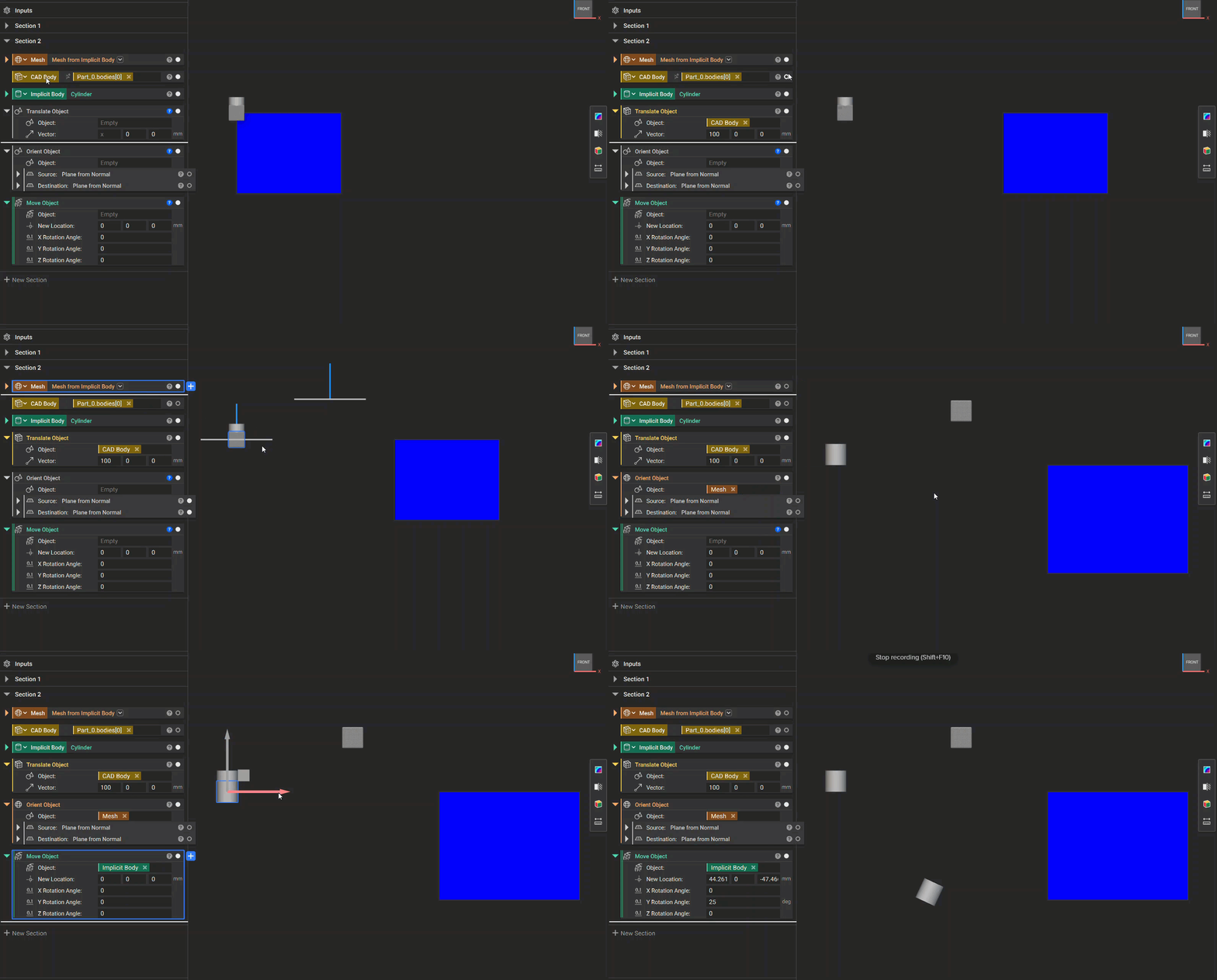
If you are using a primitive implicit body: You can move an object by selecting the origin and using the gimble that appears to drag the part to where you want it. Grab on the colored axes to move along just that axis, or, select the two-toned box to move along two axes at once. Translate Object: The Translate Object block can be used to move a body by a defined vector. This block works with CAD Bodies, Meshes, Lattices, Implicits, etc. Orient Object: The Orient Object block can be used to reposition a body based on two planes. You start by specifying a source plane (usually at the edge or center of a body) and then a detitanation plane. The block will move the body from the source to match the destination plane. This block works with CAD Bodies, Meshes, Lattices, Implicits, etc. Move Object: The Move Object custom block combines the Orient Object block with several Rotate Object blocks. This allows you to move an implicit body to a new coordinate location, and apply rotation in any of the three directions to the body. This block only works with Implicit Bodies. Use this link to download the Move Object block.