

Objective:
Learn how to extract bodies from imported CAD for use in workflows.Applies to:
- CAD Parts
- CAD Assemblies
- CAD Faces
Procedure:
Extraction by Properties
Extraction by Properties:
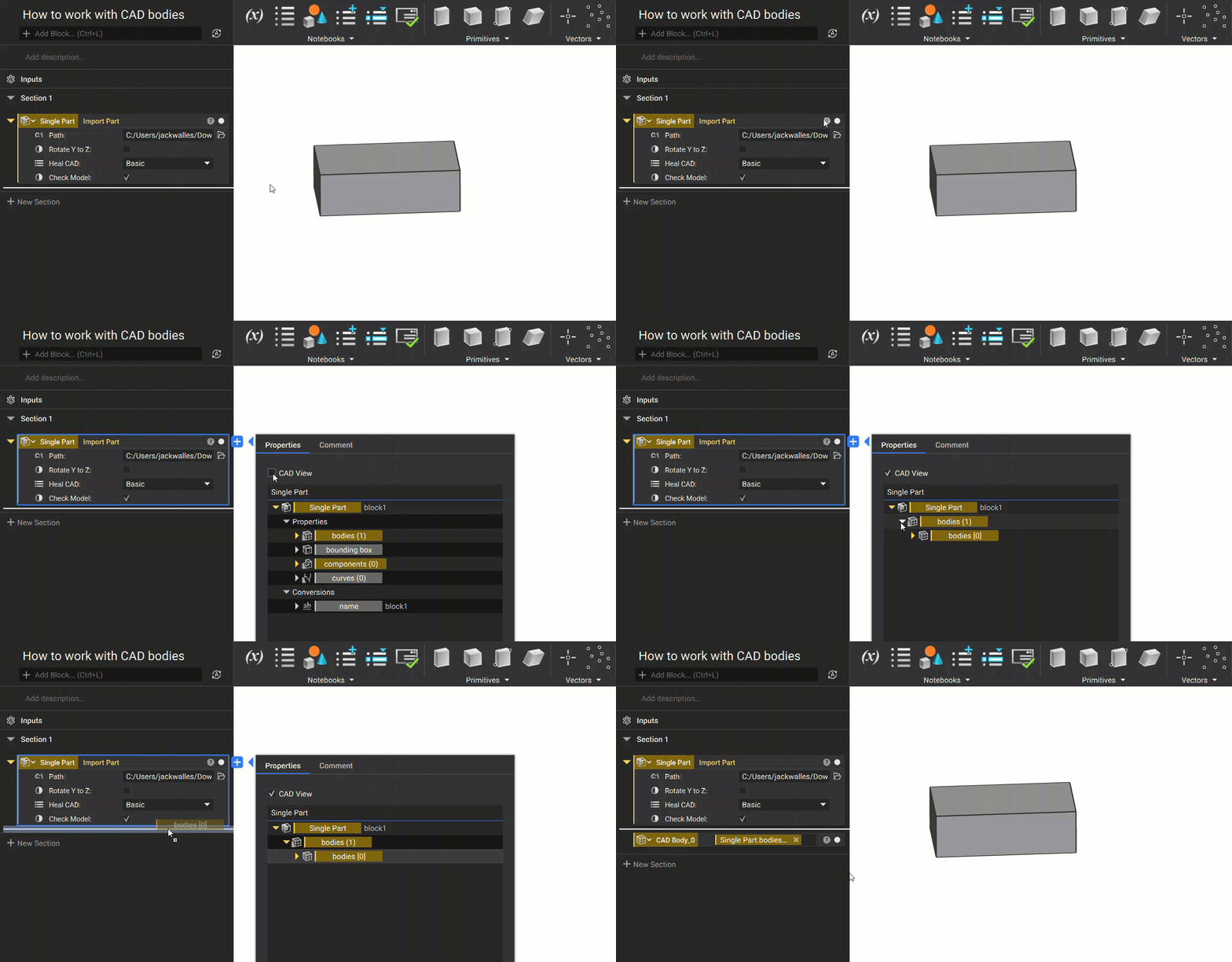
- Open up the Properties Panel for the imported part
- Use the “CAD View” checkbox to isolate the CAD bodies list
- Use the drop-down arrow next to the bodies list to show the items in the list.
- Drag out the single body property chip
Common Mistake: Using the CAD Body List
We commonly see users experiencing issues downstream in their workflow where they can’t insert a variable into an input. This is usually due to the variable being a list. Please ensure that the original CAD body that you extracted is a single body and not a list.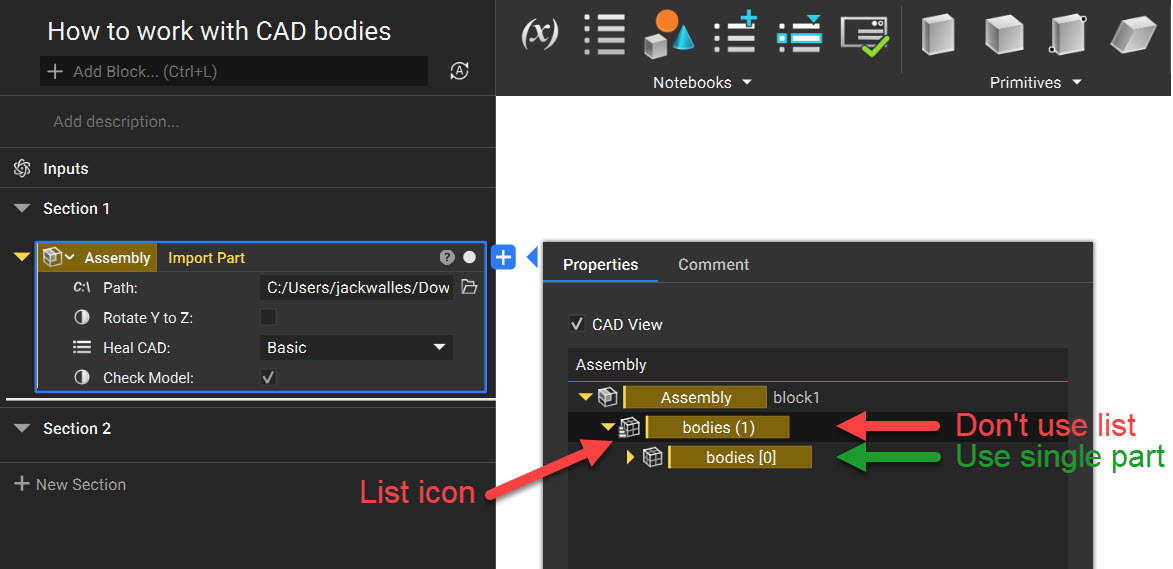 Back to top
Extraction by Manual Selection
Extraction by manual selection on screen:
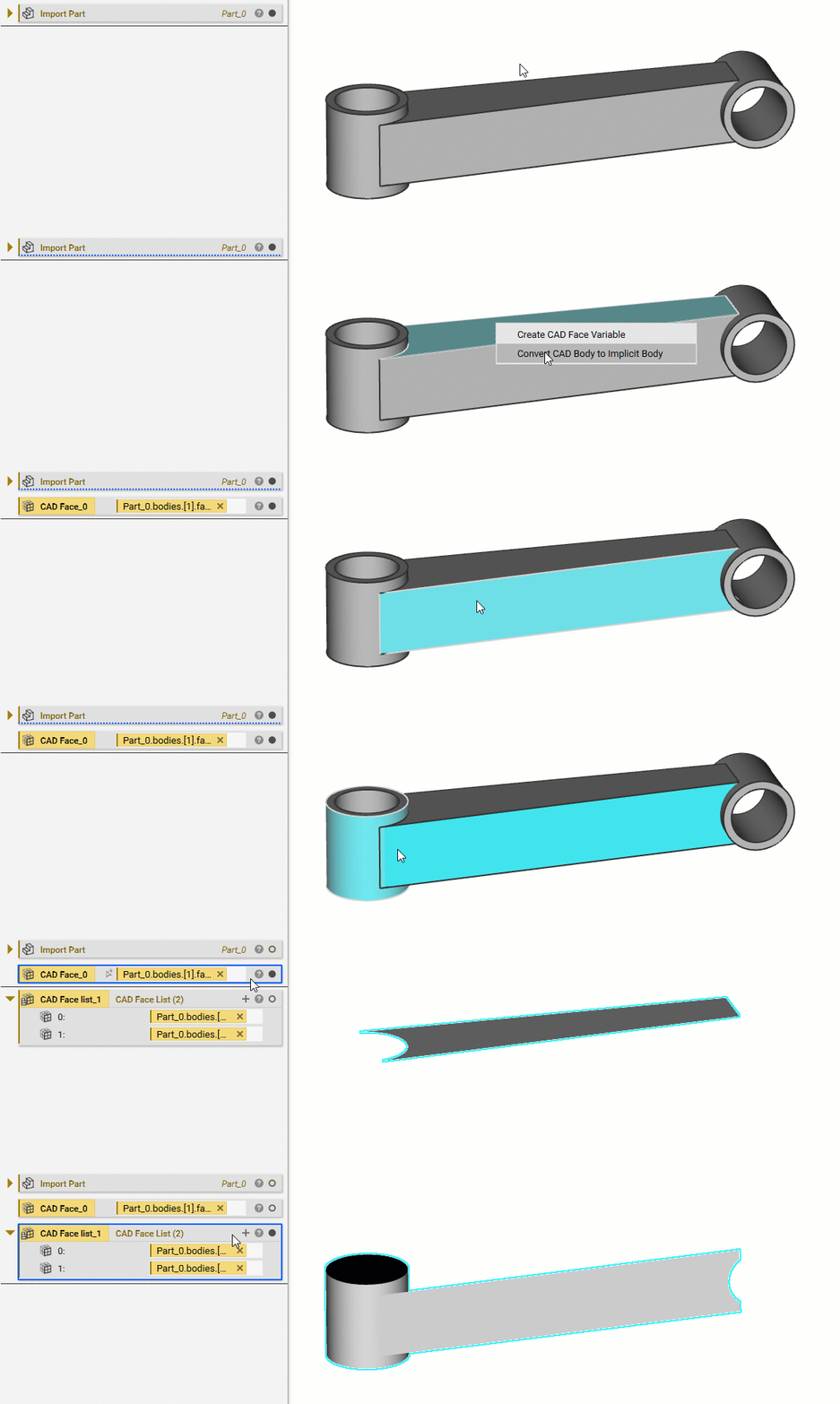
To extract CAD Faces:-
- Single: Click on the face you want to extract
- Multiple: Hold SHIFT or CTRL and click on the faces you want to select
- R-click and choose the option “Create CAD Face Variable” or “Create CAD Face List Variable” if multiple selected
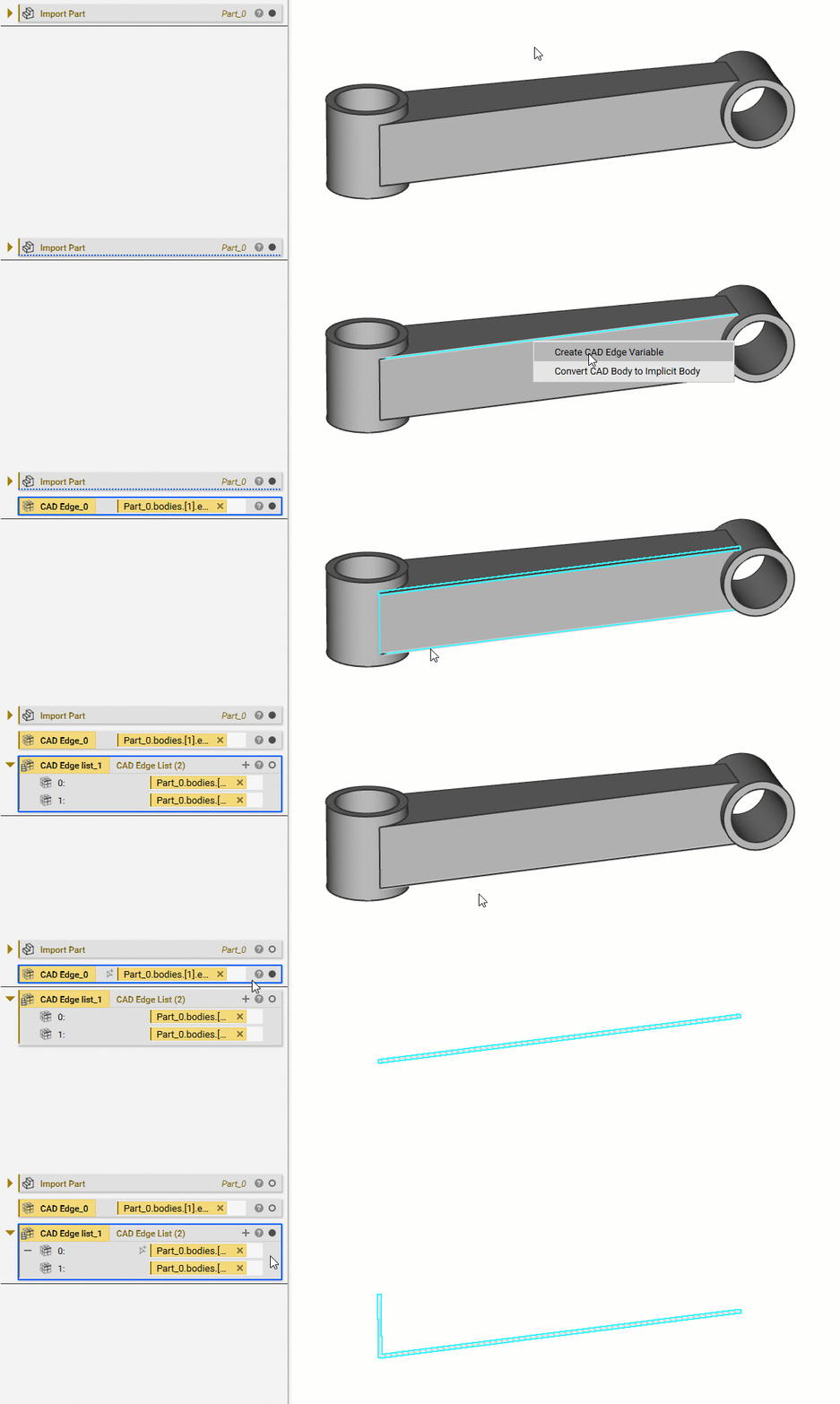
 To extract CAD edges or vertices:
-
- Single: Click on the edge or vertex you want to extract
- Multiple: Hold SHIFT or CTRL and click on the edges or vertices you want to select
- R-click and choose the option “Create CAD Vertex Variable” or “Create CAD Edge Variable.”
 To create an Implicit Body or CAD Body:
-
- Single: Double click on the body (or just select a face on the same body if converting to Implicit)
- Multiple: Hold SHIFT or CTRL and double-click on the bodies you want (or choose just a face on the same body if converting to Implicit)
- Implicit: Right-click and choose “Convert CAD Body to Implicit Body” or “Convert CAD Bodies to Implicit Bodies.”
- CAD: Right-click and select the option “Create CAD Body Variable” or “Create CAD Body List Variable.”
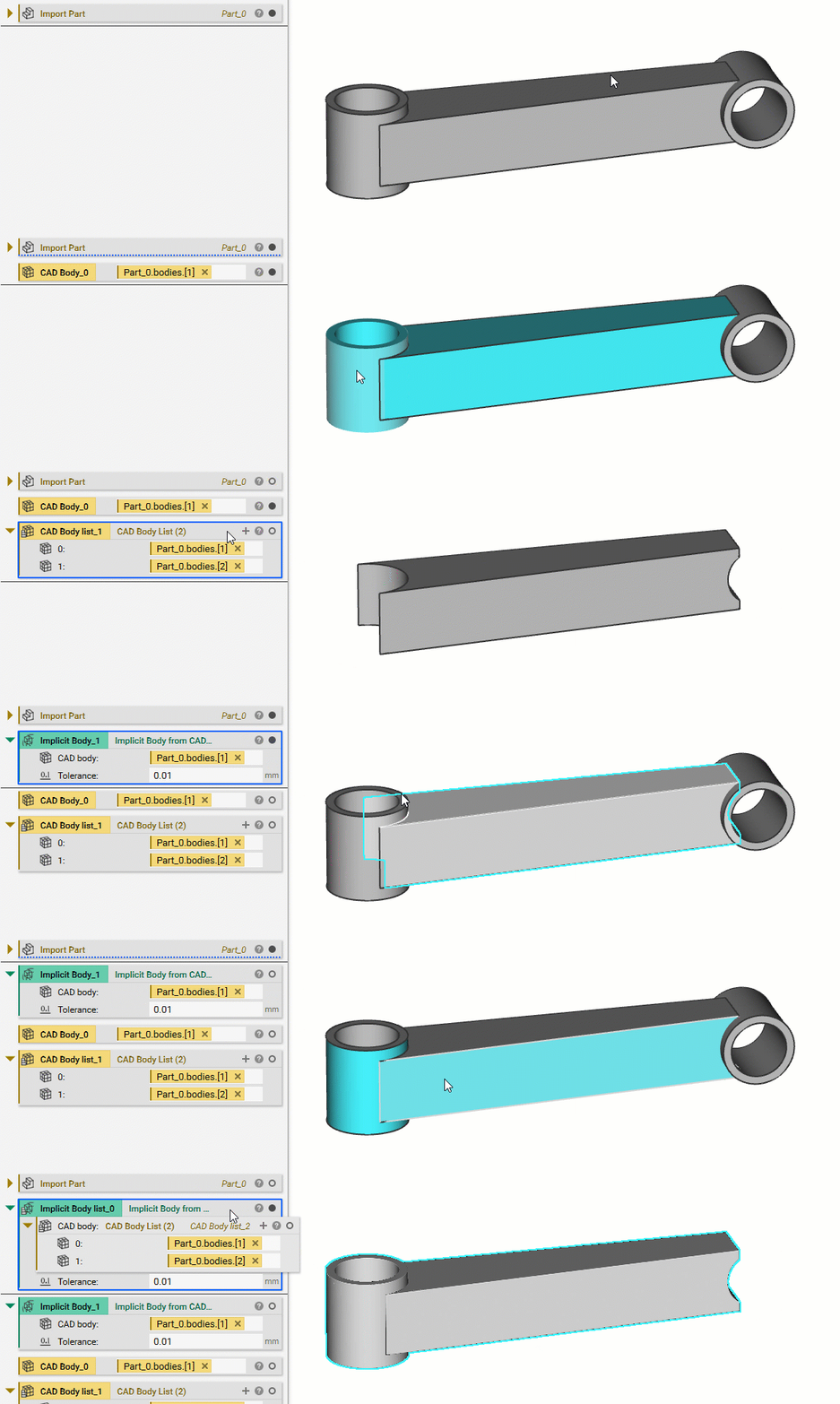 Back to top
Extraction by Blocks
In nTop 5.8, we released a series of new blocks that are designed to help users interact with CAD bodies more efficiently. To extract CAD Faces: Use the Get CAD Faces block: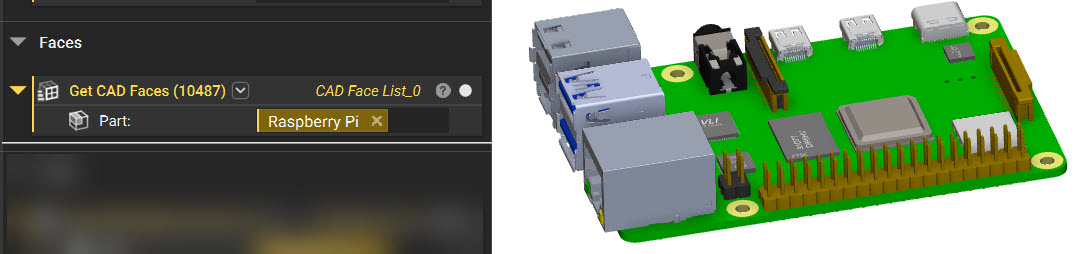 To extract CAD Bodies:
Use the Get CAD Bodies block:
To extract CAD Bodies:
Use the Get CAD Bodies block:
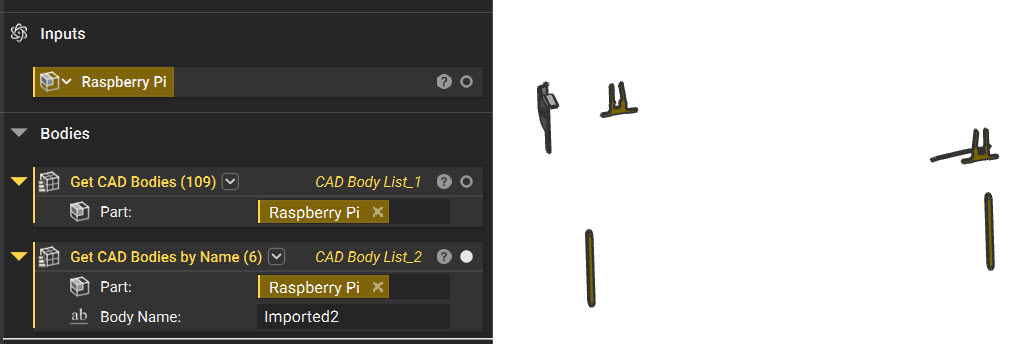
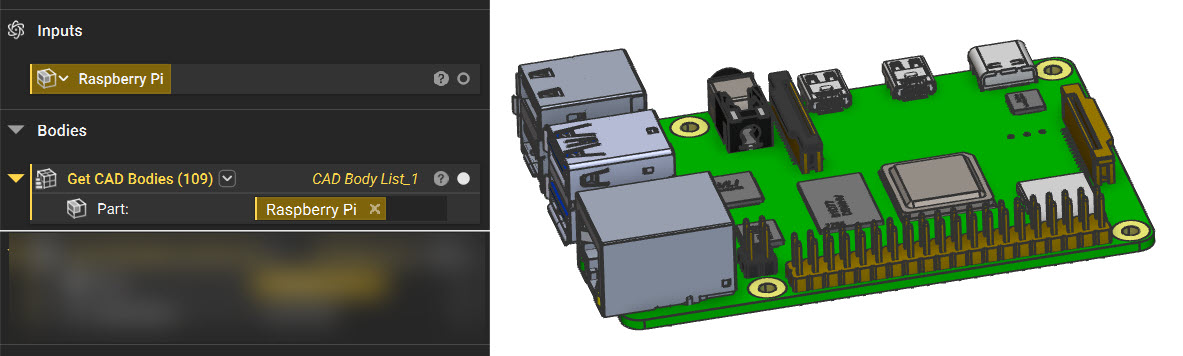 You can also use the Get CAD Bodies by Name block to further refine your selections:
Note: When exporting CAD from other softwares, use STEP if you need to export with Color and Name properties.
 Back to top
Extraction by Color
You can extract CAD Faces and CAD Bodies using our two color-based blocks:- Get CAD Faces by Color
- Get CAD Bodies by Color
Note: When exporting CAD from other softwares, use STEP if you need to export with Color and Name properties.
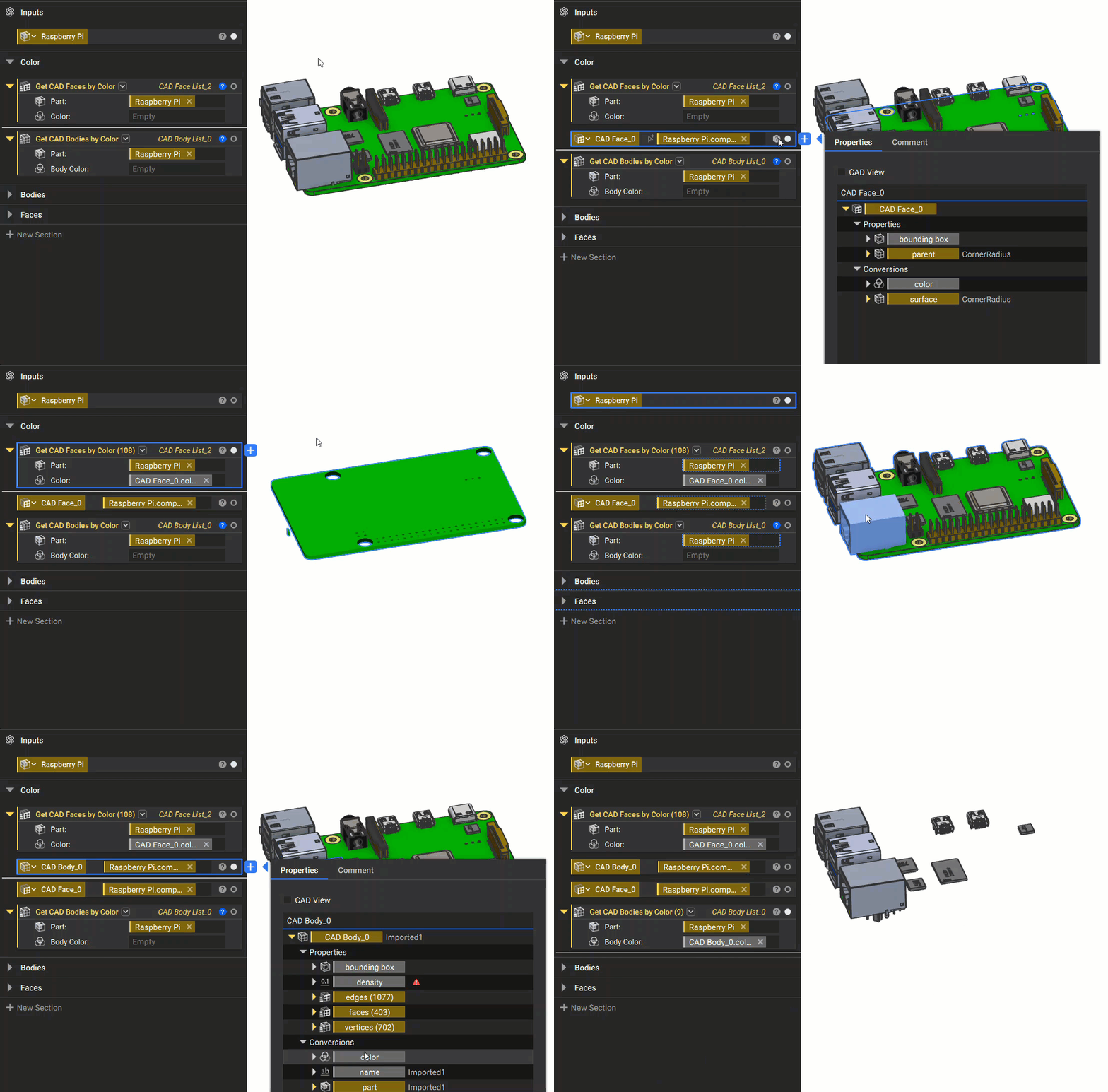 If you import your CAD part and it doesn’t have any color, make sure you change the Display Mode to “CAD Color”.
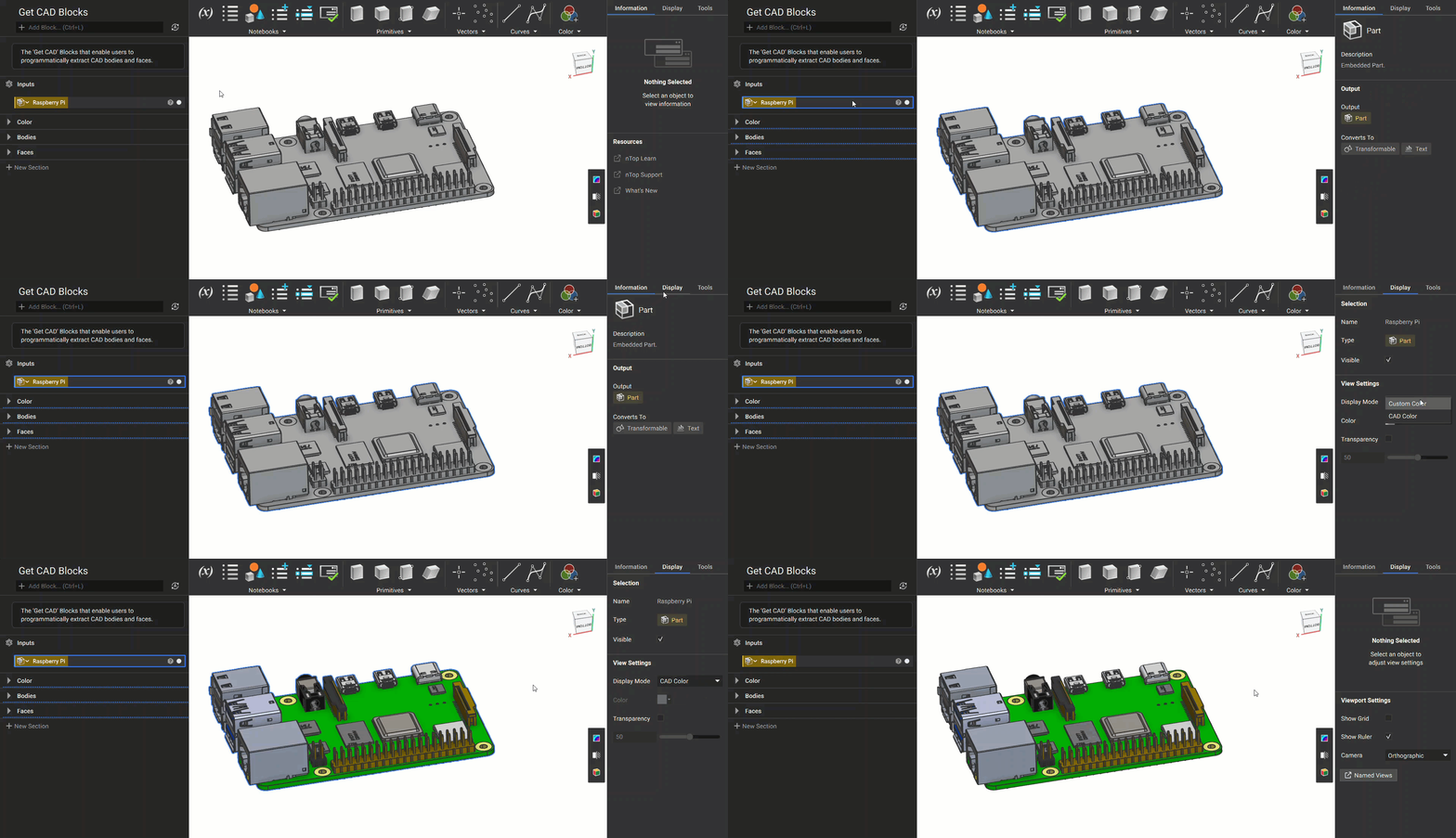 Back to top
And that’s it! You’ve successfully extracted parts from your imported CAD Body for other workflows.
Are you still having issues? Contact the support team, and we’ll be happy to help!
Back to top
And that’s it! You’ve successfully extracted parts from your imported CAD Body for other workflows.
Are you still having issues? Contact the support team, and we’ll be happy to help!