

Question:
How do I use the Evaluate Expression (BETA) block?Applies to:
- Expressions/Equations/Formulas in nTop
Answer:
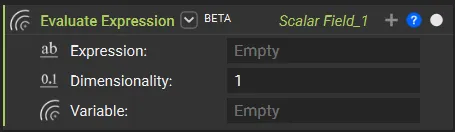 The Evaluate Expression (BETA) block allows you to write mathematical expressions using familiar syntax instead of constructing complex calculations using multiple interconnected blocks. This makes creating, reading, and editing engineering expressions easier.
To use it, enter your desired formula in the Expression input. Once you complete your formula, you will notice that the variable input will change to the first variable listed in the equation. You can then press the “+” sign to add more variable inputs until they are all present.
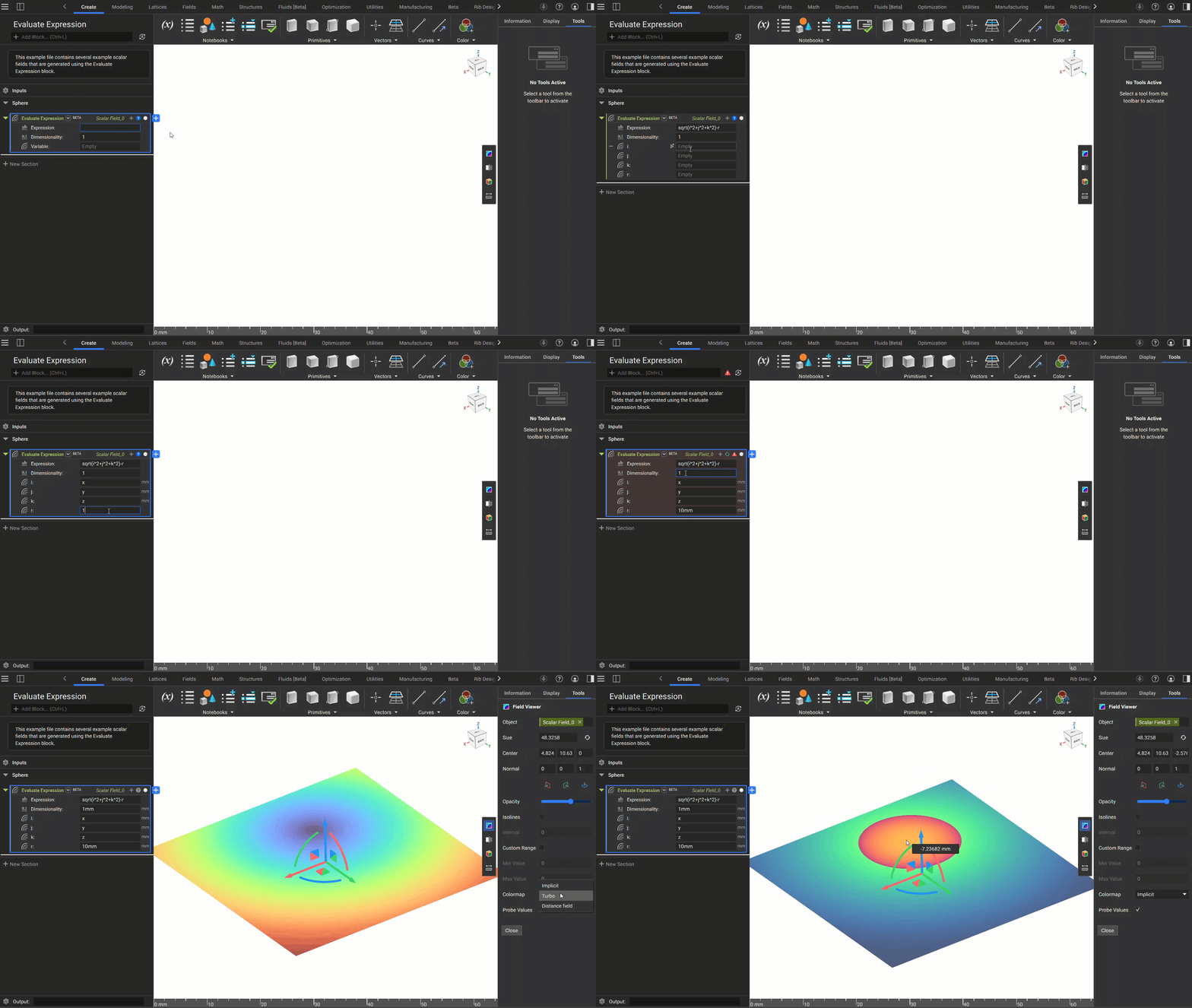
For the block to run successfully, the units used in the variables must equate to the units of the Dimensionality input. The GIF below shows that the block errors out initially because no units are associated with the Dimensionality.
The Evaluate Expression (BETA) block allows you to write mathematical expressions using familiar syntax instead of constructing complex calculations using multiple interconnected blocks. This makes creating, reading, and editing engineering expressions easier.
To use it, enter your desired formula in the Expression input. Once you complete your formula, you will notice that the variable input will change to the first variable listed in the equation. You can then press the “+” sign to add more variable inputs until they are all present.
For the block to run successfully, the units used in the variables must equate to the units of the Dimensionality input. The GIF below shows that the block errors out initially because no units are associated with the Dimensionality.
Supported Functions:
When inputting an equation into the Evaluate Expression block, the following functions are supported:- a+b
- a-b
- a*b
- a/b
- a^b
- a**b, pow(a,b), a^b
- square(a)
- exp(a,b)
- sqrt(a,b)
- log(a,b)
- mod(a,b)
- abs(a,b)
- min(a,b)
- max(a,b)
- sin(a)
- cos(a)
- tan(a)
- asin(a)
- asin(b)
- asin(c)
- e
- Pi
- Phi
- select(condition, value_if_true, value_if_false)
Creating Variable Names
Variable names must conform to the following formatting rules:- You can’t use spaces in a variable name
- Variable names must start with a letter, not a number
- You can’t use parentheses or brackets in a variable name
Overload:
This block has a secondary overload that utilizes the Dictionary block. This allows users to enter the variable names and values separately. This overload is best utilized when you need to evaluate multiple expressions that use the same variables. By converting the Dictionary block into a variable, you can input the list into multiple Evaluate Expression (BETA) blocks without needing to retype them.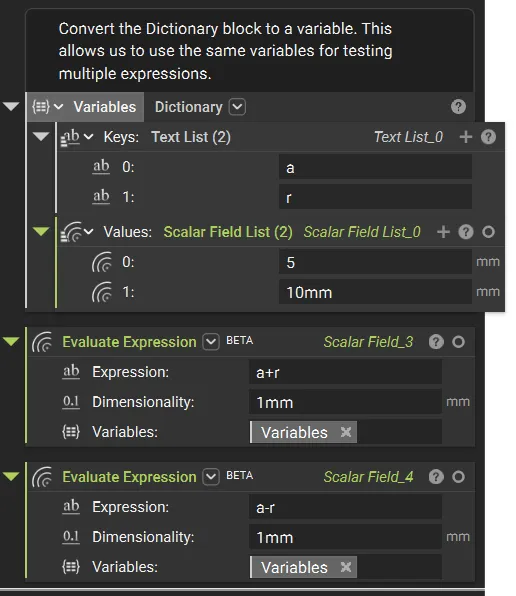
Tips:
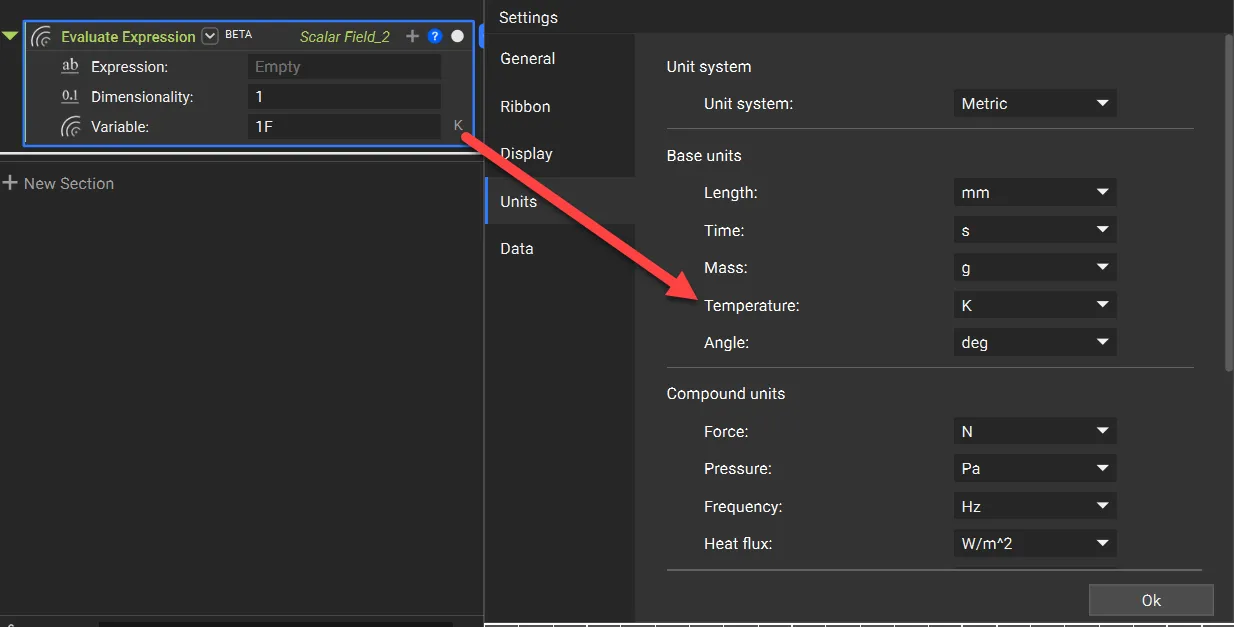
- The Evaluate Expression (BETA) block uses the same units as registered in your nTop system. So if you try to use a unit that is not configured, nTop will change it to the registered unit. For example, in the image below, nTop is registered to use Kelvin for Temperature values. If you enter a value in Fahrenheit, it will automatically change to Kelvin.
- The variables X, Y, Z, do not always need to be defined with a numerical value. As demonstrated in the sphere example above, you can match them one to one (x=x, y=y, etc.).