

- Implicit Modeling
- Boolean Operations
Boolean Union
The Boolean Union block combines multiple Implicit Bodies into a single body, with an optional blend feature.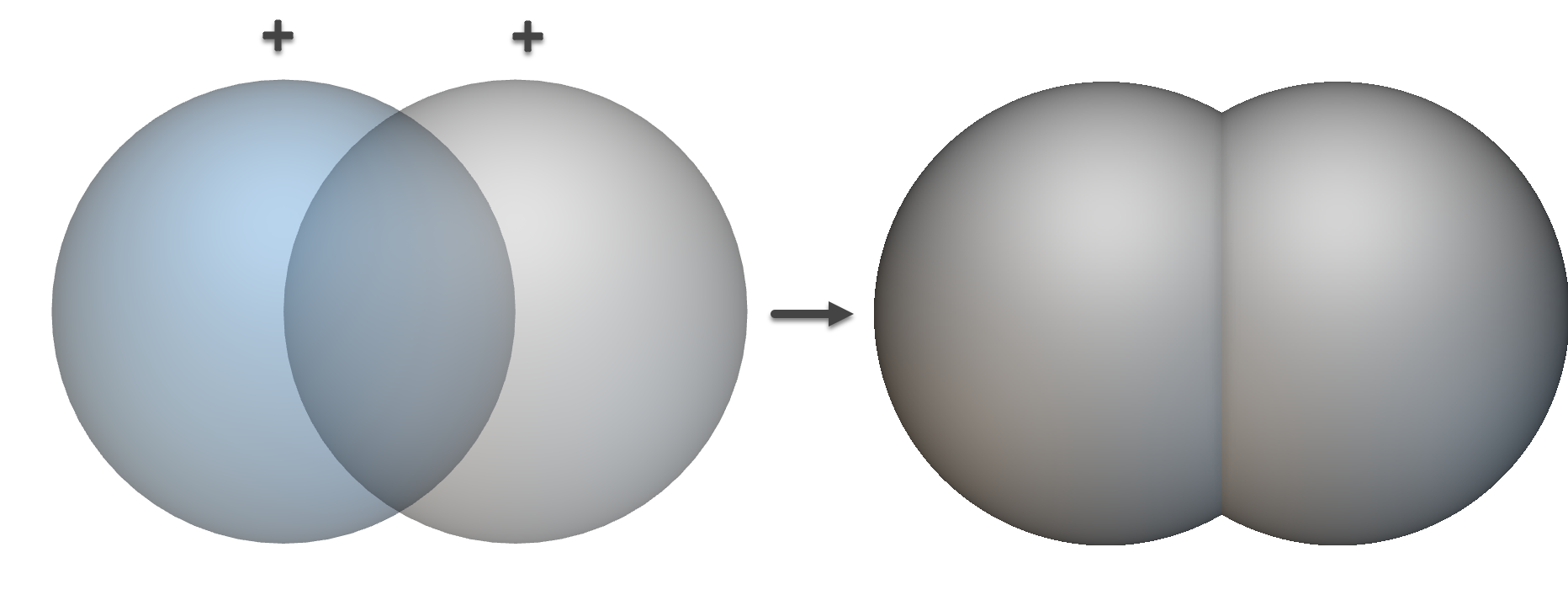
- Navigate to the Modeling tab in the ribbon and select the Boolean Union block.
- In the Implicit Body List, drag your Implicit Bodies into the 0: and 1: inputs.
- (Optional) To add more bodies, click the + icon in the Implicit Body List.
- (Optional) To apply a fillet between the bodies, adjust the Blend radius value.
Note: If you don’t see real-time updates when changing the Blend radius, you may need to enable high-performance graphics. See How to Enable High-Performance Graphics Card Settings for instructions.
Boolean Subtract
The Boolean Subtract block removes the volume of one or more Implicit Bodies from a primary body. An optional blend can be applied to the resulting edge.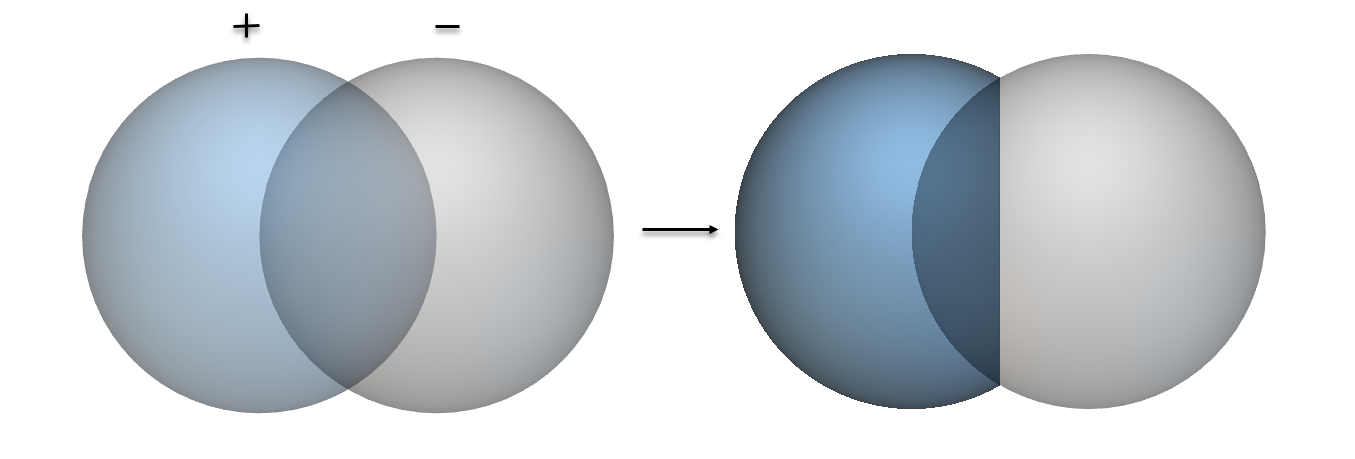
- Navigate to the Modeling tab and select the Boolean Subtract block.
- Drag the body you want to subtract from into the Primary Body input.
- In the Implicit Body List, drag the body (or bodies) you want to use for subtraction into the 0: input.
- (Optional) To subtract with more bodies, click the + icon in the Implicit Body List and add them.
- (Optional) To apply a fillet to the subtraction edge, adjust the Blend radius value.
Boolean Intersect
The Boolean Intersect block creates a new body from the shared, overlapping volume of two or more Implicit Bodies.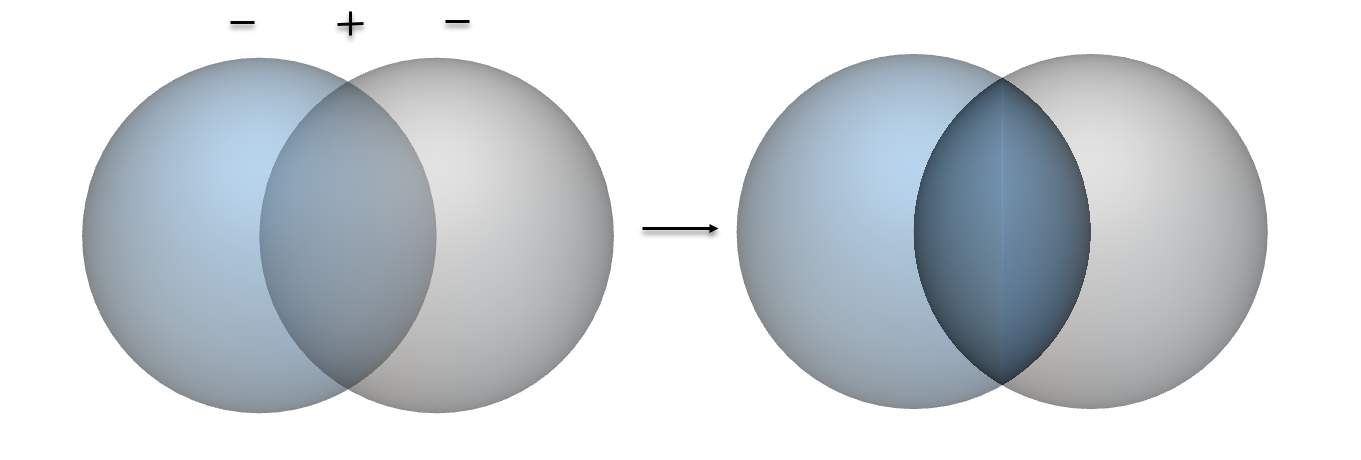
- Navigate to the Modeling tab and select the Boolean Intersect block.
- In the Implicit Body List, drag the Implicit Bodies you want to intersect into the 0: and 1: inputs.
- (Optional) To intersect more than two bodies, click the + icon in the Implicit Body List.
- (Optional) To apply a fillet to the intersection edge, adjust the Blend radius value.