

Objective:
Learn how to perform a Static Analysis.Procedure:
1. Run a Static Analysis (be sure you have completed the workflow up to the How to use Boundary Conditions article)-
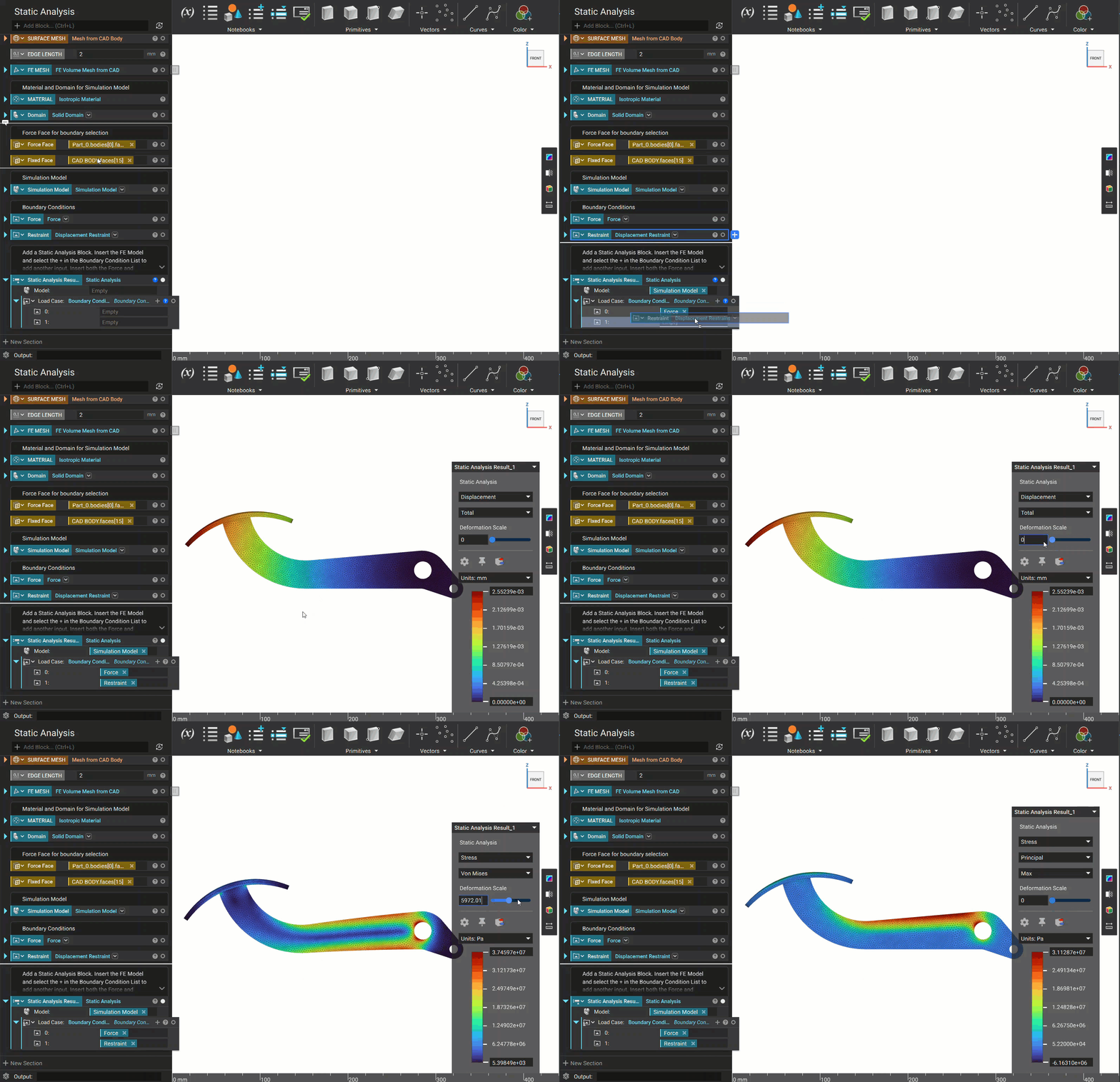
- Add a Static Analysis block.
- Insert the Simulation Model into the Model input.
- Add the Force BC to the BC List input (the error appears because the model needs to be restrained for the simulation to run).
- Press the ’+’ in the BC List to add another input.
- Insert the Restraint BC into the new input slot.
 2. Reading the Results
Once you run an analysis, a Heads-up Display (HUD) will appear showing the results. The HUD allows you to toggle through several different types of results and edit the upper and lower bounds of each.
2. Reading the Results
Once you run an analysis, a Heads-up Display (HUD) will appear showing the results. The HUD allows you to toggle through several different types of results and edit the upper and lower bounds of each.
Displacement
The Displacement results show how much your model moves under the given boundary conditions. You can see a scaled displacement version by clicking the Displacement checkmark and sliding the Scale Factor up. You can view the Total or Directional displacement by changing the second combo box from the top of the HUD.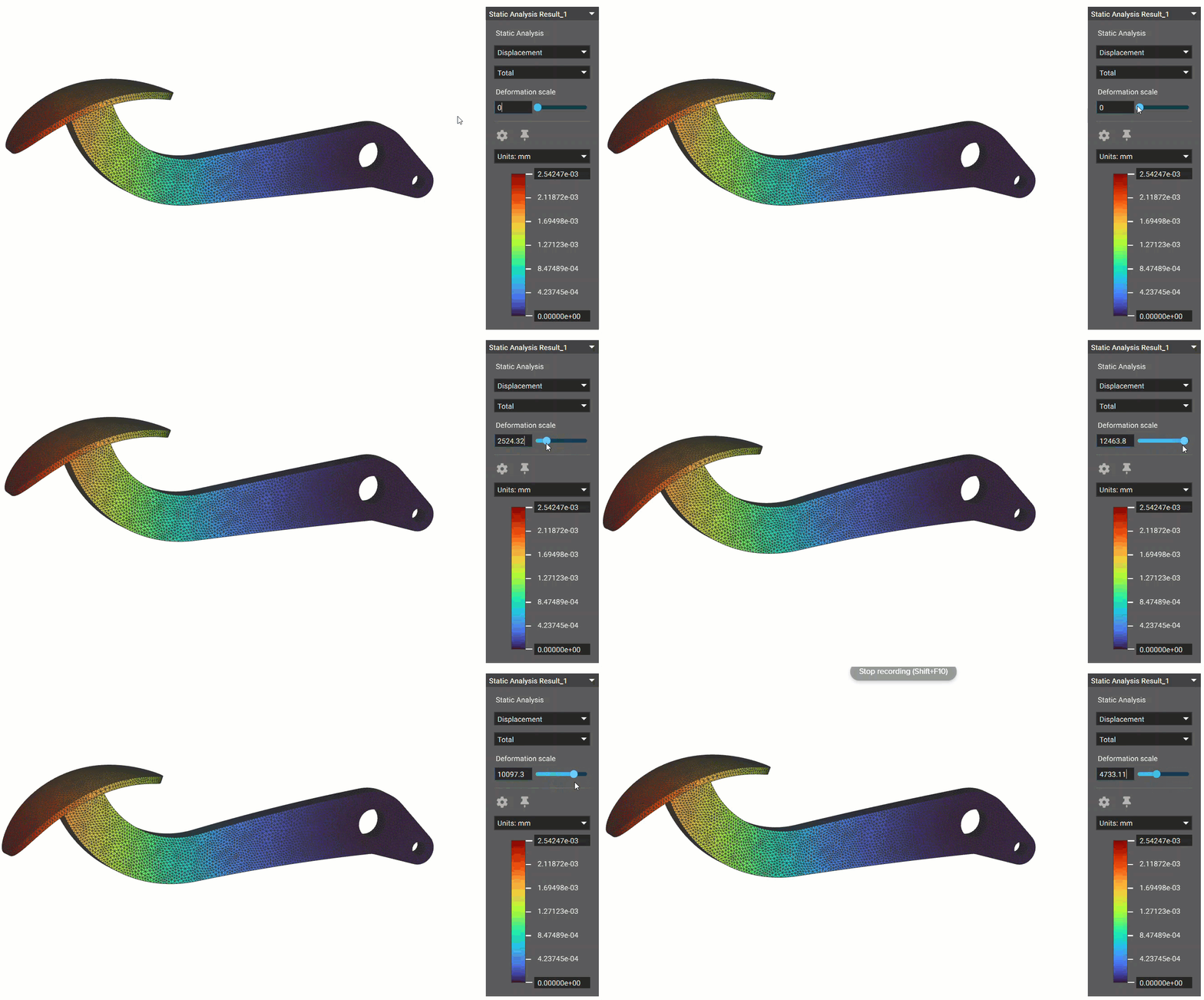
Strain
With the Strain option, you can view the Principal Strain for Min, Mid, and Max, or the Strain of Components.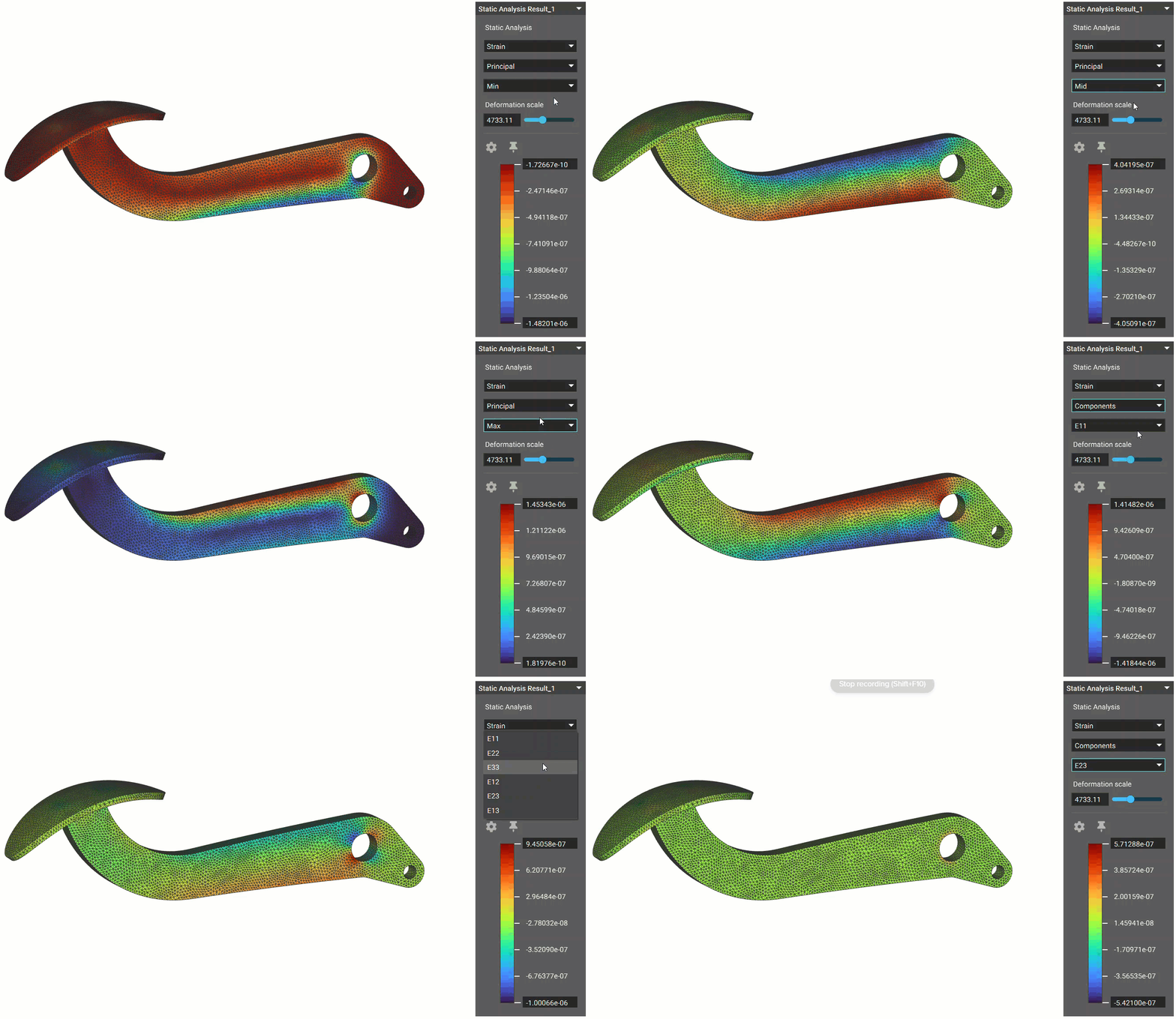
Stress
With Stress, you can view the Von Mises Stress, the Principal Stress, or the Components Stress.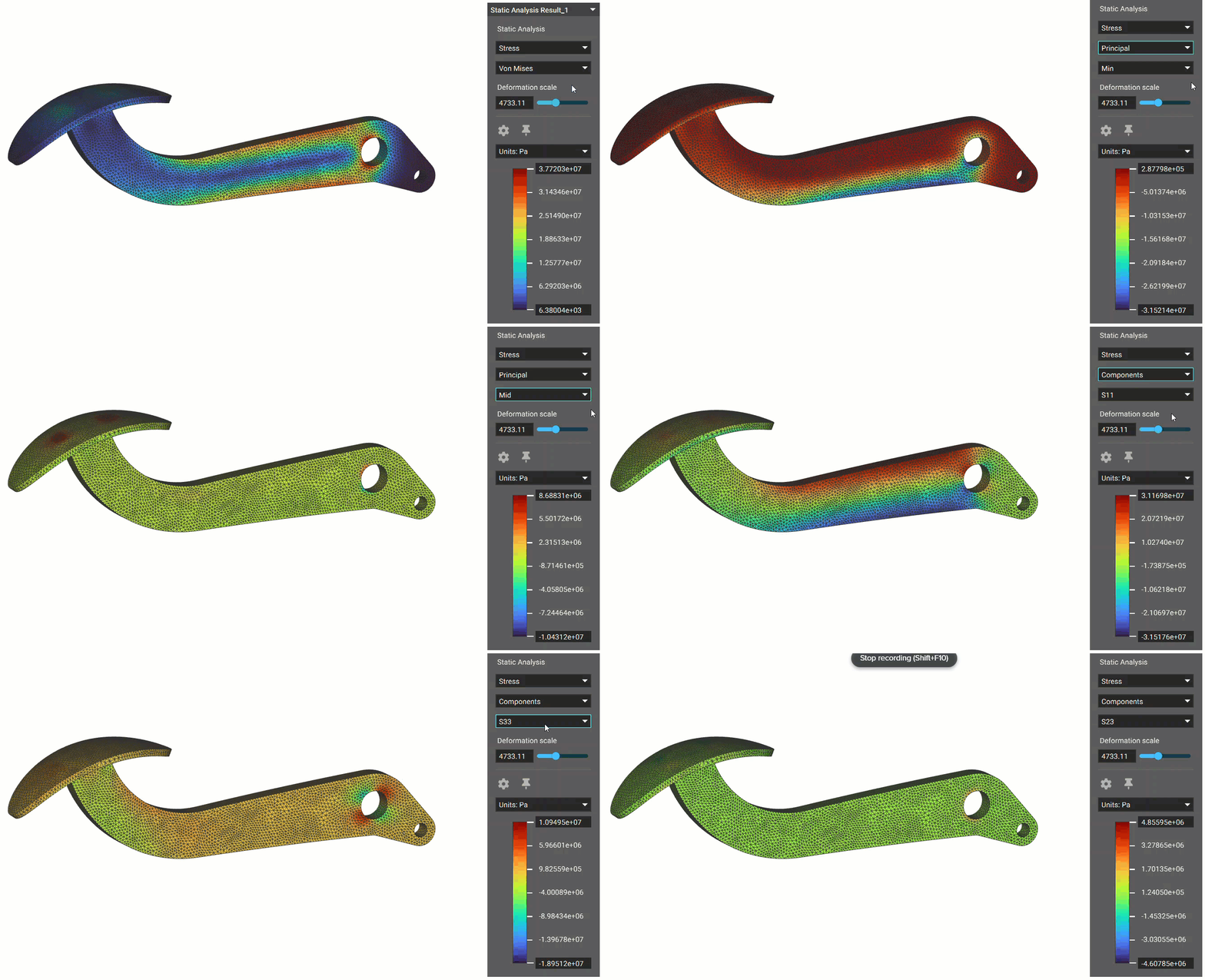
Reaction Forces
You can see the Total or Directional forces within the model with Reaction Forces.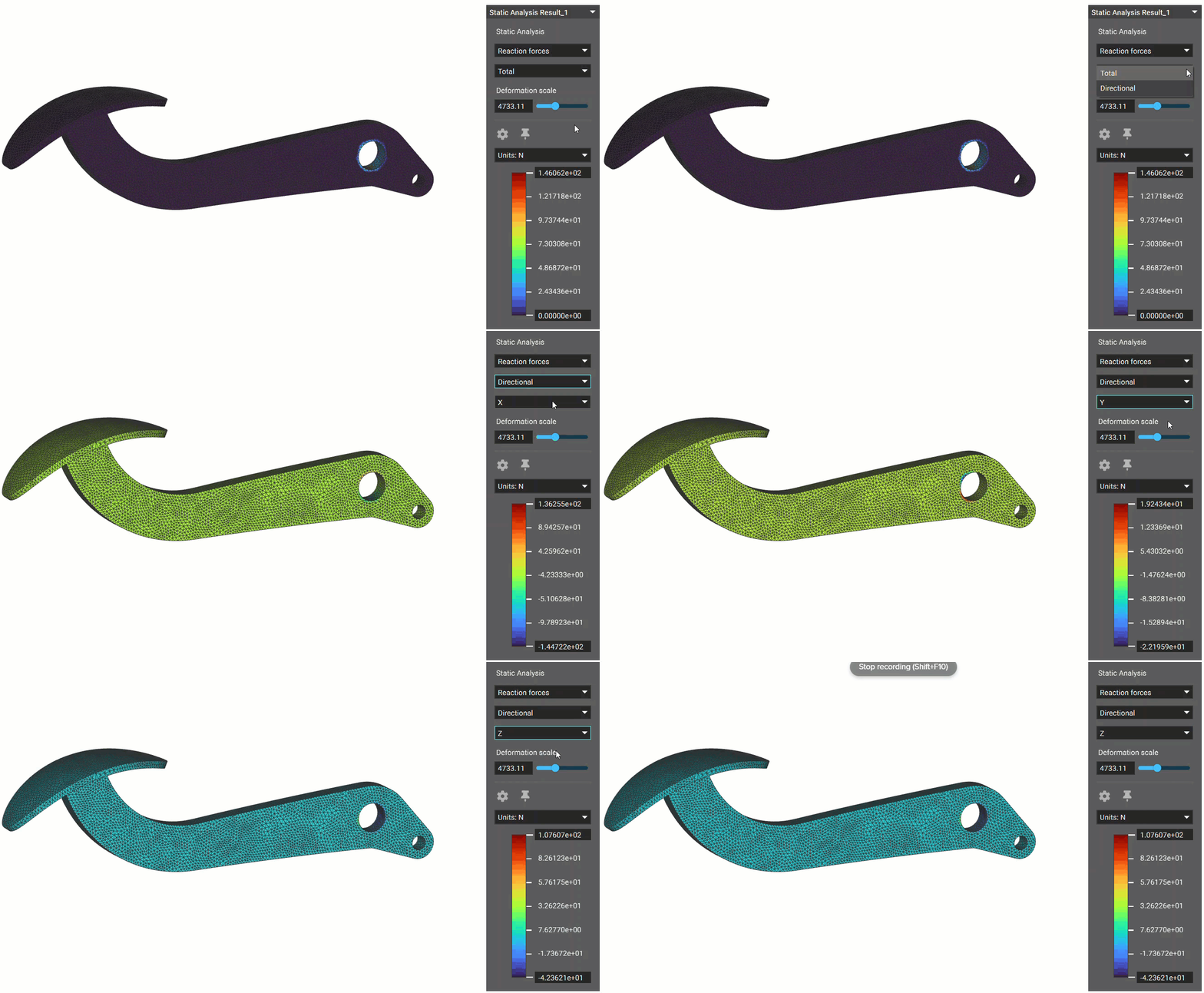 And that’s it! You’ve successfully run a Static Analysis.
Are you still having issues? Contact the support team, and we’ll be happy to help!
Move on to the next article in this series and learn how to create a Point Map from the Results.
And that’s it! You’ve successfully run a Static Analysis.
Are you still having issues? Contact the support team, and we’ll be happy to help!
Move on to the next article in this series and learn how to create a Point Map from the Results.