

Objective:
To determine a force/restraint block’s Nastran classification.Applies to:
- Nastran Simulations
- nTop Simulations
Solution:
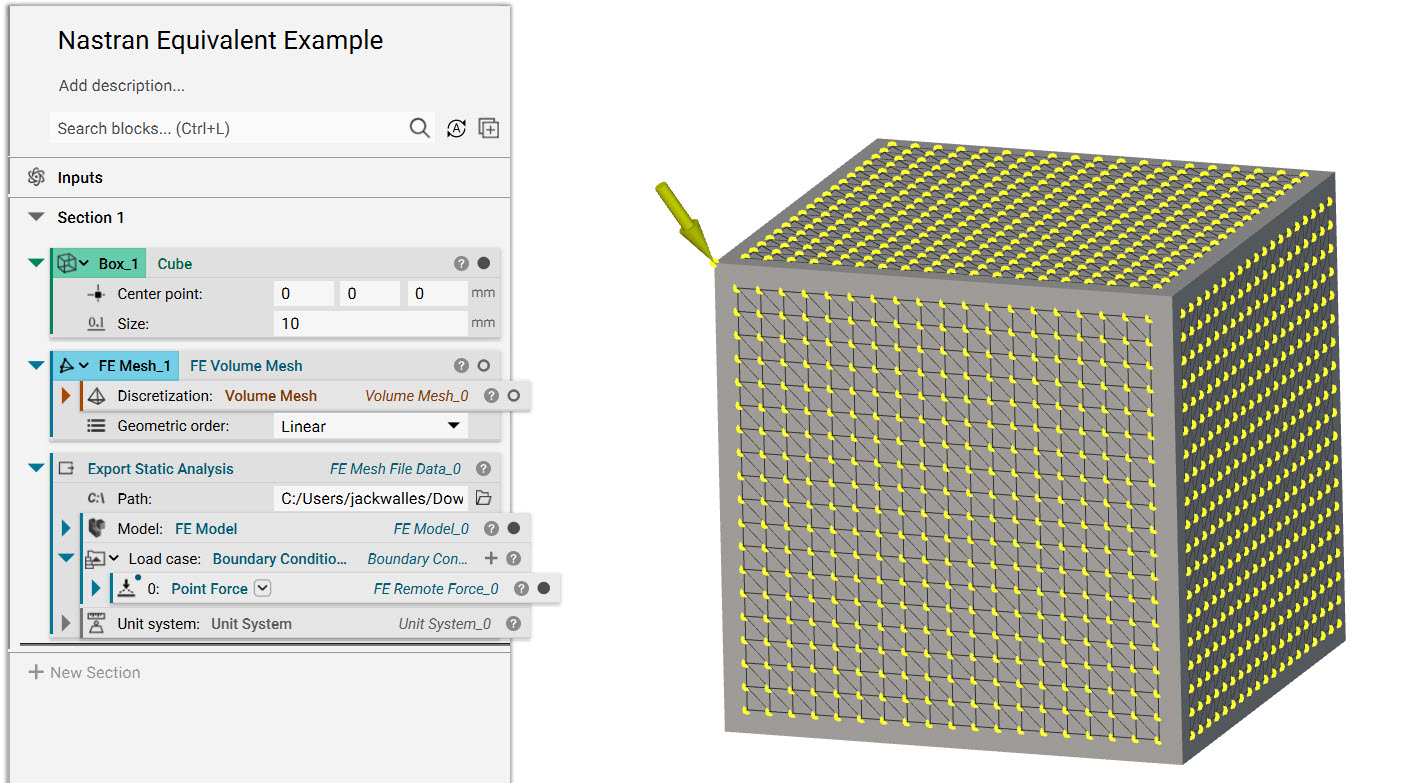
- This tutorial begins with a pre-setup Export Static Analysis block that contains one Point Force block as the boundary condition and an FE Model block of an aluminum cube. To learn how to set up a simulation, please consult this article.
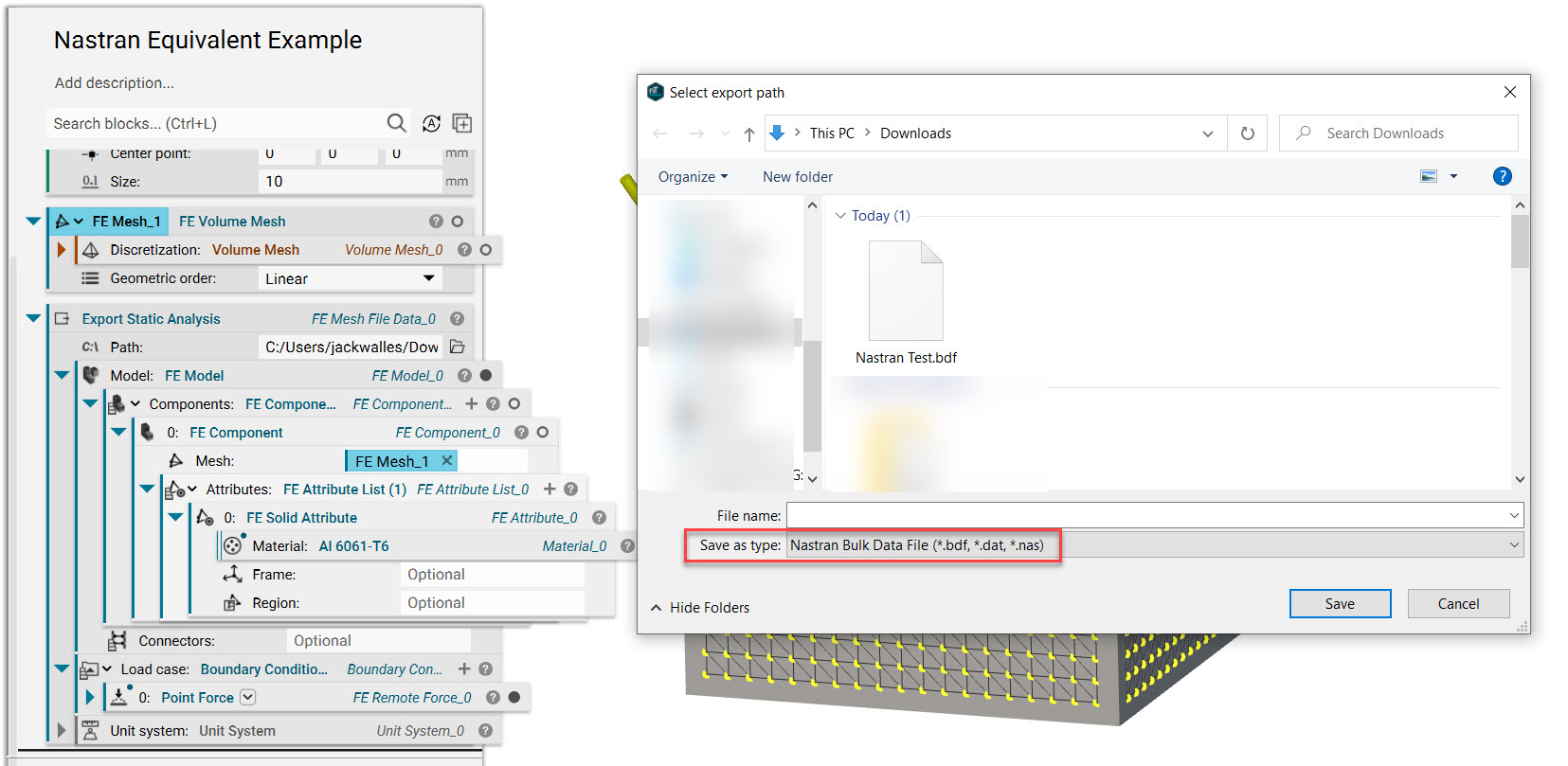
- Export the results as a Nastran file type (*.bdf, *.dat, *.nas).
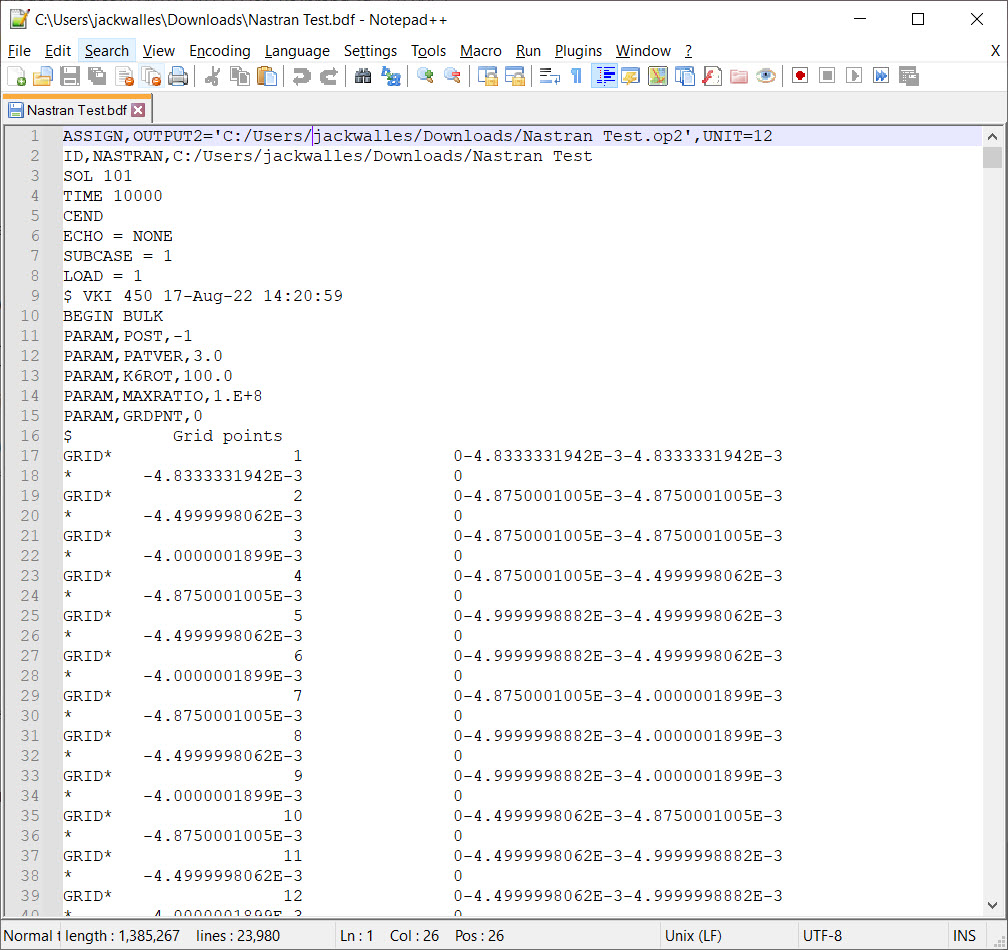
- Open the file using a text editing program. For this example, I will be using Notepad++.
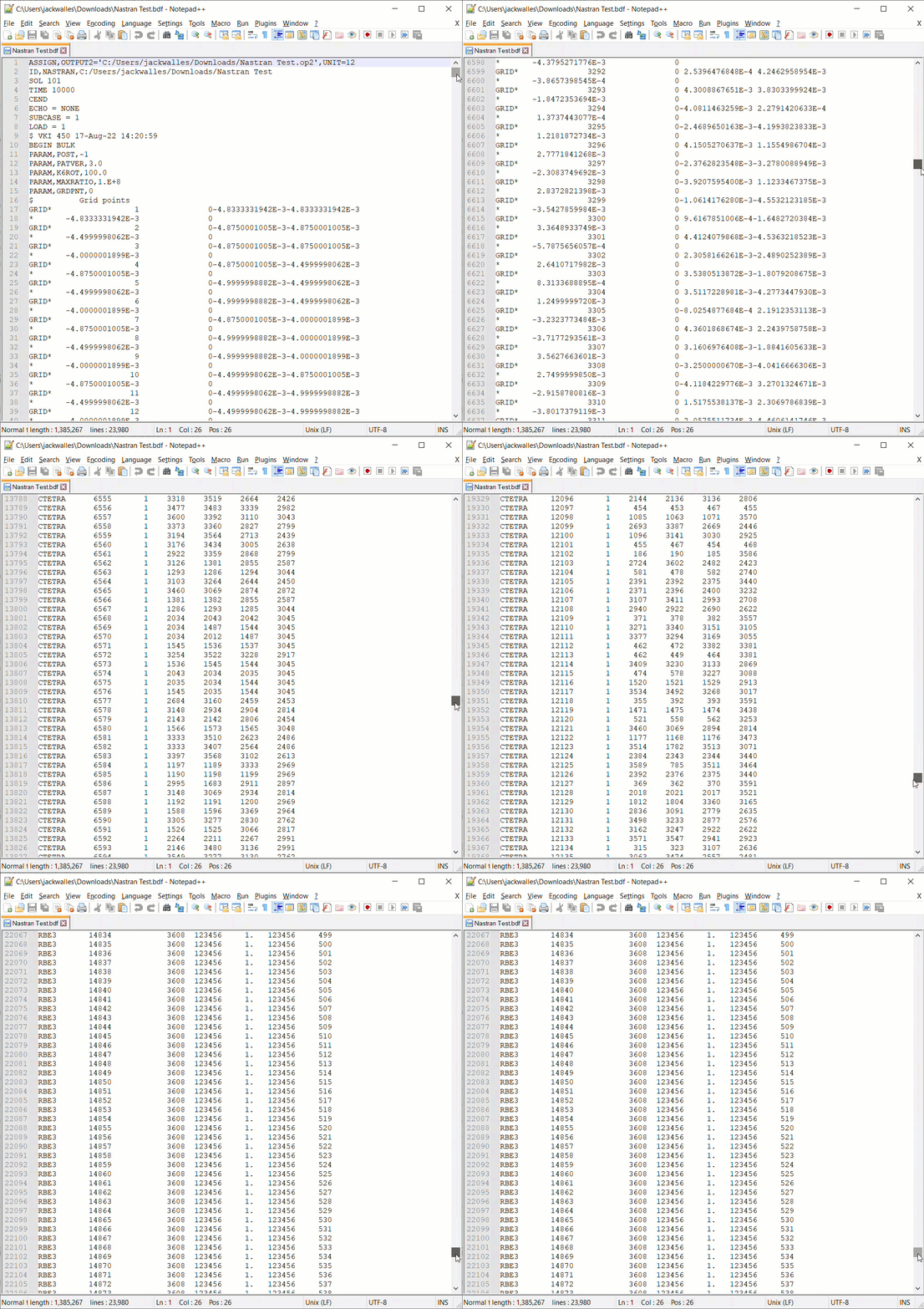
- Last, scroll down the document until you pass the CTETRA lines. CTETRA references a four-sided solid element connection, so all of these lines reference the solid object. Since the only force we applied was the Point Force block, we can see that the Nastran classification is RBE3.
 And that’s it! You’ve successfully determined a block’s Nastran classification.
Are you still having issues? Contact the support team, and we’ll be happy to help!
And that’s it! You’ve successfully determined a block’s Nastran classification.
Are you still having issues? Contact the support team, and we’ll be happy to help!