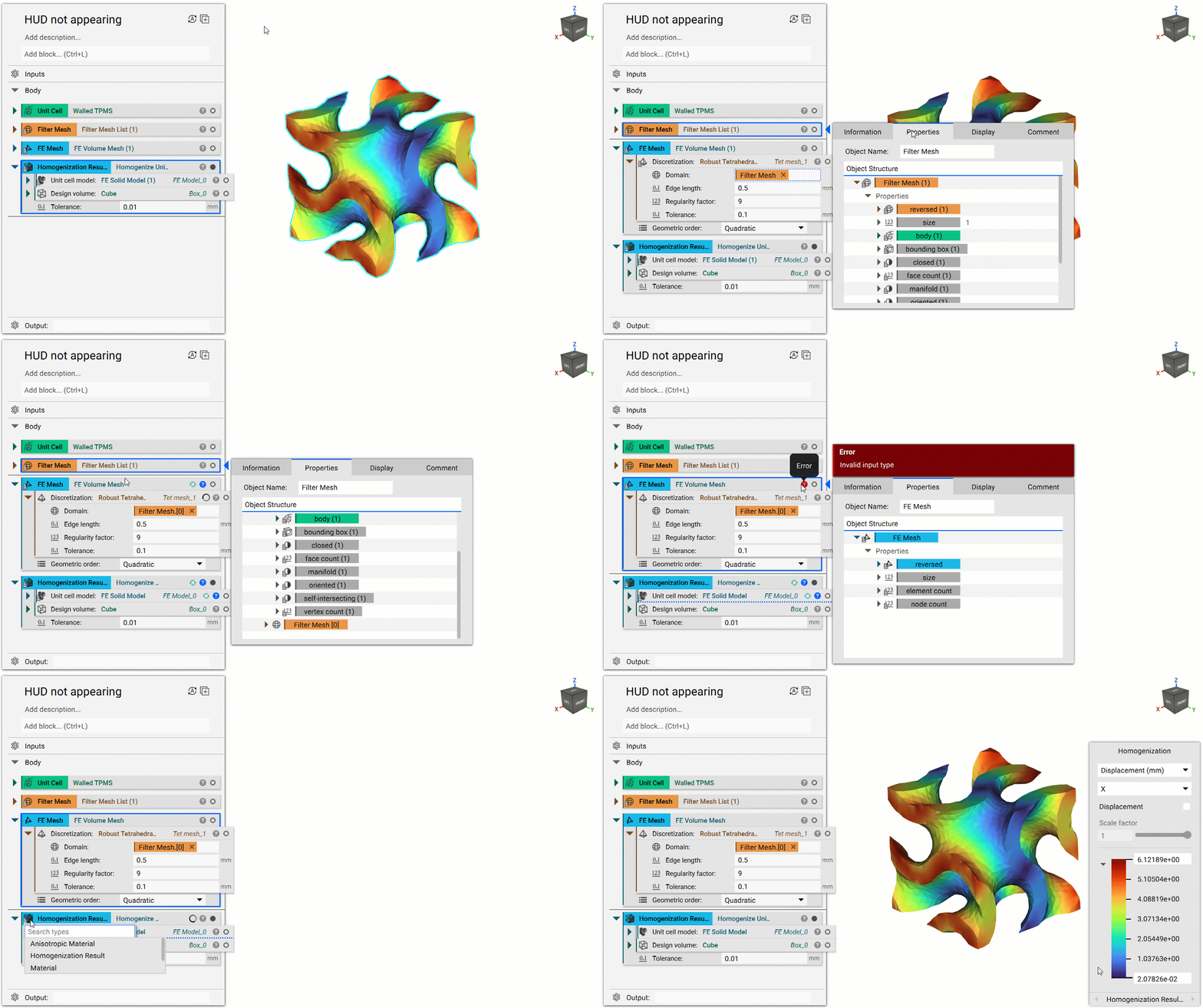
Issue:
I can run my simulation block, but once I get the results the window to view the properties doesn’t appear.Cause:
This is caused by a List input being entered into the Simulation block.Solution:
-
- Find out when the List appeared. It will have a (#) behind the block name and the List symbol will appear on the icon.
- Go to this block and open up the Info Panel.
- Go to Properties.
- Scroll down until you find a Chip of the same color as the block with a [0] behind the name. Use this as your input. This input is the same as the block but doesn’t have a List attached to it.
- Input the Property chip into the next block.
- You may receive an error ‘Invalid Input Type’. This is expected since the block is set up to receive a List.
- Select the Block Icon and choose the option that shows up in the drop-down that has the same name as that block. This will reset the block to not allow List inputs.
- Do this for all of the blocks that have a List icon and they will run as normal, allowing the Simulation Results window to appear.