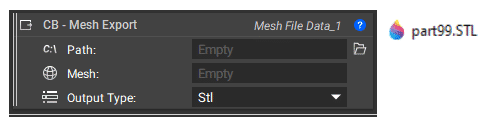
Below are some of our most common, easy-to-use custom blocks to get started in a workflow. Feel free to download these and add them to your “My Blocks Folder” to always have them available in nTop.CB Mesh Export: This block will export mesh files with a randomly generated number at the end of the name so it does not overwrite the previous exported mesh when changing the workflow.
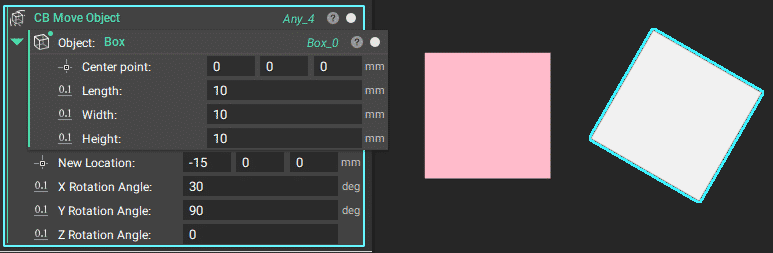
Example File:230_7_1 CB – Mesh Export.ntopThis file was last updated in nTop 3.38.4CB Move Object: This block moves the object’s center to the new location provided and can rotate the object.
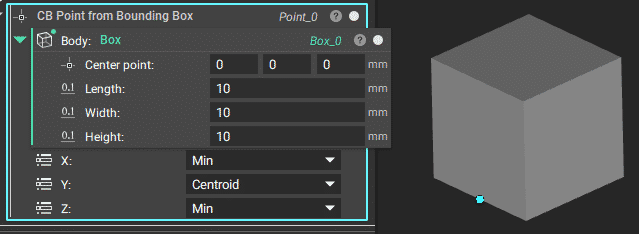
Example File:230_7_2 CB – Move Object.ntopThis file was last updated in nTop 3.38.4CB Point from Bounding Box: Input an implicit body and extract a point on the bounding box based on the min, max, or centroid values of the bounding box in x, y, and z.
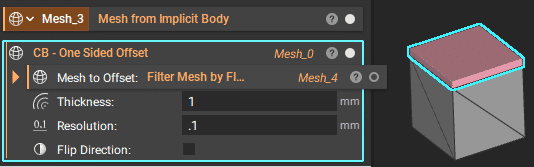
Example File:230_7_3 CB – Point from Bounding Box.ntopThis file was last updated in nTop 3.38.4CB One Sided Offset: Creates a one-sided offset based on a given mesh.
Example File:230_7_4 CB – One Sided Offset.ntopThis file was last updated in nTop 5.20. 2CB Implicit Body from CAD Faces: This custom block allows a user to select a list of CAD faces, add thickness to them, and trim them to the original bounding geometry. The result will be an implicit body with thickness.
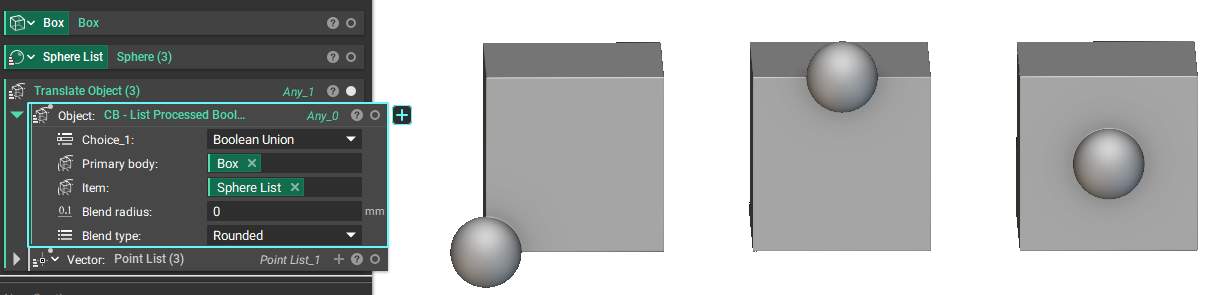
Example File:230_7_5 CB – Implicit Body from CAD Faces.ntopThis file was last updated in nTop 4.2.3CB List Processed Booleans: This custom block creates a list of implicit bodies that applied each item individually to the primary body. The default boolean operations would instead apply all items at once on the primary body and produce one body.